A broken link is a promise the page makes and cannot keep. The visitor clicks "Pricing 2020" and lands on "Page not found"; Googlebot follows the same link and wastes a fetch. Neither tells you. This guide shows how to find every broken link on a page in about a minute, how to read the result, and how to fix each kind without creating new problems.
Quick answer
- Run the broken link checker on the page. It requests up to 150 links (100 on your site, 50 to other sites) and lists the status of each.
- 404 or 410 on your own site: restore the page, or redirect it to the closest live page, then update the link to the final address.
- 5xx: the target is broken server-side. Fix the target first; the link is fine.
- No response (timeout, DNS): the target is down or gone. For external sites, replace the link or remove it.
- Redirects: not broken, but change the link to the final URL so visitors skip the hop.
- Re-run the check. The finding should read "All … checked links work".
Why broken links matter
For a visitor, a dead link is a dead end. Most people do not use the back button and try again; they leave. On a product page, a broken "size guide" link costs a sale; on a blog post, a broken source link costs trust.
For search engines the cost is quieter. Google crawls a site with a budget that depends on how fast and how useful the pages are. Every fetch that ends in a 404 is a fetch not spent on a page you want indexed. Links also pass ranking signals; a link to a 404 passes nothing, and a link through three redirects passes a little less each hop.
Broken links accumulate because nobody is looking. Products get retired, a campaign ends, a post is renamed, a partner site closes. The pages that pointed at them do not change, so the links quietly rot. A page from 2019 typically has one in ten links broken by now.
How getReport checks it
The tool runs a normal getReport report and shows the link findings from the SEO module. Behind it, the collector reads every <a href> on the page, drops anchors (#top), mailto: and tel: links and duplicates, and requests each unique URL with a HEAD request. Servers that refuse HEAD (a 405 or 403) get one GET of the first kilobyte, so a site that blocks HEAD does not show up as broken. Redirects are followed and counted.
Two findings come out of it:
The table under the findings is the part you will actually work from:
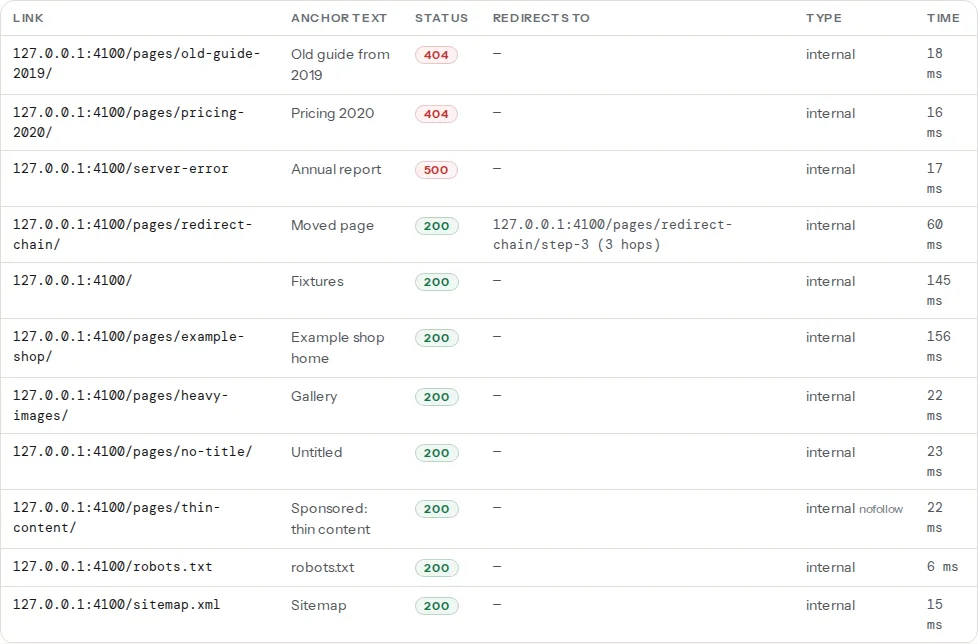
Columns, left to right:
| Column | What it tells you |
|---|---|
| Link | The URL as it appears in the page, without the scheme |
| Anchor text | The clickable words, so you can find the link in the editor |
| Status | The final HTTP status: green 2xx, amber 3xx, red 4xx/5xx or "no response" |
| Redirects to | The URL the link ends at, with the number of hops |
| Type | Internal (same host) or external, plus nofollow when the link carries it |
| Time | How long the request took; a slow external site shows up here first |
Step by step
1. Run the check on the page, not the domain
Paste the exact page you want to clean up, for example https://example.com/resources/. The checker looks at the links on that page. The home page is a good start because it links to the most important pages, but the pages with the most broken links are usually the old ones: resource lists, blog posts with many references, footers that were never updated.
2. Read the finding first, the table second
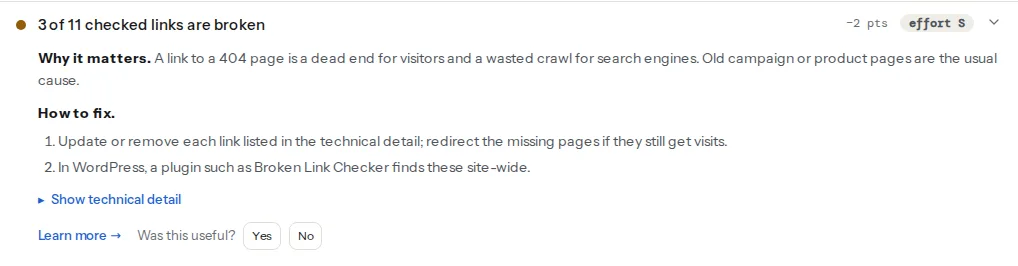
The finding at the top summarises: "3 of 11 checked links are broken". Open it to see the list with the anchor text, then scroll to the table for the rest. If the finding says "All 11 checked links work", you are done with this page; look at the redirect finding next.
3. Fix internal 404s at the target, not only at the link
A 404 on your own site means one of three things:
- The page moved. Add a 301 redirect from the old address to the new one, then update the link. The redirect catches every other link you do not know about, including the ones from other sites and from Google's index.
- The page was deleted on purpose. If it had traffic or backlinks, redirect it to the closest live page (a category, not the home page). If it had neither, remove the link and let the 404 stand; a 404 is a valid answer for a page that no longer exists.
- The link was always wrong. A typo in the address, a link to a draft, a copy-pasted staging URL. Fix the link.
For a redirect on nginx, in the server block:
# Old address → new address, permanent
location = /pricing-2020/ {
    return 301 /pricing/;
}
On Apache, in .htaccess at the site root:
Redirect 301 /pricing-2020/ /pricing/In WordPress, the Redirection plugin or the redirect manager in Rank Math and Yoast Premium does the same from the admin; no file editing needed.
4. Treat 5xx and "no response" as a different problem
A 500, 502 or 503 means the target page crashed or the server was overloaded when we asked. The link is correct; the page is sick. Open it in a browser. If it works now, the error was a moment of overload and worth watching, not fixing. If it still fails, it is a bug on that page (a plugin error, a database timeout), and the link will heal when the page does.
"No response" means the request never got an answer: the domain does not resolve, the server does not accept connections, or it took longer than eight seconds. For an external site, check it in a browser; if it is gone, either link to an archived copy on the Wayback Machine or remove the link and keep the text.
5. External links: replace, archive or remove
You cannot fix another site's 404. Your options, in order of usefulness to the reader:
- Find the same content at its new address (search the site for the title) and update the link.
- Link to the Wayback Machine copy:
https://web.archive.org/web/2024/https://example.com/old-page/. Say so in the link text ("archived copy"). - Remove the link and keep the words. A sentence without a link is better than a link to nothing.
External links that redirect are normal (many sites moved from http to https and from www to bare). Updating them is polite, not urgent.
6. Redirecting internal links: update them to the final URL
A link that redirects still works, so it is listed as info, not as a warning. It is still worth a minute: each redirect adds a round trip for the visitor (50–300 ms), the browser cannot start loading the target until the redirect answers, and a chain of two or three redirects is where things eventually break. After a domain, https or trailing-slash change, most internal links redirect until someone updates them.
The "Redirects to" column shows where each link ends. Copy that address into the editor in place of the old one. In WordPress, the Better Search Replace plugin updates hundreds of old addresses in one pass; take a backup first.
7. Re-run and keep the link
Run the checker again on the same page. The report is a new one (the cache keeps results for 12 hours, so use the "Re-run" link or wait), and the finding should now read "All … checked links work". Keep the report link; it is your before/after evidence.
Platform notes
WordPress. Links inside content are in the post editor; links in menus under Appearance → Menus; links in widgets and footers under Appearance → Widgets or the theme customizer. The Broken Link Checker plugin finds broken links site-wide, but it runs from your own server and can slow it down; run it once, fix, then deactivate it. For the "?p=123" style links the WordPress checker flags separately, see Permalinks: from ?p=123 to real slugs.
Shopify. Broken links in theme sections are edited in the theme customizer; in products and collections, in the description editor. Shopify's own navigation editor warns when a menu item points at a deleted product.
Static sites. Search the source for the old path (grep -r "/pricing-2020/" content/) and add redirects in the host's config (_redirects on Netlify, vercel.json on Vercel, redirects in netlify.toml).
Verify
- The finding reads "All N checked links work" and the redirect finding reads "No link on the page goes through a redirect" (or lists only external redirects you chose to leave).
- Redirects you added answer 301 once, not twice: run the redirect checker on the old address.
- Search Console → Pages → "Not found (404)" stops growing over the next weeks.
Common mistakes
- Redirecting everything to the home page. Google treats a redirect to an unrelated page as a soft 404, and visitors get lost. Redirect to the closest equivalent or let the 404 stand.
- Fixing the link but not adding a redirect. Other pages, other sites and Google's index still point at the old address. The redirect fixes all of them at once.
- Deleting old posts to "clean up". Every deleted URL with backlinks loses the value of those links. Redirect instead.
- Leaving redirect chains after a migration. Old → old-https → new-www → new. Point every old address at the final URL directly.
- Blocking HEAD requests on the server. Some security rules reject
HEAD, which makes every link checker (not only ours) report false errors. AllowHEADfor public pages. - Checking only the home page. The pages with the most broken links are the oldest. Run the checker on a sample of old posts and resource pages, or wait for the site crawl, which checks every page.
What the site-wide version adds
This tool checks one page. The crawl milestone (a funded unlock on the funding page) checks every page of the site, finds pages that no link reaches, and lists broken links per page with the page that links to them. Until then, the sitemap validator's sampled status check catches pages that are listed but broken: see XML sitemap validation.