LiteSpeed Cache has more than a hundred switches spread over eleven admin pages, and the defaults are cautious. Most of the speed comes from about fifteen of them. This guide goes through the tabs in the order that pays, says which features only work on a LiteSpeed server or through QUIC.cloud, and tells you what to check in the report after each tab. Budget an hour, with a purge and a re-test after every section.
Quick answer
- The page cache (Cache → Cache) only works on LiteSpeed Enterprise, OpenLiteSpeed or through the QUIC.cloud CDN. On Apache or nginx it does nothing; the Page Optimization tabs still work.
- Cache → Browser: Browser Cache ON, TTL
31557600. This is the fix for the cache-headers finding. - Page Optimization → CSS: CSS Minify ON, Load CSS Asynchronously ON, Generate UCSS ON (QUIC.cloud quota), CSS Combine OFF.
- Page Optimization → JS: JS Minify ON, Load JS Deferred = Deferred first; Delayed only after testing sliders and forms.
- Media: Lazy Load Images ON with the hero excluded, Add Missing Sizes ON.
- Leave Guest Mode and the Crawler off unless you know why you want them; on WooCommerce keep cart, checkout and account out of every cache.
- Export the settings from Toolbox before you start, so rollback is one import.
Why the settings matter
A caching plugin decides three things the report measures directly: how fast the first byte arrives (page cache), how soon the browser can paint (CSS and JS delivery) and whether returning visitors download the same files again (browser cache). A default LiteSpeed Cache install with the cache on and everything else off fixes the first and leaves the other two alone. That is why sites with the plugin active still get render-blocking and unused-CSS findings.
The other reason to be deliberate is that the optimisation switches rewrite your HTML. Combining files, deferring scripts and generating critical CSS are the settings that break menus, sliders and checkout forms when they are turned on all at once. Turning them on one tab at a time, with a check after each, means that when something breaks you know which switch did it.
How getReport checks it
The plugin detector recognises LiteSpeed Cache two ways: from asset paths under /wp-content/plugins/litespeed-cache/ (with the version from the ?ver= query string) and from the x-litespeed-cache response header, which only a LiteSpeed server sends. If the table lists the plugin but the header evidence is missing, the page cache is not serving your pages, which is the first thing to know.
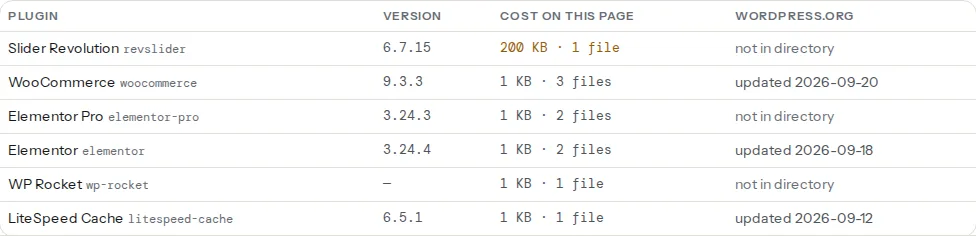
The findings that move as you work through the tabs:
The report cannot see your settings, only their effect. The evidence line under each finding names the files: the stylesheet that still blocks, the image without a cache lifetime, the script served uncompressed. Work from those lists rather than from the plugin's own dashboard score.
Step by step
1. Find out what server you are on
Open the speed test result and look at the server header in the technical detail, or run curl -sI https://example.com/ | grep -i -E "server|x-litespeed". server: LiteSpeed means the page cache will work. Apache or nginx means it will not, unless you route the domain through the QUIC.cloud CDN (LiteSpeed Cache → CDN → QUIC.cloud CDN Setup), which caches pages at its edge. On Apache or nginx without QUIC.cloud, skip step 2 entirely and treat LiteSpeed Cache as an optimisation plugin; a host-level page cache or another plugin's page cache has to do that job. Never run two page caches: the duplicate-cache finding exists because the combination serves stale pages and double-minifies scripts (see two caching plugins: why it breaks).
Before changing anything: LiteSpeed Cache → Toolbox → Import / Export, click Export Settings and keep the file. That is your rollback.
2. Cache tab
LiteSpeed Cache → Cache. On the Cache tab, Enable Cache ON. Cache Logged-in Users OFF: logged-in views are personal and should never be shared. Cache Commenters OFF for the same reason. On the TTL tab the defaults (a week for public pages, shorter for the front page) are fine; the plugin purges on every post update anyway, so a long TTL costs nothing.
The Excludes tab is where WooCommerce lives. In Do Not Cache URIs add one path per line: /cart/, /checkout/, /my-account/ plus any translated versions; paths match as prefixes, so /checkout/order-received/ is covered. In Do Not Cache Cookies add woocommerce_items_in_cart, woocommerce_cart_hash and wp_woocommerce_session_. LiteSpeed recognises WooCommerce and skips these pages on its own, but the explicit rules survive theme changes and custom slugs. On the WooCommerce tab keep Privately Cache Cart ON; a private cache is per visitor and safe.
ESI (Edge Side Includes, the ESI tab) lets the cached page keep a dynamic block, such as the mini-cart or the admin bar, while the rest is served from cache. It needs a LiteSpeed server. Turn it on only when the mini-cart shows stale counts with the page cache active.
The Object tab connects Redis or Memcached when the host provides one. It speeds up uncached views and the admin, not cached pages. If the host's panel offers Redis, enable it here with the host and port they give you; if not, skip it.
3. Page Optimization → CSS Settings
CSS Minify ON. Load CSS Asynchronously ON: LiteSpeed then generates critical CSS per page through QUIC.cloud (you need a domain key from LiteSpeed Cache → General) and loads the full stylesheets after the first paint. Generate UCSS ON sends each page to QUIC.cloud, which keeps only the rules the page uses; UCSS Inline puts the result in the page. Both use QUIC.cloud quota; the free allowance covers a small site.
CSS Combine stays OFF on HTTP/2 sites, which is nearly all of them. One combined file blocks longer than several small ones, and on WooCommerce it merges per-product styles into a file every page must download. Font Display Optimization set to Swap gives every @font-face rule a font-display: swap, which stops blank headings while fonts load.
Save Changes, Toolbox → Purge All, load the site as a logged-out visitor. The first visit to each page still serves the old CSS while critical CSS and UCSS are generated in the background; give the queue a few minutes (LiteSpeed Cache → Dashboard shows it). If drop-down menus or slider arrows lose their styling, open the Tuning tab and add their selectors to the UCSS allowlist.
4. Page Optimization → JS Settings
JS Minify ON. Load JS Deferred set to Deferred: scripts download in parallel and run after the HTML is parsed, which removes them from the render-blocking list. JS Combine OFF for the same reason as CSS Combine.
Delayed goes further: scripts do not run until the first scroll, tap or keypress. It helps INP and Total Blocking Time because analytics, chat widgets and social embeds stop competing with the page. The side effects are real: sliders that start blank, forms whose validation loads late, a cookie banner that appears only after the visitor moves, and on the checkout a payment field that is empty until someone clicks. Try Delayed last, one page at a time, and add anything that must run immediately to JS Delayed Excludes on the Tuning tab. A $ is not defined error in the browser console means an inline script needed jQuery first; exclude jQuery in JS Deferred Excludes.
5. Page Optimization → HTML Settings
HTML Minify ON is a few kilobytes and harmless. DNS Prefetch and DNS Prefetch Control add dns-prefetch hints for third-party hosts; a small win. Remove Query Strings is cosmetic: the report does not care whether a file is style.css?ver=6.5 or style.css, and stripping the version breaks cache-busting after updates. Leave it off.
Google Fonts: Load Google Fonts Asynchronously keeps the fonts but stops the stylesheet blocking; Remove Google Fonts drops them entirely and is the right choice when the theme has a local copy or you switch to a system font stack. Remove WordPress Emoji is one script fewer on every page.
Note
HTML Minify is not compression. Gzip and Brotli are web-server settings, and LiteSpeed Cache has no switch for them. On a LiteSpeed server they live in the WebAdmin console under Server Configuration → Tuning; on Apache and nginx the host enables them. The text-compression finding tells you whether it is on.
6. Media Settings and Image Optimization
Page Optimization → Media Settings: Lazy Load Images ON, Lazy Load Iframes ON, Add Missing Sizes ON so images without width and height do not shift the layout when they appear. Viewport Images (VPI) ON with its cron lets QUIC.cloud work out which images sit above the fold on each page and keep them out of lazy loading. Without VPI, exclude the hero and logo by hand on the Media Excludes tab: part of the file name in Lazy Load Image Excludes, or the CSS class in Lazy Load Image Class Name Excludes. A lazy-loaded hero is the single most common way a caching plugin makes LCP worse, and the LCP finding in the report names the element.
LiteSpeed Cache → Image Optimization → Image Optimization Settings: Auto Request Cron ON, Auto Pull Cron ON, Image WebP Replacement ON (newer versions call it Next-Gen Image Format and offer AVIF). Then Image Optimization Summary → Send Optimization Request, and Pull Images when the batch is ready. The library goes through QUIC.cloud's image service; the free quota covers a few hundred images a month. Keep Remove Original Backups OFF until you have looked at the results.
7. Cache → Browser
Browser Cache ON, Browser Cache TTL 31557600 (a year, the default once enabled). The plugin writes an Expires block into .htaccess, or on a LiteSpeed server straight into the server configuration. This is the setting behind the cache-headers finding: without it, every returning visitor downloads the logo, the theme CSS and every script again. If .htaccess is not writable, the plugin says so on save; ask the host. On nginx the file is ignored and the host has to add an expires 1y; block instead:
# nginx server block: a year for static files LiteSpeed cannot configure itself
location ~* \.(css|js|woff2?|png|jpe?g|gif|svg|webp|avif)$ {
    expires 1y;
    add_header Cache-Control "public, immutable";
}
8. The settings to leave alone
Guest Mode and Guest Optimization (General tab) serve the very first, uncached visit a generic cached copy with the heaviest optimisations applied, then load the real page afterwards. It makes lab tests look faster and can show a logged-out visitor a page that ignores their language, currency or cart. Leave both OFF on any site with per-visitor content, which includes every shop.
Crawler (its own page) pre-warms the cache by fetching your pages in the background. On shared hosting it competes with visitors for CPU and many hosts disable it; on a VPS with a LiteSpeed licence it is useful for a large catalogue. Mostly off.
CSS Combine with WooCommerce and Delayed JS on the checkout are the two combinations that generate the most support tickets. If you enable either, test an order end to end.
9. Purge, re-test, compare
After each tab: Toolbox → Purge All, then run the speed test on the same page twice (the first run after a purge is the cache miss). Compare the findings, not the score: render-blocking resources should list fewer files after the CSS and JS tabs, the cache-headers finding should pass after the Browser tab, and the LCP element must not be a lazy-loaded image.
Platform notes
WooCommerce
Everything in step 2 about exclusions, plus: the cart fragments request (wc-ajax=get_refreshed_fragments) still fires on every page with LiteSpeed Cache 6.5, because the plugin has no switch for it. The WooCommerce checker reports it; the fix is a small snippet from the cart fragments guide, not a LiteSpeed setting.
Cloudflare or another CDN in front
Cloudflare caches static files and, by default, not HTML, so it does not conflict with the page cache. If you enable Cloudflare's HTML caching (a Cache Rule with "Cache everything"), you now have two page caches and LiteSpeed's purge does not reach the edge; use the plugin's CDN tab Cloudflare integration so a purge clears both, or leave HTML caching to one layer.
Multisite
Settings are per site unless Network Admin enables "Use Primary Site Configuration". Check which one you are editing before you purge.
Verify
curl -sI https://example.com/showsx-litespeed-cache: hiton the second request.misson every request means the page is excluded or the server is not LiteSpeed.- The plugin detector lists LiteSpeed Cache and no second caching plugin.
- Cache-headers finding: "Static files have a cache lifetime". Render-blocking finding: the evidence lists only files you chose to keep blocking, or none.
- A private window: menus open, the slider moves, a test order goes through, the mini-cart updates after "Add to basket".
- Toolbox → Import / Export: the settings file from step 1 is still safe.
Common mistakes
- Page cache "on" on an Apache or nginx host. The tab saves, nothing is cached, TTFB does not move. Check the
serverheader first; use the host's cache or the QUIC.cloud CDN. - Everything on at once. When the checkout breaks you cannot tell whether it was Combine, Delayed JS or UCSS. One tab per purge.
- Hero image lazy-loaded. LCP gets worse, not better. Exclude it by class or file name, or turn on VPI.
- Remove Query Strings as a "fix". The report does not score it, and after the next theme update visitors see the old CSS from their browser cache.
- Guest Mode on a shop. First-time visitors get a generic page. Off.
- Two caching plugins. WP Rocket "for the extras" beside LiteSpeed Cache means two page caches expiring separately and two minifiers. Keep one; the WP Rocket settings guide covers the other side if the host is not LiteSpeed.