Elementor is a framework that runs in the visitor's browser. Whatever a page uses, it ships its front-end script, its stylesheet, an icon set and a slider library, and it wraps every heading and button in a stack of container divs so the editor can position them. That is the price of dragging and dropping, and on a page built with care it is a price worth paying. On most sites it is paid twice: once for the framework and once for the settings nobody switched on. This guide shows where the weight comes from, what each Performance setting does, how to handle fonts, and how to measure the builder's share of a page before and after. Plan an hour, and regenerate the CSS after every change.
Quick answer
- Elementor → Settings → Performance: switch on Optimized CSS Loading, Optimized DOM Output, Improved Asset Loading, Inline Font Icons and Element Caching. If a switch is missing in your version, it has become the default.
- Settings → Advanced: CSS Print Method to External File; Google Fonts Load to Swap, or Google Fonts to Disable and self-host.
- Settings → General: tick Disable Default Colors and Disable Default Fonts.
- Elementor → Element Manager: deactivate every widget the site does not use.
- Elementor → Tools → Regenerate CSS & Data, then purge the page cache. Nothing above takes effect until you do.
- Measure with the WordPress plugin detector: the Page builder card shows Elementor's share of the CSS and JavaScript and of the DOM.
Why Elementor's weight matters
A visitor on a mid-range phone downloads, parses and runs every script before the page responds to a tap, and lays out every element before it paints. Elementor's core front end on its own is a few hundred kilobytes of CSS and JavaScript compressed; add Elementor Pro, an add-on pack, Font Awesome and a Google Fonts stylesheet, and a page with three widgets ships the same 700 KB as a page with thirty. That weight lands directly on the Core Web Vitals: render-blocking stylesheets delay the first paint, the script bundle delays interaction, and the wrapper divs multiply the layout work behind Cumulative Layout Shift and Interaction to Next Paint.
The weight comes from five places:
- Scripts:
frontend.min.js,frontend-modules.min.jsandwebpack.runtime.min.jsfrom Elementor, the same trio again from Elementor Pro, and the Swiper slider library, loaded whether the page has a slider or not. - Stylesheets: the core
frontend.min.css(or the lighterfrontend-lite.min.csswhen optimised loading is on), aglobal.cssunder/uploads/elementor/css/, and onepost-{id}.cssper page. - Icon fonts:
elementor-icons(eicons) plus the Font Awesome solid, regular and brands sets, each a stylesheet and a font file. - Web fonts: the Google Fonts stylesheet Elementor builds from every font family used in Site Settings and in widgets.
- The DOM: the section → container → column → column-wrap → widget-wrap → widget → widget-container stack of the classic layout, four to six elements per widget before its own markup.
Each of those has a setting.
How getReport checks it
The detector recognises Elementor from the elementor-section, elementor-widget and elementorFrontend markers in the page and from asset paths under /wp-content/plugins/elementor/ and /wp-content/plugins/elementor-pro/. The page is then loaded in Chromium and every network request is recorded. For the Page builder card, the report adds up the compressed bytes of every script and stylesheet whose URL is under /plugins/elementor/, /plugins/elementor-pro/ or /uploads/elementor/ (that last folder holds the generated global and per-page CSS) and divides by all the CSS and JavaScript the page loaded. For the DOM share it counts the elements in <body> whose class contains elementor- against all elements in <body>. The finding warns when the builder is at least half of the code and at least 100 KB, or at least half of the elements and at least 600 of them.
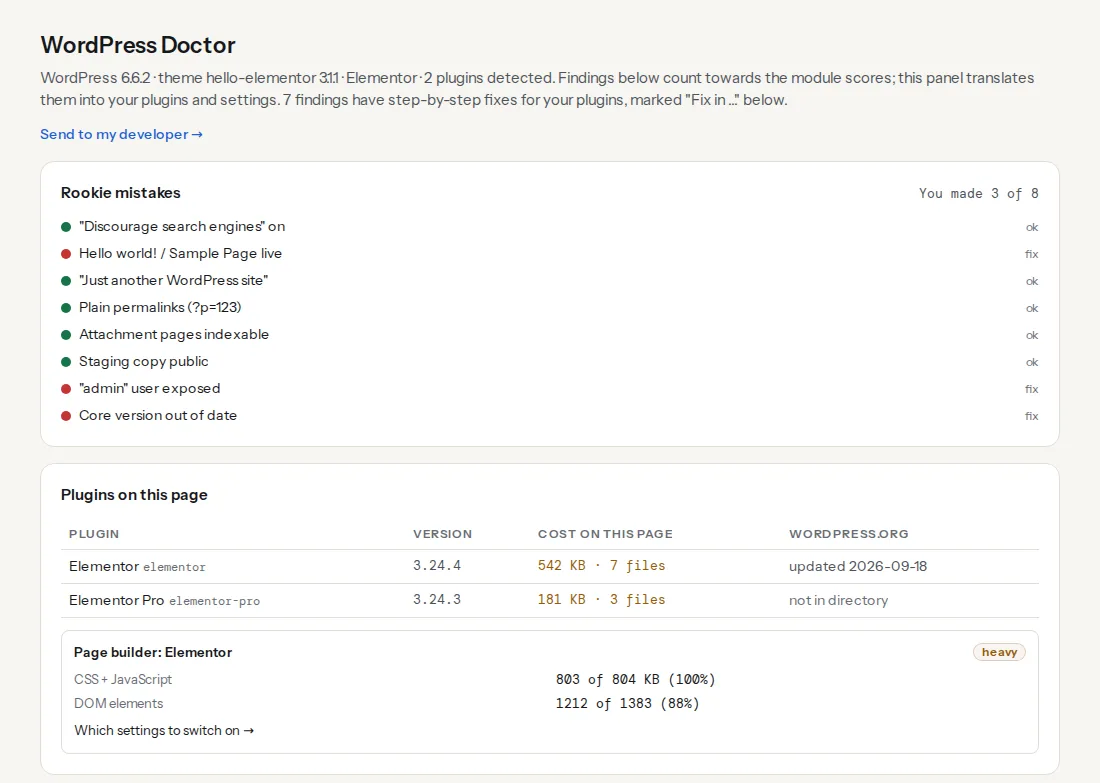
The builder finding's fix names the Performance settings in the same words Elementor uses. Three speed findings from the Lighthouse run show the same weight from the visitor's side:
When the report detects Elementor, each of these four findings gets a "Fix in Elementor" card with the steps for version 3.25, so you can work from the report itself. The page builder weight learn page has the thresholds.
Step by step
1. Take the baseline
Run the detector on the home page and on one inner page built with Elementor. Note three numbers from the Page builder card: kilobytes, code share, DOM share. Keep the report link; it is your before picture.
2. Settings → Performance
Each option is a switch or an Active/Inactive dropdown depending on the version:
- Optimized CSS Loading: widget styles load per widget on the pages that use them, instead of one bundle everywhere. This is the difference between
frontend.min.cssandfrontend-lite.min.cssin the page source. - Optimized DOM Output: removes the
elementor-inner,elementor-rowandelementor-column-wrapwrappers from the markup, roughly two elements per widget. Custom CSS that targets those classes stops matching; check the page after switching. - Improved Asset Loading: splits the front-end JavaScript so the Swiper, lightbox and similar modules load only where a widget needs them.
- Inline Font Icons: renders icons as inline SVG, so the Font Awesome and eicons stylesheets and font files are not requested at all. This removes three render-blocking files on a typical page. Widgets using an icon set outside Font Awesome and eicons fall back to the font; if icons turn into empty squares, that is why.
- Element Caching: stores the rendered output of widgets so dynamic ones do not re-render on every request. It cuts server time, not bytes.
Newer versions add image options on the same screen (lazy loading for background images, priority hints for the first image); switch them on if present.
3. Settings → Advanced and General
CSS Print Method: External File. The per-page CSS becomes one cacheable file instead of a block of inline styles repeated in every HTML response. (Internal Embedding is right only for sites that cannot write to /uploads/.)
Google Fonts Load: Swap. Text renders in a fallback font immediately and switches when the web font arrives, which is what the font-display finding asks for. Optional avoids the switch entirely by using the web font only when it is already cached; pick it if the brand font is a nice-to-have. If the site uses no Google Fonts, set Google Fonts to Disable and the stylesheet request disappears.
Load Font Awesome 4 Support: off unless a widget still uses the old icon names; it is an extra stylesheet.
Under Settings → General, tick Disable Default Colors and Disable Default Fonts. Elementor then stops printing its own palette and typography rules into every page's CSS, and the Site Settings palette still applies.
4. Element Manager
Elementor → Element Manager (3.22 and later) lists every widget with its usage count across the site. Deactivate the ones with zero uses; a deactivated widget registers no styles and no scripts. Add-on packs (Essential Addons, Ultimate Addons, Premium Addons and the rest) appear here too, one widget at a time. If a pack is installed for two widgets, rebuild those with core widgets and remove the pack: add-on packs are usually the largest single line in the builder finding's technical detail.
5. Regenerate the CSS and purge the cache
Elementor → Tools → General → Regenerate CSS & Data, then purge your caching plugin and the host cache. Steps 2 to 4 change what the generated CSS files contain, and the old files stay in use until they are rebuilt. Skipping this is the most common reason "the settings did nothing".
6. Fonts: fewer families, self-hosted, preloaded
Every font family and weight in Site Settings → Global Fonts, plus every widget with its own typography, adds a request. Two families, four weights in total, is plenty. To take Google off the critical path, download the WOFF2 files and upload them under Elementor → Custom Fonts (Elementor Pro), then pick the custom family in Global Fonts and set Google Fonts to Disable. Elementor applies the Google Fonts Load value to custom fonts as well.
Preload the one or two files used in the hero. Elementor has no control for it; most caching plugins have a "preload fonts" field, or add the tag yourself in a small plugin:
<?php
// wp-content/mu-plugins/preload-hero-font.php
add_action('wp_head', function () {
    echo '<link rel="preload" href="/wp-content/uploads/2026/01/inter-latin-600.woff2" as="font" type="font/woff2" crossorigin>' . "\n";
}, 1);
Fonts the theme or another plugin loads outside Elementor need font-display: swap in their own @font-face rule; the finding's technical detail lists every font file without it. The full picture, including fallback metrics, is in web fonts without layout shift.
7. Cut the DOM: containers, templates, hidden duplicates
The classic Section → Column → Widget layout costs three or four wrappers per widget; the Container element costs one. New layouts default to containers; for existing pages, right-click a section in the editor and use Convert to container where offered, starting with the pages the report names. Save the page as a template first (page settings → Save as Template) so you can restore it.
Three habits keep the count down:
- Theme Builder (Pro) for the header, footer and archive templates, so they exist once instead of being copied into every page.
- One menu, not a desktop menu section and a separate mobile section hidden with Responsive → Hide on Desktop. Hidden markup is still markup.
- Small grids: a Posts or Loop Grid widget showing 40 items is usually the widest parent in the DOM finding. Show 9 and paginate.
Popups (Pro) deserve a check of their own: a popup whose display condition is "entire site" is rendered, hidden, on every page. Narrow the condition to the pages that need it. Motion effects and the Forms widget load their scripts where used; they are fine on a landing page and wasteful in a footer that appears everywhere. DOM size: why 3,000 nodes is a problem covers counting and trimming beyond the builder.
8. What a caching plugin adds on top
Elementor's settings decide what it puts in the page; a caching plugin decides how it is delivered. After steps 2 to 7, turn on the caching plugin's "load JavaScript deferred" or "delay JavaScript" for everything except frontend.min.js and jQuery if the header has an Elementor menu or slider, and "optimize CSS delivery" or "remove unused CSS" with elementor- classes safelisted. Do not enable "combine CSS" or "combine JS" on HTTP/2 hosts; one big file loses more from cache misses than it gains. What your WordPress plugins cost shows how to read the rest of the plugin table.
Platform notes
Hello Elementor theme
Hello is a few kilobytes of CSS and is the right theme for a site built entirely in Elementor. It also means the builder is close to 100% of the CSS and JavaScript on every page, so the code share in the Page builder card will stay high whatever you do; watch the kilobytes and the DOM share instead.
Themes with their own builder support
Astra, Kadence, GeneratePress and OceanWP add their own stylesheet and often their own icon set and Google Fonts request next to Elementor's. Set fonts in one place (the theme or Elementor, not both) and switch off the theme's icon library if Elementor's inline icons cover it.
Managed WordPress hosts
The host's page cache and object cache keep serving the old CSS files until purged. After Regenerate CSS & Data, purge the host cache too, or the report shows no change.
Verify
- Re-run the detector on the same pages. Elementor's kilobytes in the plugins table fall, the Page builder card's DOM share falls after container conversions, and the finding reads "Elementor stays under half of the CSS and JavaScript on this page" once it does.
- View the page source:
frontend-lite.min.cssinstead offrontend.min.css, nofont-awesomeoreiconsstylesheets, the Google Fonts link ending indisplay=swap(or absent). - The speed module's render-blocking finding lists fewer files and the font-display finding lists no Elementor font files.
- Click through the menu, a slider and a form on a phone; nothing should have stopped working.
Common mistakes
- Changing settings without regenerating the CSS. The page keeps the old files and the report keeps the old numbers. Tools → Regenerate CSS & Data, then purge.
- Optimized DOM Output on a site with custom CSS for
.elementor-column-wrap. Spacing breaks. Search the custom CSS for the removed classes first, or switch the option back and regenerate. - An add-on pack for two widgets. The pack ships every widget's CSS and JavaScript. Rebuild the two with core widgets and remove the pack.
- Two font sources. The theme loads Inter from Google, Elementor loads it again with different weights. Pick one place for typography.
- Popups on the entire site. Every page renders the popup's markup and scripts. Set display conditions to the pages that use it.
- Delaying
frontend.min.jswith a caching plugin. The mobile menu and sliders stop until the visitor scrolls. Exclude it from delay, or accept the trade-off consciously.