A caching plugin is the one WordPress plugin that touches every page, every script and every response header. Two of them at once do not give you double the speed; they give you two page caches that expire at different times, two minifiers that each rewrite the other's output, and two sets of rules in .htaccess. The symptoms are familiar: a checkout that shows yesterday's prices, a slider that stopped working after "optimisation", a change that appears for you but not for visitors. This guide explains why, which plugin to keep on which host, and how to remove the other without leaving pieces behind. Plan 30 minutes plus a logged-out test.
Quick answer
- Keep one caching plugin. If your host has server-level caching, keep the host's plugin and nothing else.
- LiteSpeed server → LiteSpeed Cache. SiteGround → SiteGround Optimizer. Cloudways → Breeze. Kinsta and WP Engine → their own cache, no page-cache plugin.
- Any other host → one general plugin: WP Rocket (paid), or WP Super Cache, W3 Total Cache or Cache Enabler (free).
- Image optimisation (Smush, ShortPixel, EWWW) is a different job and can stay.
- Remove the loser: deactivate, clear, delete, then check
wp-config.phpforWP_CACHE,wp-content/advanced-cache.phpand the plugin's.htaccessblock. - Re-run the WordPress plugin detector and check the browser-cache and compression findings still pass.
Why two caching plugins break things
A caching plugin does five or six separate jobs, and each one conflicts with a second plugin doing the same:
| Job | What it does | With two plugins |
|---|---|---|
| Page cache | Stores the finished HTML and serves it without running PHP | Whichever cache is "outer" serves its copy; the other's purge does nothing visible |
| Minify and combine | Rewrites CSS and JS, merges files | Plugin B minifies plugin A's already-minified, combined file; a broken semicolon or a moved @import and a script fails |
| Defer and delay JS | Moves scripts to load later or on interaction | Scripts get deferred twice, in different orders; jQuery-dependent code runs before jQuery |
| Lazy loading | Adds loading="lazy" or swaps src for data-src | Two lazy loaders on one image: one hides it, the other never shows it |
| Browser cache rules | Writes Cache-Control and Expires into .htaccess | Two blocks with different lifetimes; the last one wins, until the other plugin re-saves |
| Exclusions | Which URLs and cookies skip the cache | Each plugin has its own list; a cart excluded in one is cached by the other |
The page cache row is the one that costs money. Both plugins excluded /checkout/ by default, but the second plugin also caches ?wc-ajax= responses, or the first plugin's exclusion does not cover the translated cart slug. A stale price or someone else's basket follows. On a content site the same mechanism shows as edits that do not appear: you purge plugin A, plugin B keeps serving its copy for another hour.
Minification conflicts are the ones that break layouts. Plugin A concatenates ten stylesheets into one file. Plugin B sees a new stylesheet and minifies it again, stripping something A relied on. Or both delay JavaScript, and a slider initialises before its library exists. Turning "optimisation" off in one plugin fixes it, at which point that plugin is doing nothing useful.
How getReport checks it
The report recognises caching plugins from the page alone. Asset paths under /wp-content/plugins/<slug>/ identify LiteSpeed Cache, WP Rocket, W3 Total Cache, WP Super Cache, WP Fastest Cache, Cache Enabler, Hummingbird, WP-Optimize, SiteGround Optimizer, Breeze and NitroPack. Most of them also leave a signature that shows even when they load no file: the x-litespeed-cache response header, WP Rocket's "This website is like a Rocket" comment, W3 Total Cache's "Performance optimized by" comment, WP Super Cache's "Cached page generated by" comment, Cache Enabler's comment, SiteGround's x-cache header and NitroPack's x-nitro-cache header. Autoptimize and Perfmatters are not counted as caching plugins, because they do not run a page cache and are commonly paired with one on purpose.
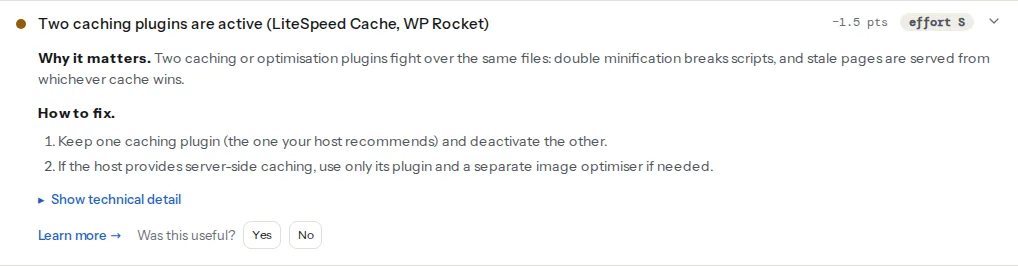
Two more findings from the same report tell you whether the caching setup is doing its job, and they are the ones to watch after you remove a plugin, because the removed plugin may have been the one writing these rules:
The detector cannot see a caching plugin that prints no comment and loads no asset, and it only sees the page it fetched. If the finding shows one plugin but you know two are installed, the second is either inactive or silent on that page; Plugins → Installed Plugins is the source of truth for what is active.
Step by step
1. Find out what the host already provides
Before choosing between plugins, check whether there is a cache under them. Open the hosting panel and look for "caching", "speed" or "optimisation". Then request the home page twice from a terminal and read the headers:
curl -sI https://example.com/ | grep -iE "x-cache|cf-cache-status|x-litespeed|x-kinsta|x-wpe|x-sg|x-proxy-cache|age:|server:"x-litespeed-cache: hit means a LiteSpeed server. x-kinsta-cache, x-wpe-cache or x-sg-cache name the managed host's own cache. cf-cache-status means Cloudflare is in front. An age: header above 0 on the second request means some cache served it. A host with a server-level page cache has already done the expensive part; a plugin's page cache underneath it adds a second copy and a second expiry.
2. Apply the host-first rule
- LiteSpeed or OpenLiteSpeed server (many shared and cPanel hosts; the
server:header saysLiteSpeed): LiteSpeed Cache and nothing else. Its page cache is the server's; another plugin's page cache is a second, slower one under it. - SiteGround: SiteGround Optimizer; the host's cache and the plugin are designed together.
- Cloudways: Breeze, built for their Varnish setup.
- Kinsta, WP Engine, Flywheel and similar managed hosts: the host caches at the server and provides its own plugin or admin-bar purge. They disallow or disable page-cache plugins; keep at most a plugin for minification if you need one, with its page cache off.
- Cloudflare APO: Cloudflare caches the HTML at the edge. A local page cache still helps the origin, but keep it to one.
- Anything else (nginx or Apache with no host cache): one general plugin. WP Rocket if you want it to work out of the box and can pay; WP Super Cache, W3 Total Cache or Cache Enabler if you want free. Cache Enabler is the simplest; W3 Total Cache has the most settings and therefore the most ways to be wrong.
3. Decide what the loser was doing that you still need
Open the losing plugin's settings and note every feature that is switched on: lazy loading, minification, deferred JavaScript, database clean-up, CDN rewriting, Heartbeat control. Then find the equivalent in the kept plugin, or accept that some features do not need a replacement (WordPress lazy-loads images natively since 5.5; most themes already ship minified files). Image compression and WebP conversion are not caching jobs; if the losing plugin was doing that, a dedicated image plugin (ShortPixel, EWWW, Smush) takes over and the report's plugin table shows what it costs.
Take a backup, or at least export the losing plugin's settings; most have an export button.
4. Remove it cleanly
- In the losing plugin, switch off every optimisation feature and clear its cache from inside the plugin. Some plugins only clean up their files when told to.
- Plugins → Installed Plugins → Deactivate. Most caching plugins remove their
.htaccessblock and their drop-in files on deactivation; not all do. - Delete the plugin.
- Check for leftovers by hand. Via SFTP or the host's file manager:
wp-config.php                     define( 'WP_CACHE', true );   ← remove only if the kept plugin does not need it
wp-content/advanced-cache.php     the page-cache drop-in         ← must belong to the kept plugin, or be gone
wp-content/object-cache.php       the object-cache drop-in       ← same
wp-content/wp-cache-config.php    WP Super Cache's config        ← gone if Super Cache was removed
wp-content/cache/<plugin>/        cached files                    ← delete the losing plugin's folder
.htaccess                         # BEGIN WP Rocket … # END WP Rocket, # BEGIN W3TC …, # BEGIN LSCACHE … blocks
Open the drop-in files: the first lines say which plugin generated them. A stale advanced-cache.php from a deleted plugin either errors on every request or, worse, keeps serving an old cache from a folder nobody purges. WP_CACHE in wp-config.php only tells WordPress to load advanced-cache.php; the kept plugin will re-add it if it needs it, so removing it is safe when in doubt.
- Open the kept plugin's settings and save them once. Most plugins rewrite their
.htaccessblock and drop-ins on save, which restores the browser-cache and compression rules the other plugin may have owned.
5. Purge everything, outermost layer last
Purge the kept plugin, then the host cache, then the CDN. Purging in the other order lets the CDN refill from a stale host cache.
Platform notes
WooCommerce
WooCommerce shops are where two caches do the most harm. After the change, run the WooCommerce checker: the cart and checkout must not come from any cache, and cart fragments should not fire on every page. The kept plugin's WooCommerce exclusions (WP Rocket: automatic; LiteSpeed: the WooCommerce tab; W3 Total Cache and WP Super Cache: manual) need checking once, because they were possibly configured in the plugin you removed.
Cloudflare in front
Cloudflare's free plan caches static files only, which does not conflict with a page cache. "Cache everything" rules and APO cache HTML, which makes Cloudflare the outermost page cache; its exclusions for carts and logged-in users need the same care as a plugin's, and it needs its own purge after the plugin change.
Multisite
A caching plugin is typically network-activated. A second one activated on a single site by a site admin is the common way two end up active; check both Network Admin → Plugins and the site's own plugin list.
Verify
- Re-run the WordPress plugin detector. The finding reads "One caching layer is active", and the plugin table shows a single caching plugin.
- The browser-cache finding still reads "Static files have long cache lifetimes" and compression still passes. If either regressed, the removed plugin owned those rules; save the kept plugin's settings again, or set them at the server as described in Cache-Control for humans.
- Logged out, in a private window: load the home page twice. The second load should show a cache hit (the header from step 1) and nothing should look different from the logged-in view.
- Edit a page title, purge once, reload logged out: the change appears.
ls wp-content/shows noadvanced-cache.phporobject-cache.phpfrom the deleted plugin.
Common mistakes
- Deleting the plugin without deactivating it first. Its
advanced-cache.phpstays and WordPress tries to load it on every request. Deactivate, then delete, then checkwp-content/. - Keeping WP Rocket on a LiteSpeed server "for the extra features". LiteSpeed Cache covers minification, lazy loading and the CDN, and the two page caches expire independently. Keep LiteSpeed alone.
- Two lazy loaders. Images that never appear below the fold, especially in sliders. One plugin, or WordPress's native lazy loading, not both.
- Mistaking an optimiser for a cache. Autoptimize and Perfmatters do not cache pages; pairing one of them with one caching plugin is fine and is not what the finding flags.
- Purging only the plugin. The host cache or CDN keeps serving the old page, and the report keeps seeing both plugins. Purge every layer.
- Removing
WP_CACHEwhile the kept plugin needs it. Page caching silently stops and the first byte gets slow again. Save the kept plugin's settings and check that it re-added the line.