A WordPress plugin is installed once and then paid for on every page view. The visitor pays in kilobytes and waiting; you pay in updates and security risk. The number of plugins matters less than what each one does: 30 small plugins can be lighter than one slider. This guide shows how to see the cost of each plugin on a real page, how to decide what to remove, replace or restrict, and how to spot the ones that are no longer maintained. Plan an hour for the first audit.
Quick answer
- Run the WordPress plugin detector on the home page and on your most important template (a product, a post, the checkout).
- Anything over 150 KB on one page is worth a look; that is where getReport raises the warning.
- Plugin not used on this page? Load it only where it is needed (Perfmatters, Asset CleanUp, or the plugin's own setting).
- Plugin not used at all? Deactivate and delete it.
- Two plugins for one job (two caches, two SEO plugins)? Keep one.
- Not updated in 2 years, or closed on wordpress.org? Replace it, starting with the closed ones.
Why plugin cost matters
WordPress lets any active plugin add files to the page through wp_enqueue_script and wp_enqueue_style. Most plugins enqueue on every page because they cannot know in advance where you will use them. The contact form's script loads on the blog; the slider's 200 KB of JavaScript loads on the checkout; the popup builder's styles load on pages without a popup. Each file is a request, and scripts in the head block the page from drawing until they arrive. On a mid-range phone on 4G, an extra 300 KB of JavaScript is easily half a second of waiting plus the time to run it, which is exactly what Largest Contentful Paint and the other Core Web Vitals measure.
Front-end files are the part visitors see. Plugins also cost on the server: database queries on every request, options loaded on every page, calls to external services (a licence check, a remote font, a map API) that the server or the browser waits for. That part shows up as a slow first byte rather than as heavy files.
The second cost is maintenance. Each plugin is code from a different author that has to keep up with WordPress, PHP and security fixes. Plugins that stop doing so are the most common way WordPress sites get compromised.
How getReport checks it
The detector works only from what the page reveals. Plugins are identified from asset URLs under /wp-content/plugins/<slug>/ (the version comes from ?ver=), and from the HTML comments and headers that SEO and caching plugins leave, such as Yoast's "This site is optimized with the Yoast SEO plugin" comment or LiteSpeed's x-litespeed-cache header. Nothing is guessed: plugins that add nothing to the front end do not appear.
The page is then loaded in Chromium, and every network request whose URL contains /wp-content/plugins/<slug>/ is added to that plugin's total: bytes transferred (compressed, as the visitor downloads them), number of files and network time. Each detected slug is looked up in the wordpress.org plugin directory (cached for a day) for the latest version, the last update date and whether the plugin was closed.
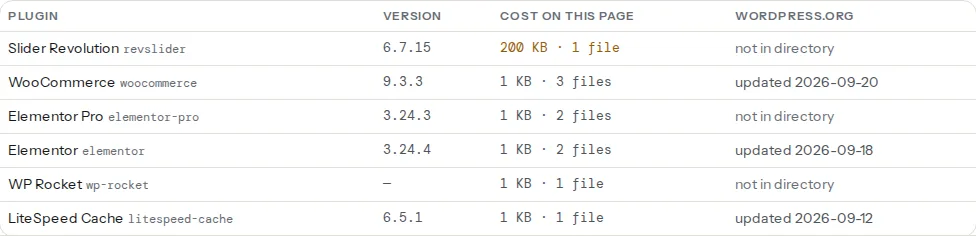
Three limits of the table are worth knowing. It measures one page, so a plugin that loads only on the shop shows "none" on the home page. The version column is whatever ?ver= says, and some plugins put the WordPress version there instead of their own. Premium plugins are not in the directory, so they show "not in directory" with no update date; that does not mean they are unsafe, only that getReport cannot tell.
Step by step
1. Make an inventory
Open Plugins → Installed Plugins and note every active plugin with one line on what it does for the site. Then run the detector on three pages: the home page, a typical content page, and the page that earns money. Side by side you now have what is installed, what the visitor downloads, and where.
2. Sort each plugin into one of four piles
| Pile | Signal | Action |
|---|---|---|
| Unused | Nobody can say what it does, or it did a one-off job (an import, a migration) | Deactivate, wait a week, delete |
| Used, but not here | Heavy on pages that do not use it | Load only where needed (step 4) |
| Used, heavy everywhere | Large on every page and genuinely needed | Look for a lighter alternative (step 5) |
| Fine | Small, maintained, used | Leave it |
Deactivating is reversible; deleting removes the files but usually keeps settings in the database. Try it on a staging copy if the plugin is part of checkout or forms.
3. Remove duplicates
Two caching plugins both minify, combine and cache the same pages. Double minification breaks scripts, and pages go stale because one cache is purged while the other is not. The fix is to keep the one your host recommends (LiteSpeed Cache on LiteSpeed servers, SiteGround Optimizer on SiteGround) and deactivate the other. The same goes for SEO plugins: two of them print two titles, two canonicals and two sets of schema. getReport flags duplicate SEO plugins in the SEO module; import the settings into the one you keep before deactivating the other (Yoast and Rank Math both have an import tool). The duplicate plugins learn page lists the pairs we see most.
4. Load plugin files only where they are used
Three ways, from least to most technical.
The plugin's own setting. Many form, slider and gallery plugins have a "load assets only on pages that use the shortcode/block" option. Check its settings first.
A performance plugin. Perfmatters (Script Manager) and Asset CleanUp let you switch off each script and stylesheet per page, per post type or everywhere except chosen URLs, from a screen in wp-admin. Start with the heaviest plugin in the table, disable its files everywhere except where it is used, and check that page still works.
A few lines of code. WordPress prints each stylesheet with an id of <handle>-css and each script with <handle>-js, so the page source tells you the handles. This keeps Contact Form 7 on the contact page only:
<?php
// wp-content/mu-plugins/load-cf7-only-on-contact.php
add_action('wp_enqueue_scripts', function () {
    if (is_page('contact')) {
        return;
    }
    wp_dequeue_script('contact-form-7');
    wp_dequeue_style('contact-form-7');
}, 20);
Files in wp-content/mu-plugins/ load automatically and survive theme changes. Priority 20 runs after the plugin has enqueued its files at the default priority.
Scripts that must load everywhere can often be deferred so they no longer block drawing. Most caching plugins have a "delay JavaScript" or "defer JavaScript" option; turn it on and test menus, forms and the cart, which are what usually break.
5. Replace the heavy ones
The usual suspects are sliders, page builders, all-in-one "addon packs", social share buttons and popup builders. Often the lighter replacement is WordPress itself: a Cover block or a static hero image instead of a slider, core blocks instead of an addon pack, plain share links instead of a share-button script. Where you need a plugin, compare two candidates by installing each on staging and running the detector again: the table gives you the number to compare.
6. Replace abandoned and closed plugins
wordpress.org closes a plugin when it has an unfixed security issue, breaks the directory guidelines, or the author asks for it. A closed plugin receives no updates through wp-admin, and the reason is shown in the table. Replace closed plugins first, and until then check the plugin name in a vulnerability database and keep a firewall in front of the site.
A plugin with no release in two years is not necessarily broken, but it is not keeping up with PHP and WordPress releases, and nobody will ship the next security fix. Our abandoned plugins page explains how to judge a replacement: recent releases, active installs and support threads that get answers.
7. Look at the server side
A plugin can cost nothing in the table and still slow the site if it runs heavy queries on every request. The free Query Monitor plugin shows database queries and time per plugin for the page you are looking at, while logged in. If the report shows a slow server response rather than heavy files, read what a slow server looks like next.
Platform notes
WooCommerce
WooCommerce's own scripts, and on some themes the cart fragments script, load on many pages, and every extension adds its own. Measure a product page and the cart, not only the home page; that is where the extensions pile up. Do not unload WooCommerce scripts on the cart or checkout.
Page builders
Elementor, Divi and WPBakery load their framework on every page built with them, so they appear heavy in the table by design. Their performance settings (improved asset loading, dynamic CSS) reduce the cost. Replacing a builder is a redesign, not a plugin swap; plan it as a project.
Verify
- Run the detector again on the same pages. The heavy plugin's cost reads "none" where you unloaded it, and the finding reads "No plugin loads more than 150 KB on this page" once none is above the line.
- Open the pages where the plugin should still work (the contact form submits, the slider slides, the cart updates).
- Compare the report's speed module before and after; reading a speed test explains which numbers to watch.
Common mistakes
- Counting plugins instead of measuring them. Removing five tiny plugins changes nothing a visitor feels; restricting one 250 KB slider does. Work from the cost column.
- Unloading a script the page needs. The page looks fine until someone uses the form. Test the interactive parts on every page type after each change.
- Adding a speed plugin next to the host's cache. That is two caches again. Use the host's plugin, and add a script manager only if it does not cache.
- Deactivating a closed plugin without a replacement. The feature disappears from the live site. Install and configure the replacement on staging, then switch.
- Trusting the version column blindly. If a plugin shows the same version as WordPress core, it is printing the core version. Check Plugins → Installed Plugins for the real one.
The launch settings that sit next to these plugins, from "Discourage search engines" to the "admin" user, are covered in the 8 WordPress rookie mistakes.