Most WordPress problems on a new site are not bugs. They are defaults the installer sets for a site under construction, which nobody switched back at launch: a hidden noindex, a "Hello world!" post, an admin user called "admin". Each one takes a minute to fix once you know which screen it lives on. This guide walks through the eight that getReport's WordPress Doctor looks for, in the order it lists them, and takes about 30 minutes to work through on a typical site.
Quick answer
| Mistake | How to tell | Fix in wp-admin |
|---|---|---|
| "Discourage search engines" on | Page source has noindex, nofollow | Settings → Reading, untick the box |
| Default content live | /hello-world/ or /sample-page/ loads | Delete both, empty the trash |
| Default tagline | "Just another WordPress site" in the title | Settings → General → Tagline |
| Plain permalinks | Links look like /?p=123 | Settings → Permalinks → Post name |
| Attachment pages indexable | An attachment sitemap lists media URLs | SEO plugin media setting or a snippet |
| Public staging copy | staging. or dev. answers without noindex | Password-protect it or delete it |
| "admin" user | /?author=1 goes to /author/admin/ | New admin user, delete "admin" |
| Old WordPress | Generator tag shows an old version | Dashboard → Updates |
Why the rookie mistakes matter
They split into two groups. The first four are visibility mistakes: they decide whether Google indexes the site and what people see in the result. "Discourage search engines" alone can remove a whole site from search, and it is the most common reason a new WordPress site gets zero organic visits in its first months. The default content and tagline are smaller, but they are the first thing a visitor or a client notices, and they tell everyone the site was never finished.
The other four are exposure mistakes: a staging copy Google can find, attachment pages that fill the index with thin pages, a login name that brute-force scripts already know, and a core version with published security holes. None of them breaks the site today. All of them make the next problem more likely.
How getReport checks it
The WordPress health check runs a normal report and, when the page reveals WordPress (/wp-content/ paths, the generator tag, the wp-json link), adds the WordPress Doctor panel. Nothing logs in. The check reads the page it fetched, then requests at most eight public addresses: /hello-world/, /sample-page/, /?author=1, the staging., dev. and test. subdomains, and the two attachment sitemap addresses (/attachment-sitemap.xml from Yoast and /wp-sitemap-posts-attachment-1.xml from core). Those are the same requests any visitor could make.
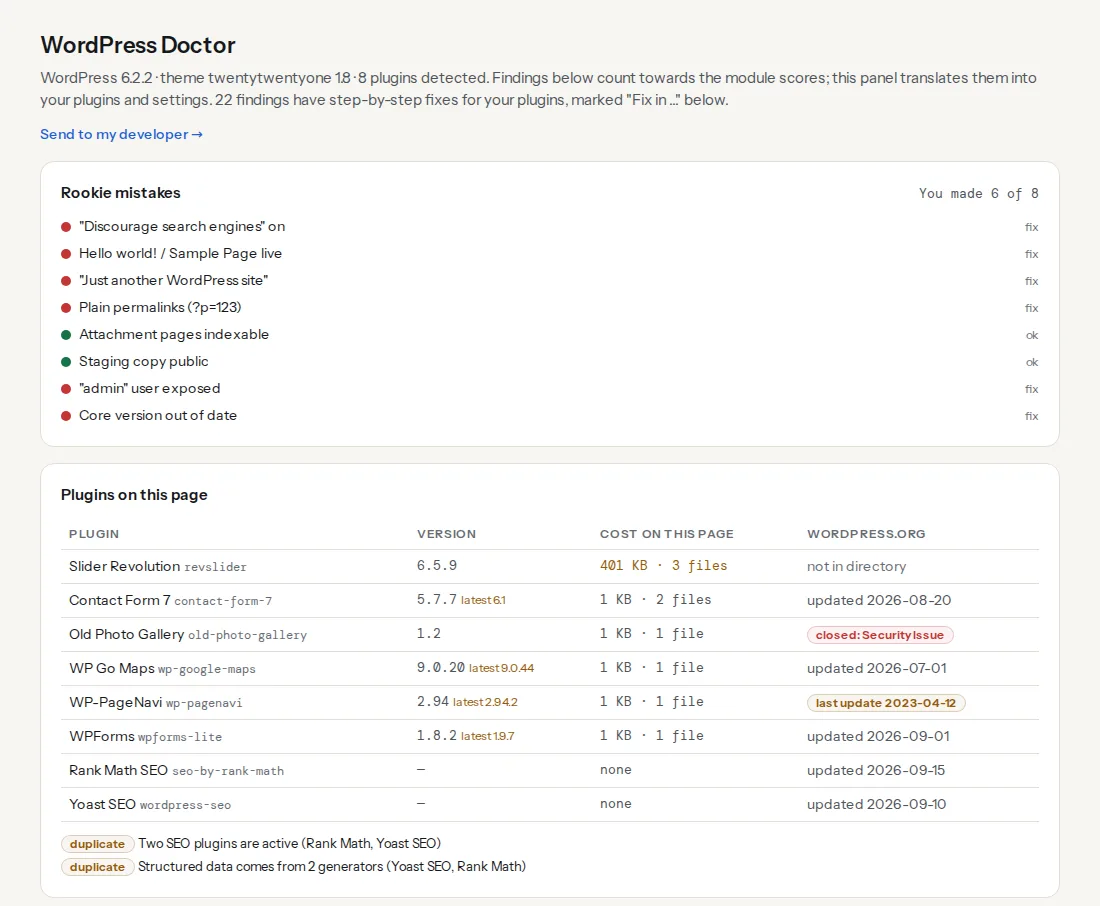
The score counts only the mistakes that could be checked. If the site hides its version, "Core version out of date" shows as not checked rather than passed. The six findings you are most likely to see:
Attachment pages and the core version have their own finding cards in the report as well; both are covered below.
Step by step
Take a backup before you start (your host's snapshot or UpdraftPlus is enough). None of the fixes is risky, but step 8 updates code.
1. Switch off "Discourage search engines"
How to tell. Open the home page, view the source and search for robots. A line like <meta name='robots' content='noindex, nofollow' /> on every page is this setting. In wp-admin, the Dashboard's "At a Glance" box also says "Search engine visibility: Discouraged".
How getReport sees it. The report reads the robots meta tag of the page it fetched. A tag that contains both noindex and nofollow on a WordPress page is flagged; if an SEO plugin set it for this page on purpose, the finding still shows, so check which one it is.
Fix. Settings → Reading → untick "Discourage search engines from indexing this site" → Save Changes. Clear any page cache (the cached pages still carry the tag), then request indexing of the home page in Search Console. If the tag is still there after that, an SEO plugin or the theme is adding it; search the plugin's settings for "noindex".
2. Delete "Hello world!" and "Sample Page"
How to tell. Visit /hello-world/ and /sample-page/ on your domain.
How getReport sees it. It requests both addresses. /hello-world/ counts as default when it answers 200 with "Hello world!" in the page; /sample-page/ when the page title still says "Sample Page". A page you reused and renamed does not count.
Fix. Posts → All Posts → trash "Hello world!"; Pages → All Pages → trash "Sample Page"; then empty both trashes. The installer's default comment goes with the post. If either page has picked up links or rankings, redirect it to a real page instead, for example with the Redirection plugin (Tools → Redirection).
3. Replace the default tagline
How to tell. Look at the browser tab on the home page. "Site name – Just another WordPress site" is the default. Newer installs start with an empty tagline; sites installed on older versions still carry it.
How getReport sees it. It looks for the phrase in the <title>, the meta description, og:description and the theme's tagline element.
Fix. Settings → General → Tagline: a few words about what the site offers ("Handmade leather bags from Split"), or leave it empty. Many themes show the tagline under the logo, and SEO plugins often use it in the home page title, so check both afterwards. In a block theme, the Site Tagline block reads the same setting.
4. Choose readable permalinks
How to tell. Hover over a post link. /?p=123 or /?page_id=45 means Plain permalinks.
How getReport sees it. It counts same-host links on the page that use ?p=, ?page_id=, ?cat= or ?attachment_id=; two or more raise the finding.
Fix. Settings → Permalinks → Post name → Save Changes. WordPress redirects the old ?p= addresses itself. On a site with years of content and backlinks, read WordPress permalinks without losing rankings first; it covers the server rewrite rules and what to test.
5. Turn off attachment pages
How to tell. Open an image's attachment page: Media → Library → click an image → "View attachment page". If it loads a page holding only that image, attachment pages are on.
How getReport sees it. It fetches the two attachment sitemap addresses. If one of them lists URLs, search engines are being invited to index attachment pages, and the finding shows how many.
Fix. WordPress 6.4 and later redirect attachment pages to the file on new installs; sites installed earlier keep them. Yoast: Settings → Advanced → Media pages, switch media pages off. Rank Math: General Settings → Links → Redirect Attachments. The full walk-through, with a snippet for sites without an SEO plugin, is in turning off WordPress attachment pages.
6. Lock or remove the staging copy
How to tell. Try staging., dev. and test. in front of your domain. A copy of your site that loads without a password is public.
How getReport sees it. It requests the three subdomains (without www.). A copy answering 200 with no noindex in a robots meta tag or an X-Robots-Tag header is flagged. Staging on a host's own domain (such as a *.kinsta.cloud or *.wpengine.com address) or in a subfolder is not tested, so check those yourself.
Fix. Best: put the copy behind HTTP authentication, which keeps out both people and crawlers. Many hosts have a "password protect" switch in their panel. On Apache, in the staging site's .htaccess:
AuthType Basic
AuthName "Staging"
AuthUserFile /home/example/.htpasswd
Require valid-user
On nginx, in the staging server block, plus a header so anything that slips through is not indexed:
auth_basic "Staging";
auth_basic_user_file /etc/nginx/.htpasswd;
add_header X-Robots-Tag "noindex, nofollow" always;
Create the password file with htpasswd -c /etc/nginx/.htpasswd yourname. If you cannot do either, at least switch on "Discourage search engines" on the staging copy, and delete it when the launch is done. Our learn page on staging sites covers removing a copy that is already indexed.
7. Retire the "admin" username
How to tell. Visit /?author=1. If it redirects to /author/admin/, the first user's login name is "admin".
How getReport sees it. One request to /?author=1, reading only where the redirect points. Only the names admin and administrator are ever recorded; any other username is ignored and never stored or shown.
Fix. WordPress cannot rename a user, so you replace it:
- Users → Add New User. Pick a unique username, a strong password and the Administrator role.
- Log out, log in as the new user.
- Users → All Users → delete "admin". When asked, choose "Attribute all content to" the new user.
Author archives still reveal the new username's slug. A security plugin can turn off the ?author= redirect, and a strong password plus two-factor login matter more than a hidden name.
8. Update WordPress core
How to tell. Dashboard → Updates says "An updated version of WordPress is available". From outside, the generator tag in the page source (<meta name="generator" content="WordPress 6.2.2">) shows the version.
How getReport sees it. It reads that generator tag and warns when the site is two or more major releases behind the current one (6.6 when 6.8 is current, for example). No tag, no verdict.
Fix. Back up, then Dashboard → Updates → Update to version … Update plugins and themes in the same session. Hiding the version afterwards takes one line in a small plugin or the child theme's functions.php; it does not replace updating.
<?php
// wp-content/mu-plugins/hide-generator.php
remove_action('wp_head', 'wp_generator');
Platform notes
Managed WordPress hosts
Several hosts create the staging copy for you and set their own protection. Check it anyway: a push from staging to live can carry "Discourage search engines" across, which is the fastest way to deindex a site that was fine yesterday. After every push, look at step 1 again.
Multisite
Each site in a network has its own Reading, General and Permalinks settings. Run the check on every site's home page.
Verify
- Re-run the WordPress health check. The Doctor panel should read "You made 0 of 8", or list only what you chose to leave.
/hello-world/and/sample-page/answer 404 or redirect;/?author=1no longer lands on/author/admin/.- The staging URL asks for a password in a private browser window.
- In Search Console, the URL Inspection tool shows the home page as "Indexing allowed".
Common mistakes
- Unticking "Discourage" but keeping the cache. Visitors and Googlebot are served the old pages with
noindexfor hours. Purge the page cache and any CDN after step 1. - Pushing staging to live without checking settings. The live site inherits the staging copy's Reading setting. Make "Search engine visibility" part of every deployment checklist.
- Deleting "admin" without reassigning content. WordPress deletes that user's posts if you choose "Delete all content". Pick "Attribute all content to" instead.
- Switching permalinks on a big site in the afternoon. Old
?p=links redirect, but a jump between two pretty structures needs a redirect map. Do it off-peak and test old URLs. - Hiding the version instead of updating. Bots test for known holes whether or not the tag is there. Update first, hide second.
For a sweep of the plugins behind these pages, including which ones cost your visitors the most, continue with what your WordPress plugins cost.