A WordPress login needs two things: a username and a password. If the username is "admin", anyone trying to break in already has the first half, because "admin" is the first name every brute-force script tries. WordPress cannot rename a user, so the fix is to replace the account. This guide shows how to do that safely in about ten minutes, explains the three different names every WordPress user has, and covers how to stop the site from announcing them, plus the two defences that matter more than any hidden name.
Quick answer
- Test: open
https://yoursite.com/?author=1. If you land on/author/admin/, the first user's login is almost certainly "admin". - Fix: create a new administrator with a unique username and a different display name, log in as it, delete "admin" and attribute its content to the new user. No plugin needed.
- WP-CLI:
wp user createthenwp user delete 1 --reassign=<new id>. - Single-author site: switch off author archives in Yoast or Rank Math, or redirect them with a small snippet.
- Real defence: two-factor login and login rate limiting. A hidden username slows scripts down; it does not stop a determined attacker.
Why the username matters
Half of a credential
Automated login attacks run through lists of common usernames and leaked passwords, often thousands of attempts against wp-login.php and xmlrpc.php. The lists start with admin and administrator, then the site's own name. If the username is unknown, every attempt has to guess both halves. If it is "admin", only the password stands between the script and full control of the site, including the ability to install plugins that run any code.
Where WordPress reveals usernames
WordPress gives each user three names, and several of them are public by design:
- The
?author=redirect./?author=1redirects to/author/<slug>/when user 1 has published posts. The slug is created from the login name, so for "admin" it isadmin. - Author archives and bylines. Every post links to its author's archive, which carries the same slug.
- The REST API.
/wp-json/wp/v2/userslists every user who has published posts, with their display name and slug, to anyone who asks. - The login form. A wrong password for an existing user gets "The password you entered for the username admin is incorrect", while an unknown name gets "not registered on this site". The form confirms which usernames exist.
- Comment markup. Comments from logged-in users carry a CSS class like
comment-author-admin. - Feeds and sitemaps. The RSS feed's
<dc:creator>shows the display name, which is the login name until someone changes it, and the core sitemap lists author archives at/wp-sitemap-users-1.xml.
None of these is a bug. They are the reason the username should not be the secret that protects the site.
How getReport checks it
The WordPress health check runs a normal report and, only when the page reveals WordPress, makes one request for this check: a HEAD request for /?author=1. It reads where the first redirect points and records the slug only if it is admin or administrator. Any other name is discarded on the spot: it is never stored, shown or put into the report. getReport does not call the REST API, submit the login form or try other user numbers.
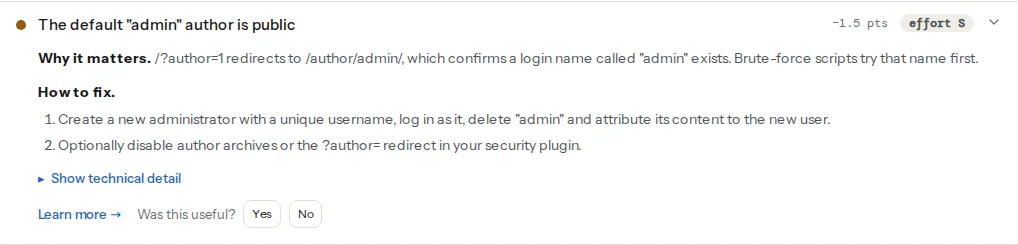
A pass means /?author=1 did not redirect to admin or administrator. It does not prove there is no such user: if user 1 has no published posts, there is no redirect to read. Check the user list yourself (step 1). The admin author learn page has the short version of this fix.
The same security module has three findings that make a known username more dangerous, because each gives an attacker a second way in:
A public staging copy usually has the same users as the live site, often with older code. A readable .env (common on Bedrock-style WordPress setups) or .git folder can hold the database password itself. Fix those first if they show up; the learn page on CMS updates covers updating core safely.
Step by step
1. List the administrators
Users → All Users → filter by Administrator. Or from a terminal:
wp user list --role=administrator --fields=ID,user_login,user_nicename,display_name,user_emailNote the ID and email of the "admin" account; you need both below.
2. Create the replacement administrator
Users → Add New User:
- Username: something unique that is not your name, your domain or a role ("admin", "editor", "webmaster"). It is only for logging in; nobody else needs to see it.
- Email: WordPress requires a unique address. If you want to keep your usual address, first change the old account's email to another one you control (a
+oldalias works with most mail providers), then use your usual address here. - Password: a long generated one, stored in a password manager.
- Role: Administrator.
wp user create k7-maintainer [email protected] --role=administrator --display_name="Studio Team"
# prints the new user's ID and a generated password
3. Log in as the new user and delete "admin"
Log out, log in with the new account and confirm that you can reach Settings and Plugins. Then Users → All Users → hover over "admin" → Delete. WordPress asks what to do with its content: choose "Attribute all content to" and select the new user, then Confirm Deletion.
wp user delete 1 --reassign=5 # 5 = the new user's IDPosts keep their URLs, dates and comments; only the author changes. /?author=1 now answers 404 because user 1 no longer exists.
4. Understand the three names
| Name | Field | Where it shows | Can you change it? |
|---|---|---|---|
| Username | user_login | Login form only | No, WordPress says "Usernames cannot be changed" |
| Slug | user_nicename | /author/<slug>/, REST API, CSS classes | Not in wp-admin; WP-CLI or a plugin |
| Display name | display_name | Bylines, comments, feeds | Yes, Users → Profile → "Display name publicly as" |
The slug is made from the username when the account is created, and changing the display name does not change it. So a new user called k7-maintainer publishes under /author/k7-maintainer/ even with the display name "Studio Team". To give the archive a slug that reveals nothing about the login:
wp user update 5 --user_nicename=studio-teamThe old author URL stops working after this change, so do it before the archive has links, or redirect the old address.
5. Hide author archives on a single-author site
When one person or one team writes everything, author archives duplicate the blog index and exist mainly to reveal the slug. Switch them off:
- Yoast SEO: Yoast SEO → Settings → Advanced → Author archives → turn off "Enable author archives".
- Rank Math: Rank Math → Titles & Meta → Authors → Author Archives → Disabled.
Both redirect author archives to the home page. Without an SEO plugin, a must-use plugin does the same and catches ?author= before WordPress's own redirect runs (priority 1 is earlier than core's canonical redirect at 10):
<?php
// wp-content/mu-plugins/no-author-archives.php
add_action('template_redirect', function () {
    if (is_author() || isset($_GET['author'])) {
        wp_safe_redirect(home_url('/'), 301);
        exit;
    }
}, 1);

// Drop the author list from the core sitemap (/wp-sitemap-users-1.xml).
add_filter('wp_sitemaps_add_provider', function ($provider, $name) {
    return $name === 'users' ? false : $provider;
}, 10, 2);
On a site with several authors whose archives are useful to readers, keep them and rely on step 4 for the slugs.
6. Limit the users endpoint
Core offers no setting for this. Wordfence has an option to prevent username discovery through ?author= scans and the REST API; without a security plugin, add this filter to the same must-use plugin. It removes the users routes for visitors who are not logged in, so the block editor, which calls them while you are logged in, keeps working:
add_filter('rest_endpoints', function ($endpoints) {
    if (!is_user_logged_in()) {
        unset($endpoints['/wp/v2/users']);
        unset($endpoints['/wp/v2/users/(?P<id>[\d]+)']);
    }
    return $endpoints;
});
7. Add the defences that actually stop attacks
- Two-factor login. The community-maintained Two Factor plugin adds authenticator-app codes and backup codes. With it, a guessed username and password are no longer enough.
- Login rate limiting. Lock out an address after a few failed attempts. Wordfence, Solid Security and Limit Login Attempts Reloaded do this, and many hosts do it at server level.
- XML-RPC. If no app or service uses it (the Jetpack plugin and some older mobile apps do), this line in the must-use plugin switches off its login methods, which attackers use to try many passwords in one request:
add_filter('xmlrpc_enabled', '__return_false');Platform notes
Multisite
Super admins are stored by login name in a network setting, not only by role. Replace a super admin the same way (create the new user, grant super admin under Network Admin → Users → Edit, log in as it, then delete the old one), and never rename one in the database.
Managed WordPress hosts
Some hosts block xmlrpc.php or rate-limit wp-login.php for you. Check what yours already does before adding plugins that do the same work twice.
Verify
- Re-run the WordPress health check. The finding should read "No default admin author exposed".
- Run
/?author=1through the redirect checker: it should answer 404, or redirect straight to the home page with no/author/hop in between. - In a private window,
/wp-json/wp/v2/usersreturns an error (if you did step 6) and/author/admin/answers 404. - Log in with the new account, with its second factor. Hand the steps to whoever maintains the site with sending fixes to your developer if that is not you.
Common mistakes
- Renaming the user in the database. Editing
user_logininwp_usersby SQL leaves the slug asadmin, and one typo in the query can lock everyone out. On multisite it also drops super admin rights. Create a new user instead. - Deleting "admin" without reassigning content. Choosing "Delete all content" deletes every post and page that user wrote. Restore from the backup, then delete again with "Attribute all content to".
- Changing only the display name. Bylines change,
/author/admin/stays. Change the slug or replace the user. - Relying on a hidden username alone. Enumeration is one of several ways names leak, and passwords get reused and leaked. Two-factor login and rate limiting are what stop the attack.
- Keeping a public staging copy with the old "admin" user. Fixing production does not fix the copy. Put staging behind a password, as the WordPress rookie mistakes guide shows, and replace the user there too.