A WooCommerce store is a WordPress site with money on it, and four problems come up in most of the stores we test: a cart script that slows every page, a cache layer that swallowed the checkout, product schema that lost its price, and sold-out products still collecting clicks from Google. Each one has a settings-page fix. This guide shows how to spot all four in one run and fix them in order of damage. Plan an afternoon, including a test purchase.
Quick answer
| Problem | What shoppers or Google see | Fix |
|---|---|---|
| Cart or checkout served from a cache | Someone else's basket, "session expired", failed payments | Exclude cart, checkout and my-account from every cache layer, including the CDN |
| Cart fragments on every page | Slower pages, a PHP request on every visit | Load wc-cart-fragments only on the cart and checkout |
| Product schema without price or stock | No price, stock or stars in search results | Fill in price and stock, keep one schema source |
| Out-of-stock product still indexable | Clicks that bounce | Keep with a date and "notify me", or redirect, or noindex |
Why these four matter
A cached cart or checkout
A page cache stores one copy of a page and hands it to everyone. That is exactly right for a product page and exactly wrong for a cart. A cached /cart/ shows the next shopper the basket of whoever loaded it first. A cached /checkout/ carries a security token (a nonce) that was valid for someone else hours ago, so the order form fails with "We were unable to process your order" or a session-expired message, and the shopper leaves. WooCommerce marks these pages as not cacheable, and caching plugins respect that. The problem is usually a layer further out, a host cache or a CDN rule set to "cache everything", that ignores what WordPress says.
Cart fragments on every page
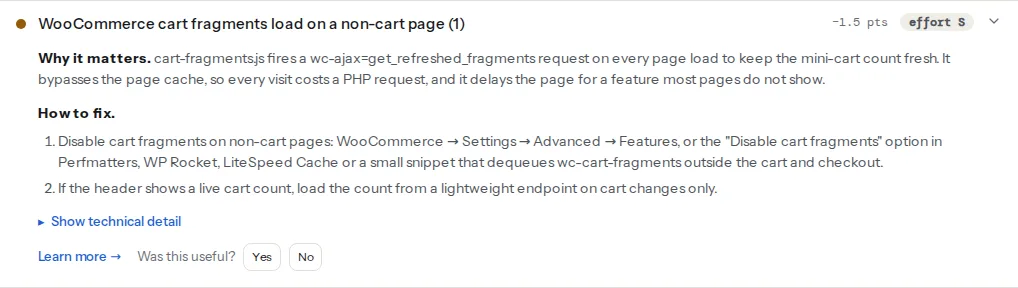
cart-fragments.js keeps the mini-cart count in the header up to date. It does that by sending a wc-ajax=get_refreshed_fragments request to your server after each page load. That request cannot be cached, so every visit, including a first visit with an empty cart, costs a PHP process and a round trip. On a busy store those requests add up quickly, and on a slow host they compete with the page for a number most visitors never look at.
Product schema without price or availability
WooCommerce prints a Product block in JSON-LD on each product page. Google uses its offers.price, offers.availability and rating to show price, stock and stars in search results. When a theme, page builder or SEO plugin replaces that block and drops a field, the rich result goes, and the listing looks like any other link. Product schema: price, availability and reviews covers the markup in depth.
Out-of-stock pages
A sold-out product keeps ranking, and every click lands on "Out of stock". The shopper goes back to the results and buys elsewhere. Whether you should keep the page depends on whether the product comes back.
How getReport checks it
The WooCommerce checker first recognises WooCommerce from the page itself: the woocommerce body class, wc-ajax calls, WooCommerce assets or a Product block in the JSON-LD. Then:
- Cache: it fetches
/cart/and/checkout/once each, as an anonymous visitor, and reads the response headers. A cache status containing "hit" (x-cache,cf-cache-status,x-litespeed-cache, and the Kinsta, SiteGround, WP Engine, Varnish and nginx equivalents), or anageabove 0 together with a publiccache-control, counts as served from cache. Nothing is added to a basket and no form is submitted. - Cart fragments: it looks for
cart-fragments.jsin the HTML and for theget_refreshed_fragmentsrequest while the page renders in Chromium. On a cart, checkout, basket or my-account address the check passes, because the script belongs there. - Product schema: each Product block is checked for
offers.price(oroffers.lowPricefor variable products),offers.availability, and a rating or review. - Stock: an availability of
OutOfStock,SoldOutorDiscontinuedon a page withoutnoindexis flagged.

The addresses are fixed: /cart/ and /checkout/. If your cart lives at a translated slug and /cart/ returns 404, the cache finding passes without having seen your real cart; test it by hand as shown under Verify. The schema and stock checks need a product page, and cart fragments are best tested on the home page or a category.
Step by step
Work in this order: the cache first (it breaks orders), then cart fragments (every page), then schema and stock (one product at a time). Run the checker on a product page, the home page and a category page before you start.
1. Take the cart and checkout out of every cache
Find the cart, checkout and my-account pages under WooCommerce → Settings → Advanced → Page setup; their slugs are what you exclude. Then go layer by layer, because the finding cannot tell which layer answered, only that one did. The evidence header is the clue: x-litespeed-cache points to LiteSpeed, cf-cache-status to Cloudflare, x-kinsta-cache to Kinsta.
- WP Rocket excludes the standard WooCommerce pages automatically. Renamed ones go under Settings → WP Rocket → Advanced Rules → Never Cache URL(s).
- LiteSpeed Cache: LiteSpeed Cache → Cache → Excludes → Do Not Cache URIs, and
woocommerce_items_in_cartunder Do Not Cache Cookies. - W3 Total Cache: Performance → Page Cache → "Never cache the following pages".
- SiteGround: SiteGround Optimizer → Caching → Dynamic Caching → Exclude URLs from Caching.
- Kinsta skips the standard WooCommerce pages; renamed or translated ones need an exclusion that Kinsta support adds.
- Cloudflare: Cloudflare's APO for WordPress bypasses the cache for WooCommerce cookies. A custom "cache everything" rule does not. Add a Cache Rule (under Caching or Rules in the dashboard) with Cache eligibility set to "Bypass cache", placed below the rule that caches HTML so it wins:
(http.request.uri.path contains "/cart"
 or http.request.uri.path contains "/checkout"
 or http.request.uri.path contains "/my-account"
 or http.request.uri.path contains "/wp-json/wc/store"
 or http.request.uri.query contains "wc-ajax"
 or http.cookie contains "woocommerce_items_in_cart"
 or http.cookie contains "wp_woocommerce_session_")
The cookie conditions matter as much as the paths: once a shopper has something in the basket, the header cart on every page is personal, so their requests skip the cache everywhere. Purge every cache after the change.
Watch out
A Cloudflare rule with an Edge TTL of "Ignore cache-control header" overrides the no-cache headers WooCommerce sends. If you use one, the bypass rule above is not optional.
2. Stop cart fragments outside the cart
Newer WooCommerce versions load cart fragments only where the classic cart widget needs them, but many themes and header builders still enqueue the script on every page. WooCommerce itself has no switch for it. Perfmatters has a "Disable Cart Fragmentation" switch, and the report shows a fix recipe for the caching plugin it detects. Otherwise, a must-use plugin dequeues it everywhere except the cart and checkout:
<?php
// wp-content/mu-plugins/cart-fragments-only-in-cart.php
add_action( 'wp_enqueue_scripts', function () {
    if ( ! function_exists( 'is_cart' ) || is_cart() || is_checkout() ) {
        return;
    }
    wp_dequeue_script( 'wc-cart-fragments' );
}, 100 );
Priority 100 runs after WooCommerce and the theme have enqueued their scripts. Files in wp-content/mu-plugins/ load automatically and survive theme changes.
There is a trade-off. Without fragments, a cached page can show an old count in the header cart. Adding to the basket from a shop or category page still updates the count there, because the add-to-cart response carries the new header, and once the basket has something in it the cookie bypass from step 1 serves fresh pages. If a stale count elsewhere bothers you, show a plain "Cart" link without a number, or turn on "Redirect to the cart page after successful addition" under WooCommerce → Settings → Products.
3. Complete the product schema
Open a product the finding names and check, in the product editor:
- Price: the regular price is filled in. Without a price, WooCommerce leaves
offersout of the schema entirely. - Stock: Inventory → Stock status is set. Variable products get an
AggregateOfferwith alowPrice, which the check accepts. - Reviews: enabled under WooCommerce → Settings → Products → "Enable product reviews". A product with no reviews yet has no rating, and the finding says "only if the product has reviews" for that line. Leave it until real reviews arrive; a made-up rating breaks Google's rules for review snippets.
Then make sure only one plugin prints the Product block. Yoast's WooCommerce add-on and Rank Math can each take over WooCommerce's block and fold it into their own graph, which is fine. A page builder's product widget or a separate schema plugin printing a second Product block is not. View the page source and search for "@type":"Product": it should sit in one <script type="application/ld+json"> block. The check shows the missing fields per product, and Google's Rich Results Test confirms the result.
4. Decide what happens to sold-out products
Coming back: keep the page indexable. Show the expected date, offer a back-in-stock notification (several plugins add a "notify me" form), and keep the availability in the schema accurate; that is what the passing state expects. Setting the product to "On backorder" when you do take orders changes the availability to BackOrder, which the check does not flag.
Gone for good: redirect the page with a 301 to its replacement or to the category. Use your SEO plugin's redirect manager (Rank Math has one in the free version, Yoast in Premium), the Redirection plugin, or the server:
# nginx, inside the server block
location = /product/blue-kettle-1l/ { return 301 /product-category/kettles/; }
If there is no sensible target, set the product to noindex instead: in Yoast, the product's Yoast SEO box → Advanced → "Allow search engines to show this Product in search results?" → No; in Rank Math, the product's Advanced tab → Robots Meta → No Index. The out-of-stock learn page has the decision in one screen.
The "Hide out of stock items from the catalog" option under WooCommerce → Settings → Products → Inventory removes sold-out products from shop and category listings only. The product page still exists and stays indexable.
5. Check plugin weight and duplicate caches
Stores collect extensions, and each one can load files on every page. Run the WordPress plugin detector on a product page and the cart; what your WordPress plugins cost visitors explains how to trim what it finds. Two caching plugins is the one to fix now: they purge at different times, and a cart excluded in one can still be cached by the other.
Verify
- Re-run the checker on the same pages. The findings read "Cart and checkout bypass the page cache", "No cart-fragments request on this page", "WooCommerce Product schema has price, availability and rating" and "Out-of-stock products are handled".
- Make a test purchase in two browsers at once: add a different product in each, open both carts, and check out one of them. Each should see only its own basket.
From a terminal, request the cart twice and read the headers (use your real slug):
curl -sI https://example.com/cart/ | grep -iE 'cache|age'
curl -sI https://example.com/cart/ | grep -iE 'cache|age'
The second response should still say no-store or a cache status of BYPASS, MISS or DYNAMIC, never HIT, and carry no age above 0.
Common mistakes
- Excluding
/cart/but not the translated slug. A store in Croatian or German serves the cart at/kosarica/or/warenkorb/, which the exclusion misses. Exclude the slugs from Page setup, for every language a translation plugin adds. - Caching the Store API or wc-ajax. The Cart and Checkout blocks talk to
/wp-json/wc/store/, and the classic cart to?wc-ajax=. A CDN rule that caches API responses serves one shopper's cart to another even when the pages are excluded. Bypass both, as in the Cloudflare rule above. - Two caching plugins. One excludes the checkout, the other caches it anyway. Keep the one your host recommends.
- Deleting discontinued products without redirects. Every old link and ranking now lands on a 404. Redirect each deleted product before you empty the trash, or use the noindex route and delete later.
- Dequeuing fragments on the cart page too. A snippet without the
is_cart()condition stops the cart from updating after a quantity change. Keep the exceptions as in the snippet above.
The launch settings around the shop, from search visibility to the admin user, are in the 8 WordPress rookie mistakes.