A fresh WordPress install is not empty. It ships with a post, a comment, two pages, a category, a tagline, several themes and two plugins, all there so you can see how things work. On a live site they are clutter at best and indexed filler at worst. This guide lists every leftover, says which to delete and which to keep and edit, and gives the wp-admin path and the WP-CLI command for each. Allow 20 minutes.
Quick answer
| Leftover | What to do | In wp-admin |
|---|---|---|
| "Hello world!" post and its comment | Delete | Posts → All Posts |
| "Sample Page" | Delete, or retitle and re-slug | Pages → All Pages |
| "Privacy Policy" draft | Keep, edit, publish | Settings → Privacy |
| "Just another WordPress site" tagline | Replace or empty | Settings → General |
| "Uncategorized" category | Rename | Posts → Categories |
| Unused default themes | Keep the active one and one fallback | Appearance → Themes |
| Hello Dolly, Akismet | Delete unless you use Akismet | Plugins |
| Meta widget, time zone, admin email | Check | Appearance → Widgets, Settings → General |
If "Hello world!" was ever indexed or linked, redirect it to your blog page instead of letting it 404.
Why the leftovers matter
They get indexed. "Hello world!" is about 15 words long; the Sample Page is a short monologue from someone who is "a bike messenger by day, aspiring actor by night". Both are published, both appear in WordPress's sitemap, and Google indexes them like any other page on your domain. Two near-empty pages will not sink a site, but they are the thinnest content you have, they sit in the sitemap next to your real pages, and they can turn up in results for your brand name.
They look unfinished. A visitor who lands on the bike messenger on a bakery's website, or sees "A WordPress Commenter" under the only blog post, draws conclusions about the business, not the software. The same goes for a "Recent posts" widget that lists "Hello world!".
The tagline travels. WordPress builds the home page's <title> from the site name and the tagline, so the browser tab and the search result read "Your Business – Just another WordPress site". Many themes print the tagline under the logo, and SEO plugins often reuse it in the home page's meta description and Open Graph tags, which puts it into every link preview on social media and in chat apps. Recent WordPress versions leave the tagline empty on new installs; sites installed a few years ago usually still carry it.
How getReport checks it
The WordPress health check runs a normal report and, when the page reveals WordPress, requests a few fixed addresses on your site, the same requests any visitor could make. Two of them are for this guide:
/hello-world/counts as default content when it answers HTTP 200 and the page still says "Hello world"./sample-page/counts when it answers 200 and its<title>still says "Sample Page".
Redirects are followed, so a /hello-world/ that redirects to your real blog page passes. A Sample Page you retitled "About" does not count either, even if it still lives at /sample-page/. The evidence line shows the HTTP status of both addresses.
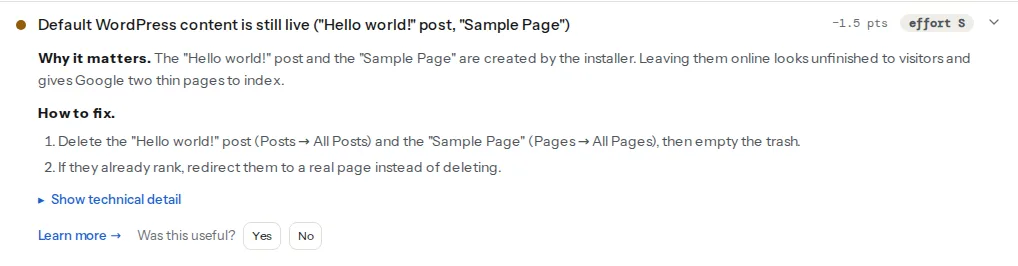
The tagline check needs no extra request. It looks for "Just another WordPress site" in the page's <title>, meta description, og:description and the theme's tagline element, and lists where it found it:
Two general findings help with the cleanup. Run a report on /hello-world/ itself and the word count finding shows why Google treats it as thin; and the sitemap check requests a sample of up to 25 listed URLs, which catches a hand-made or cached sitemap that still lists the pages after you delete them:
The rest of the list (drafts, comments, themes, plugins, settings) lives inside wp-admin, where no outside check can see it. That is what the steps are for.
Step by step
Take a backup first; your host's snapshot is enough. To see what the installer left, from a terminal:
wp post list --post_type=post,page --post_status=any --fields=ID,post_title,post_name,post_statusOn an untouched install, "Hello world!" is ID 1, "Sample Page" ID 2 and the "Privacy Policy" draft ID 3. Check before you delete by ID.
1. Delete "Hello world!" and its comment
Posts → All Posts → hover over "Hello world!" → Trash. Then open the Trash view and click Empty Trash. Deleting a post permanently also deletes its comments, so the default comment from "A WordPress Commenter" (called "Mr WordPress" on older installs) goes with it. If you rewrote the post into something real instead, delete the comment under Comments.
wp post delete 1 --force     # --force skips the trash
wp comment delete 1 --force  # only needed if you kept the post
A trashed post already answers 404: WordPress renames its slug to hello-world__trashed and stops serving it, and the trash empties itself after 30 days. Emptying it now simply stops anyone from restoring it by accident.
2. Delete or repurpose "Sample Page"
Pages → All Pages → Trash, then empty the trash (wp post delete 2 --force). If you already turned it into a real page, change both the title and the slug (Quick Edit → Slug). WordPress remembers old slugs and redirects them for posts, but not for pages, so add a redirect from /sample-page/ if the page was ever public (step 8).
3. Keep the Privacy Policy, and finish it
The "Privacy Policy" page is a draft, so it is not public. Do not delete it: Settings → Privacy links it as the site's policy page, and WordPress adds a link to it on the login screen and in themes that support it. Open Settings → Privacy → Policy Guide for suggested text, including sections that plugins add, edit the page to match what your site actually collects, and publish it. Our privacy policy learn page lists what it must cover.
4. Replace the tagline
Settings → General → Tagline: a few words about what you offer ("Sourdough and pastries in Zagreb"), or nothing at all. An empty tagline is better than a generic one.
wp option update blogdescription "Sourdough and pastries in Zagreb"
# or remove it entirely
wp option update blogdescription ""
Then look at the home page title your SEO plugin builds; Yoast, Rank Math and others can insert the tagline through a variable in the title and description templates. Titles and meta descriptions for the result page covers what to write there. In a block theme, the Site Tagline block in the header template (Appearance → Editor) reads the same setting.
5. Rename "Uncategorized"
Every post needs a category, and the default one cannot be deleted while it is the default. Rename it to the category most of your posts belong to, and change its slug too, because the slug is in the archive URL (/category/uncategorized/). Posts → Categories → Uncategorized → Edit, or:
wp term update category 1 --name="News" --slug=newsTo make a different category the default instead, choose it under Settings → Writing → Default Post Category; the old one can then be deleted, and its posts move to the new default.
6. Delete themes and plugins you do not use
Every inactive theme and plugin is code on your server that still needs updates and can still carry a security hole. Appearance → Themes → click a theme → Delete (only inactive themes show the button). Keep the active theme, its parent if you use a child theme, and optionally one current default theme as a fallback for troubleshooting.
wp theme list                              # status shows active, parent and inactive
wp theme delete twentytwentythree twentytwentyfour
wp plugin delete hello                     # Hello Dolly
wp plugin delete akismet                   # only if you do not use it for spam
Akismet ships inactive and needs an API key before it filters anything. If comments are closed on your site, you do not need it.
7. Check widgets and the General settings
- Meta widget: classic themes often show it in the sidebar with "Log in", feed links and a link to WordPress.org. Remove it under Appearance → Widgets.
- Time zone: Settings → General → Timezone is often left at UTC+0. Pick a city ("Zagreb", not "UTC+2"), so scheduled posts and daylight saving time work.
- Administration Email Address: make sure it reaches someone who reads it; security and update notices go there. WordPress sends a confirmation link to the new address before the change takes effect.
wp option update timezone_string "Europe/Zagreb"8. Redirect what was already indexed
If the site was live for a while, check whether Google knows the pages: Search Console → URL Inspection with https://yoursite.com/hello-world/. If it is indexed or has links, add a 301 to your blog page rather than leaving a 404. With the Redirection plugin: Tools → Redirection → Add new, source /hello-world/, target /blog/. On nginx, in the server block:
location = /hello-world/ { return 301 /blog/; }
location = /sample-page/ { return 301 /; }
On Apache, in .htaccess above the # BEGIN WordPress block:
Redirect 301 /hello-world/ /blog/
Redirect 301 /sample-page/ /
Point each at the final address in one hop; redirects without chains explains why.
Platform notes
Multisite
Every new site in a network gets its own "Hello world!", "Sample Page" and "Uncategorized". Run the cleanup per site, adding --url=https://site.example.com/ to each WP-CLI command.
Theme demo imports
Many commercial themes offer a one-click demo import that adds dozens of placeholder posts, pages, menus and images. getReport's check only knows the two installer defaults, so list and delete demo content yourself: wp post list --post_type=post,page --fields=ID,post_title,post_date sorts it out quickly, because demo posts share an import date.
Verify
- Re-run the WordPress health check. Both findings should show their pass titles: the default post and Sample Page are gone, and the site has its own tagline.
/hello-world/and/sample-page/answer 404 or redirect to a real page. Check in a private window, after purging the cache.- Your sitemap no longer lists either page; the sitemap validator shows its sampled URLs all answering 200. More on the file itself in XML sitemap validation.
- The browser tab on the home page shows your own tagline, or just the site name.
Common mistakes
- Deleting the Privacy Policy page instead of editing it. The login screen and theme lose their policy link, and you start from scratch later. Restore it from the trash, or create a new page and select it under Settings → Privacy.
- Leaving "Uncategorized" on real posts. Posts show "Posted in Uncategorized" and the archive at
/category/uncategorized/fills up. Rename the category (step 5). - Deleting while the page cache still serves the old copy.
/hello-world/keeps answering 200 from the cache or CDN, and the finding stays. Purge the cache after the cleanup. - Keeping
/sample-page/as the address of a real page. The page works, but the URL looks unfinished in every link and result. Change the slug and redirect the old one. - Deleting a parent theme. A child theme needs its parent to work. Check
wp theme listfor the statusparentbefore deleting anything.