Every WordPress image plugin promises "up to 80 % smaller images" and every one of them is telling a version of the truth. The differences that matter are where the work happens (your server or theirs), what you pay per image, which formats come out, and whether the plugin also fixes the size of the image the browser downloads. This guide compares the common plugins by mechanism instead of by marketing, shows what none of them can fix, and walks through one setup with a before-and-after measurement.
Quick answer
- Any of these plugins solves the "2 MB JPEG straight from the camera" problem. The differences are cost model and where the processing runs.
- Free and unlimited, on your server: EWWW Image Optimizer (local mode) or WordPress's own Modern Image Formats plugin (WebP/AVIF on upload, nothing else).
- Cloud with a quota: ShortPixel (credits per image), Imagify (megabytes per month), TinyPNG (compressions per month), Smush Pro (subscription).
- CDN that rewrites your image URLs: Optimole and ShortPixel Adaptive Images; nothing in your media library changes.
- None of them fix an image placed at 4000 px in a page builder background, an image loaded from another site, or a hero that is lazy-loaded. Those are theme and layout fixes.
- Measure with the image size checker before and after; the file sizes in the table are the proof.
Why image optimisation matters
Images are most of the bytes on most pages, and one unoptimised upload can outweigh everything else. A photo uploaded from a phone is 3–6 MB and 4000 px wide; a product thumbnail displayed at 300 px needs about 20 KB. WordPress helps by generating smaller sizes on upload and, since 5.3, by scaling anything over 2560 px down, but the generated sizes are still JPEGs at the original quality, and the theme does not always pick the right one.
The cost lands on mobile. On a 4G connection, a 1.5 MB hero image takes over a second to arrive and pushes Largest Contentful Paint past Google's 2.5 s threshold on its own. It also costs visitors data and costs you bandwidth. An image plugin is the cheapest speed fix a WordPress site has, provided it is set up to do the two things that count: shrink the bytes and serve a modern format.
Plugins are good at the part that scales badly for humans: converting thousands of existing files and every future upload without anyone remembering to. They are less good at the layout side, which is where the honest comparison starts.
How getReport checks it
The checker requests up to 100 <img> sources from the page, reads the first 64 KB of each to get the format and pixel dimensions, and takes the file size from Content-Length. Together with the width, height, loading and srcset attributes in the HTML, that gives a table of every image with its weight, its real dimensions and the size it is displayed at. Chromium then loads the page so the total includes CSS backgrounds, and Lighthouse adds its format and sizing estimates.
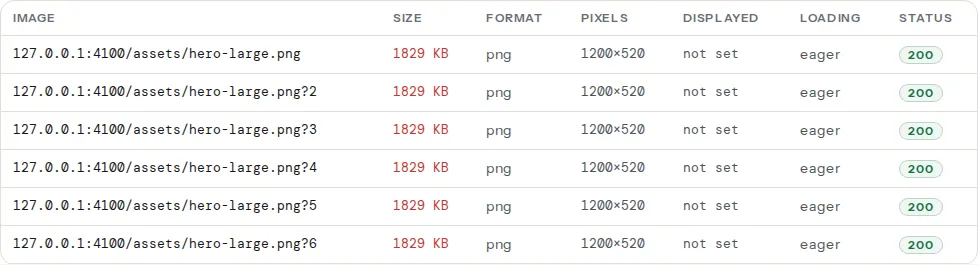
Four findings come out of it, and they map onto what a plugin can and cannot do:
This one is measured from the actual files, with a 300 KB limit. A compression plugin fixes it directly.
This is Lighthouse's estimate of what WebP or AVIF would save. A plugin with format conversion fixes it, but only if the conversion is actually served, which is the step people miss (see step 4 below).
Lighthouse compares each image's natural size with its rendered size. Resize-on-upload and a working srcset fix it; compression alone does not.
WordPress adds loading="lazy" itself. A plugin's lazy-load feature is only needed when the theme or a slider removed it, and it must never touch the hero image.
The plugins, by mechanism
The table is what each plugin does, not a ranking. All of them compress JPEG and PNG on upload and can process the existing library in bulk.
| Plugin | Where it runs | Cost model | Formats | Resize on upload | Also does |
|---|---|---|---|---|---|
| ShortPixel Image Optimizer | Cloud | Credits per image, monthly or one-off | WebP, AVIF | Yes | Backups of originals; a separate Adaptive Images plugin serves from a CDN |
| Imagify | Cloud | Free monthly allowance, then plans by megabytes | WebP, AVIF | Yes | From the makers of WP Rocket; the two integrate |
| EWWW Image Optimizer | Your server (free) or their API (paid) | Local mode free with no quota; API and Easy IO CDN paid | WebP locally; more via API | Yes | Serves WebP with <picture> rewriting or server rewrite rules |
| Smush | Cloud | Free tier with lossless compression and a per-file size limit; Pro subscription | WebP/AVIF in Pro | Yes | Lazy load; CDN in Pro |
| Optimole | Cloud CDN | Plans by monthly visits; free tier | WebP, AVIF, on the fly | Not needed: resizes per request | Replaces image URLs; media library untouched |
| Compress JPEG & PNG images (TinyPNG) | Cloud | Free monthly allowance of compressions, then per image | JPEG, PNG compression | Yes | Simple; one setting screen |
| Modern Image Formats (WordPress Performance Team) | Your server (free) | Free, no quota | WebP; AVIF where the server supports it | No (core already scales over 2560 px) | New uploads only; <picture> output optional |
Local versus cloud
Local plugins compress with binaries on your web server: no bill and no upload to a third party, but bulk-optimising 5,000 images takes CPU your visitors are also using, and shared hosts sometimes lack the binaries or the memory. Cloud plugins send each image to the vendor and cost per image or per megabyte. For a store uploading 50 product photos a week the cloud bill is small; for a photography site uploading gigabytes, local is the only affordable option.
Lossy versus lossless
Lossless compression removes metadata and re-encodes without changing a pixel: 5–20 % smaller, invisible. Lossy re-encodes at a lower quality: 40–80 % smaller, and at the vendors' default settings (roughly quality 80) the difference is not visible on a normal screen. ShortPixel's "glossy" and Imagify's default sit between. Choose lossy for everything except images where exact pixels matter (screenshots with small text, logos with flat colour, which should be SVG or PNG anyway). Smush's free tier and EWWW's free local mode are lossless; that is the main thing the free tiers hold back.
Which format
WebP is supported by every current browser and cuts 25–35 % from a JPEG at the same visible quality. AVIF is smaller again but slower to encode and, on some plugins, a paid option. The WebP and AVIF guide has the quality settings; for a plugin the decision is just "WebP on, AVIF on if the plan includes it and the server can encode it".
CDN-based plugins are a different product
Optimole and ShortPixel Adaptive Images do not change files in your library. They rewrite every image URL to point at their CDN, which resizes and converts each image for the requesting device on the fly, so they solve sizing as well as format, and they cover page-builder backgrounds because they rewrite CSS too. The trade-offs: images come from a third-party domain, the plan is priced by visits, and if you stop paying the URLs stop working until you deactivate the plugin.
What none of them fixes
- A 4000 px image used at 800 px in a theme that requests the full size. Resize-on-upload caps the largest file (set it to 2560 px or the widest slot you have), but the theme still has to ask for the right size. Check the "Displayed" column against "Pixels" in the report's table; if they differ by more than 2×, it is a theme or
srcsetproblem, covered in Responsive images: srcset and sizes. - Page-builder backgrounds. Elementor, Divi and Beaver Builder set section backgrounds with CSS, which has no
srcset, and most<picture>-based WebP delivery does not touch CSS. Server rewrite rules (EWWW's.htaccessmethod, or a CDN doing content negotiation) do. - Images from other domains. Embedded product shots from a supplier, a partner's logo, a hotlinked chart. Nothing on your server can change them; download and upload, or accept them.
- The lazy-loaded hero. A lazy-load feature applied to every image delays the largest one and makes LCP worse. Every plugin has an exclusion; use it for the first image on the page. Lazy loading done right has the details.
- Images that should not be images. A 600 KB PNG of a headline, an icon set as PNG instead of SVG. Compression makes them smaller; replacing them makes them disappear.
Step by step
One setup, using EWWW Image Optimizer because it is free with no quota, converts to WebP and can serve it without a CDN. The same steps apply to the others with different screen names.
1. Take a baseline
Run the image size checker on the home page and one product or post page. Save the report links. Note the total image weight, the number of files over 300 KB and the "Serve images in next-gen formats" saving.
2. Back up the uploads folder
Every plugin that compresses in place either keeps backups or offers to. Turn the backup option on for the first run, or copy wp-content/uploads yourself. Lossy compression cannot be undone without the original.
3. Set the compression and resize options
Settings → EWWW Image Optimizer, Basic tab:
- Remove metadata: on.
- Resize images: set a maximum width, 2560 px for a site with full-width heroes, 1600 px for a blog. Uploads wider than that are scaled down before anything else happens.
- Lazy load: leave it off unless the report says offscreen images load eagerly; WordPress already adds
loading="lazy". - WebP conversion: on.
Cloud plugins have the same choices under different names: compression level (lossy/glossy/lossless in ShortPixel, Normal/Aggressive/Ultra in Imagify), "resize larger images" with a width, and "create WebP/AVIF versions".
4. Make sure the WebP versions are served
Creating a .webp next to each JPEG does nothing until the browser is sent it. EWWW offers two delivery methods:
<picture> rewriting (the "WebP delivery method" setting): the plugin wraps each <img> in a <picture> with a WebP source. Works on any host; misses CSS backgrounds.
Server rewrite rules: the server returns the .webp when the browser's Accept header includes it, for any image URL, including CSS backgrounds. On Apache the plugin inserts this into .htaccess; on nginx you add it yourself:
# Serve .webp when it exists and the browser accepts it
map $http_accept $webp_suffix {
    default "";
    "~*image/webp" ".webp";
}

server {
    location ~* ^/wp-content/uploads/.+\.(png|jpe?g)$ {
        add_header Vary Accept;
        try_files $uri$webp_suffix $uri =404;
    }
}
The Vary: Accept header matters when a cache or CDN sits in front: without it, a cached WebP can be served to a browser that asked for JPEG.
5. Bulk-optimise the existing library
Media → Bulk Optimize (EWWW), or the equivalent screen in the other plugins. On a shared host, run it in the evening; a 3,000-image library takes an hour or two locally and minutes through a cloud API, and cloud plugins count every existing image against the quota.
6. Re-run the checker
Same two pages, a new report (the cache keeps results for 12 hours; use the re-run link). The table should show webp in the format column, no rows over 300 KB, and the next-gen formats finding passing. If "Images are larger than they are displayed" still fires, the remaining work is in the theme, not the plugin.
Watch out
Do not run two image plugins at once. Two plugins compressing the same upload produce visible artefacts, two WebP delivery methods produce broken <picture> markup, and the second plugin's lazy load can override the first's exclusions. Deactivate the old one before activating the new one.
Platform notes
WordPress.com and managed hosts
WordPress.com and several managed hosts (WP Engine, Kinsta, SiteGround) already serve images through a CDN that converts to WebP on the fly. Check the report's format column before installing anything: if it already says webp, a plugin adds compression on upload but not conversion, and the free Modern Image Formats plugin may be all you need.
WooCommerce
Product galleries are where the count adds up: five images per product, each in six sizes. The sizes WooCommerce generates are set under Appearance → Customize → WooCommerce → Product Images (600 px main image and 300 px thumbnails by default); set the plugin's resize limit to the largest size the zoom actually uses and let the plugin handle the rest. Optimole-style CDNs pay for themselves here because they pick the size per device.
Verify
- The image size checker's table shows every row under 300 KB, formats as
webporavif, and no rows with the oversized chip. - The next-gen formats, responsive images and offscreen images findings pass in the speed test, and the LCP finding names a lighter element than before.
curl -sI -H "Accept: image/webp" https://example.com/wp-content/uploads/2026/09/hero.jpg | grep -i content-typeprintsimage/webpif the server rewrite method is in use.- The originals still exist (backup folder or the
-originalfiles), so a bad compression run can be reverted.
Common mistakes
- Converting without serving. The
.webpfiles exist on disk and the browser never gets them. Turn on a delivery method and check the response'sContent-Type. - Lazy-loading the hero. LCP gets worse by the time it takes to scroll-trigger the load. Exclude the first image, or the whole first section, in the plugin's settings.
- Compressing the originals with no backup, then changing your mind. Lossy is permanent. Back up before the first bulk run.
- Running the bulk optimiser during peak hours on shared hosting. Visitors get slow pages and the run times out. Schedule it for the night or use a cloud plugin for the backlog.
- Ignoring the sizing finding because the format finding passed. A 1600 px WebP in a 300 px slot is still five times too big. Fix
srcsetand the theme's size choice.