Images are most of the bytes on most pages, and the format decides how many. The same photo, at a quality nobody can tell apart, is typically 25–35 % smaller as WebP than as JPEG, and another 20–30 % smaller again as AVIF. Both formats now work in every current browser. This guide covers which format to use for which image, the quality settings that actually produce the savings, how to serve a fallback for the few old browsers left, and how to get a CMS or CDN to do all of it on upload so it never comes back.
Quick answer
- Photos: AVIF at quality 50–65, or WebP at quality 75–82. Both look the same as a JPEG at 80 and weigh far less.
- Logos, icons, diagrams: SVG. Never a raster format for line art.
- Screenshots and flat graphics with transparency: lossless WebP, which is usually 20–30 % smaller than PNG.
- JPEG is still fine for a photo already under 100 KB at its displayed size, for e-mail, and for the Open Graph image.
- Serve with
<picture>(AVIF, then WebP, then JPEG), or let the server or CDN pick the format from theAcceptheader. - On WordPress, a conversion plugin or the Modern Image Formats plugin converts on upload; on Shopify the CDN already does it.
Why image formats matter
Every kilobyte an image weighs is a kilobyte the visitor downloads on their phone's connection, and the biggest image on the page is usually the Largest Contentful Paint element. A 480 KB JPEG hero on a 4G connection at 5 Mbit/s takes about 0.8 s to transfer on its own; the same image as a 140 KB AVIF takes about 0.2 s. That is the difference between an LCP of 3.1 s and one of 2.5 s, and 2.5 s is Google's threshold for "good".
The format does that for free. Resizing an image changes what the visitor sees (fewer pixels); changing the format keeps the pixels and stores them more cleverly. WebP, released by Google in 2010, compresses about 25–35 % better than JPEG at the same visual quality and supports transparency and animation. AVIF, based on the AV1 video codec, does better again at low and medium qualities, where it keeps smooth gradients and skin tones that JPEG turns into blocks.
Support was the reason to wait, and that reason is gone. WebP has worked in Safari since version 14 (2020), AVIF since Safari 16 (2022) and in Chrome and Firefox for years; Edge added AVIF in 2024. Serving a JPEG fallback is still polite for the small share of visitors on old devices, and the <picture> element makes it a few lines.
How getReport checks it
The speed module runs Lighthouse on the page and reads its "Serve images in next-gen formats" audit, which re-encodes each JPEG and PNG it saw during the load and estimates how many bytes and milliseconds a modern format would save. The practices module fetches every <img> on the page directly and flags the ones over 300 KB by file size, whatever their format:
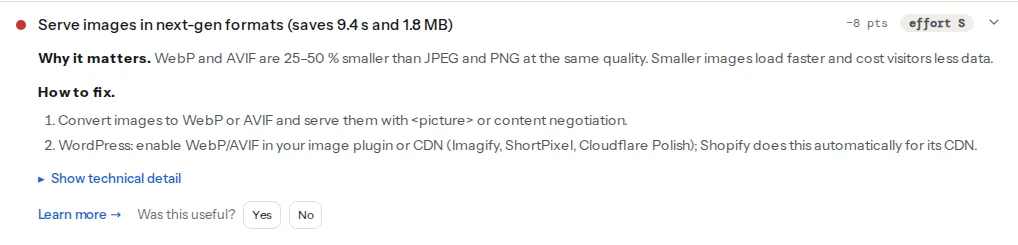
The finding's title carries the total saving, and the technical line below the fix lists the files, biggest saving first. That list is your work order. The savings are Lighthouse's estimate at a fixed WebP quality, so a real conversion at the settings below usually does a little better. An image that is already WebP or AVIF does not appear; one that is heavy because it is oversized in pixels shows up in the images-heavy-files finding instead, and format alone will not fix it. For those, read Image sizes that do not hurt first: resize, then convert.
Step by step
1. Sort the images into three piles
Open the report's images table (the image size checker shows the same report with the table on top) and go through each row:
- Photographs: product shots, hero images, team photos, anything from a camera. These get AVIF or WebP.
- Line art: logos, icons, illustrations with flat colours, charts. These should be SVG; if you only have a PNG, lossless WebP is the fallback.
- Screenshots and UI: sharp edges and text. Lossless WebP, or lossy WebP at quality 90 if the file is large.
The first pile is where the savings are. A site with 40 product photos as 200 KB JPEGs sheds about 5 MB across the catalogue by re-encoding them.
2. Pick the quality settings
Quality numbers are not comparable between formats: WebP 80 and AVIF 80 are not the same thing. Settings that reproduce the look of a JPEG at quality 80–85:
| Format | Photos | Screenshots and flat art | Tool |
|---|---|---|---|
| WebP | q 75–82 | lossless, or q 90 | cwebp, sharp, ImageMagick, Squoosh |
| AVIF | q 50–65 | q 70–80 | avifenc, sharp, ImageMagick, Squoosh |
| JPEG | q 75–85 | avoid | any |
Higher is not better. WebP at q 100 or AVIF at q 90 is often larger than the original JPEG, and nobody can see the difference from q 80. If in doubt, open the original and the converted file side by side at 100 % zoom and pick the lowest quality where you cannot tell.
3. Convert with a command or a script
The reference encoders from Google (cwebp) and the AV1 project (avifenc) are free and run on any system:
# One photo to WebP at quality 80
cwebp -q 80 hero.jpg -o hero.webp

# The same photo to AVIF at quality 55, speed 6 (lower is slower and smaller)
avifenc -q 55 -s 6 hero.jpg hero.avif

# A whole folder to WebP
for f in *.jpg; do cwebp -q 80 "$f" -o "${f%.jpg}.webp"; done
AVIF encoding is slower than WebP by a factor of five to ten at the slower speed settings; for a one-off conversion that is a coffee break, for a build step it is worth caching.
In a Node build, the sharp library does both and resizes at the same time:
// convert.js — run with: node convert.js
import sharp from 'sharp';

await sharp('hero.jpg').resize({ width: 1600 }).webp({ quality: 80 }).toFile('hero.webp');
await sharp('hero.jpg').resize({ width: 1600 }).avif({ quality: 55, effort: 4 }).toFile('hero.avif');
ImageMagick 7 does it in one line each, if the WebP and HEIF delegates are installed:
magick hero.jpg -quality 80 hero.webp
magick hero.jpg -quality 55 hero.avif
For a handful of images, Squoosh (squoosh.app, from the Chrome team) does the same in the browser with a live preview of both settings.
4. Serve with <picture> and a fallback
The <picture> element lists sources in order of preference; the browser takes the first type it supports and ignores the rest:
<picture>
  <source srcset="/img/hero.avif" type="image/avif">
  <source srcset="/img/hero.webp" type="image/webp">
  <img src="/img/hero.jpg" width="1600" height="900" alt="Blue running shoe on a white background" fetchpriority="high">
</picture>
Everything that belongs to the image (width, height, alt, loading, fetchpriority, srcset and sizes for responsive sizes) stays on the <img>; the <source> elements only offer formats. A browser without AVIF support skips straight to WebP, one without either takes the JPEG. Templates that already use srcset keep it, on each <source> and on the <img>.
5. Or let the server choose the format
Content negotiation keeps the HTML unchanged: the server looks at the Accept header (Chrome sends image/avif,image/webp,…) and returns the best file that exists next to the JPEG. With the converted files named hero.jpg.avif and hero.jpg.webp beside hero.jpg, on nginx:
# In the http block: which suffix the browser accepts, best first
map $http_accept $img_suffix {
    default        "";
    "~*image/avif" ".avif";
    "~*image/webp" ".webp";
}

# In the server block
location ~* ^/img/.+\.(jpe?g|png)$ {
    add_header Vary Accept;
    try_files $uri$img_suffix $uri =404;
}
On Apache, in .htaccess with mod_rewrite and mod_headers:
RewriteEngine On
RewriteCond %{HTTP_ACCEPT} image/avif
RewriteCond %{REQUEST_FILENAME}.avif -f
RewriteRule ^(.+)\.(jpe?g|png)$ $1.$2.avif [T=image/avif,E=accept:1,L]

RewriteCond %{HTTP_ACCEPT} image/webp
RewriteCond %{REQUEST_FILENAME}.webp -f
RewriteRule ^(.+)\.(jpe?g|png)$ $1.$2.webp [T=image/webp,E=accept:1,L]

Header append Vary Accept env=accept
AddType image/avif .avif
AddType image/webp .webp
Vary: Accept is not optional: without it a CDN or proxy caches the AVIF answer and serves it to a browser that asked for JPEG, which then shows a broken image.
Image CDNs do this without any configuration: Cloudflare Polish (on paid plans) rewrites JPEG and PNG to WebP for browsers that accept it, Cloudflare Images and imgix use format=auto, Cloudinary uses f_auto in the URL. Shopify's CDN serves WebP and AVIF to browsers that support them for every image uploaded to a store.
6. Leave the JPEGs that are fine
Not every image needs converting. Skip:
- Photos already under about 100 KB at the size they are displayed. The saving is 30 KB, and the file is not on the LCP path.
- Images used in e-mail templates. Several desktop mail clients still do not render WebP or AVIF.
- The Open Graph image. Link previews on some platforms expect JPEG or PNG; keep it a 1200×630 JPEG.
- Images meant for download or print, where the reader wants the original.
Converting these gains little and costs a fallback you have to maintain.
Platform notes
WordPress
WordPress core accepts WebP uploads since 5.8 and AVIF uploads since 6.5 (when the server's image library supports it), but it does not convert the JPEGs you already have. Three ways to get conversion:
- Modern Image Formats plugin (from the WordPress performance team, formerly part of Performance Lab): generates WebP or AVIF versions of every upload, including the existing thumbnail sizes, and outputs them in the front end. Settings → Media has the format choice.
- ShortPixel, Imagify or EWWW Image Optimizer: convert the existing library in bulk, keep the originals, and serve the new formats through
<picture>or a rewrite rule they add to.htaccess. All three have free tiers with a monthly image quota. - Cloudflare Polish, if the site is behind Cloudflare on a paid plan: no plugin, no conversion in the media library, WebP only.
Whichever you pick, run it once over the existing library (each plugin has a "bulk optimise" screen) and check that the theme's hero image, which is often hard-coded rather than a media library file, is covered.
Shopify
Nothing to do: the Shopify CDN converts on the fly and serves the best format each browser accepts. Theme images referenced through image_url and image_tag in Liquid get it automatically; images hard-coded in a theme's assets folder do not, so move those to Files and reference them by URL.
Static sites and custom code
Convert at build time with sharp (Astro, Eleventy and Next.js all have image components that do it) and commit only the originals. For a hand-built site, run the folder loop from step 3 and add the nginx or Apache rule from step 5, so the HTML never mentions the format.
Verify
- Re-run the speed test. The finding reads "Images are served in next-gen formats", and the images-heavy-files finding lists fewer files (or none) over 300 KB. Watch the LCP value if the hero was converted.
- In Chrome DevTools → Network, filter by "Img" and read the Type column:
webporavif, notjpeg. Click one file and check the Content-Type response header. If the type saysjpegon a page you converted, the server is not negotiating or a cache is serving the old file. - From a terminal, ask for AVIF explicitly and read the answer:
curl -sI -H "Accept: image/avif,image/webp,*/*" https://example.com/img/hero.jpg | grep -i -E "content-type|vary"The output should show content-type: image/avif and vary: Accept.
Common mistakes
- Renaming
photo.jpgtophoto.webp. The bytes are still JPEG; browsers sniff the content and show the image, so it looks fine, but nothing got smaller. Convert with an encoder. - Quality 100. A lossless or near-lossless WebP is often bigger than the JPEG it replaces. The saving comes from the encoder being cleverer at the same quality, not from keeping every bit.
- Lossy WebP for logos and screenshots. Sharp edges smear and text gets halos. Use SVG for logos, lossless WebP for screenshots.
- Negotiating the format without
Vary: Accept. A shared cache serves an AVIF to a browser that cannot show it. The symptom is a broken image for some visitors and not others. - Converting an image that is 4000 px wide. Format saves a third; sending 400 px to a 400 px slot instead of 4000 px saves 99 %. Resize first (Responsive images: srcset and sizes), then convert.
- Forgetting the Open Graph image. A WebP
og:imageshows no preview on some platforms. Keep that one file a JPEG or PNG.