Every file you upload to WordPress becomes a post of its own, of the type "attachment", and by default on older sites it gets a public page: the image, its title and caption, and your theme around it. A shop with 400 product photos has 400 of these pages. They hold almost no text, they look like duplicates of each other, and when a sitemap lists them, search engines index them. This guide shows how to find out whether your site has them, how to turn them off in two minutes, and how to clean up the ones already in Google.
Quick answer
- WordPress 6.4 or later, installed fresh: attachment pages already redirect to the file. Nothing to do.
- Older sites (even when updated): switch them off. Yoast: Settings → Advanced → Media pages, off. Rank Math: General Settings → Links → Redirect Attachments, on.
- No SEO plugin: set the core option
wp_attachment_pages_enabledto0, or add the redirect snippet below. - Sitemap: make sure no attachment sitemap is published (
/attachment-sitemap.xml,/wp-sitemap-posts-attachment-1.xml). - Already indexed: 301 them to the parent post; the index clears itself over a few weeks.
Why attachment pages matter
An attachment page answers a question nobody asked. Someone searching for your product lands on a page that shows one photo and a file name, with no price, no description and no button. They leave, and the page that should have ranked, the product itself, competes with its own photos for the same words.
For search engines, hundreds of near-empty pages dilute the site. Google spends crawl time on them and judges the site partly by the average page it finds. The pages are close to empty by construction: most of the text on them comes from the theme's header and footer, which is the definition of thin content.
They leak into search in three ways:
- Sitemaps. WordPress core's own sitemap leaves attachments out, but SEO plugins publish an attachment sitemap when media pages are enabled in their settings (
/attachment-sitemap.xml), and a plugin or theme can add them back to the core sitemap. - Links. Inserting an image with "Link to: Attachment page" in the editor, or a gallery set to link to attachment pages, puts a crawlable link on every post.
- Guessable URLs. With plain permalinks every attachment is reachable at
/?attachment_id=123; with readable permalinks at/parent-post/image-name/or/image-name/for files uploaded outside a post.
Image search does not need them. Google indexes the image file itself, in the context of the post where it appears.
How getReport checks it
The WordPress health check requests the two addresses where attachment sitemaps live: /attachment-sitemap.xml (Yoast and Rank Math) and /wp-sitemap-posts-attachment-1.xml (core, when attachments were added back). If either answers 200 and lists URLs, the site is inviting search engines to index its attachment pages, and the finding shows how many.
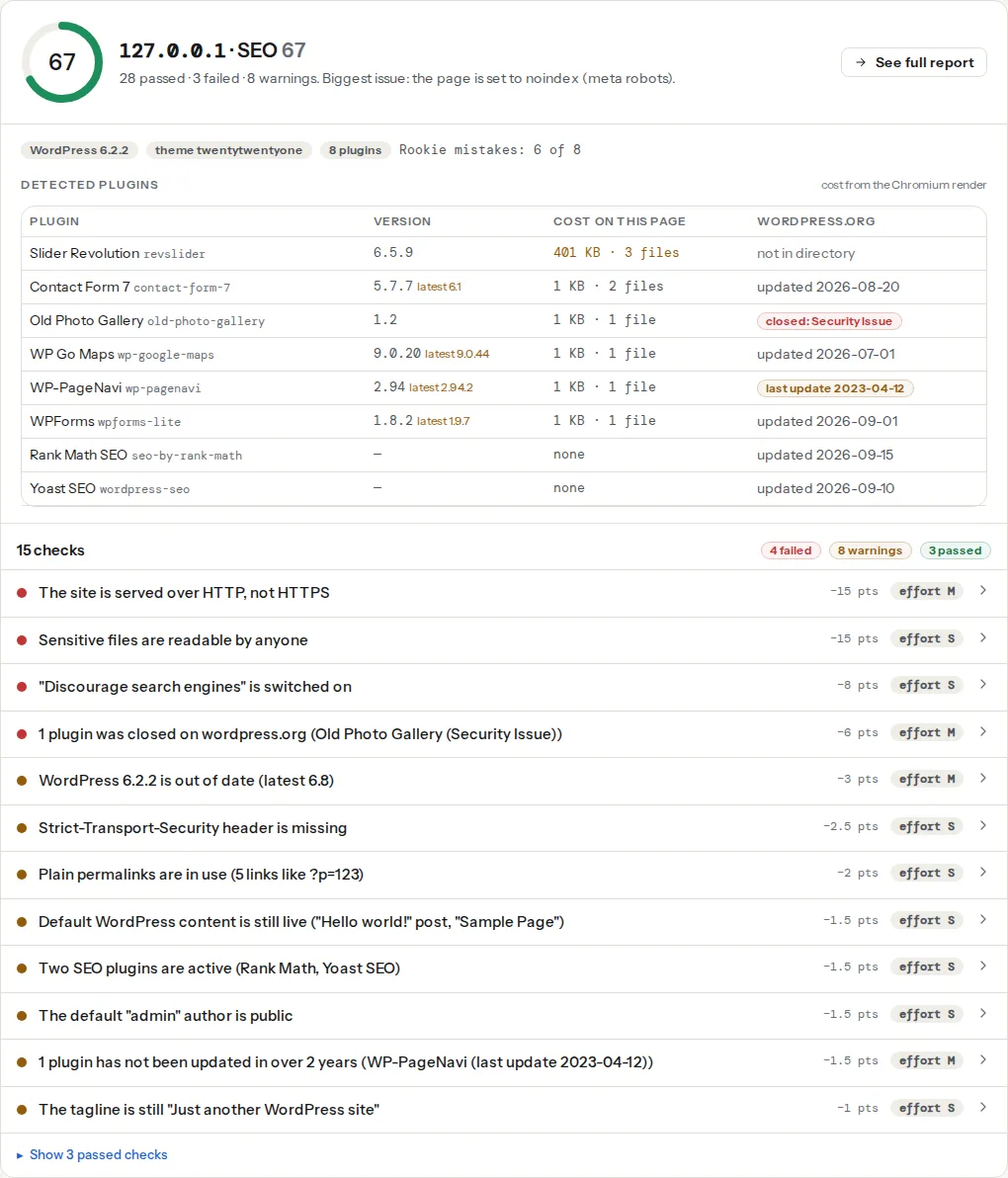
What the check does not do is open individual attachment pages; it never guesses media URLs. A site can pass (no attachment sitemap) and still have attachment pages that are linked from galleries. Step 1 below covers the manual test. When you run a report on one attachment URL, the thin-content finding shows what Google sees there:
And since the fix involves the sitemap, check that the rest of it is still valid afterwards:
Step by step
1. Find out whether attachment pages are on
Media → Library → click an image → "View attachment page" (in list view, "View"). Three outcomes:
- The browser shows the bare image file (the address ends in
.jpgor.webp): attachment pages are off. - The browser lands on the post the image belongs to: an SEO plugin redirects them to the parent.
- A themed page with the image and its title loads: attachment pages are on.
With WP-CLI you can read the core setting directly:
wp option get wp_attachment_pages_enabled0 means WordPress redirects attachment pages to the file; 1 means they are on. WordPress 6.4 introduced the option and sets it to 0 on new installs; sites installed on an earlier version were set to 1 when they updated, so their behaviour did not change.
2. Turn them off
Pick one of the four ways. Use only one; two redirect layers can disagree about the target.
Yoast SEO. Yoast SEO → Settings → Advanced → Media pages. Switch "Enable media pages" off. Yoast then redirects every attachment URL to the file itself and drops the attachment sitemap.
Rank Math. Rank Math → General Settings → Links → turn on "Redirect Attachments". Attachments go to their parent post; for files not attached to a post, set "Redirect Orphan Attachments" to a URL such as the home page or a media page. Under Sitemap Settings → Attachments, leave "Include in Sitemap" off.
Core option, no plugin. One WP-CLI command switches on the 6.4 behaviour on any site running 6.4 or later:
wp option update wp_attachment_pages_enabled 0Without WP-CLI, the same option is editable at /wp-admin/options.php (a raw list of every option; change only this one and save).
A small plugin, for any version. This redirects each attachment page to its parent post when the post is published, and to the file otherwise. Save it as wp-content/mu-plugins/redirect-attachment-pages.php; files in mu-plugins load automatically and cannot be switched off by accident:
<?php
/**
 * Plugin Name: Redirect attachment pages
 * Description: Sends attachment pages to the parent post, or to the file when there is none.
 */
add_action('template_redirect', function () {
    if (!is_attachment()) {
        return;
    }
    $id     = get_queried_object_id();
    $parent = wp_get_post_parent_id($id);
    $target = ($parent && get_post_status($parent) === 'publish')
        ? get_permalink($parent)
        : wp_get_attachment_url($id);
    if ($target) {
        wp_redirect($target, 301);
        exit;
    }
});
wp_redirect is used instead of wp_safe_redirect so that files served from a CDN or offload host still redirect; the targets come from WordPress itself, not from the request.
Parent post or file? The parent post is the better target when there is one: it is the page a visitor wanted, and any links the attachment page earned now count for it. The file is the fallback for images uploaded straight to the library.
3. Remove attachments from the sitemap
The SEO plugin settings above take care of their own sitemaps. If a theme or plugin added attachments to the core sitemap, this filter takes them out again (add it to the same mu-plugin file):
add_filter('wp_sitemaps_post_types', function ($post_types) {
    unset($post_types['attachment']);
    return $post_types;
});
Then open the sitemap index (/wp-sitemap.xml or /sitemap_index.xml) and confirm no attachment entry is listed. In Search Console → Sitemaps, remove attachment-sitemap.xml if you submitted it on its own. XML sitemap validation covers the rest of the sitemap checks.
4. Deal with the pages already indexed
Leave the 301 redirects from step 2 in place. Google recrawls the old URLs, follows the redirect and replaces them with the target over a few weeks. Do not block the attachment URLs in robots.txt at the same time: Google then cannot see the redirect, and the URLs stay in the index longer.
If you would rather the old URLs disappear completely, answer them with 410 Gone instead of redirecting. Use this in place of the redirect snippet, not with it:
<?php
// wp-content/mu-plugins/gone-attachment-pages.php
add_action('template_redirect', function () {
    if (is_attachment()) {
        global $wp_query;
        $wp_query->set_404();
        status_header(410);
    }
});
The theme's 404 template is shown with a 410 status. Redirects are kinder to visitors who arrive from an old link; 410 is faster to clear from the index. For most sites, the redirect is the better choice.
5. Stop creating new links to them
In the block editor, select an image → Link → choose "Link to image file", a URL of your own or no link, never "Link to attachment page". Gallery blocks have the same "Link to" setting in the sidebar. Old posts keep their links, but with the redirect in place those now lead somewhere useful.
Platform notes
WooCommerce
Product images are attachments too, and product galleries link to the file (with a lightbox) rather than to attachment pages, so most shops only leak through a sitemap. Check /attachment-sitemap.xml after installing or switching SEO plugins.
Sites that moved from plain permalinks
Old /?attachment_id=123 links still resolve and are redirected by whichever of the methods above you chose. Run a couple through the redirect checker to confirm there is a single hop; WordPress permalinks without losing rankings covers the wider move.
Verify
- Re-run the WordPress health check: the finding reads "Attachment pages are not exposed to search engines".
- "View attachment page" in the media library now lands on the parent post or the file.
/attachment-sitemap.xmland/wp-sitemap-posts-attachment-1.xmlanswer 404 or redirect.- In Search Console → Pages, the count of indexed attachment URLs falls over the following weeks.
Common mistakes
- Noindex without a redirect. A noindex tag keeps the pages out of search but still lets visitors land on empty pages from gallery links. Redirect instead.
- Blocking attachment URLs in robots.txt. Google can no longer see the redirect or the noindex, so the pages linger in the index. Let them be crawled until they drop out.
- Two redirect layers. Yoast sends attachments to the file, a snippet sends them to the parent, and the result depends on which runs first. Use one method.
- Redirecting every attachment to the home page. Google treats it as a soft 404 and visitors lose their context. Send them to the parent post, or the file.
- Forgetting the submitted sitemap. Search Console keeps fetching a sitemap you submitted by hand until you remove it there.