SEO monitoring means watching the few signals that can quietly cost you search traffic between two audits: whether Google still indexes your important pages, whether a release changed a noindex, canonical or title, whether pages got slower, whether the certificate renews, and whether clicks dropped. Set up alerts for the things that break overnight, then spend 30 minutes a month on the rest, comparing this month's reports with last month's. This guide lists what to watch, which alerts you can switch on for free today, and the monthly routine, in order of damage. It is the "between audits" part of technical SEO: crawling, indexing, speed and fixes; the full audit it follows up on is the SEO audit checklist.
Quick answer
- Alerts first. Turn on Search Console email notifications, uptime alerts from your host or an uptime service, and certificate expiry alerts. Let's Encrypt stopped sending expiry emails in June 2025.
- Watch the tags that change with releases:
noindex, canonical, title, robots.txt. A plugin update or deploy can flip them on every page at once. - Once a month, 30 minutes: Search Console, a report on the same four pages compared with last month, Core Web Vitals history, broken links, updates, forms.
- Keep a log: one row per month with the report links. A permanent getReport link is last month's baseline.
- React by severity: a
noindex, a manual action or a failed certificate today; speed and broken links this month.
What to monitor, and how often
Most SEO damage between audits comes from change, not decay. A plugin update adds noindex; a theme update drops the canonical; a new developer ships a robots.txt from staging; a host move breaks the certificate renewal. Each is one line, costs traffic from the day it happens, and shows up in rankings only weeks later. Monitoring shortens that gap from weeks to a day for the urgent ones and to a month for the rest.
| Signal | Where to see it | How often | Alert possible |
|---|---|---|---|
| Manual actions, security issues | Search Console | As it happens | Yes, Search Console email |
| Pages dropping out of the index | Search Console → Pages | Weekly or monthly | Partly, for new issue types |
noindex, canonical, title, robots.txt changes | SEO audit on key pages | After every release, and monthly | Change monitor (funded unlock) |
| Site down or erroring | Uptime service or host | Every few minutes | Yes |
| Certificate expiry | Security module, SSL check | Monthly | Yes, with a certificate monitor |
| Clicks and impressions | Search Console → Performance | Monthly | Custom alerts in analytics |
| Page speed and Core Web Vitals | Speed test, CWV history | Monthly | Daily speed alerts are a funded unlock |
| Broken links | SEO module, broken link checker | Monthly | No |
| Visible text on a page | Change monitor | Daily | Yes (funded unlock) |
Positions for individual keywords are the least useful thing to watch daily: they move by a few places every day for reasons that are not yours. Search Console's Performance report, compared month on month for your top pages, shows the trend that matters.
Alerts to set up once
Search Console. Verify the site if you have not, then check User settings → Email preferences: Search Console emails verified owners about new indexing issues, manual actions, security issues and Core Web Vitals problems. The settings apply to all your properties.
Uptime. Most hosts include an uptime or status alert; otherwise use an external uptime service that checks every few minutes and emails or texts a person, not a shared inbox nobody reads.
Certificate. Automatic renewal fails silently when DNS, the web root or the firewall changes. Let's Encrypt ended its expiry reminder emails on 4 June 2025, so add your own: many uptime services include a certificate expiry check. Certificate expiry: automate it, then monitor it covers the causes and fixes.
Page changes. The getReport change monitor reads a page once a day and emails you the lines of visible text that were added or removed, for up to 5 pages per email address. It compares text, not tags, so use it for pages where wording matters (pricing, terms, your top landing pages), and the monthly audit for tags. It is a funded unlock: it switches on for everyone once donations cover the daily checks, and the tool page shows an example alert until then. Daily speed monitoring with alerts for score drops, LCP regressions, certificate expiry and new security findings is a separate funded unlock on the funding page.
Traffic. In Google Analytics 4, a custom insight can email you when sessions from organic search drop sharply week on week. Tracking breaks too, so treat a sudden drop that matches a deploy date as a tracking problem until proven otherwise.
How getReport fits into monitoring
Every tool runs the same full report; the SEO audit opens it at the SEO module, the speed test at Speed, but all seven modules are there. A report link stays live for 12 months, so last month's report is this month's baseline, and a re-run shows a history strip with the change since the previous report for Overall, Speed, SEO and Security.
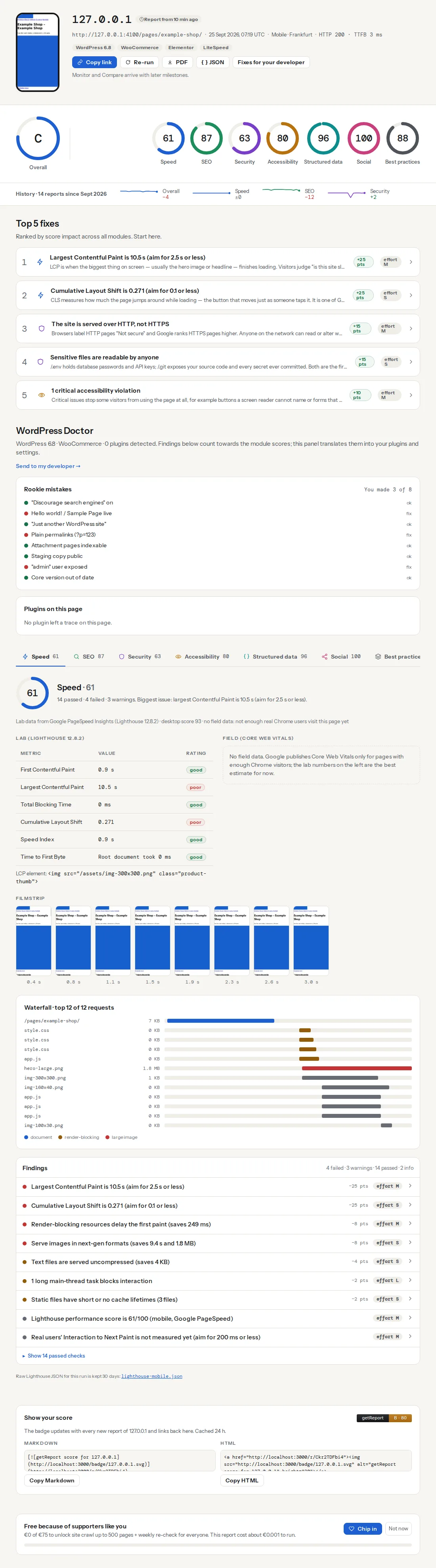
The findings that catch release damage:
The certificate finding warns below 30 days and fails below 7. Let's Encrypt certificates renew well before that, so fewer than 30 days means at least one renewal attempt has already failed.
Lab scores move a few points between runs; read a change of 10 or more as a signal, not 3.
Fresh runs are limited to 10 per 10 minutes and 50 a day per connection, and 5 per hour per site; four pages a month is well inside that, and opening an existing report link never counts.
The monthly SEO monitoring routine
| # | Check | Time | Red means |
|---|---|---|---|
| 1 | Search Console | 5 min | Indexing drop or a penalty |
| 2 | Report on the same four pages | 8 min | A release changed tags or speed |
| 3 | Certificate and HTTPS | 2 min | Renewal is failing |
| 4 | Core Web Vitals history | 3 min | Real visitors got slower |
| 5 | Broken links on key pages | 3 min | Retired pages left behind |
| 6 | Updates and abandoned plugins | 5 min | Known security holes |
| 7 | Forms and checkout | 3 min | Lost leads or orders |
| 8 | Write the log row | 2 min | Nothing; this is next month's baseline |
1. Search Console
- Manual actions and Security issues: both should say no issues detected.
- Pages: look for rows in "Why pages aren't indexed" that grew since last month. "Excluded by 'noindex' tag" or "Blocked by robots.txt" on pages you want indexed means a setting changed; a growing "Not found (404)" means removed pages or broken links.
- Performance: compare the last 28 days with the previous period for clicks and impressions, and sort pages by the click difference. A drop concentrated on one template points you to step 2.
- Sitemaps: status Success and a recent read date.
2. The same four pages, compared with last month
Run the home page, your top two or three landing pages and one template page (a product or article). Use the same pages every month, and open last month's links next to the new ones:
- The history strip shows the change since the previous report. A red delta of 5 points or more is worth opening.
- Top fixes lists the five findings that cost the most points. The same list as last month means nothing new broke; a new entry at the top is this month's finding.
- In SEO, look for a new
noindex, a canonical pointing elsewhere or a title that changed. They hurt most and are easiest to miss.
How to read a getReport report explains the rest.
3. Certificate and HTTPS
Read the Security module on the home page report: certificate days left, chain valid, HTTP redirecting to HTTPS, no mixed content. If it is red, renew now and find out why automation failed.
4. Core Web Vitals history
The Core Web Vitals history tool shows up to 40 weekly points of real-user LCP, INP and CLS. Look for a line that moved in the last four weeks; the week it crossed a threshold sits close to a change you made. Sites with too little Chrome traffic have no data; use the lab numbers from step 2. Core Web Vitals history: 40 weeks of real-user data explains the chart.
5. Broken links
The reports from step 2 already checked every link on those pages; open the broken-links finding on each. Fix internal links now, by updating the link or redirecting the old page. Once a quarter, run the broken link checker on old resource pages and posts, which rot fastest.
6. Updates and abandoned plugins
Take a backup, then update core, plugins and theme, and open the home page and one product or article after each round. On WordPress, also read the WordPress Doctor panel: a plugin closed on wordpress.org or unchanged for two years never appears on the Updates screen, because there is nothing to update to. Abandoned and closed plugins covers replacements.
7. Forms and checkout
No report can tell you a contact form stopped delivering. Send a test through every form that matters, and on a shop go as far as the payment page. Updates break forms more often than anything else, which is why this step follows step 6.
8. Write the log row
One row per month: the date, the four report links with their scores, what was red, what you fixed, what is next.
2026-09 | home https://getreport.app/r/… (82, speed 71) | landing /pricing … (79, speed 66)
        | red: canonical on /blog/* points to /blog, certificate 12 days
        | fixed: canonical template, renewed cert (cron path)
        | next: hero image on /pricing (LCP 3.9 s)
After a year it is the site's medical history: the month a score dropped, and what changed that month.
When something is red
noindex, robots.txt block, canonical to the wrong page, manual action, security issue: today. Why is my page not in Google? walks through the causes.- Certificate or HTTPS failure: today.
- Speed down 10 or more points: open Top fixes on that page; the new entry usually names the cause.
- Broken links, updates, abandoned plugins: this month, in one batch.
- Anything a developer must fix: send the report link with its fixes view; send fixes to your developer shows the format.
The 15 most common technical SEO issues are the ones this routine catches most often.
Platform notes
WordPress: steps 6 and 7 matter most, and the WordPress Doctor panel covers what the Updates screen cannot see. SEO plugin updates are a common source of changed titles and canonicals, so run step 2 after them too.
Shopify, Wix, Squarespace: the platform renews the certificate and updates the software, so steps 3 and 6 shrink to a glance. Apps and theme updates still change pages without notice, so steps 2 and 7 matter more, not less.
Static sites: rebuild with updated dependencies monthly, and let the report confirm that headers, caching and robots rules survived the deploy.
Common mistakes
- Monitoring different pages each month. Scores differ more between pages than between months. Keep the same four.
- Reading a 3-point speed change as a trend. Look for 10 points, or at what real visitors saw in the CWV history.
- Watching rankings daily and tags never. A
noindexcosts more than any ranking wobble and is visible the day it ships. - Alerts to a shared inbox. An alert nobody reads is not monitoring. Send it to a person.
- Skipping the log. Without last month's links there is nothing to compare.
Questions people ask
What is SEO monitoring?
SEO monitoring is the ongoing check that nothing on your site has started costing you search traffic since the last audit. It covers indexing in Search Console, tags that releases change (noindex, canonical, titles, robots.txt), uptime and certificates, speed, and clicks. The urgent signals get alerts; the rest gets a short monthly pass comparing this month's reports with last month's.
How do I get alerts when something breaks my SEO?
Combine a few free alerts. Search Console emails verified owners about new indexing issues, manual actions and security problems; an uptime service emails you when the site goes down; a certificate monitor warns before expiry; and a GA4 custom insight can flag a sharp drop in organic sessions. For tag changes such as a new noindex, re-run an SEO audit on key pages after every release.
What is the difference between SEO monitoring and an SEO audit?
An audit is a deep, occasional review of the whole site, usually once or twice a year and after big changes. Monitoring is the light, continuous check in between, focused on the few signals that can break suddenly: indexing, key tags, uptime, certificates and speed. The audit finds what to fix; monitoring makes sure the fixes and everything else stay in place.
How often should I check Search Console?
Once a month for a full look at the Pages, Performance and Core Web Vitals reports, and immediately whenever Search Console emails you. With email notifications switched on, manual actions, security issues and new indexing problems reach you without logging in. After a migration or redesign, check the Pages report weekly for the first two months.