A WordPress plugin does not stop working when its author stops working on it. It keeps running, on every page view, with whatever bugs and holes it had on the day of its last release. That is what makes abandoned plugins dangerous: nothing visibly breaks until a WordPress or PHP update finally does, or until someone finds the hole first. This guide shows how the report spots plugins that are no longer maintained or have been removed from wordpress.org, how to judge a replacement in ten minutes, and how to swap one plugin for another without losing data. Plan an hour per plugin, most of it on staging.
Quick answer
- Closed on wordpress.org: replace it now. The directory closes plugins for unfixed security issues, guideline violations or at the author's request, and no update will ever arrive through wp-admin.
- No release in over 2 years: replace it soon, unless it is tiny and you have read the code.
- Judge a replacement by its wordpress.org page: last updated within months, "tested up to" the current WordPress, active installs in the thousands or more, support threads with answers, a changelog with a rhythm.
- Swap on staging: export data, install the new one, migrate, deactivate the old one, test, then repeat on the live site.
- Premium and custom plugins are not in the directory, so the report cannot judge them; check the vendor's changelog yourself.
- Run the WordPress health check after the swap; the findings should read "no detected plugin has been closed" and "every detected plugin has a recent update".
Why abandoned plugins matter
Most compromised WordPress sites got in through a plugin, not through WordPress itself. A maintained plugin gets a fix within days of a report, and the site updates. An abandoned plugin gets the same report and nothing else; the vulnerability is published, scanners look for the plugin's asset paths on every site they can find, and the sites that still run it are the target list.
The second cost is quieter. PHP releases remove functions every year, and WordPress changes its own APIs. A plugin last touched in 2022 was tested on PHP 7.4 and WordPress 6.0; on PHP 8.3 it throws deprecation warnings, on 8.4 it may throw fatal errors, and the site goes white on the day the host upgrades PHP. Because the plugin runs on every request, the failure takes the whole site down, not just the feature.
Closed plugins are the sharper version. When wordpress.org closes a plugin, it disappears from search and its page shows "This plugin has been closed as of …" with a reason, but every site that already installed it keeps running it. The update check answers nothing, so wp-admin shows no warning. Nobody notices until a scanner does.
How getReport checks it
The report recognises plugins from what the page reveals: asset URLs under /wp-content/plugins/<slug>/ and the comments some plugins print. It never guesses slugs or probes for plugin folders. Each detected slug is then looked up in the wordpress.org plugin directory (the plugin information API), cached for a day, up to 25 plugins per report. From the directory record it reads the plugin's name, the latest version, the last-updated date, active installs, and whether the plugin was closed together with the reason wordpress.org gives.
Two findings come from that lookup:
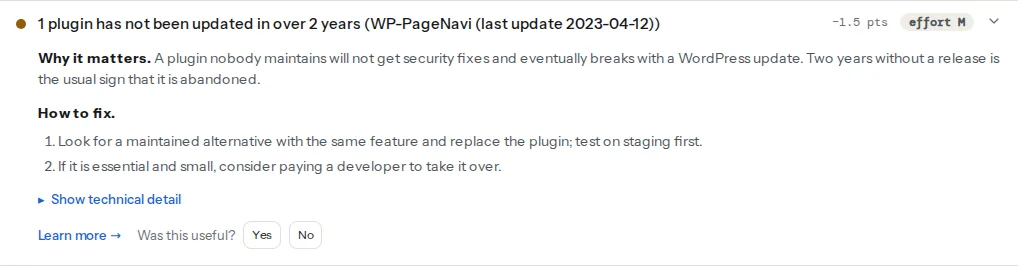
"Over 2 years" is measured from the last-updated date in the directory to the day of the report. A plugin updated 23 months ago passes; one updated 25 months ago warns. Closed plugins are excluded from the abandoned count, because they already fail the closed check, which is the more serious of the two.
A third finding puts the same plugins in context:
The plugin cost table lists every detected plugin with its version, its weight on the page and its wordpress.org status side by side, which is where you see that the abandoned slider is also the heaviest thing on the page. What the report cannot do is judge plugins that are not in the directory. A premium plugin, a custom plugin the agency wrote, or a plugin distributed from the author's own site shows as "not in directory" with no dates. That is not a warning; it means the check has no data. What your WordPress plugins cost visitors covers reading the whole table.
Step by step
1. Read the reason on wordpress.org
For a closed plugin, open https://wordpress.org/plugins/<slug>/. The banner names the reason. The ones you will see:
- Security Issue: a vulnerability was reported and not fixed. Treat the plugin as exploitable today.
- Guideline Violation: the author broke the directory rules (tracking, licensing, trademark). Not necessarily insecure, but there will be no updates.
- Author Request: the author gave up on it. Same outcome: no updates.
Closed plugins sometimes reopen after the author fixes the issue; the page says so. Until it does, the plugin is a risk. For a plugin closed for a security issue, search the plugin name in a vulnerability database (Wordfence and Patchstack publish free ones) to see what the hole is and whether your firewall blocks it.
2. Decide whether the plugin still earns its place
Before finding a replacement, ask whether you need one. Plugins accumulate: the gallery from the old theme, the share buttons nobody clicks, the "TinyMCE" toolbar that predates the block editor. Open the page where the plugin does its job, and if you cannot find that page, deactivate it on staging and look for what breaks. A plugin that does nothing visible is replaced by nothing.
3. Judge a replacement in ten minutes
The wordpress.org plugin page has everything you need in the sidebar and the tabs:
| Signal | Good | Worrying |
|---|---|---|
| Last updated | Within the last 3 months | Over a year |
| Tested up to | The current WordPress major version | Two or more versions behind |
| Requires PHP | 7.4 or 8.x | Not stated, or 5.6 |
| Active installations | 10,000+ (or a few thousand for a niche job) | Under 100 with no other signals |
| Support | Threads from the last two months have replies from the author | Dozens of unanswered threads |
| Changelog (Development tab) | A release every month or two, with fixes named | One release, or "bug fixes" every time |
| The author's other plugins | Several, all maintained | This is the only one, and it is stalling |
| Reviews | Recent ones, with the author answering the bad ones | Only from years ago |
Then the part the sidebar does not show: install it on staging and run the WordPress plugin detector. A replacement that loads 300 KB on every page is not an upgrade over an abandoned one that loaded 20 KB; the fix for that is loading it only where needed, which the plugin cost guide covers.
4. The classic pairs
Most abandoned plugins fall into a few families, and most have a known successor:
- Old sliders (LayerSlider and Slider Revolution bundled with a 2016 theme, the many "responsive slider" plugins): the core Cover, Gallery and Query Loop blocks cover a static hero; Smart Slider 3 or MetaSlider are maintained sliders when you need one.
- Old gallery plugins: the core Gallery block, with a lightbox from the theme or a small maintained plugin.
- Contact forms: Contact Form 7, WPForms, Fluent Forms, Ninja Forms and Formidable are all maintained; export entries first if the old plugin stored them.
- Social share and follow buttons: a maintained share plugin, or the theme's own buttons, which cost nothing extra.
- TinyMCE and classic-editor add-ons: the block editor does what most of them did; "Advanced Editor Tools" is the maintained successor of TinyMCE Advanced for the classic toolbar.
- Pagination plugins (WP-PageNavi era): the core Query Pagination block or the theme's pagination.
- Related posts, popular posts, "recent posts with thumbnails": the core Latest Posts and Query Loop blocks.
The theme demo is the source of many of these. A premium theme bundles plugins the theme author licensed years ago; when the theme stops being updated, its bundled plugins stop too, and they are not in the directory to be checked. Look them up by name on the vendor's site.
5. Swap it on staging first
- Make a staging copy (most hosts have a button; otherwise a migration plugin). Make sure the copy is not indexable, as described in the WordPress rookie mistakes.
- Export what the old plugin owns: form entries, slider configurations, gallery albums, settings. Most plugins have an export screen; if not, note the settings by hand and screenshot them.
- Install and configure the new plugin. Recreate the slider, the form, the gallery. Import where the new plugin offers it (form plugins usually import from each other).
- Replace the old plugin's shortcodes and blocks in content. Search the database for the old shortcode (
[rev_slider,[contact-form-7) with a search-replace plugin, and swap in the new one. - Deactivate the old plugin. Click through the pages that used it. Check the site logged out, on a phone.
- When it works on staging, repeat the same steps on the live site, or push staging to live if nothing else changed in between.
- Delete the old plugin's folder. A deactivated plugin is still code on the server that a scanner can find.
For a plugin closed for a security issue, do not wait for staging: deactivate it on the live site today and accept the missing feature for a few days.
6. Set a reminder
Plugins do not announce abandonment; they just stop. Re-run the health check every few months, or after each WordPress major release, and read the plugin table. The two-year rule is a threshold, not a verdict: a plugin at 20 months with no support replies is already on its way.
Platform notes
Premium plugins
Paid plugins (Elementor Pro, Gravity Forms, WP Rocket, most theme bundles) update through their own licence servers and are never in the wordpress.org directory. The report shows them as "not in directory". Check the vendor's changelog page for the release cadence and whether your licence still receives updates; an expired licence is an abandoned plugin from the site's point of view.
Managed WordPress hosts
Several managed hosts run a vulnerability scanner across their customers' plugins and email you when one is affected. That covers known holes, not abandonment; the report's two-year check catches the plugins nobody has reported yet.
Multisite
A plugin network-activated across dozens of sites is abandoned on all of them at once. Do the replacement once on a single site, then roll it out.
Verify
- Re-run the WordPress health check. The closed finding reads "No detected plugin has been closed on wordpress.org" and the abandoned finding "Every detected plugin has a recent update".
- The plugin table no longer lists the old slug. If it does, an old page still references its assets; search the content for the shortcode.
ls wp-content/plugins/on the server no longer shows the old folder.- The feature works logged out: the form sends, the slider slides, the gallery opens.
Common mistakes
- Deactivating a closed plugin and stopping there. The folder is still on the server, and a scanner does not care whether the plugin is active. Delete it.
- Replacing an abandoned plugin with a fork of itself. Someone re-uploaded the same code under a new name; the wordpress.org page shows one release and no history. Judge the successor by the same table.
- Trusting the version on the page. The
?ver=on an asset URL is what the plugin says, and some print the WordPress version. The directory's last-updated date is the fact. - Ignoring plugins the theme bundled. They are not in the directory, they update only when the theme does, and the theme stopped updating in 2020. Look each one up by name.
- Migrating on the live site. The form is broken for an afternoon and the slider is gone from the home page. Staging costs an hour and saves a day.