Every WordPress page carries a line in its <head> that says which version built it: <meta name="generator" content="WordPress 6.6.2">. Joomla and Drupal print the same. It is meant for statistics; in practice it is the first thing a scanner reads, because a version number maps to a list of published vulnerabilities. This guide explains how the report reads that line, what "out of date" means for each CMS, and an update routine that does not break the site. Reading the finding takes a minute; the first full update round takes an hour with a backup and a staging copy.
Quick answer
- View the page source and search for
generator. The number after the CMS name is your version. - WordPress: the report warns when the version is two or more releases behind the current line (6.6 when 6.8 is current). Joomla 3 or 4 and Drupal 7 to 10 are flagged as behind the newest major (Joomla 5, Drupal 11).
- Update in this order, with a backup first: core, then themes, then plugins, then PHP.
- Switch on auto-updates for minor core releases (the default) and for plugins that have not broken anything in a year.
- Replace plugins the report lists as closed or not updated in two years.
- Hiding the version number is a finishing touch, not a fix.
Why the CMS version matters
Most compromised sites run old code. Not exotic zero-days: known holes in a plugin, theme or core release that a patch fixed months earlier. Vulnerability disclosures for WordPress plugins are published daily, each with the affected version range. Scanners combine that list with what your pages reveal and try the matching exploit within hours of disclosure, without a human involved.
The version number on your page is the shortcut. A scanner that reads "WordPress 6.2.2" knows every core issue fixed since mid-2023 applies. The same goes for plugin versions in asset URLs (/wp-content/plugins/contact-form-7/includes/js/index.js?ver=5.7.2). Updating removes the holes; hiding the number only removes the shortcut, and scanners have others (the readme.html file at the root, the version in RSS feeds, the ?ver= on core scripts).
There is a second cost. Old core releases stop receiving security patches. WordPress backports security fixes to old branches for a long time, but the same is not true of most plugins, and Joomla 3, Joomla 4 and Drupal 7 have reached the end of their support. A site on an unsupported line has holes nobody will ever patch.
How getReport checks it
The report reads the <meta name="generator"> tags of the fetched page, whatever their capitalisation (Drupal writes name="Generator"), and falls back to the X-Generator response header when there is no tag. When it names WordPress, Joomla or Drupal with a version number, the finding compares it with the current release line the report knows: a WordPress version two or more minor releases behind the current one (6.8 at the time of writing) is out of date, and so is any Joomla release before 5 or any Drupal release before 10. No generator tag, or a tag without a version, and the finding does not appear; the report never guesses from other signals.
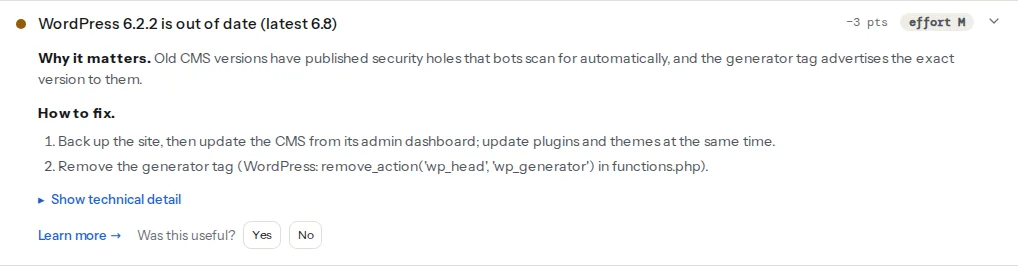
For WordPress sites, the WordPress health check also lists the plugins the page reveals through its asset paths, with the version from each file's ?ver= parameter, and looks every slug up in the wordpress.org directory. Two findings come out of that lookup:
Only plugins the page loads assets from are detected; a plugin that adds nothing to the front end (a backup plugin, for example) is invisible to the report and to any other outside scanner. The full plugin table with kilobytes and requests per plugin is in the plugin detector.
Step by step
1. Read your current versions
WordPress: Dashboard → Updates shows the core version and the count of plugin and theme updates. Tools → Site Health → Info lists the PHP version, the database version and the active theme. Joomla: System → Update → Joomla. Drupal: Reports → Available updates.
From outside, the generator tag is enough for core, and the ?ver= numbers in the page source give plugin versions. The report shows both.
2. Back up, and know how to restore
Take a full backup (files and database) before any update, and make sure you know where the restore button is. A host snapshot from the control panel is the fastest; UpdraftPlus and similar plugins work everywhere. The test that matters is not "did the backup run" but "can I restore it": try it once on a staging copy before you rely on it.
3. Update on staging first when the gap is big
For one or two minor releases behind, updating live with a backup is fine. For a site several releases behind, or with a page builder and a shop, clone the site to staging (most hosts have a one-click copy; the free WP Staging plugin does it elsewhere) and run the whole routine there first. Keep the staging copy behind a password; the report flags public staging sites for a reason.
4. Update in order: core, themes, plugins
In this order, one group at a time, checking the site between groups:
- Core. Dashboard → Updates → Update now. Minor releases (6.8.1 → 6.8.2) are safe and automatic by default; major releases (6.7 → 6.8) occasionally change how a theme or builder behaves.
- Themes. Update the parent theme. If you customised the theme's files directly rather than in a child theme, the update overwrites them; that is what child themes are for.
- Plugins. Update a few at a time, starting with security and SEO plugins, then the page builder, then the rest. After each batch, open the home page, one product or post, and the contact form.
After each step, check: the home page renders, the menu works, a form submits, the cart (if any) adds and checks out, and the admin loads. A white page after a plugin update means a PHP error; the host's error log names the plugin, and deactivating it by renaming its folder over SFTP brings the site back.
5. Update PHP
WordPress, Joomla and Drupal all run on PHP, and PHP versions retire on a schedule of their own. Old PHP is slow, unsupported and a common reason a CMS update fails ("requires PHP 7.4 or higher"). The host's control panel has a PHP version selector. Before switching, check Site Health for warnings, switch on staging first, then production. Each step up in PHP is also usually a measurable speed gain.
6. Turn on the auto-updates that are safe
WordPress has applied minor core releases automatically since version 3.7 (2013). Leave that on. Major releases can be automated from Dashboard → Updates ("Enable automatic updates for all new versions"); do that on a small site with a standard theme, and not on a site whose builder or shop needs testing.
Plugins and themes have per-item auto-update links in their list screens since WordPress 5.5. Turn them on for plugins that release often and have never broken the site (security plugins, form plugins, SEO plugins). Leave the page builder and WooCommerce manual. The constants in wp-config.php set the same policy for the whole site:
// wp-config.php – core: minor releases only (the default); plugins: all
define('WP_AUTO_UPDATE_CORE', 'minor');<?php
// wp-content/mu-plugins/auto-updates.php – auto-update every plugin and theme
add_filter('auto_update_plugin', '__return_true');
add_filter('auto_update_theme', '__return_true');Auto-updates need a working backup behind them, because they run at 3 a.m. without anyone watching. A host with daily snapshots is the usual answer.
7. Deal with abandoned and closed plugins
The report's two plugin findings need different responses.
Closed on wordpress.org. The directory closes a plugin for an unfixed security issue, a guideline violation, or at the author's request; the reason is shown on the plugin's directory page and in the finding. A closed plugin will not receive updates through WordPress, and if the reason is a security issue, the hole is public. Replace it this week. Until then, search the plugin's name in a vulnerability database to see whether the issue affects your version.
Not updated in over two years. Nothing is wrong yet, but nothing will be fixed either, and the plugin will eventually break with a PHP or core update. Look for a maintained alternative with the same feature (the directory's "last updated" and "tested up to" lines are the first filter), test it on staging, migrate settings, then remove the old plugin. If the plugin is small and essential, the alternative is paying a developer to maintain a fork.
In both cases, deactivating is not enough. A deactivated plugin's files are still on the server, and a hole in a file that can be requested directly does not care whether the plugin is active. Delete it.
8. Hide the version, as a finishing touch
Once the site is current, removing the generator tag stops advertising the exact release. In a child theme's functions.php or a must-use plugin:
<?php
// wp-content/mu-plugins/hide-generator.php
remove_action('wp_head', 'wp_generator');
That removes the tag from pages and feeds. The ?ver= on core scripts still shows the version to anyone who looks, and readme.html at the root states it in the title; delete that file after every update, or block it at the server. Understand that this is cosmetic: an up-to-date site with the tag is safe, and an old site without the tag is not. Server header leaks (X-Powered-By: PHP/7.4.3) are a separate finding in the security headers checker; they are covered in Server and X-Powered-By headers.
9. Keep a changelog
One line per update round: date, what was updated from what to what, anything that broke and how it was fixed. When something goes wrong three weeks later, the changelog tells you which update to suspect. A shared document or a note in the host's dashboard is enough.
Platform notes
Joomla
Joomla 3 reached end of life in 2023 and Joomla 4 in October 2025; Joomla 5 is the current line. Updating from 3 to 4 or 5 is a migration (extensions must be compatible), not a click, and is best done on a copy. Within a line, System → Update → Joomla applies patch releases. The generator tag can be edited or removed in the template's index.php or via a plugin, and the same rule applies: update first, hide second.
Drupal
Drupal 7 support ended in January 2025; Drupal 10 and 11 are both supported, and 10 → 11 is an in-place upgrade once contributed modules are compatible. The report compares with the newest major, so a Drupal 10 site gets the out-of-date warning: plan the upgrade, but it is not an emergency. The Generator meta tag is added by core and can be removed with a small custom module or hook_page_attachments_alter(). Composer-based sites update with composer update drupal/core-recommended --with-dependencies followed by drush updatedb.
Magento / Adobe Commerce
The report does not read a Magento version (it has no generator tag), but the same logic applies: Magento 1 has been unsupported since June 2020, and the 2.4.x line gets security-only releases that should be applied within weeks. Test on staging; extensions break more often than core.
Verify
- View source: the generator tag shows the current release, or is gone.
- Dashboard → Updates: "You have the latest version of WordPress" and no plugin or theme updates pending.
- Site Health shows no critical issues and a supported PHP version.
- Re-run the WordPress health check: the version finding passes ("WordPress 6.8 is up to date" or absent because the tag is hidden), and the plugin findings show no closed or abandoned entries.
- The site works: home page, one deep page, a form, checkout if you have one.
Common mistakes
- Hiding the version and calling it done. Symptom: the tag is gone, the site is still on 6.2 and gets compromised via a plugin. Fix: update first; hiding is optional.
- Updating plugins without a backup. Symptom: white screen at 5 p.m., no way back. Fix: host snapshot or backup plugin before every round, restore tested once.
- Skipping PHP. Symptom: "This plugin requires PHP 8.0" and a site stuck on old plugin versions. Fix: raise PHP on staging, then production.
- Deactivating a closed plugin instead of deleting it. Symptom: the vulnerable file is still on disk and still reachable. Fix: delete the plugin.
- Editing the parent theme. Symptom: every theme update erases the custom CSS and the header changes. Fix: a child theme or the Customizer's Additional CSS.
- Auto-updates without backups. Symptom: an overnight plugin update breaks checkout and nobody notices until the morning. Fix: daily snapshots and a monitoring ping on the checkout page.