WordPress security comes down to a short checklist: keep core, plugins and themes updated, protect every administrator login with a unique password and two-factor authentication, give as few people as possible administrator rights, lock down files and forgotten copies, and keep backups you have actually restored. Sites get broken into through old plugins, weak passwords and exposed staging copies, not through a missing security plugin.
This guide is the map of WordPress security for site owners and the people who look after their sites. It covers how attacks really happen, how to audit a site from the outside and the inside, the ten steps with the wp-config.php lines that lock them in, and what a security plugin or firewall adds. Plan an afternoon for the first pass; after that it is a monthly routine.
Quick answer
| # | What | Where |
|---|---|---|
| 1 | Update core, plugins, themes and PHP monthly; auto-update the boring ones | Dashboard → Updates, host panel |
| 2 | Long unique passwords plus two-factor login for every administrator | Users → Profile, the Two Factor plugin |
| 3 | Fewest administrators possible; Editor for everyone who writes | Users → All Users |
| 4 | No user called "admin"; author archives hidden or renamed | Users, SEO plugin settings |
| 5 | Login attempts limited at the host, CDN or a small plugin | Host panel, Cloudflare, or a plugin |
| 6 | File editing in the admin switched off | DISALLOW_FILE_EDIT in wp-config.php |
| 7 | XML-RPC off unless Jetpack or an app needs it | A filter or a server rule |
| 8 | File permissions 755 / 644, wp-config.php 600; no public debug log | SFTP or SSH, wp-config.php |
| 9 | Backups that you have restored once, stored off the server | Host snapshots or a backup plugin |
| 10 | Staging copies password-protected; HTTPS and security headers everywhere | Host panel, server config |
Run the free WordPress security scan before and after: it catches an outdated core, closed and abandoned plugins, the public "admin" user, an open staging copy, exposed .env or .git files and missing HTTPS.
Is WordPress secure?
Yes, the core is: WordPress core has a dedicated security team and ships security fixes to most sites automatically. The risk sits in what you add to it. Patchstack's State of WordPress Security in 2026 report counted 11,334 new vulnerabilities in the WordPress ecosystem in 2025. 91 % were in plugins, 9 % in themes, and only 6 in core, all low priority.
Two numbers from the same report explain why updates are step one. 46 % of those vulnerabilities were not fixed by the time they were made public, and for the most heavily targeted ones the weighted median time to first exploitation was five hours. A site with forty plugins is only as secure as the least maintained of them.
Common WordPress security issues: how attacks happen
Attacks on WordPress are automated and lazy. A bot scans for a version number or a plugin path, matches it to a published hole, and runs the exploit. Another bot tries admin with the ten thousand most common passwords against wp-login.php and xmlrpc.php. A third looks for staging. subdomains, .env files and debug.log. None of these needs to be clever, because enough sites leave one of the doors open.
Each step below closes a door. Updates remove the holes the first bot looks for. Unique passwords and two-factor login stop the second. Locked staging copies and blocked dotfiles stop the third. A security plugin sits in front of all of this as a firewall and a login limiter, which is useful, but a firewall in front of an unpatched plugin with an admin / Summer2024! login is a fence around an open gate.
The order matters too. Sites that are up to date, on HTTPS, with 2FA and a tested backup recover from the rare successful attack in an hour. Sites without a backup do not recover; they get rebuilt.
WordPress security audit: check from the outside and the inside
A useful audit has two halves, because no single tool sees both.
From the outside, anyone can see what the public site reveals.
When the fetched page reveals WordPress (/wp-content/ paths, the generator tag, the wp-json link), the report adds the WordPress Doctor panel. It requests a fixed list of at most 15 well-known public addresses, such as /?author=1, the staging., dev. and test. subdomains, /.env and /.git/HEAD. Nothing logs in, nothing guesses usernames or plugin slugs, and a finding says that a file is exposed, never what is in it.
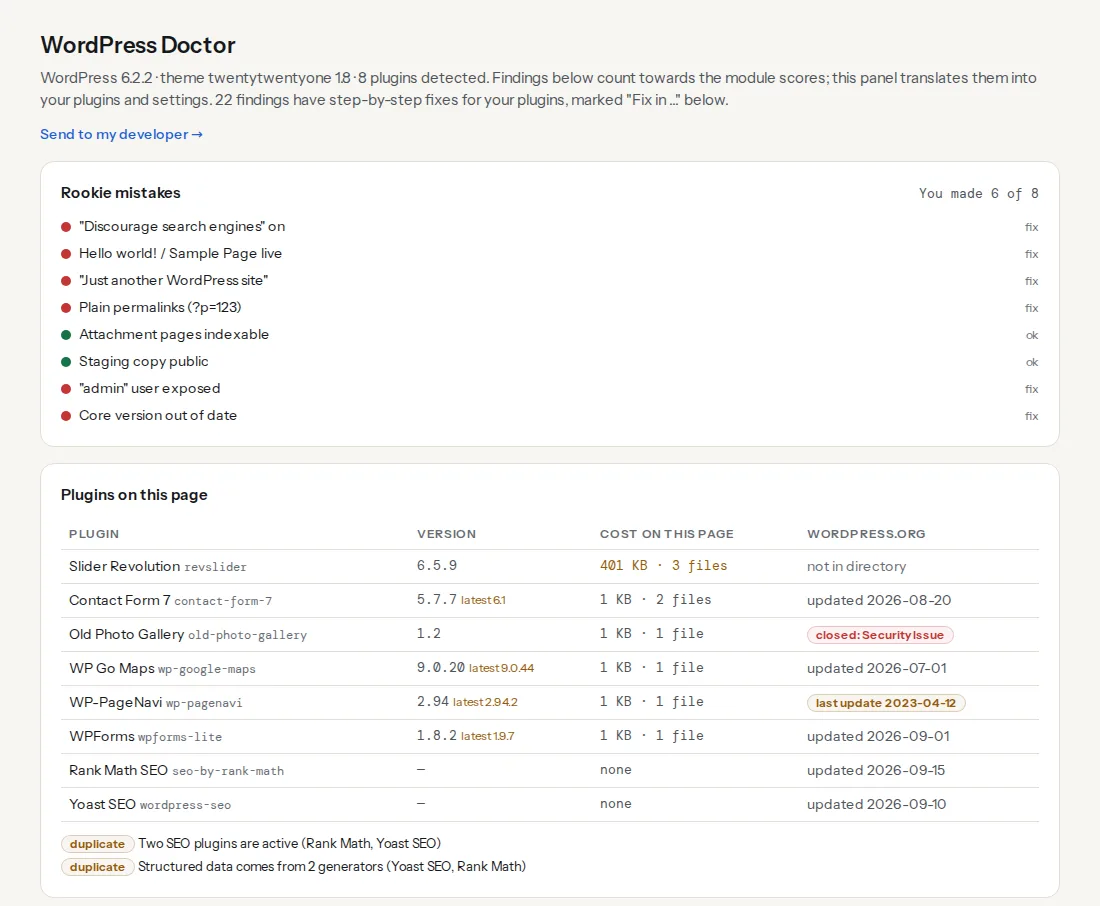
The findings that cover this guide:
From the inside, WordPress's own health check lives under Tools → Site Health. Its Status tab flags an outdated PHP version, inactive plugins and themes to delete, and HTTPS problems; its Info tab lists server details for your host. Everything else on the checklist (2FA, roles, file permissions, backups, DISALLOW_FILE_EDIT) is invisible to any outside scanner, so you check that half yourself, once a quarter.
The WordPress security checklist, step by step
1. Update everything, monthly
Core, plugins, themes and PHP. Dashboard → Updates lists the first three; the host's control panel sets the PHP version. Minor core releases update themselves since WordPress 3.7; switch on auto-updates for plugins that release often and have never broken the site (Plugins → "Enable auto-updates" per row). Delete deactivated plugins and unused themes: their files stay on disk and stay exploitable. Keep one default theme as a fallback and remove the rest. The full routine is in Outdated CMS versions.
Vulnerable, abandoned and closed plugins
Updates only help while a plugin still gets them. A plugin with no release in two years, or one that wordpress.org has closed (often for an unfixed security issue), keeps running without fixes. The report looks up every plugin the page reveals in the wordpress.org directory:
Matching every installed plugin version against a vulnerability database is a separate job that security plugins and many hosts do for you. WordPress vulnerabilities: find and replace risky plugins covers both: where the free vulnerability databases are, how to judge a replacement and how to swap a plugin without breaking the site.
2. Login security: passwords, two-factor and rate limits
Every account with Administrator or Editor rights gets a generated password of 20+ characters stored in a password manager, not reused anywhere else. WordPress's own generator (Users → Profile → Set New Password) is fine, and since WordPress 6.8 core stores passwords with bcrypt.
WordPress core has no built-in two-factor login and does not limit failed logins. Two-factor login is the one job where a plugin is the only option: the Two Factor plugin on wordpress.org, maintained by core contributors, supports authenticator apps and backup codes. Turn it on for every administrator today and for editors this month. Login limits belong in front of WordPress: a rate-limiting rule at the host or CDN on wp-login.php and xmlrpc.php stops brute-force traffic before it reaches PHP, and a small plugin is the fallback.
WordPress login URL: how to find it and protect it covers where the login lives on any install (and how to get back in when a plugin moved it), setting up 2FA step by step, nginx and Cloudflare rules for login rate limits, and why renaming the login page cuts log noise but is not protection on its own.
3. Least privilege
WordPress has five built-in roles. Only Administrator can install plugins, edit themes and change settings. Everyone who writes content is an Editor (all posts) or an Author (their own posts). Agencies get an Administrator account per person that you delete when the project ends. Go through Users → All Users once a quarter: remove people who left, downgrade anyone who does not need Administrator, and delete accounts that have never logged in.
4. The "admin" user and user enumeration
A login named admin gives a brute-force script half of what it needs. /?author=1 redirecting to /author/admin/ tells the script the name is in use, which is what the report checks; the REST API's users endpoint can list author slugs too. Create a new administrator with a unique username, log in as it, delete admin and attribute its posts to the new account. If the site has one author, hide author archives in your SEO plugin or redirect them. WordPress user enumeration: stop it and replace "admin" is the walkthrough, including the REST API filter, and the author slug fix page explains user enumeration.
5. Switch off file editing
Appearance → Theme File Editor and Plugins → Plugin File Editor let any administrator, or anyone who steals an administrator session, write PHP that runs on your server. One constant turns both off; a second one also blocks installing and updating plugins from the admin, which suits sites deployed from Git and not sites that update from the dashboard. Both are in the wp-config.php block below.
6. XML-RPC: off unless you need it
xmlrpc.php is the old remote-publishing API. Jetpack's connection uses it, and so do some older mobile and desktop publishing apps; nothing else on a typical site does. It accepts login attempts and pingback requests, so bots use it for password guessing and to make your server fetch other sites. If you do not use Jetpack, block the file at the server:
# nginx, inside the server block
location = /xmlrpc.php {
    return 403;
}# .htaccess
<Files "xmlrpc.php">
Require all denied
</Files>xmlrpc.php: what it is and how to disable it safely explains the attacks, how to find out from your access log whether anything still needs XML-RPC, a Cloudflare rule, and why the xmlrpc_enabled filter alone leaves pingbacks working.
7. File permissions
On a normal single-account host: folders 755, files 644, and wp-config.php readable only by the account that runs PHP. Over SSH:
cd /var/www/example   # the folder that holds wp-config.php
find . -type d -exec chmod 755 {} \;
find . -type f -exec chmod 644 {} \;
chmod 600 wp-config.php
If the site stops working after 600 on wp-config.php, the web server runs as a different user from the file owner; use 640 with the web server's group, or 440. Never 777 anywhere, even when a plugin's error message asks for it. Keep .env, backups and .git outside the web root; Directory listings and exposed files covers the server rules.
8. No public debug log
With WP_DEBUG and WP_DEBUG_LOG set to true, WordPress writes errors to wp-content/debug.log, a file anyone can download unless the server blocks it. It leaks server paths, plugin names and sometimes database errors. On production, switch debugging off; if you need a log, point WP_DEBUG_LOG at a path outside the web root (supported since WordPress 5.1), keep WP_DEBUG_DISPLAY off and delete the old file.
The WordPress debug log: where it lives and how to lock it down has the one-line curl test, a safe troubleshooting setup, nginx and Apache rules that block every .log file, and what to do if yours was public.
9. Backups that restore
A backup that has never been restored is a hope. Use the host's daily snapshots if they exist and keep a second copy elsewhere (a backup plugin to cloud storage, or wp db export plus an rsync of wp-content on a schedule). Once, on a staging site, restore the latest backup and click through the result; the time it took is your recovery time. Backups on the same server as the site do not count. How to back up a WordPress site has the full plan, with wp-cli and rclone scripts and a quarterly restore test.
10. Lock staging, force HTTPS, add headers
Staging. staging.yoursite.com usually runs older code with debug output on and a copy of the production database, including customer data. Put it behind HTTP authentication, or delete it after launch. Staging with WordPress: host tools, plugins and the noindex trap compares the options and has a wp-config.php snippet that makes staging safe by hostname.
HTTPS. Settings → General must have https:// in both URLs, http:// must redirect to https:// in one hop, and the admin must be HTTPS-only. Site Health offers a one-click switch on WordPress 5.7 and later when the certificate is in place.
Headers. HSTS, X-Content-Type-Options, X-Frame-Options, Referrer-Policy and Permissions-Policy belong at the web server or CDN, not in a plugin, so cached and static responses get them too. Copy-paste configs are in Security headers from zero to A.
The wp-config.php constants
Everything from this checklist that lives in wp-config.php, in one block. Add it above the line /* That's all, stop editing! */:
<?php
// wp-config.php: security constants (place above "That's all, stop editing!")

// No theme or plugin editor in the admin.
define('DISALLOW_FILE_EDIT', true);

// Also no plugin/theme installs or updates from the admin.
// Only for sites deployed from Git; otherwise leave it out.
// define('DISALLOW_FILE_MODS', true);

// Admin and login always over HTTPS.
define('FORCE_SSL_ADMIN', true);

// Core: apply minor (security) releases automatically. 'minor' is the default;
// true also applies major releases, false switches auto-updates off.
define('WP_AUTO_UPDATE_CORE', 'minor');

// No debug output on production; if you need a log, keep it outside the web root.
define('WP_DEBUG', false);
define('WP_DEBUG_DISPLAY', false);
// define('WP_DEBUG_LOG', '/home/example/logs/wp-debug.log');

// Fresh salts: paste eight new lines from https://api.wordpress.org/secret-key/1.1/salt/
// whenever you suspect a session or password leak. Existing sessions are logged out.
And the XML-RPC filter, in a must-use plugin so it survives theme changes. It refuses logins over XML-RPC; the xmlrpc.php guide adds the lines that switch off pingbacks too:
<?php
// wp-content/mu-plugins/disable-xmlrpc.php
add_filter('xmlrpc_enabled', '__return_false');
WordPress security plugins: what they add
Once the ten steps are in place, a security plugin adds up to five jobs: a web application firewall, a malware and file-change scan, login protection with two-factor login, alerts about known vulnerabilities in your plugins, and an activity log. Two of them, the firewall and login rate limits, work better at a CDN or host, where a blocked request never reaches your server. Two-factor login needs a plugin; the rest are worth having on a shop or a site with many editors.
They do not replace anything above, they add work to every request, and two of them on one site conflict. WordPress security plugins: what they do and when you need none splits the products into those jobs, explains endpoint and cloud firewalls, lists what to check before installing one, and shows when a good host already covers everything.
If the site is already hacked
Hardening comes after cleaning. Spam pages in Google, unknown administrator accounts or visitors from Google redirected elsewhere mean the site needs a recovery first: Recovering a hacked WordPress site, step by step covers containment, a clean reinstall and the review request, and Is my website hacked? shows how to see what Googlebot sees.
Verify
- The WordPress security scan shows no exposed admin user, no public staging copy, no readable sensitive files, no closed plugins, and the site served over HTTPS with a current core version.
- Appearance → Theme File Editor is gone from the admin menu.
curl -s -o /dev/null -w "%{http_code}\n" -X POST https://yoursite.com/xmlrpc.phpprints403when blocked at the server. With the filter, the endpoint still answers 200, but every method that needs a login returns "XML-RPC services are disabled on this site".https://yoursite.com/wp-content/debug.logreturns 404 or 403.- Every administrator's profile shows two-factor login enabled.
- A restore of yesterday's backup on staging worked, and you know how long it took.
- The security headers checker shows HSTS and the four safe headers passing.
Common mistakes
- Installing a second security plugin for extra safety. Symptom: locked out of the admin, or both firewalls blocking your own editors. Fix: one plugin or the CDN's WAF, not both.
777permissions to make an upload error go away. Symptom: any compromised plugin can now write anywhere. Fix:755/644and the correct owner; ask the host about the PHP user.- Disabling XML-RPC with Jetpack active. Symptom: Jetpack disconnects and its features stop. Fix: leave XML-RPC on and rate-limit it at the CDN instead.
- Backups stored in
wp-content/uploads/. Symptom: a listing or a guessed file name exposes the whole database. Fix: store backups off-server and delete local archives. - Hiding the login URL and calling it 2FA. Symptom: a renamed
wp-login.phpis found through/wp-admin/redirects in a day. Fix: real two-factor login; the URL can stay. - One shared administrator account for the agency. Symptom: nobody knows who changed what, and the password lives in a chat thread. Fix: one account per person, deleted when they leave.
Questions people ask
How do I secure a WordPress site?
Work through ten steps: update core, plugins, themes and PHP monthly; give every administrator a unique password and two-factor login; keep administrators to a minimum; remove the "admin" user; limit login attempts; switch off file editing; disable XML-RPC if unused; set file permissions to 755 and 644; keep tested off-site backups; and lock staging copies behind a password. Then add a firewall at your host or CDN.
Is WordPress secure?
Yes, the core is well maintained and patches itself for security releases; the risk is in plugins and themes. Patchstack counted 11,334 new WordPress vulnerabilities in 2025, 91 % of them in plugins and only 6 in core. A WordPress site is as secure as its least maintained plugin, its weakest administrator password and its oldest forgotten staging copy, so updates and two-factor login matter most.
What are the most common WordPress security issues?
Outdated plugins and themes with published holes, weak or reused administrator passwords without two-factor login, and forgotten copies of the site: public staging sites, readable backups, .env files and debug logs. Patchstack's 2026 report found 91 % of new WordPress vulnerabilities in plugins. Update monthly, turn on 2FA for every administrator and remove or lock every copy you are not using.
What should a WordPress security checklist include?
Ten items: monthly updates of core, plugins, themes and PHP; unique passwords and two-factor login; as few administrators as possible; no "admin" user; login rate limits; file editing switched off; XML-RPC blocked if unused; correct file permissions and no public debug log; off-site backups you have restored once; and locked staging copies with HTTPS and security headers everywhere.
How do I do a WordPress security audit?
Check it from both sides. From the outside, run a WordPress security scan for an outdated core, closed or abandoned plugins, an exposed admin username, public staging copies and readable sensitive files. From the inside, review Tools → Site Health, the user list and roles, 2FA on every administrator, file permissions, wp-config.php constants and the date of your last test restore. Repeat it quarterly and after every agency hand-over.
Can I scan my WordPress site for vulnerabilities for free?
Partly. A free outside scan such as getReport's WordPress security scan finds what anyone can see: an outdated WordPress version, closed or abandoned plugins, an exposed admin username, a public staging copy and readable .env or .git files. Matching every plugin version against a vulnerability database needs a service that keeps one; security plugins and many hosts offer that check. Keeping everything updated closes most holes either way.
How do I know if my WordPress site has been hacked?
Look for signs you did not cause: administrator accounts you do not recognise under Users, plugins or files you never installed, spam or foreign-language pages in Google's results for your site, visitors from Google redirected elsewhere, or a "This site may be hacked" label. Many hacks hide from logged-in owners, so check what Googlebot sees with the hacked site checker and follow the cleanup steps.
How do I check site health in WordPress?
Go to Tools → Site Health in the WordPress admin. The Status tab lists critical issues and recommendations, such as an outdated PHP version, inactive plugins and themes you should delete, or a missing HTTPS setting, and the Info tab shows server details to send to your host. It checks the inside of the site; an outside scan such as the WordPress security scan covers what visitors and bots can see.