Your web server answers questions nobody meant to ask. "What is in /wp-content/uploads/2024/?" gets a neat file list if the folder has no index page. "What is in /.env?" gets the database password if the deployment script copied it into the web root. Automated scanners ask exactly these questions of every site on the internet, several times a day. This guide shows what leaks, how the report checks for it, and the two or three server lines that end it. Budget half an hour, plus the time to rotate any secret that was already visible.
Quick answer
- Open
https://yoursite.com/.envandhttps://yoursite.com/.git/HEAD. Anything other than a 403 or 404 is an emergency. - Turn off directory listings:
Options -Indexeson Apache,autoindex off;on nginx (the default). - Block every path that starts with a dot, except
/.well-known/, at the web server. - Keep
.env, backups and the.gitfolder above the web root, and deploy with an exclude list. - If
.envor.gitwas ever readable, rotate every credential in it today. Assume it was copied. - Re-run the security headers checker: both findings should pass.
Why exposed files matter
A directory listing is an auto-generated page the server produces when a folder has no index.html or index.php and listing is switched on. It shows every file in the folder with sizes and dates: the uploads someone forgot to unpublish, backup-2024-03.zip, db.sql, wp-config.php.bak left by an editor, .DS_Store files from a Mac that reveal the names of files in other folders. None of these is linked from anywhere, and nobody needed a link.
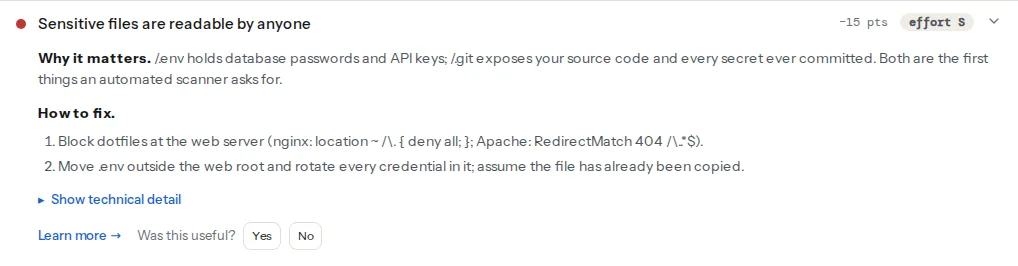
The exposed .env file is worse, and more common than it should be. Laravel, Symfony, Node and Python projects keep their secrets in .env: database host and password, API keys for the payment provider, the mail server login, the application key that signs sessions. When the project's root is also the web root, or when a deploy script copies the whole folder, the file is one request away. A public .git folder is the same problem from the other side: with .git/HEAD readable, off-the-shelf tools download the entire repository, including every secret ever committed and later "removed".
The cost is not theoretical. Scanners request /.env on every hostname they can find, and a hit is sold or used within hours: database dumped, cards skimmed, the mail account used for spam until the provider closes it. The fix is a few lines; the clean-up after a leak is weeks.
How getReport checks it
The security module of every report sends a fixed, short set of extra requests to the site. They are the same requests any visitor could make, and there is no brute-forcing of file names:
GET /.envandGET /.git/HEAD, reading at most 4 KB of each. A 200 alone is not enough: the.envbody has to containNAME=valuelines and the.git/HEADbody has to look like a Git ref (ref: refs/heads/mainor a 40-character hash). A site that answers 200 with its home page for every unknown address is therefore not flagged.- Up to three folders that the page itself loads assets from (the directories of the first
<img>,<script>and stylesheet URLs on the same host, for example/wp-content/uploads/2024/05/or/assets/js/). Each is requested and the first 8 KB is checked for an "Index of" title or heading, the signature of Apache's and nginx's listing pages.
That is the whole list. Backup archives, wp-config.php.bak, phpinfo.php and debug.log are not probed, because guessing file names on other people's servers is not something a free tool should do at scale. Step 4 below shows how to check those yourself in a minute.
The WordPress Doctor adds a related check when the page reveals WordPress. It requests the staging., dev. and test. subdomains, and flags a copy that answers 200 without noindex, because a forgotten staging copy usually runs older code and often still has its listings and debug files enabled:
Step by step
1. Look before you change anything
Open each of these in a private browser window, replacing the host:
https://yoursite.com/.env
https://yoursite.com/.git/HEAD
https://yoursite.com/.git/config
https://yoursite.com/wp-content/uploads/
https://yoursite.com/wp-content/debug.log
https://yoursite.com/backup.zip
https://yoursite.com/.DS_Store
Write down which ones answer with content. A 403 ("Forbidden") and a 404 are both fine. A blank page for .env can still be a hit (the browser hides text it cannot format), so check with curl -s https://yoursite.com/.env | head if you can.
2. If .env or .git was readable, rotate first
Treat the secrets as burned. Before touching the server configuration, in this order:
- Change the database password and update the application's copy.
- Regenerate every API key listed in the file: payment provider, mail service, cloud storage, maps, CRM. Each provider has a "roll key" button.
- Regenerate the application key (
php artisan key:generatein Laravel; the equivalent in your framework). This logs everyone out, which is what you want. - Check the mail provider's sent log and the database for anything you did not do. Our guide on recognising a hacked site covers the wider clean-up.
For a public .git folder, also rotate anything that was ever committed and later deleted; history keeps it. Then decide whether the source code itself being public is a problem (licence keys, internal hostnames) and act on that.
3. Turn off directory listings
Apache (.htaccess in the web root, or the <Directory> block in the virtual host):
# .htaccess – no auto-generated file lists anywhere below this folder
Options -Indexes
If the host has disabled .htaccess overrides, the same line goes in the virtual host's <Directory /var/www/example/public> block, followed by a reload.
nginx does not list directories unless autoindex on; was added somewhere. Search the configuration for it and remove it, or override:
# /etc/nginx/sites-available/example.conf, inside the server block
autoindex off;Caddy's file_server only lists directories when you write file_server browse; remove browse.
The fallback that works everywhere, including shared hosts with no configuration access: an empty index.html in every folder that must not be listed. WordPress ships one in wp-content/, wp-content/plugins/ and wp-content/themes/, but not in wp-content/uploads/, so that folder is the one to check.
4. Block dot-paths at the server, keep .well-known
Every file or folder whose name starts with a dot is configuration: .env, .git, .htaccess, .DS_Store, .svn, .idea. None of them should ever be served. The one exception is /.well-known/, which browsers, certificate authorities and security.txt rely on.
nginx:
# inside the server block, before other location blocks
location ~ /\.(?!well-known/) {
    return 404;
}
Apache (.htaccess or virtual host, Apache 2.4):
# Files starting with a dot: .env, .DS_Store, .htpasswd …
<FilesMatch "^\.">
    Require all denied
</FilesMatch>

# Folders starting with a dot and everything inside them: .git/HEAD, .svn/…
RedirectMatch 404 "/\.(?!well-known/)"
FilesMatch alone does not cover .git/HEAD, because that file's own name has no dot; the RedirectMatch line covers the folder. Answering 404 rather than 403 gives a scanner one less hint that the file exists.
Caddy:
example.com {
    @dotfiles {
        path /.*
        not path /.well-known/*
    }
    respond @dotfiles 404
    root * /var/www/example/public
    file_server
}
5. Keep secrets above the web root
Server rules are the safety net; the real fix is that the file is not there to serve. Frameworks already expect this: Laravel and Symfony serve from public/ with .env one level up, Next.js never puts .env in public/, and WordPress will read wp-config.php from the folder above the web root if it is not in the root itself. Move the file, then make sure the deployment does not bring it back.
For rsync-based deploys, exclude the files that must never leave your machine:
# deploy.sh – copy the built site without secrets or history
rsync -az --delete \
  --exclude='.git/' \
  --exclude='.env' \
  --exclude='.env.*' \
  --exclude='*.sql' \
  --exclude='*.zip' \
  --exclude='.DS_Store' \
  ./ deploy@server:/var/www/example/
With Git-based deploys, git archive produces a tree without the .git folder, and a .gitattributes line .env export-ignore keeps environment files out of the archive. With Docker, list the same paths in .dockerignore.
6. Move backups out of reach
Backup plugins and hosting panels sometimes write archives into the web root or into wp-content/uploads/. Configure them to write outside the web root or straight to remote storage (S3, R2, Google Drive), delete the archives that are already there, and check that the backup folder itself is not listable. A db.sql at the root is the single most damaging file a listing can reveal.
7. WordPress specifics
wp-content/uploads/listing. Add an emptyindex.htmltowp-content/uploads/or apply step 3 site-wide. The upload folders for each month (uploads/2025/09/) inherit the server rule.wp-content/debug.log. WhenWP_DEBUG_LOGistrue, WordPress writes PHP errors, including file paths and sometimes query fragments, to a file underwp-content/that is publicly readable. On production setWP_DEBUGtofalse, or point the log elsewhere:
// wp-config.php – debugging on production, if you must, goes outside the web root
define('WP_DEBUG', true);
define('WP_DEBUG_DISPLAY', false);
define('WP_DEBUG_LOG', '/var/log/wordpress/debug.log');wp-config.php.bak,wp-config.php~,wp-config.old. Editors leave them, and PHP does not run them, so the server sends the raw file with the database password inside. Delete them, and add a rule that denieswp-configvariants:
# .htaccess – refuse every wp-config variant, including backups
<FilesMatch "^wp-config\.php.*$">
    Require all denied
</FilesMatch>- Staging copies. The report's staging finding tells you when
staging.yoursite.comis public. Put it behind HTTP authentication or delete it; a staging copy is usually where the debug log and the listings are.
Verify
curl -sI https://yoursite.com/.envandcurl -sI https://yoursite.com/.git/HEADprint404or403.curl -sI https://yoursite.com/.well-known/security.txtstill works if you have one; the dot rule must not catch it.curl -s https://yoursite.com/wp-content/uploads/ | headreturns your theme's 404 page or an empty response, not<title>Index of.- Re-run the report: "No sensitive files are readable" and "No directory shows a file listing" both pass, and the WordPress Doctor shows no public staging copy.
- Every secret from a leaked file has been rotated and the old values no longer work.
Common mistakes
- Blocking dotfiles including
.well-known. Symptom: Let's Encrypt renewals fail andsecurity.txtreturns 404. Fix: add the(?!well-known/)exclusion. - Fixing the server and keeping the old password. Symptom: the file is gone, the database is still dumped a month later. Fix: rotate everything the file contained, today.
Options -Indexesin.htaccesson a host that ignores overrides. Symptom: the line is there, the listing is too. Fix: checkAllowOverridein the virtual host, or use the emptyindex.htmlfallback.- A 200 for everything. Symptom:
/.envreturns the home page and looks fine, but every unknown URL is a soft 404 that search engines index. Fix: return real 404s; the report's custom 404 finding covers this. - Deploying the whole project folder. Symptom:
.gitreappears after every release. Fix: an exclude list in the deploy script or a build step that produces a clean tree.