A Safe Browsing flag is the most expensive thing that can happen to a small website overnight. Chrome, Firefox and Safari put a full-page red warning in front of it, and almost nobody clicks through. The flag is not a penalty you can argue away: it comes off when Google re-checks the site and finds the cause gone. This guide explains what the warning means, how to find what triggered it, the clean-up order and the review request. Plan a day for a simple case; a hacked site takes longer.
Quick answer
- Open Search Console → Security & Manual Actions → Security issues. It names the problem type and lists sample URLs.
- Find the cause before touching the review button: a hack injecting redirects or downloads, a phishing page uploaded to your hosting, a compromised third-party script, a flagged download, or a forgotten subdomain.
- Clean everything, not only the sample URLs, close the door the attacker used, then check with the hacked-site checker and from a different network.
- Request a review in the Security issues report with a short, specific description of what you found and fixed.
- A rejected review means the cause is still there. Look again rather than resubmitting.
Why a Safe Browsing flag matters
Google Safe Browsing is a list of URLs and sites Google considers dangerous (Safe Browsing in brief). Chrome checks it, and so do Firefox and Safari, which is why one listing reaches most of the world's browsers at once. A flagged site gets a full-page warning such as "Deceptive site ahead" or "The site ahead contains malware" instead of the page; the exact wording depends on the browser, its version and the category.
The categories:
- Social engineering (phishing): pages that trick visitors into entering passwords or card details, or into doing something dangerous, often impersonating a bank or a well-known brand.
- Malware: pages that try to install malicious software, often through an injected script or a redirect to an exploit site.
- Unwanted software: downloads that change browser settings or bundle extras the visitor did not ask for.
Search shows the consequences too. Search Console's Security issues report lists the problem, search results can carry "This site may be hacked" or "This site may harm your computer" under your listing, and the Search Console account owners get an email.
Most flagged small sites did nothing wrong on purpose. Someone else used the site: a hack, a stolen hosting password, a compromised ad or widget. The flag is Google warning your visitors about that someone.
How getReport checks it
The hacked-site checker fetches the page three ways: with getReport's normal user agent, with Googlebot's user agent, and as a browser arriving from a Google search result. It compares the visible text, the outbound links and the inline scripts of the three copies. That is where injected spam and conditional redirects show up, because they are built to hide from the site owner.
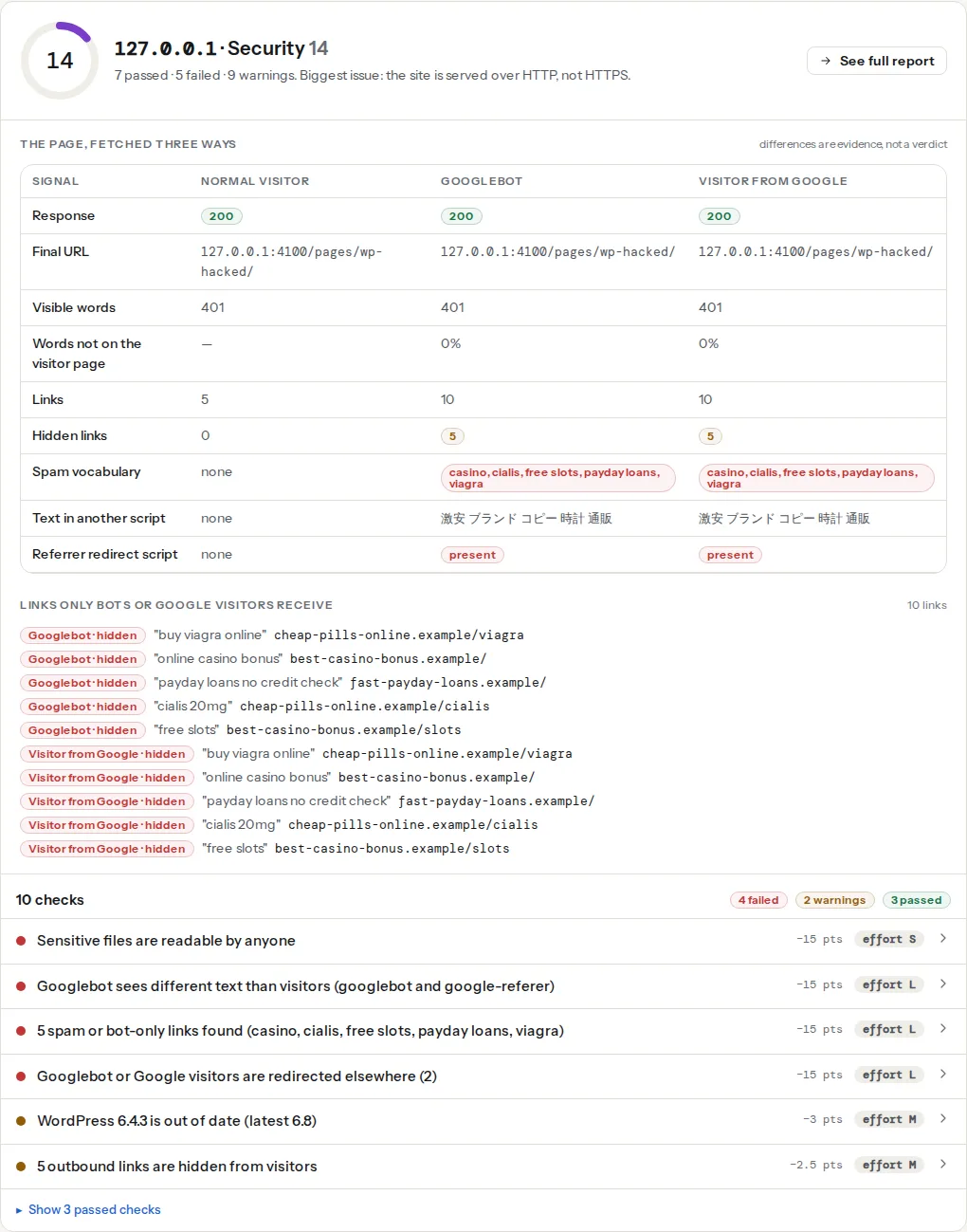
The Safe Browsing lookup itself is a separate check. It would ask Google's Web Risk API, the commercial interface to the same lists that power Safe Browsing, whether your URL is listed:
Watch out
The Web Risk lookup is in getReport's check catalogue but not switched on yet, so no report asks Google about your site today and the finding does not appear at all, neither as a pass nor as a fail. A clean hacked-site result means the three fetches agree. It does not mean Google's list is clear. Check Search Console for that.
One more limit worth knowing: the checker fetches from getReport's servers with Googlebot's user agent, not from Google's addresses. Injections that verify the visitor's IP address before showing spam will show the checker a clean page. Search Console's URL Inspection, which fetches as the real Googlebot, sees them.
Step by step
1. Confirm the flag and read the samples
In Search Console, open Security & Manual Actions → Security issues. The report names the issue type (hacked content, malware, social engineering, unwanted software) and lists sample URLs. Use a Domain property if you can: it covers every subdomain and both protocols, and an old shop. or test. subdomain is a common source.
Then look the site up on Google's Safe Browsing site status page (search for "Google Transparency Report Safe Browsing site status"). It shows the current status for anyone, which helps when you do not have Search Console access yet.
2. Find the cause
Match the issue type to the usual causes:
- Hacked content or malware on your pages. An injected script, a redirect that fires only for visitors from Google or on phones, or files that serve downloads. The checker's fetch comparison and redirect findings show the first two; Is my website hacked? covers the other symptoms.
- A phishing page on your hosting. Attackers upload a fake login page for a bank or a mail provider into a forgotten folder (
/wp-content/uploads/,/.well-known/, an old test directory). Your own pages look normal. The sample URLs point at it. - A compromised third-party script. An ad network, a chat widget or a script loaded from a domain that expired and was bought by someone else. The hack is not in your files at all; the conditional-redirect finding and the browser's Network tab show the request.
- A flagged download. A PDF, installer or ZIP on your site that Google classifies as unwanted software, sometimes one you host on purpose.
- A subdomain you forgot. An old campaign site or staging copy running outdated software, hacked long ago.
Look at the sample URLs from a clean device on a different network (a phone on mobile data), not only from your office. Some injections skip visitors whose IP address has already seen them, or known admin IPs.
3. Clean in the right order
- Take a copy of the site as it is, files and database, for evidence. Do not restore it later.
- Remove the cause everywhere, not only on the sample URLs. For WordPress, follow recovering a hacked WordPress site; for spam in Japanese or pharma and casino links, the dedicated guides have the specific hiding places.
- Close the door. Update the CMS, themes and plugins, delete ones you do not use, change every password (hosting, FTP/SFTP, database, CMS admins) and remove admin accounts you do not recognise. Without this, the site is reinfected within days.
- Remove or replace the third party if it was the source.
- Fix mixed content. A script loaded over plain
http://can be swapped by anyone on the network path, and browsers block it anyway.
To see what the page loads over http:// from your own terminal:
# Lists every http:// src or href in the page's HTML
curl -s https://www.example.com/ | grep -oE '(src|href)="http://[^"]+"' | sort -u
4. Check before you ask
Run the hacked-site checker on the home page and on every sample URL from Search Console. The three columns should agree: same links, no hidden links, no spam vocabulary, no redirect script. In Search Console, run URL Inspection → Test live URL on the same pages and look at the crawled HTML. Only then request the review.
5. Request the review
In the Security issues report, tick "I have fixed these issues" and choose Request review. Describe what you found and what you changed, in two or three plain sentences:
The site was hacked through an outdated form plugin (version 2.1). An injected
script in the theme's footer.php redirected visitors from Google to a pharmacy
site, and 214 spam pages were created under /wp-content/uploads/cache/.
We removed the script and the pages, updated WordPress, the theme and all
plugins, deleted two unknown admin accounts and changed all passwords.
Google's Security issues report help gives rough review times: about a day for phishing, a few days for malware, and up to several weeks for hacked content with spam. When the review passes, the browser warnings and the search result label go away on their own.
If the review is rejected, the cause is still there, often a second backdoor or a page you did not look at. Go back to step 2. Sites that are cleaned and reinfected again and again can be classed as repeat offenders, and then have to wait before they can request another review.
6. If you think it is a false positive
A legitimate download (a desktop app, a browser extension installer, a ZIP of scripts) or a page that looks like a login form for another service can be flagged even when nothing is wrong. Request the review anyway and explain what the flagged file or page is, who publishes it and why it is safe. Sign installers, host them on a domain you control and remove files nobody needs any more.
Platform notes
WordPress
Most flags on WordPress sites come from a hack through an outdated plugin or theme, and most rejected reviews from a backdoor that was missed: a PHP file in wp-content/uploads/, a must-use plugin in wp-content/mu-plugins/, an extra admin user or code in wp-config.php. The checker's findings about outdated WordPress, closed or abandoned plugins and readable sensitive files point at the likely door.
Shopify, Wix and other hosted platforms
The platform patches its own software, so the usual cause is something added on top: an app or embed that loads a compromised script, or a file uploaded to the platform's file storage that is flagged. Remove the app or file, then request the review. If the flag is on a custom domain that also hosts something else (an old blog on a subdomain), look there.
Static sites and custom code
Static files are hard to inject, so look at what they include: third-party scripts, a CDN or storage bucket that someone else can write to, and old uploads on the same domain. A storage bucket with public write access is enough to serve malware from your hostname.
Verify
- Search Console's Security issues report shows no issues, and the review status reads as approved.
- The Safe Browsing site status page shows no unsafe content for your domain.
- The hacked-site checker shows the three fetches agreeing on the home page and the former sample URLs, and the report's mixed-content finding passes.
- A visit in Chrome from a phone on mobile data shows the site without a warning. Keep checking weekly for a month: re-run the hacked-site checker and look at Search Console. Continuous monitoring with alerts is a funded unlock on getReport's roadmap, not something the site does yet.
Common mistakes
- Requesting a review before cleaning. The review fails, and repeated failures can delay the next one. Clean, check, then ask.
- Cleaning the home page only. Google flagged specific URLs, and injections usually sit in many places. Check every sample URL and search the files and database for the injected code.
- Ignoring subdomains and old test sites. The flag can come from
old.example.comwhile you cleanwww. Use a Domain property in Search Console to see them all. - Restoring a backup that contains the infection. Backups from after the break-in carry the backdoor. Restore from a date before the first symptom, then update everything before going live.
- Blocking Googlebot to hide the problem. A robots.txt block or a firewall rule stops Google from re-checking the site, so the flag cannot come off. Leave the site crawlable during the review.