To back up a WordPress site, copy two things on a schedule: the database (posts, orders, users, settings) and the wp-content folder (uploads, themes, plugins), plus wp-config.php. Send the copies to storage off the server, never into the web root, and restore one to a staging site every quarter to prove it works. A backup plugin, your host's snapshots or a small wp-cli script can all do the copying; the restore test is what most sites skip. This guide gives you a plan you can set up in an afternoon, and it is step 9 of the WordPress security checklist. A hacked site, a plugin update that white-screens the shop or a host that loses a disk is an hour of work with a tested backup, and a rebuild without one.
Quick answer
- Keep three copies: the live site, the host's automatic backup, and one copy you control in off-site storage (Amazon S3, Backblaze B2, Google Drive).
- Back up the database as often as it changes (hourly for a shop, daily for a blog) and the files daily or before every update.
- Never store a backup inside the web root. A
backup.zipin/wp-content/is a full copy of your site, passwords included, for anyone who finds it. - Restore to a staging site once a quarter, time it, and run a report on the result.
- Keep the secrets (
wp-config.php, the encryption key) separately from the backup they protect, and write the restore steps down.
What a complete WordPress backup contains
A copy that restores cleanly on a fresh server has all of these:
| Part | Where it lives | Notes |
|---|---|---|
| Database | MySQL/MariaDB | Posts, orders, users, settings. Changes every minute on a shop. |
| Uploads | wp-content/uploads/ | Usually the largest part. |
| Theme and plugin code | wp-content/themes/, plugins/, mu-plugins/ | Reinstallable, except the child theme and custom plugins. |
| Configuration | wp-config.php, .htaccess, the nginx site config | Small, secret, and missing from most backups. |
| Outside WordPress | DNS zone, cron entries, email routing | Export the DNS zone once from the registrar or Cloudflare. |
Match the schedule to how much you could lose:
| Site type | Database | Files | Configuration |
|---|---|---|---|
| Shop, membership, bookings | Hourly | Daily | On every change |
| Blog, active editorial | Daily | Daily | On every change |
| Brochure site | Weekly | Weekly, and before every update | On every change |
The interval is the size of the gap: an order placed between the last dump and the failure is gone.
Why backups are a security topic
A backup decides how a hack ends. The hacked WordPress recovery guide weighs restoring a clean copy from before the compromise, and that option only exists if you kept enough history to reach back that far.
The other direction matters as much. A backup is a complete copy of the site: every password in wp-config.php, every customer row, every private upload. Put it where the web server can hand it out and you have built the leak yourself. Scanners request /backup.zip, /wp-content/backup.sql and /.env on every site they meet.
How getReport checks it
The report does not guess backup file names; that is a scanner's approach, not a checkup's. It probes the two things that turn a stray backup into a leak. It requests /.env and /.git/HEAD and reads the first 4 KB. A 200 answer alone is not enough: the .env body must contain NAME=value lines and the .git/HEAD body a ref: refs/… line or a commit hash, so a custom 200 error page does not trigger it.
Then it takes up to three folders from the page's own asset paths (typically /wp-content/uploads/2026/09/) and looks for the "Index of" title of an auto-generated listing. With a listing on, an archive saved in that folder is visible without anyone guessing its name:
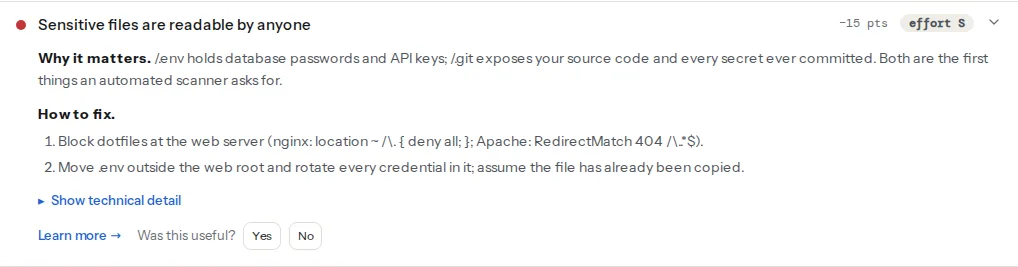
A dedicated check for backup archives left in the web root, wp-backup-files-exposed, is planned for the WordPress Doctor and not live yet. It will request a few fixed, well-known paths only, never guessed names, and like the other sensitive WordPress checks it will show a plain yes or no to anyone who runs the report and the file paths only to the site's verified owner. The report also flags an outdated core, the most common reason anyone needs a restore:
How to back up a WordPress site
1. Apply 3-2-1 to a small site
Three copies, on two kinds of storage, one of them off-site:
- The live site is copy one.
- The host's backups are copy two. Find out the retention (7, 14 or 30 days is typical) and whether restores are self-service. A host backup is fast to restore and worthless when the host itself is the problem: a suspended account, a data-centre incident, a company closing.
- Your own off-site copy is copy three, in storage you pay for separately from hosting. A
backups/folder on the same server does not count.
2. Pick the tool
Managed host backups. Most managed WordPress hosts keep daily snapshots and restore from the panel. Use them; they are the fastest restore you will have.
A backup plugin to off-site storage. UpdraftPlus (free) backs up the database and files on a schedule to Google Drive, Dropbox, Amazon S3 and other remotes, and restores from wp-admin. Jetpack VaultPress Backup is a paid service that stores copies on its own servers and keeps a backup after every change. Duplicator packs a whole site into one installer, which suits moving a site (see the migration checklist) better than nightly backups.
A script over SSH. The most transparent option: wp-cli dumps the database, tar packs the files, rclone uploads to any storage. Save it as /home/deploy/backup.sh:
#!/usr/bin/env bash
# Nightly backup: database + wp-content to a B2/S3 bucket via rclone.
set -euo pipefail

SITE=/var/www/example.com          # folder that holds wp-config.php
STAMP=$(date +%F-%H%M)
WORK=$(mktemp -d)
REMOTE=b2:example-backups          # rclone remote name : bucket

wp --path="$SITE" db export "$WORK/db-$STAMP.sql" --add-drop-table
gzip "$WORK/db-$STAMP.sql"
tar -czf "$WORK/files-$STAMP.tar.gz" -C "$SITE" --exclude='wp-content/cache' wp-content
cp "$SITE/wp-config.php" "$WORK/wp-config-$STAMP.php"

rclone copy "$WORK" "$REMOTE/$(date +%Y/%m)/" --transfers 4
rm -rf "$WORK"
rclone config sets up the remote once. The cron lines for a nightly run at 03:15 and an hourly database dump for a shop:
# crontab -e for the site's user
15 3 * * *  /home/deploy/backup.sh >> /home/deploy/backup.log 2>&1
5  * * * *  wp --path=/var/www/example.com db export - | gzip | rclone rcat b2:example-backups/hourly/db-$(date +\%F-\%H).sql.gz
The % signs are escaped because cron treats them as newlines. Check backup.log the next morning; a script that fails silently is the same as no script.
VPS snapshots. Most VPS providers snapshot the whole disk on a schedule: a good copy two, but not copy three, because it lives with the same provider and account.
3. Keep backups out of the web root
No backup may live in a folder the web server can serve: not /, not /wp-content/, not /wp-content/uploads/backups/. Plugins that write working files under wp-content often protect the folder with an .htaccess deny rule, which Apache and LiteSpeed read; on nginx the folder is served like any other. Point local storage at a folder above the web root, or make sure the local copy is deleted once the upload succeeds.
4. Retention, versioning and encryption
A hack is often found weeks after it started, so keep 30 daily copies plus 3 monthly ones. On S3 or B2, turn on bucket versioning or a lifecycle rule, and give the site an application key that can write to the bucket but not delete, so a compromised site cannot wipe its own backups.
Encrypt the archive if the database holds personal data: an rclone crypt remote does it transparently, gpg --symmetric --cipher-algo AES256 files.tar.gz by hand. Keep the key in the team's password manager. An encrypted backup whose key sat on the dead server is a random file.
How to restore a WordPress backup
Test the restore every quarter
- Restore the latest full backup to a staging site, as in the WordPress staging guide. Never over production.
- Log in, open the newest post or order, upload an image, submit a form.
- Run a report on the staging URL and compare it with production's. Same findings, page weight and plugin list means the copy is complete; a different theme version tells you what the backup skipped.
- Note how long it took. That is your recovery time.
- Write the steps down with the storage location, the key location and the commands, somewhere that does not need the site to be up.
Keep the restored copy password-protected: the WordPress checker flags a copy Google can reach as a public staging site.
The four recovery scenarios
One file. Extract only that path: tar -xzf files-2026-09-24.tar.gz wp-content/themes/child/functions.php.
Database only. A bad bulk edit or a plugin that mangled the options table: wp db import db-2026-09-24-0300.sql. On a shop, orders since that dump need re-entering from the payment provider's records.
Whole site, same server. Put the site in maintenance, copy the broken state first, restore files and database from the last clean set, then update everything before reopening.
Host gone. New server, web stack, files from off-site storage, database import, wp-config.php and server config, then point the DNS at the new address. With the runbook it is an afternoon.
Verify
- The off-site bucket holds a file dated last night, within a few percent of the previous one's size. A sudden 90% drop means a part was skipped.
curl -sI https://example.com/.envandcurl -sI https://example.com/.git/HEADanswer 404 or 403, and the WordPress checker shows the exposed files and directory listing findings as passed.- The quarterly restore produced a working staging site that matched production.
Common mistakes
- The schedule never runs. Plugin schedules use WP-Cron, which fires only when someone visits. Trigger it from a real cron job, as in WP-Cron and scheduled tasks.
- Only the database is backed up. The restore has every post and no images. Check that the archive contains
wp-content/uploads. - Uploads too large for the plugin. A 20 GB media library belongs in a script or a host snapshot, not a PHP process that times out.
- Restoring over the live site without a copy of it. It fixes yesterday's problem and deletes today's orders.
- The backup sat in the web root. Move it, and treat every secret in it as leaked: rotate the database password and the salts.
Questions people ask
How do I back up a WordPress site?
Copy the database and the wp-content folder, plus wp-config.php, to storage off the server. The simplest route is a backup plugin such as UpdraftPlus sending scheduled copies to Google Drive or S3; with SSH access, wp db export plus tar and rclone does the same. Keep your host's daily snapshots as a second copy, and test a restore on staging.
How often should I back up WordPress?
As often as losing the changes would hurt. A shop or booking site needs a database backup every hour, because each gap is lost orders. A blog is fine with daily backups, and a brochure site with weekly ones plus a backup before every update. Files change less than the database, so a daily file backup covers most sites.
Are my host's backups enough?
No, they are one copy of two. Host backups are quick to restore, but they sit with the same company and account as the site, so a suspended account, a billing dispute or a host failure takes them away too. Keep a second copy in storage you pay for separately, and check how many days the host keeps.
Where should I store WordPress backups?
Off the server, in storage you control: Amazon S3, Backblaze B2, Google Drive or Dropbox. Never in the web root or wp-content, where the web server can serve the file to anyone who finds it. Protect the storage with its own login and two-factor authentication, and use a key that can add backups but not delete them.