A WordPress site that is fast most of the time and slow for no visible reason is usually paying for its own housekeeping. WordPress has no clock of its own; it checks for overdue jobs when someone loads a page and runs them then, on the same server, at the same moment. This guide explains how that mechanism works, how to see it in your Time to First Byte, and how to move the jobs to a real schedule so no visitor ever waits for a backup again.
Quick answer
- WP-Cron is a pseudo-cron: a page load triggers
wp-cron.php, which runs every scheduled event that is due (publishing, backups, sitemap rebuilds, WooCommerce's Action Scheduler, update checks). - Turn the trigger off in
wp-config.phpwithdefine('DISABLE_WP_CRON', true);. - Run the queue from a system cron every 5 minutes instead:
*/5 * * * * curl -s "https://example.com/wp-cron.php?doing_wp_cron" > /dev/null, orwp cron event run --due-nowwith WP-CLI. - Install WP Crontrol once to see what is scheduled; a plugin with an every-minute event or a hook that never completes is the usual surprise.
- Measure before and after with the TTFB test, three runs each, and watch the spread shrink.
Why WP-Cron matters
Every dynamic site has jobs that run on a schedule: publish the post at 9:00, send the abandoned-cart email after an hour, rebuild the sitemap, check for plugin updates, purge old logs. A normal server runs these with cron, a service that fires jobs at fixed times independently of visitors. WordPress cannot assume cron exists on the host it lands on, so it invented its own.
On every page load, WordPress looks at the list of scheduled events. If any is due, it sends a request to its own wp-cron.php and lets that request do the work. The visitor's page does not usually wait for the job to finish, but the job runs on the same PHP workers, the same CPU and the same database at the same moment. On a small hosting plan with two or three PHP workers, one worker doing a backup is one fewer answering visitors, and the next requests queue behind it. That is the "slow at random moments" pattern: the slowdown follows the schedule, not the traffic.
The same design breaks in both directions. A site with few visitors never runs its jobs on time, because nothing triggers them at 3 a.m.; the scheduled post goes out when the first reader arrives at 8. A site with many visitors triggers the check on every one of thousands of page loads; WordPress uses a lock to prevent overlapping runs, but the check itself, and the occasional double run when the lock expires, still costs.
The second cost is what the jobs are. Every plugin can register events, and many register generous ones: a "check licence" every hour, a "sync feed" every 15 minutes, an analytics roll-up every minute. WooCommerce brings the Action Scheduler, a job queue that runs subscription renewals, webhook deliveries and the emails your store sends, with a runner that wakes every minute through WP-Cron. None of this is wrong; it is just invisible until you look.
How getReport checks it
The tool runs the speed module of a report and shows the first-byte findings. The measured number that matters for WP-Cron is in two places: the report header carries the Time to First Byte of our own fetch from Frankfurt, and the speed panel carries Lighthouse's measurement from the PageSpeed run, graded against the Core Web Vitals thresholds of 800 ms and 1.8 s:
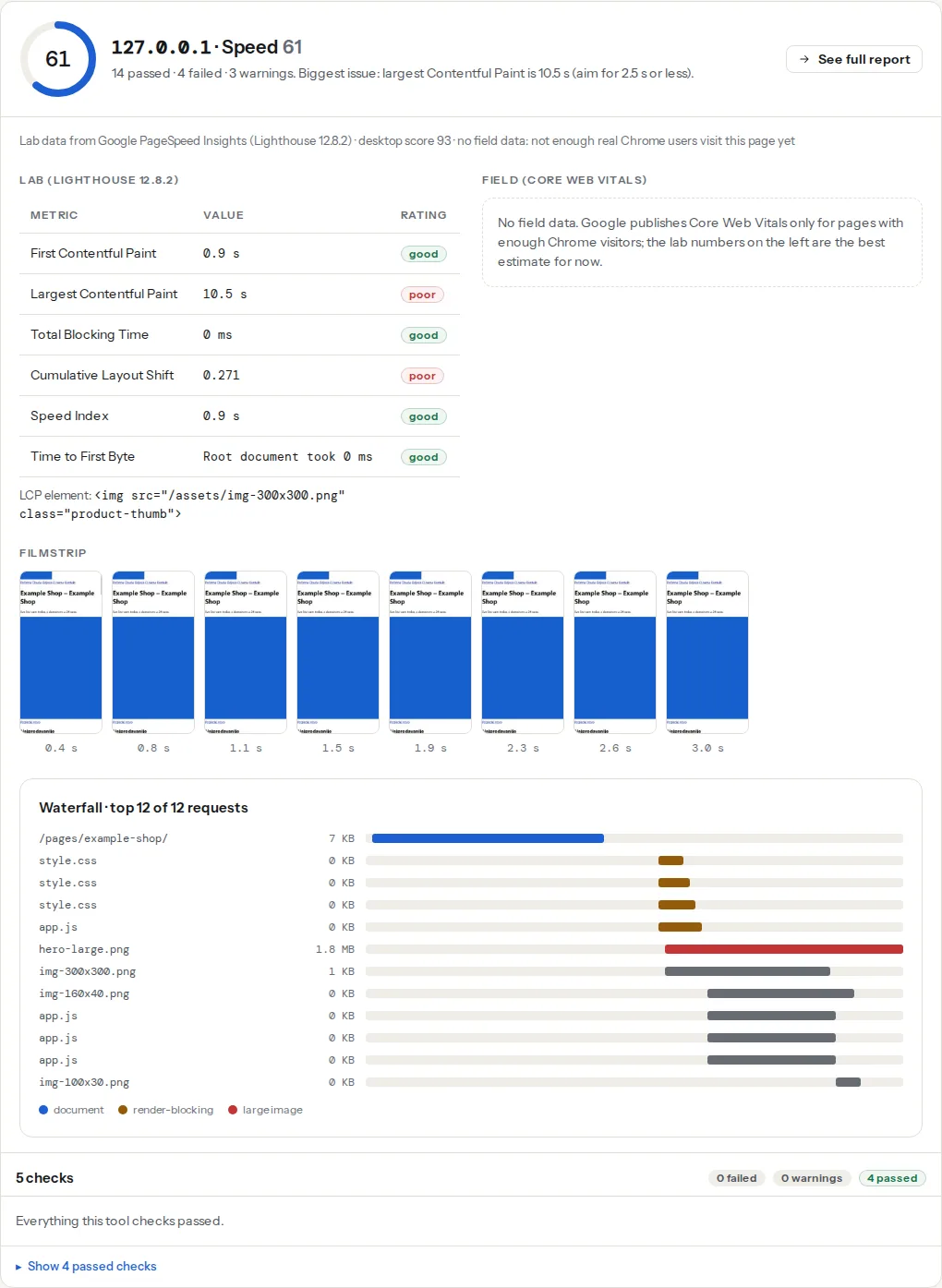
A WP-Cron problem does not show as a consistently slow TTFB. It shows as a fast TTFB on one run and a slow one on the next, on a page that is otherwise cached. Run the test three times a few minutes apart and compare; a spread of more than a few hundred milliseconds between runs of the same page is the signature. The TTFB guide covers the consistently slow case.
The WordPress Doctor's plugin cost table is the other half of the picture. It lists what each plugin loads in the browser, which is not the same as what it schedules on the server, but the plugins that are heavy on one side are often heavy on the other:
Step by step
1. See what is scheduled
Install WP Crontrol and open Tools → Cron Events. Each row is one scheduled hook with its next run time, its recurrence and the plugin or core file that registered it. Sort by recurrence and look for three things:
- Events that run every minute or every few minutes.
action_scheduler_run_queue(WooCommerce) is expected; a marketing plugin polling an API every minute is not. - Events whose next run is in the past. Overdue means WP-Cron has not managed to run them: the loopback request is blocked, or the run keeps timing out.
- Events from plugins you removed. Deactivated plugins leave their events behind; the hook fires with no function attached, which is harmless but noisy. Delete them.
WordPress's own Site Health (Tools → Site Health) has a "scheduled events" test that reports when the queue is late or a loopback request fails; it is a good first look without installing anything.
With WP-CLI, the same list on the command line:
wp cron event list --fields=hook,next_run_relative,recurrence
wp cron test          # checks that WP-Cron can be triggered at all
2. Turn off the visitor-triggered run
In wp-config.php, above the line that says "That's all, stop editing":
<?php
// wp-config.php
define('DISABLE_WP_CRON', true);
This stops WordPress from spawning wp-cron.php on page loads. It does not delete the events and it does not stop wp-cron.php from running when something else requests it, which is what the next step does. Do not leave the site in this state for long without step 3, or nothing scheduled will ever run.
3. Run the queue from a real cron job
Pick one of the two forms. The HTTP one works on any host that lets you add a cron job:
# crontab -e, or cPanel → Advanced → Cron Jobs, or Plesk → Scheduled Tasks
*/5 * * * * curl -s "https://example.com/wp-cron.php?doing_wp_cron" > /dev/null 2>&1
The WP-CLI one skips the web server, runs as the site's user and is the better choice when you have shell access:
*/5 * * * * cd /var/www/example.com && /usr/local/bin/wp cron event run --due-now --quietFive minutes is a good default. Scheduled posts publish at most five minutes late, which nobody notices; jobs that need a tighter clock (the Action Scheduler, below) get their own line. Going to one minute makes the queue check itself sixty times an hour for no benefit on most sites.
If the host's cron runs as a different user, or if curl is missing, wget -q -O - "https://example.com/wp-cron.php?doing_wp_cron" > /dev/null does the same job.
Note
?doing_wp_cron on the URL is the convention every host's documentation uses; with no value after it, wp-cron.php treats the request as an external job, sets its own lock and exits if another run started less than WP_CRON_LOCK_TIMEOUT (60 s by default) ago. Two overlapping runs therefore do not process the same events twice.
4. Give the Action Scheduler its own runner
On a WooCommerce store, most scheduled work goes through the Action Scheduler (WooCommerce → Status → Scheduled Actions shows the queue). By default it runs a batch every minute via WP-Cron and also starts an async runner at the end of some requests when actions are pending. Once you have a real cron, add a second line so the queue is processed on a clock and not by visitors:
* * * * * cd /var/www/example.com && /usr/local/bin/wp action-scheduler run --quietThe runner processes a batch of pending actions (25 by default) and exits; running it every minute keeps abandoned-cart emails and subscription renewals on time while WP-Cron handles the rest. The Scheduled Actions screen shows the past actions it keeps for a month; a "Pending" count that grows every day means the runner is not keeping up, and a "Failed" list that keeps growing names the plugin whose action fails.
5. Fix the events that are wrong, not just late
Moving the trigger to cron stops visitors paying for the jobs; it does not make a bad job cheaper. Back in WP Crontrol:
- An event every minute from a plugin that does not need it: check the plugin's settings for a sync interval (most have one) and set it to hourly or daily.
- A job that runs for minutes (a full-site backup, an image bulk-optimiser, a "regenerate all thumbnails"): move it to a time with no traffic, usually the plugin's own scheduling setting, and make sure the cron line runs at that time too.
- A job that fails every time (the Failed column in the Action Scheduler, or PHP errors in the log at the same minute): it retries on the next run, forever. Fix or remove the plugin.
Query Monitor's "Logs" and the host's slow-query log both show the exact minute a job ran; match it against the moment the TTFB spiked and you have the culprit.
6. Re-measure
Run the TTFB test three times, a few minutes apart, on the same cached page. The individual values should be close to each other, and the slowest run should be within a couple of hundred milliseconds of the fastest. The absolute number is a separate question, covered in Server response time on shared hosting.
Platform notes
Managed WordPress hosts
Many managed hosts already run WP-Cron at the server level and set DISABLE_WP_CRON for you. Kinsta, for example, runs it every 15 minutes by default and can shorten the interval on request. Check the host's documentation and Site Health before adding a cron line, or you get two triggers.
Hosts that block loopback requests
Some hosts, and some firewall plugins, refuse the request WordPress makes to its own domain. Site Health reports it as "Your site could not complete a loopback request", and every event shows as overdue. The real cron in step 3 is the fix, because it comes from outside PHP. The alternative WordPress offers, define('ALTERNATE_WP_CRON', true);, works by redirecting a visitor to the same page with ?doing_wp_cron in the address, which is visible to the visitor and adds a redirect to the measured page load. Use it only when no cron is available at all.
Multisite
wp-cron.php runs per site. One cron line per site is the simple way (wp cron event run --due-now --url=https://site2.example.com); on a network with dozens of sites, loop over wp site list --field=url.
Docker and containers
Cron is not running inside a typical PHP container. Add a small sidecar container with cron that calls wp-cron.php over HTTP, or a host-level cron that runs docker exec. A cron in the same image as PHP-FPM needs a process supervisor; the sidecar is simpler.
Verify
- Tools → Site Health shows no "scheduled event is late" or loopback warnings.
wp cron event listshows every next run in the future, and after five minutes the times have advanced (the cron line is working).- The server's cron log (
grep CRON /var/log/syslog, or the host panel's job history) shows the job running every five minutes with exit status 0. - Three TTFB tests of the same page agree with each other, and the report header's first-byte time no longer jumps between runs.
Common mistakes
- Disabling WP-Cron and forgetting the cron job. Scheduled posts stop publishing and the store stops sending emails. Symptom: every event in WP Crontrol is overdue. Add the cron line or remove the
DISABLE_WP_CRONconstant. - Two triggers. The host runs WP-Cron and you added a cron line, or
DISABLE_WP_CRONis missing so visitors still trigger it too. Jobs run twice. Keep one. - Every minute for everything. A
* * * * *line forwp-cron.phpruns the whole queue check sixty times an hour. Use five minutes for WP-Cron and reserve the every-minute line for the Action Scheduler if you need it. - Leaving the cron URL on http. The request hits the redirect to https and, depending on the host, never reaches
wp-cron.php. Use the final https URL. - Blaming the host for a job you cannot see. A backup plugin running a full export at 10:00 every day looks like a hosting problem at 10:00 every day. Open WP Crontrol before opening a support ticket.