The certificate is installed, the address bar says https://, and yet the padlock is missing, the layout looks unstyled on one page, or the image slider has stopped. The usual cause is mixed content: a page served over HTTPS that still asks for some of its files over plain http://. The addresses sit in old posts, theme settings and stylesheets, written before the move. This guide shows how to list them, where they hide, and how to fix them at the source so they do not come back.
Quick answer
- Run the SSL / TLS checker and open the mixed content finding. It lists every
http://script, stylesheet, frame, image and media file in the page source. - Open the page with DevTools → Console for what the source does not show (CSS
url(),srcset, script-loaded files). - Replace
http://your-domainwithhttps://your-domainin the database (WordPress:wp search-replace), then in theme files and plugin settings. - For third-party files, switch to their
https://address, or host a copy. - Add
Content-Security-Policy: upgrade-insecure-requestsas a safety net, not as the fix.
Why mixed content matters
Browsers split mixed content into two kinds, and treat them very differently.
Active content can change the page: scripts, stylesheets, iframes, fonts and requests made from JavaScript (fetch, XHR). A network attacker who can rewrite an http:// script controls the whole page, so browsers block these outright on an HTTPS page. That is where the visible damage comes from: a blocked stylesheet leaves the page unstyled, a blocked script kills the menu or the slider, a blocked iframe leaves a blank box where the map or the payment form should be.
Passive content is images, audio and video. The worst an attacker can do is swap the picture. Chrome and Firefox now try the https:// version of these automatically and show nothing if that fails. When an http:// image does load, the browser stops showing the page as fully secure.
Forms are a third case. A form on an HTTPS page whose action points to http:// makes Chrome warn the visitor before submitting that the information is not secure. On a contact or checkout form, that warning alone loses the submission.
The broken layout and the missing padlock are what every visitor sees, and they are usually the first thing people notice after a move to HTTPS.
How getReport checks it
The tool fetches the page, reads the HTML as the server sent it and collects every http:// address in the attributes that load something:
- Active:
<script src>,<link rel="stylesheet" href>,<iframe src>,<object data>,<embed src>. - Passive:
<img src>,<video src>,<audio src>,<source src>,<video poster>, and theog:imagemeta tag.
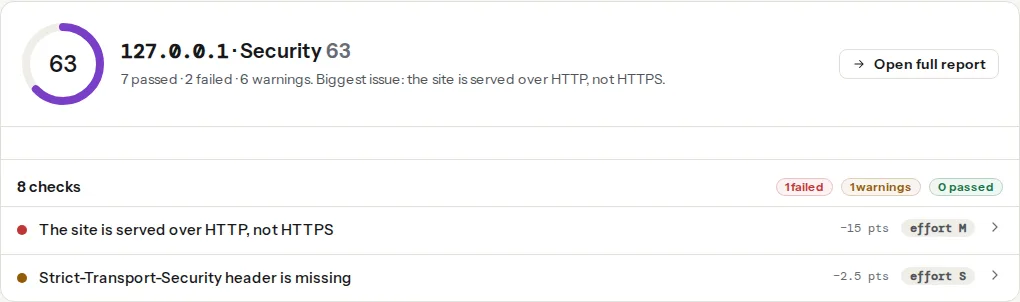
The finding fails whenever the list is not empty, with one exception: when the only http:// address is the og:image, it is a warning. Browsers do not load that image on the page, but social networks may fail to show it in link previews.
What it does not see: srcset candidates, url() inside stylesheets and style attributes, files requested by JavaScript after load, and form action addresses. For those, use DevTools (step 1).
The same tool checks the surrounding setup, because mixed content is usually one symptom of an incomplete move:
Step by step
1. Get the complete list
Start with the finding: it names each address. Then open the page in Chrome with DevTools → Console and reload. Every mixed request produces a message that starts with "Mixed Content:" and says whether it was blocked or automatically upgraded. The Security panel summarises the page's state (it sits under "More tools" if it is not in the tab bar).
Check a sample of page types, not only the home page: an old blog post, a product, the cart and checkout, a landing page built with a page builder. Old content is where most leftovers live.
2. Find where each address lives
| Where it hides | Typical example | Fix in |
|---|---|---|
| Post and page content | <img src="http://example.com/wp-content/uploads/…"> | The database |
srcset in content | Responsive image candidates | The database |
| Theme options and Customizer | Logo, header image, background image | The theme settings screen |
| Stylesheets | background: url(http://example.com/img/bg.jpg) | The CSS file |
| Inline styles | style="background-image:url(http://…)" | The database or page builder |
| Page builder data | Sections stored as JSON | The builder's own tool |
| CDN or cache plugin settings | CDN address entered as http://cdn.example.com | The plugin settings |
| Theme templates | <script src="http://…"> in header.php | The theme files |
| Third-party embeds | An old widget or map loaded from http:// | The embed code |
3. Fix the database with a search-replace
Most leftovers are absolute URLs in content. Replace your own old address with the new one in one pass. On WordPress with WP-CLI, from the site root:
wp db export before-https.sql
wp search-replace 'http://example.com' 'https://example.com' --all-tables --skip-columns=guid --dry-run
wp search-replace 'http://example.com' 'https://example.com' --all-tables --skip-columns=guid
wp search-replace 'http://www.example.com' 'https://www.example.com' --all-tables --skip-columns=guid
wp cache flush
The dry run shows how many replacements each table would get; read it before running the real one. WP-CLI handles serialized PHP data safely, which a raw SQL REPLACE() does not. --skip-columns=guid leaves the post GUIDs alone, as WordPress recommends: they are identifiers, not links. Without shell access, a search-replace plugin does the same from the dashboard; take a backup first.
Replace only your own domain. Blindly changing every http:// breaks links to sites that do not support HTTPS.
4. Fix files and settings by hand
Search the theme for hard-coded addresses:
grep -rn "http://" wp-content/themes/your-theme --include=*.php --include=*.css --include=*.jsChange each one to https://, or to a path such as /wp-content/themes/your-theme/img/bg.jpg when it points at your own site. Then go through the settings screens that store addresses: the Customizer, theme options, the CDN field in the cache plugin, slider and gallery plugins.
Do not switch to protocol-relative URLs (//example.com/file.js). They were a workaround for sites that served both HTTP and HTTPS. On an HTTPS-only site, write https://.
5. Replace third-party resources that have no HTTPS
Try the https:// version of the address in a browser. Almost every service supports it today. If one does not, host a copy of the file yourself (for fonts, images, a small script whose licence allows it) or remove the embed.
6. Add the safety net
add_header Content-Security-Policy "upgrade-insecure-requests" always;With this directive the browser rewrites every http:// subresource to https:// before requesting it, so a leftover you missed still loads, as long as the other server supports HTTPS. It does not fix the source, and getReport's check reads the source, so the finding stays until the addresses are changed. If you already have a Content-Security-Policy, add upgrade-insecure-requests to it rather than sending a second header; the Content-Security-Policy rollout guide covers the rest of that header.
You may see block-all-mixed-content in older guides. It is deprecated: browsers now block active mixed content by default, so it adds nothing.
Platform notes
WordPress
- Settings → General: both WordPress Address (URL) and Site Address (URL) must start with
https://. If they are defined inwp-config.phpasWP_HOMEandWP_SITEURL, change them there; the fields are then greyed out. - Really Simple SSL (now called Really Simple Security) includes a mixed content fixer that rewrites
http://tohttps://in the HTML as each page is sent. It works as a patch while you clean up, but it hides the problem rather than removing it, and getReport sees the rewritten page, so the finding can pass while the database still holds the old addresses. - Elementor stores page data as JSON, where slashes are escaped (
http:\/\/example.com), so a plain search-replace misses it. Use Elementor → Tools → Replace URL, then regenerate its CSS from the same screen. - WooCommerce: check the checkout page separately. Payment forms often load in an iframe, which is active content, so one
http://address there stops payments rather than just losing an image. Product images imported years ago are also frequent leftovers.
Shopify
Shopify serves every store and its files over HTTPS. Leftovers come from http:// addresses pasted into rich text, theme Liquid files or custom HTML sections. Search the theme code (Online Store → Themes → Edit code) and the affected content for http://.
Static sites / custom
Search the source before building: grep -rn "http://example.com" src/ content/. In templates, build asset URLs from one base address setting so a future move changes one line.
Verify
- Re-run the SSL / TLS checker. The finding reads "No resources load over http://".
- From a terminal, list any remaining
http://addresses in the HTML:
curl -s https://example.com/some-old-post/ | grep -Eo '(src|srcset|href|poster|action)="http://[^"]*"' | sort -uIgnore href on ordinary <a> links: a link to an http:// page is not mixed content. href on a <link rel="stylesheet"> is.
- DevTools → Console on the key pages shows no "Mixed Content" messages, and the padlock is back.
For the rest of the move (certificate, redirect, HSTS), see SSL/TLS checks that matter and the mixed content learn page.
Common mistakes
- Relying on the fixer plugin or
upgrade-insecure-requestsalone. The site looks fixed, but a plugin update or a CSP change brings the warnings back. Change the stored addresses. - Replacing only
http://example.com. Content written withhttp://www.example.comstays broken. Run the search-replace for each variant. - Forgetting the CSS files. The HTML is clean, but a background image or font in the stylesheet still loads over HTTP. The Console lists it; the page source does not.
- Running the search-replace without a backup or dry run. A mistyped domain rewrites thousands of rows. Export the database first and read the dry-run counts.
- Checking before the caches are cleared. The database is fixed, but the page cache or CDN still serves the old HTML, so the finding lists the same addresses. Purge the cache plugin and the CDN, then re-run. Once the list is empty, lock the move in with HSTS, enabled safely.