You published the page a week ago, searched for it, and nothing. Before rewriting the content or buying links, check the plumbing: most pages that are missing from Google are missing because something on the site tells Google to stay away, and that something is invisible in the browser. This guide is a checklist in the order that finds the cause fastest. The first four items take five minutes with getReport and catch most cases; the rest need Google Search Console, which is free and the only place that shows what Google itself decided.
Quick answer
| # | Question | Where to check |
|---|---|---|
| 1 | Does the page answer HTTP 200? | getReport: "The page can be indexed" |
| 2 | Does robots.txt allow it? | robots.txt tester |
| 3 | Is there a noindex in a meta tag or an X-Robots-Tag header? | robots.txt tester, SEO audit |
| 4 | Does the canonical tag point at this page? | Canonical checker |
| 5 | Does the URL redirect somewhere else? | Canonical or redirect checker |
| 6 | Is it in the XML sitemap? | Sitemap validator, canonical checker |
| 7 | Do other pages on the site link to it? | Search Console → Links |
| 8 | Is it new? Crawling takes days to weeks | Search Console → URL Inspection |
| 9 | Is the content thin or a duplicate of another page? | SEO audit word count, your own judgement |
| 10 | Is there a manual action or a Safe Browsing flag? | Search Console, getReport Security module |
Fix the first item that fails, then request indexing in Search Console's URL Inspection.
Why indexability matters
Search engines work in three steps: they discover a URL (from a link or a sitemap), crawl it (download it), and index it (decide to store it and show it for searches). A page can fail at each step for a different reason, and each reason has a different fix. A noindex tag lets Google crawl the page and then tells it not to index; a robots.txt rule stops the crawl, so Google never reads the page at all; a canonical tag says "index that other URL instead". From outside, all three look the same: the page is not there.
The cost is concrete. A product page that is not indexed gets no search visitors at all, however good the content. The most common cause we see after a relaunch is a single line left over from the staging site, which hides every page at once. The indexability learn page has the short definition.
How getReport checks it
The robots.txt tester fetches /robots.txt, parses it with the same matching rules Google uses, and tests the exact page URL for Googlebot and for all agents (*). It also reads the page's robots meta tags (robots and googlebot) and the X-Robots-Tag response header, then combines everything into one verdict:
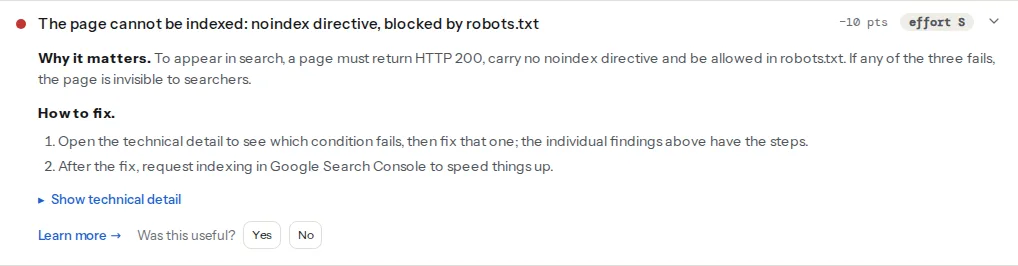
The verdict covers the three conditions a page needs before anything else matters. Its technical detail reads like HTTP 200; noindex: yes; blocked by robots.txt: no, so you can see which one fails. The individual findings give the details:
The title says where the noindex was found: the meta tag, the header, or both.
The technical detail names the robots.txt line number that matches, so you know which rule to change.
The canonical checker covers the next three items on the list:
It also shows the redirect chain (the redirect-chain-length finding lists every hop from the URL you entered to the final page). getReport always tests the final page after redirects, so when the URL you pasted redirects, the verdict is about the target.
Step by step
1. The page answers HTTP 200
Only pages that answer 200 get indexed. A 404 or 410 page is dropped; a 5xx error, if it lasts, gets the page dropped too; a 3xx redirect sends Google to the target. Check from the command line, which shows what a crawler sees rather than what your logged-in browser sees:
curl -sI https://example.com/products/merino-socks/ | grep -i -E "^HTTP|^location|^x-robots-tag"A "soft 404" is the reverse problem: an error page that answers 200. Google detects many of them and treats them as 404s, so a real page that looks empty (a category with no products, a search result page) can be dropped as "Soft 404".
2. robots.txt allows the page
A Disallow that matches the page stops crawling. The classic is a staging robots.txt copied to production:
# Before: blocks everything
User-agent: *
Disallow: /

# After: allows everything except the cart and the admin area
User-agent: *
Disallow: /cart/
Disallow: /wp-admin/
Allow: /wp-admin/admin-ajax.php

Sitemap: https://example.com/sitemap.xml
Remember that a page blocked in robots.txt can still appear in results as a bare URL without a description, because Google knows it exists from links. Blocking is not the way to keep a page out; noindex is. The full story is in robots.txt before it hides your site.
3. No noindex in the HTML or the headers
Look for this in the page source (View source, then search for noindex):
<meta name="robots" content="noindex, nofollow">And for the header version, which never shows in the source and is often set by the server or a CDN rule:
# nginx: remove this line from the server block for the live site
add_header X-Robots-Tag "noindex, nofollow";# Apache: remove this from .htaccess or the virtual host
Header set X-Robots-Tag "noindex, nofollow"Every directive and where each one applies is in noindex, nofollow and friends: the complete reference.
4. The canonical tag points at this page
A canonical tag that names another URL asks Google to index that URL instead. The check fails when the canonical points to another host, appears twice, is empty, or leads to an error. It does not fail when the canonical points to a different working page on your own site, because that can be intentional (a product variant pointing at the main product). So read its detail line: if the canonical of /products/merino-socks/ is https://example.com/, that is your problem.
<!-- In <head> of https://example.com/products/merino-socks/ -->
<link rel="canonical" href="https://example.com/products/merino-socks/">
The guide to canonical tags in the reading list below covers parameters, pagination and cross-domain cases.
5. The URL does not redirect
If the URL you are checking redirects, Google indexes the target and reports the original as "Page with redirect". That is correct behaviour, not a problem, as long as the target is the page you want. Check the target instead, and update internal links and the sitemap to use the final URL. Chains of two or more hops slow crawling; point old URLs straight at the final one.
6. The page is in the XML sitemap
A sitemap is how you tell Google "these are the pages I want indexed". Pages outside it still get found through links, but more slowly. If the check says "not listed", find out why the generator skips it: drafts, pages set to noindex, and excluded post types are the usual reasons.
If your sitemap is a sitemap index (Yoast and Rank Math make one at /sitemap_index.xml), getReport does not open the child sitemaps, so this finding does not appear. Open the child sitemap for the content type (for example /page-sitemap.xml) and search for the URL. The sitemap validator checks the file itself.
7. Other pages link to it
An orphan page, with no internal links pointing at it, is hard for Google to find and looks unimportant when it does. getReport checks one page at a time and cannot see which other pages link to it yet. In Search Console, open Links → Internal links and look for the page; if it is missing or has one or two links, add it to the navigation, a category page, or related articles.
8. It is not simply too new
Google says crawling and indexing can take anywhere from a few days to a few weeks, longer for a new site with few links. In Search Console, paste the URL into the URL Inspection bar at the top:
- "URL is on Google": it is indexed. If it does not rank for your search, that is a ranking question, not an indexing one.
- "URL is not on Google": expand "Page indexing" to see whether crawling and indexing are allowed, the last crawl date, and the canonical you declared next to the one Google selected.
Click Test live URL to see the page as Googlebot gets it now, and Request indexing to put it in the queue. Requesting more than once does not speed it up.
"Crawled – currently not indexed" vs "Discovered – currently not indexed"
The Pages report groups non-indexed URLs by reason, and these two cause the most confusion:
- Discovered – currently not indexed: Google knows the URL but has not crawled it yet. Google's documentation says the usual reason is that crawling was rescheduled because it expected to overload the site. Speed up the server, reduce low-value URLs (filters, parameters) and strengthen internal links.
- Crawled – currently not indexed: Google fetched the page and decided not to index it, for now. There is no technical block to remove. Improve the page (more useful, less duplicated) and link to it from important pages; it may be indexed on a later crawl.
9. The content is worth indexing
Google does not index everything it can. Pages with a few lines of text, near-copies of other pages (colour variants with identical descriptions, tag archives that repeat category pages) and auto-generated pages are often left out. The SEO audit's word-count finding flags pages under 300 words of body text; whether two pages are duplicates is a judgement you make by comparing them. Merge near-duplicates and point a canonical at the version you keep.
10. No manual action or security flag
Rare, but decisive. In Search Console, Security & Manual Actions lists any manual penalty and any detected hacking or malware. getReport's full report checks the site against Google Web Risk in the Security module; a flagged site gets a red warning page in Chrome and loses search visibility until it is cleaned and a review is requested.
Platform notes
WordPress
- Settings → Reading → Search engine visibility. "Discourage search engines from indexing this site" adds a noindex robots meta tag to every page. It is ticked on most staging copies and often migrates to the live site. WordPress "Discourage search engines" left on covers it end to end; the WordPress checker flags it.
- Per-page SEO settings. In Yoast SEO, the post editor's Yoast panel → Advanced → "Allow search engines to show this Page in search results?"; in Rank Math, the Rank Math panel → Advanced → Robots Meta → "No Index". Both plugins also have site-wide defaults per content type (for example, tags or media set to noindex); check those if a whole group of pages is missing.
- Private and password-protected posts. Private posts answer 404 to anyone not logged in, including Google. Password-protected posts show only the password form, so there is nothing to index.
- Staging. A public staging copy can be indexed instead of, or next to, the live site. Protect it with a password; the security module flags public staging copies it finds.
Shopify
Shopify's generated robots.txt blocks the cart, checkout and internal search pages, which is correct; leave those rules alone. A product that is not available on the Online Store sales channel answers 404 on the storefront, so check the product's sales channels first. If a single page carries a noindex you did not add, look for an SEO app or a theme snippet that sets one.
Verify
- The robots.txt tester shows "The page can be indexed", "robots.txt allows this page" and "The page is not set to noindex".
- The canonical checker shows the canonical pointing at this page's own URL, and no redirect chain.
- URL Inspection → Test live URL says "URL is available to Google" and "Indexing allowed? Yes".
- Within days to weeks, URL Inspection shows "URL is on Google" and the Pages report moves the URL to "Indexed".
Common mistakes
- Treating a
site:search as proof.site:example.com/pageis a rough sample and sometimes misses indexed pages. URL Inspection is the answer from Google itself. - Noindex left over from staging. One ticked box or one header rule hides the whole site after launch. Check the robots.txt tester on the home page and one deep page on launch day.
- Blocking CSS and JavaScript in robots.txt. Rules like
Disallow: /assets/stop Google from rendering the page as visitors see it. Allow the files that pages need to render. - A canonical to the home page on every page. Usually a theme or SEO plugin option that sets one fixed canonical URL. Every page then asks to be replaced by the home page. Remove the option; let the plugin output each page's own URL.
- Using robots.txt to remove a page that is already indexed. Google can no longer crawl it to see the noindex, so it may stay in results as a bare URL. Allow crawling, add noindex, and block later if you must.