robots.txt is a plain text file at the root of your site that tells crawlers which paths they may fetch. It is the simplest file on the site and the one most likely to cause a disaster: Disallow: / copied from staging to production removes the site from search within days, and nobody notices because the site itself works fine. This guide explains what the file does, what it does not do (it does not hide pages), how to test a URL against it, and what a good one looks like in 2026, AI crawlers included.
Quick answer
- Live at
https://example.com/robots.txt, plain text,User-agentgroups withAllow/Disallowrules, and aSitemap:line. - No file means everything is allowed; that is fine for most sites.
Disallowstops crawling, not indexing: a blocked page can still appear in results (title only) if it is linked. Usenoindexto keep pages out; and do not block a page younoindex, or Google never sees the tag.- Never block CSS, JavaScript or images; Google needs them to render the page.
- Test the page with the robots.txt tester: it fetches the file, parses it like Googlebot and tells you whether the URL is allowed.
What robots.txt does and does not do
The file is a request to well-behaved crawlers: "do not fetch these paths". Googlebot, Bingbot and the AI crawlers honour it; scrapers and attackers do not read it (which is why it is not a security measure; the paths you list are public information).
It controls fetching only. Google can still index a URL it has never fetched if enough links point at it, showing the URL and an anchor-text title with "No information is available for this page". To keep a page out of the index, let Google fetch it and find a noindex tag, or password-protect it. See noindex, nofollow, robots meta and X-Robots-Tag.
It is also per host and per scheme: https://example.com/robots.txt does not apply to https://www.example.com/ or http://example.com/, each of which may have its own file. Redirect the variants and you have one file to maintain.
How getReport checks it
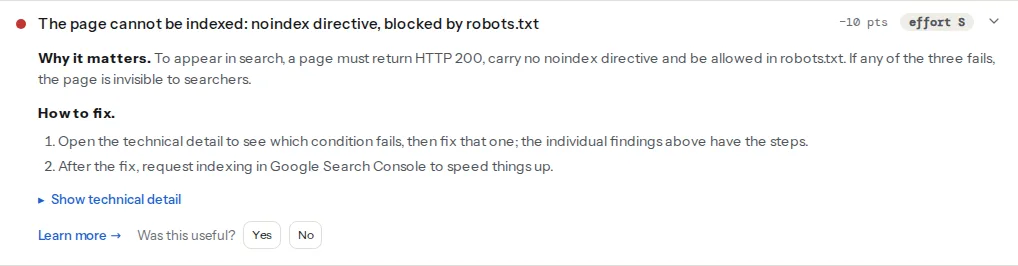
The report fetches /robots.txt, parses it with the same rules Google documents (longest matching rule wins, Allow beats Disallow on ties, wildcards * and $), and tests the page's URL for Googlebot and for the generic agent. The declared sitemaps are fetched and validated; the meta robots tag and the X-Robots-Tag header are read; and the indexability finding gives the combined verdict.
A robots.txt for a typical site
# https://example.com/robots.txt
User-agent: *
Disallow: /wp-admin/
Allow: /wp-admin/admin-ajax.php
Disallow: /cart/
Disallow: /checkout/
Disallow: /my-account/
Disallow: /search/
Disallow: /*?s=
Disallow: /*&s=

Sitemap: https://example.com/sitemap.xml
What each line does:
User-agent: *starts a group for every crawler. A crawler uses the most specific group that matches it (User-agent: Googlebotoverrides*for Googlebot entirely; it does not add to it).Disallow: /wp-admin/blocks the admin;Allow: /wp-admin/admin-ajax.phpre-opens the one file front-end scripts call.- Cart, checkout and account pages are per-visitor and should not be crawled or indexed;
noindexis also set on them by the shop software. /*?s=blocks internal search results (WordPress's?s=parameter), which are infinite and thin.Sitemap:takes an absolute URL and can be repeated.
Things not to put in it: Disallow: /wp-content/ or /wp-includes/ (blocks CSS and JS; Google then renders a broken page and may mark it mobile-unfriendly), Crawl-delay (Google ignores it; use Search Console's crawl rate settings), and anything you want to keep secret.
AI crawlers
AI companies run crawlers for training data (OpenAI's GPTBot, Anthropic's ClaudeBot, Google's Google-Extended, Common Crawl's CCBot) and separate ones for live answers and citations (OAI-SearchBot, PerplexityBot). They honour robots.txt. Whether to block them is a business decision: blocking training bots keeps your content out of future models; blocking the search bots keeps you out of AI answers that could send visitors. A common middle ground:
# Training crawlers: no
User-agent: GPTBot
User-agent: ClaudeBot
User-agent: Google-Extended
User-agent: CCBot
User-agent: anthropic-ai
Disallow: /

# Answer/search crawlers: yes
User-agent: OAI-SearchBot
User-agent: PerplexityBot
Allow: /
Google-Extended only controls Gemini training; Googlebot itself is unaffected. The AI crawler readiness check (wave 2) tests each of these agents against your file.
Step by step
1. Test the URL you care about
The tester shows the verdict for the exact page. "Blocked for Googlebot" on a page that should rank is the emergency case: find the matching rule (the finding names it) and remove or narrow it.
2. Check what else the rule blocks
Disallow: /p blocks /pricing/, /products/ and /press/. Rules match by prefix. Use a trailing slash for directories (/private/) and $ for exact files (/file.pdf$).
3. Make sure resources are allowed
Search the file for wp-content, wp-includes, assets, static, .css, .js. Blocking them was common advice fifteen years ago; today it hurts rendering and mobile-friendliness.
4. Declare the sitemap
Add Sitemap: https://example.com/sitemap.xml (the real URL; see XML sitemap validation). It is the one line in the file that helps ranking indirectly.
5. Watch the staging trap
Staging sites should be password-protected or carry a noindex header; a Disallow: / in their robots.txt is a second layer. The problem is that deployments copy files. Keep robots.txt out of the deployment (generate it per environment, or serve it from a rule that checks the hostname) so the staging version cannot reach production. The report's WordPress Doctor also flags a public staging copy.
Platform notes
WordPress: there is no physical file by default; WordPress generates one (Disallow: /wp-admin/ plus the sitemap) and SEO plugins let you edit it under Tools. A physical robots.txt in the web root overrides the generated one. The "Discourage search engines" setting does not change robots.txt any more; it adds noindex. Shopify: edit via the robots.txt.liquid theme template; the default is sensible. Static sites and Next.js: a file in public/ or a robots.ts route; make it environment-aware so previews stay blocked.
Verify
- The tester says the page is allowed for Googlebot and for
*, the file is present, the sitemap is declared and reachable. - Search Console → Settings → robots.txt shows the file as fetched with no errors.
- After removing a
Disallowthat was hiding pages, request indexing for the key URLs; recovery takes days to weeks.
Common mistakes
Disallow: /in production. The number one cause of "our site disappeared from Google".- Blocking a page and expecting it to leave the index. It stays, as a title-only result. Use
noindex, unblocked. User-agent: Googlebotgroup with fewer rules than*. Googlebot then ignores the*group; repeat the rules.- Blocking CSS/JS folders. Google renders pages; it needs them.
Disallow: /*.pdfto hide documents. They stay indexed via links; useX-Robots-Tag: noindexon the files instead.- A robots.txt that returns 5xx. Google treats a server error as "everything is blocked" for up to a day, then stops crawling; make sure the file returns 200 or 404, never 500.