You do not need to be an accessibility specialist to test a page with a screen reader. You need one that is already on your computer or free to download, about ten keystrokes, and a script that tells you what to listen for. This guide gives you all three. After 20 minutes you will have a list of concrete problems on one page, each with the fix, and a much better sense of what your site sounds like to the people who cannot see it.
Quick answer
- Mac: VoiceOver is built in. Cmd+F5 turns it on, Safari works best with it.
- Windows: NVDA is free. Use it with Firefox or Chrome.
- Phones: VoiceOver on iPhone, TalkBack on Android, both under Settings → Accessibility.
- Run the accessibility checker first so you are not spending your 20 minutes on what a machine finds in seconds.
- Then, in order: check the page language, list the headings and landmarks, Tab through the page, check the images, fill in a form, and complete the page's main task.
- Write down what you heard, what you expected and which element it was.
Why a manual pass matters
Automated tools, including getReport's, catch only part of the problems: when the UK Government Digital Service tested 13 tools on a page with 142 deliberate barriers in 2017, the best tool found about 40 % of them. They are good at facts a machine can read from the page: this image has no alt, this input has no label, this text is below 4.5:1. They cannot judge meaning. An image with alt="image" passes. A heading that says "Welcome" passes. A cookie banner that grabs keyboard focus and never lets go passes. A button that adds a product to the cart without telling anyone passes.
A screen reader pass catches those, because you hear the page as a blind visitor does: one piece at a time, in source order. Twenty minutes is enough on one page because most problems are template problems. Test one page per template (home, category, product, article, checkout) and you have covered most of the site.
How getReport checks it
The checker renders the page in Chromium, runs axe-core, and reads a few structural signals from the rendered page: the declared language, which landmarks exist and whether a skip link is among the first focusable elements. These findings tell you what the pass will sound like before you start; the web accessibility guide covers the rest:
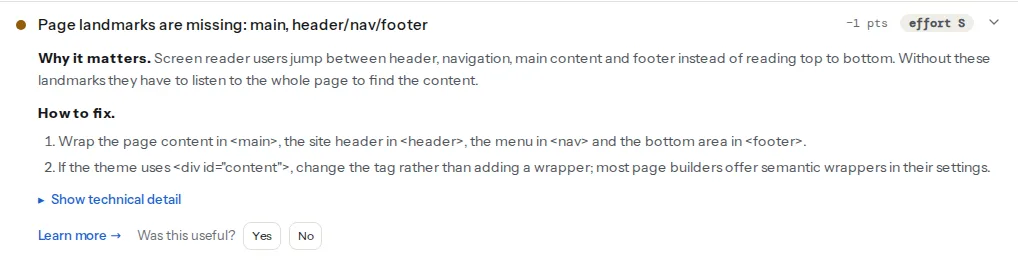
The landmarks check counts <main>, <header>, <nav> and <footer> and their ARIA role equivalents. It reports a page without <main>, and a page with none of header, navigation or footer.
The skip link check looks at the first three focusable elements for a same-page link whose text or aria-label contains the word "skip". A skip link written in another language ("Preskoči na sadržaj") can be missed, so confirm it with the Tab key.
The tab order finding only appears when something changes the order, usually a positive tabindex. A real keyboard trap cannot be detected by any automated tool; keyboard navigation covers the manual test and the fixes.
The language finding reads lang from the rendered page and quotes it, or "(missing)"; axe's html-has-lang and html-lang-valid rules feed it. It does not compare the value with the text, so a Croatian page with lang="en" passes: read the value. The SEO audit's lang-attr finding checks the same attribute in the raw HTML; if the two disagree, a script (usually a translation plugin) changes it after load.
Step by step
1. Set up (2 minutes)
VoiceOver on a Mac. Press Cmd+F5 (on some keyboards Fn+Cmd+F5) to turn it on and off. The VoiceOver key, written VO, is Control+Option held together. Open the page in Safari, and in Safari → Settings → Advanced, turn on "Press Tab to highlight each item on a webpage"; without it, Tab skips links.
NVDA on Windows. Download it free from NV Access and install it. The NVDA key is Insert (or Caps Lock, if you choose the laptop layout). Open the page in Firefox or Chrome. NVDA+Q quits.
In both, Control stops speech.
The keystrokes you need:
| Action | VoiceOver (Mac) | NVDA (Windows) |
|---|---|---|
| Read from here | VO+A | NVDA+Down arrow |
| Next / previous item | VO+Right / VO+Left | Down / Up arrow |
| List headings, links, landmarks | VO+U (rotor), Left/Right to switch lists | NVDA+F7 (elements list) |
| Next heading | VO+Cmd+H | H (1-6 for a level) |
| Next landmark | via the rotor's Landmarks list | D |
| Next form field | VO+Cmd+J | F |
| Next focusable element | Tab | Tab |
| Activate | VO+Space | Enter |
On an iPhone (Settings → Accessibility → VoiceOver), swipe right and left to move, double-tap to activate, and turn two fingers like a dial to open the rotor. On Android, TalkBack uses the same swipe and double-tap gestures; its built-in tutorial shows the gestures for your version.
2. Language and headings (3 minutes)
First, listen to the page title and the first heading. The voice and pronunciation should match the page's language: Croatian read with English rules ("Košarica" said as an English word) means lang is missing or wrong, and every other word on the page will sound the same way.
Then open the rotor (VO+U) or the elements list (NVDA+F7) and choose Headings. This list is how many screen reader users skim a page. Check:
- There is one H1, and it says what the page is ("Alpina Pro trekking shoe", not "Welcome").
- The headings read like a table of contents for the page, in order.
- No level is skipped going down (H2 then H4).
- No text that looks like a heading is missing from the list (bold paragraphs styled as headings), and nothing is in the list that is not a heading (a whole promo box marked up as H2).
3. Landmarks list (3 minutes)
Switch the list to Landmarks. A well-built page has a banner (the header), one or more navigation regions, one main, and a content info region (the footer). Press Enter on "main": you should land at the start of the content, not in the middle of the menu. Two navigation regions should have different names ("Main", "Footer"), otherwise they both sound like "navigation".
4. Tab through the page (4 minutes)
Press Tab from the top of the page and keep going. Look and listen:
- First Tab: is there a "Skip to content" link, and does it work?
- Focus is visible on every stop: you can see where you are without guessing.
- Order matches the screen: left to right, top to bottom. No jumps to the footer and back.
- Every link and button says what it does when heard on its own: "Add to cart", not "button"; "Size guide", not "click here".
- Nothing invisible gets focus: items of a closed mobile menu or a hidden slider panel should not be Tab stops.
- No traps: a cookie banner, a chat widget or a video player should let you Tab out, and Escape should close pop-ups.
5. Images (2 minutes)
Move through the page item by item (or jump between images with G in NVDA; VO+Cmd+G in VoiceOver). Product photos and infographics should be described in a sentence. Decorative images (dividers, background textures) should be silent. File names ("IMG_4412.jpg"), "image" and "photo" are failures, even though a machine counts them as alt text.
6. One form (3 minutes)
Pick the newsletter box or the contact form. Tab into each field and listen: each should announce its label, its type, and "required" if it is. Submit it empty. Is the error announced, and can you get to it? Is it clear which field it belongs to? The fixes are in accessible forms.
7. The main task (3 minutes)
Do the one thing the page exists for, with the keyboard and screen reader only: add a product to the cart, book a slot, download the brochure. Choose a size from the size selector. Press "Add to cart". Did you hear anything? A cart that updates silently leaves a blind visitor unsure whether it worked. Does a pop-up take focus, and can you close it?
8. Write it down as you go
For each problem, one line is enough. The format that gets fixed fastest:
Page: https://example.com/shoes/alpina-pro/
Tool: NVDA + Firefox
What I did: Tabbed to the size selector, pressed Down arrow
What I heard: "combo box" (no label)
Expected: "Size, combo box, 42"
Element: select#size (product form)
Impact: blocks buying a specific size
With the getReport link for the automated findings, that is a ticket a developer can act on.
Fixing the five problems you will hear most
Landmarks
Replace the generic containers of the page layout with the semantic elements. This is usually one template file (the theme's header.php and footer.php in WordPress, theme.liquid in Shopify, the layout component elsewhere). See the landmarks learn page for the details.
<body>
  <a class="skip-link" href="#main">Skip to content</a>
  <header>
    <a href="/"><img src="/logo.svg" alt="Example Shop home"></a>
    <nav aria-label="Main">…</nav>
  </header>
  <main id="main" tabindex="-1">
    <h1>Alpina Pro trekking shoe</h1>
    …
  </main>
  <footer>
    <nav aria-label="Footer">…</nav>
  </footer>
</body>
A skip link
The link is the first element in <body>, hidden off-screen until it receives focus, so sighted keyboard users see it too:
.skip-link {
  position: absolute;
  left: 1rem;
  top: -3rem;
  padding: 0.5rem 1rem;
  background: #1f1f1f;
  color: #ffffff;
  z-index: 1000;
}
.skip-link:focus { top: 1rem; }
Do not hide it with display: none; that removes it from the tab order entirely. tabindex="-1" on <main> lets browsers move focus there reliably when the link is used. The skip links learn page covers the variations.
The page language
A screen reader picks its voice and pronunciation rules from the lang attribute; with none, it falls back to the user's default, usually the operating system's language. WCAG 2.2 makes this level A: 3.1.1 Language of Page. Put a BCP 47 tag on <html>, once, on every page, and mark passages in another language (3.1.2 Language of Parts, AA), including each link in a language switcher:
<html lang="hr">
…
<blockquote lang="de"><p>Wer nicht fragt, bleibt dumm.</p></blockquote>
<a href="/de/" lang="de" hreflang="de">Deutsch</a>| Right | Wrong, and why |
|---|---|
en, en-GB, pt-BR | en_GB: underscore comes from OS locales; use a hyphen |
uk (Ukrainian) | uk on a British site: that is Ukrainian, not the United Kingdom |
ja | jp: a country code, not a language |
sr-Latn | english, hrvatski: names, not codes |
lang="ar" dir="rtl" | lang="ar" alone: dir is not implied |
Proper names, brand names and loan words (pizza, kindergarten) need no marking; constant voice switching is worse than an accent. Google says it ignores lang and detects language from the visible text, so it is not a ranking signal; hreflang links, which tell search engines about the other language versions of a URL, are a separate job covered in hreflang tags.
In WordPress, the value comes from Settings → General → Site Language through the theme's language_attributes() call; a classic theme whose header.php hard-codes <html lang="en"> needs <html <?php language_attributes(); ?>> in a child theme. Shopify themes print request.locale.iso_code; WPML and Polylang set it per language. document.documentElement.lang in the browser console shows the value screen readers use.
Headings
One H1 per page, H2 for each section, H3 inside an H2. Choose the level by structure and let CSS set the size. In page builders, every heading widget has an "HTML tag" setting separate from its style; that is where an H4 that should be an H2 gets fixed.
Link and button text
Every link and button needs words that make sense on their own. Icon buttons get visually hidden text; repeated "Read more" links get the target added:
<button type="button" class="cart-button">
  <svg aria-hidden="true" focusable="false"><use href="#icon-cart"></use></svg>
  <span class="visually-hidden">Cart, 2 items</span>
</button>

<a href="/blog/waterproof-boots/">Read more<span class="visually-hidden">: how to waterproof boots</span></a>
The .visually-hidden class is in the form labels guide. For a cart that updates without a page load, add a status region that the script fills in; screen readers announce its text when it changes:
<div role="status" class="visually-hidden" id="cart-status"></div>
<script>
  // after a successful add-to-cart request
  document.getElementById('cart-status').textContent = 'Alpina Pro, size 42, added to cart. 2 items in cart.';
</script>
Platform notes
WordPress
Most landmark, skip-link and heading problems come from the theme or page builder. Default themes and those tagged "accessibility-ready" have landmarks and a skip link; many commercial themes do not. In Elementor and similar builders, set the section or container's HTML tag to header, main, nav or footer in its layout settings, and fix heading levels in each heading widget's "HTML tag".
Shopify
Dawn and most current Theme Store themes have landmarks and a skip link in layout/theme.liquid. Problems usually come from apps: pop-ups that do not trap and release focus properly, review widgets with unlabelled star buttons, and cart drawers that update silently. Test with the apps on.
Verify
- Run the accessibility checker again: language, landmarks and skip link pass, and the link names, image alt and heading order findings are clear or down to items you chose to accept.
- Repeat the 20-minute script on the same page. The headings list reads like a table of contents, the landmarks list has a main, and the main task can be completed without looking at the screen.
- Do the same pass on the next template. Problems shared by every template are fixed once in the theme.
- If the pass turned up mostly faint text and invisible focus rings, colour contrast: fixing the most common finding has the fixes.
Common mistakes
- Testing with the mouse still in hand. Clicking moves the screen reader's position and hides keyboard problems. Put the mouse away for the full 20 minutes.
- Pairing the screen reader with an unusual browser. VoiceOver is tested mostly with Safari, NVDA with Firefox or Chrome; other pairings show bugs real users never meet.
- Adding
aria-labeleverywhere after the first test. It replaces visible text, so voice control users cannot say what they see. Fix the HTML first: real labels, real headings, real buttons. - Treating one pass as done. The site changes, apps update, a new banner arrives. Re-run the checker after each release, and repeat the manual pass when a template changes.