Schema markup in WordPress almost always comes from plugins: your SEO plugin prints a graph describing the site, the page and the author, WooCommerce adds Product on product pages, and some themes and page builders add their own. So the job is rarely adding schema from scratch. It is configuring what the SEO plugin already prints, adding the few types it does not cover, and making sure only one source describes each thing. For the bigger picture, see our guide to schema markup: what it is and which types matter.
Quick answer
- WordPress itself prints no JSON-LD. Your SEO plugin does, as soon as it is active.
- Fill in the plugin's site representation first: Organization or Person, name, logo and profiles. That feeds the site-wide graph on every page.
- Set the schema type per content type (Article for posts, WebPage for pages) and per post where it differs.
- One
Productper product page: WooCommerce's, or the SEO plugin's version that replaces or extends it. - Add custom JSON-LD for types your plugin lacks with a small snippet or the plugin's custom schema feature, never by pasting a second full graph.
- One generator per entity. Two SEO or schema plugins printing Organization or Product is the most common WordPress schema problem.
- Check a post, a page and a product with the free schema markup validator.
What your WordPress site already prints
Before adding anything, look at what is there. Open a post, view the page source and search for ld+json. On a typical site you will find:
| Source | What it prints | Where to configure it |
|---|---|---|
| Yoast SEO | One @graph with WebSite, Organization or Person, WebPage, Article on posts, BreadcrumbList, ImageObject | Yoast SEO → Settings → Site representation, Content types; the Schema tab per post |
| Rank Math | One graph with the same site-wide nodes plus the schema type chosen per post type or post | Rank Math SEO → Titles & Meta → Local SEO and post types; the Schema tab per post |
| All in One SEO, SEOPress | A comparable site-wide graph | Each plugin's schema or structured data settings |
| WooCommerce | Product with Offer, price, availability and, with reviews, AggregateRating | The product's own fields; no schema screen |
| Themes and builders | Sometimes Organization, microdata on posts, or FAQPage from accordion widgets | Theme options, widget settings |
The SEO plugins link their nodes with @id references (the Article's publisher points at the Organization), which is the main reason to let one SEO plugin own the site-wide schema.
getReport's schema module reads the class each plugin puts on its script tag (yoast-schema-graph, rank-math-schema, aioseo-schema, seopress-schema, schema-pro-schema), so the report names the generators it finds.
Step 1: configure the SEO plugin's site-wide schema
Yoast SEO. Go to Yoast SEO → Settings → Site representation. Choose Organization for a business or Person for a personal site, enter the name, upload a square logo (at least 112×112 px), and list every official profile under Other profiles. These become the logo and sameAs of the Organization node. Then, under Content types, set the default Page type and Article type for posts and pages. Our recommended Yoast SEO settings walk through each screen.
Rank Math. Make sure the Schema (Structured Data) module is on under Rank Math SEO → Dashboard → Modules. Under Titles & Meta → Local SEO, choose Person or Company, add the name and logo, and under Social Meta add the profiles. Then set the default Schema Type per post type under Titles & Meta → Posts and Pages. Our recommended Rank Math settings cover the rest.
The report checks the result on the home page:
The Organization and WebSite schema guide explains what Google does with those nodes.
Step 2: set the schema type per post
Both plugins add a Schema tab to the post editor sidebar. Use it where a page is something specific:
- Blog posts: Article or BlogPosting; NewsArticle for a news site.
- A recipe post: Recipe, with ingredients, times and steps that match the visible recipe. See the recipe schema guide.
- An event page: Event, with dates, venue and ticket offers. See the event schema guide.
- The contact or about page of a shop or clinic: LocalBusiness or a subtype, if the plugin supports it. See the LocalBusiness schema guide.
Mark up only what visitors can see on the page; a Recipe block on a post with no recipe breaks Google's guidelines.
Step 3: let WooCommerce and the SEO plugin share Product
WooCommerce prints a Product block on every product page from the product's own fields: name, description, SKU, price, currency, stock status and, when reviews exist, the rating. What happens next depends on the SEO plugin:
- Rank Math replaces it. With the Schema module on and the product post type's schema type set to Product (the default), Rank Math removes WooCommerce's block on product pages and prints its own
Productin its graph, built from the same WooCommerce fields. Set the schema type to None and WooCommerce's block comes back. - Yoast SEO leaves it alone. The free plugin prints no
Product, so WooCommerce's block stays next to Yoast's graph. The paid Yoast WooCommerce SEO add-on folds thatProductinto the graph and adds brand, seller and a link to the WebPage.
Either way the page should end up with exactly one Product. Two means a third source joined: a review plugin with its own rating, a schema plugin's Product template, a builder's product widget, or a theme product template. The WooCommerce product schema guide shows what a healthy block contains.
Step 4: add custom JSON-LD where the plugin stops
Sometimes you need a type your plugin does not offer, or one node on one page: a Course on a course page, a SoftwareApplication on a product landing page, Service for an agency's service pages. Three ways to add it, simplest first:
- The SEO plugin's custom schema feature, where it has one (Rank Math's paid Schema Builder, for example). The node joins the plugin's graph.
- A code-snippet plugin such as WPCode, with the snippet limited to the page or post type that needs it.
- A small function in a child theme's
functions.phpor a site-specific plugin:
<?php
// Adds a Course node to one page only. Put it in a site-specific plugin or child theme.
add_action('wp_head', function () {
    if (!is_page('seo-basics-course')) {
        return;
    }
    $data = [
        '@context' => 'https://schema.org',
        '@type' => 'Course',
        'name' => 'SEO basics for shop owners',
        'description' => 'A six-week online course on technical SEO for small online shops.',
        'provider' => [
            '@type' => 'Organization',
            'name' => 'Example Shop',
            'sameAs' => 'https://example-shop.hr/',
        ],
    ];
    echo '<script type="application/ld+json">' . wp_json_encode($data) . "</script>\n";
});
wp_json_encode escapes slashes by default, so text containing </script> cannot break out of the block. The schema markup generator writes valid JSON-LD for eight common types from a short form; paste its output into the $data structure or a snippet plugin.
Do not paste a complete Organization, WebSite or WebPage block from a generator into the header. The SEO plugin already prints those, and a second copy is a duplicate.
Which schema plugin should you use?
For most sites, the best schema plugin for WordPress is the SEO plugin you already run. Yoast SEO, Rank Math, All in One SEO and SEOPress all print a linked site-wide graph and the common page types, and they are maintained alongside WordPress releases.
A dedicated schema plugin (Schema Pro, Schema & Structured Data for WP & AMP and others) is worth adding only when you need many types your SEO plugin does not support, or rules that apply a type to many pages at once. If you add one, switch off the overlapping output in one of the two so each entity has one source.
Never run two SEO plugins to combine their schema features. Every SEO plugin also writes titles, descriptions and canonicals; two SEO plugins together explains what breaks.
Duplicate schema: the main WordPress problem
Duplicate schema happens when two sources describe the same thing: two Organizations with different logos, two WebSites, two Products with different prices. Google may use either, and when the copies disagree, the result can show the theme's old logo or the review plugin's rating instead of WooCommerce's. Two Product entities, one with offers and one without, can cost the product rich result altogether.
The usual causes are two SEO plugins, an SEO plugin plus a schema plugin, a theme's own Organization block, a review plugin's Product, or an FAQ widget next to the SEO plugin's FAQ block. The report flags both sides: how many plugins generate structured data, and which entities appear twice.
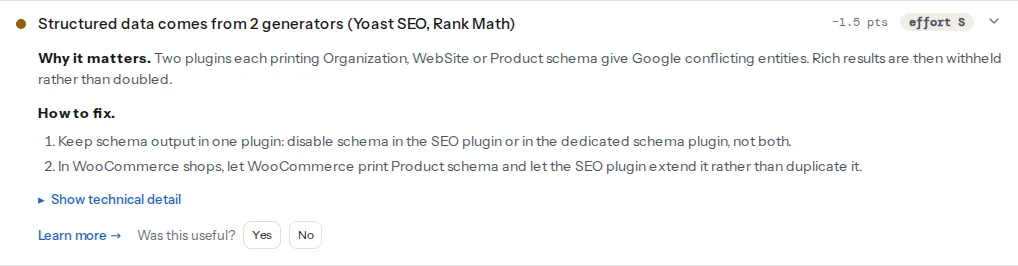
A page may have at most one root Organization and one root WebSite; any other type repeated with the same name and url or @id counts as a duplicate. WooCommerce is recognised but not counted as a generator, since its block is meant to coexist with the SEO plugin's graph. A theme or widget that prints a block without a plugin class is not named, but its entity still shows under duplicate entities, and the types row shows the count (Organization ×2).
Find who prints each block
View the page source and search for ld+json. Yoast's graph has class="yoast-schema-graph" and sits under the comment <!-- This site is optimized with the Yoast SEO plugin -->; Rank Math uses class="rank-math-schema"; WooCommerce's block has no class but contains "@type":"Product" with offers. A block with no marker is the theme or a widget.
Pick one source per entity
| Entity | Keep from | Turn off in |
|---|---|---|
| Organization, WebSite | SEO plugin | Theme options, schema plugin, second SEO plugin |
| Product | WooCommerce, or the SEO plugin that replaces or extends it | Review plugin, schema plugin, theme product template |
| Article, BlogPosting | SEO plugin | Theme, schema plugin |
| FAQPage | Whichever prints the visible FAQ, one only | The other |
| Review, AggregateRating | The plugin that holds the reviews | Everything else |
Turn off the extra generators
- Two SEO plugins. Keep one. Rank Math SEO → Status & Tools → Import & Export imports titles, descriptions and per-post settings from Yoast and others. Import, spot-check ten pages, then deactivate the other plugin.
- Rank Math next to another schema source. Switch the Schema module off under Rank Math SEO → Dashboard → Modules, or set the Schema Type to None per post type under Titles & Meta.
- Yoast next to another schema source. There is no admin toggle; a filter in a small plugin or child theme disables its graph:
<?php
// Only if another plugin prints the whole graph: disable Yoast SEO's JSON-LD.
add_filter('wpseo_json_ld_output', '__return_false');
More often you want to keep Yoast's graph and drop one node another plugin prints; the wpseo_schema_graph_pieces filter does that, and Yoast's developer documentation lists the piece names.
- Themes. Look for a "Schema" switch in the theme options; otherwise a child theme can remove the action that prints it.
- Builder widgets. Elementor Pro's accordion has a per-widget FAQ schema switch. Keep it on only for the one accordion that is the page's FAQ.
- Review plugins. Most have a "disable schema output" setting; otherwise choose which plugin owns reviews.
Do not merge two graphs by hand: the next plugin update brings the duplicate back. And do not disable the whole graph to silence one duplicate; remove the extra node instead. Purge the page cache (and Cloudflare's, if it caches HTML) after each change, or you will keep seeing the old HTML.
How to check schema markup on a WordPress site
Check one page of each type, since site-wide and per-page schema come from different settings: the home page, a post, a page and, on a shop, a product.
The validator finds every JSON-LD block, lists its types, checks the properties Google requires on types such as Product, Article and LocalBusiness, and flags duplicate entities. It only detects microdata, which some older themes still print.
To see which SEO plugins are active, and whether two of them are, run the WordPress checker. Our guide to schema markup validation explains each error and warning.
Common mistakes
- Leaving Site representation empty, so the Organization has no logo or profiles.
- Pasting a generator's Organization block into the header on top of the plugin's graph.
- FAQ markup on every post through a builder widget. Google stopped showing FAQ rich results for all sites in May 2026, so it earns nothing; our guide to FAQ and HowTo schema after Google's changes covers what to keep.
- Review stars from a plugin on products without visible reviews.
- Deactivating a second SEO plugin without importing first, so every title and description reverts to defaults.
Questions people ask
Do I need a schema plugin if I use Yoast or Rank Math?
Usually not. Yoast SEO and Rank Math both print a linked schema graph with Organization or Person, WebSite, WebPage, Article and breadcrumbs, and WooCommerce adds Product. Add a dedicated schema plugin only if you need many types your SEO plugin does not support, and then switch off the overlapping output in one of them so each entity is described once.
How do I add schema to a single WordPress page?
Use the Schema tab in your SEO plugin's sidebar for the page if the type is supported there. For other types, add a JSON-LD block with a code-snippet plugin limited to that page, or a small wp_head function in a child theme that checks is_page() before printing it. Mark up only content visible on the page, and do not add nodes the plugin already prints.
How do I remove duplicate schema in WordPress?
Find out which plugins print JSON-LD, then keep one source per entity. The report names the generators it recognises from their script-tag classes and lists entities that appear twice. Keep the SEO plugin for the site-wide graph and WooCommerce for products, and switch off schema in the theme, the extra plugins and builder widgets. Clear the page cache and check again.