Before a page can earn stars, prices or breadcrumbs in search results, search engines need to know whose site it is. Two small blocks of structured data answer that: Organization says who you are (name, logo, official profiles, contact details) and WebSite says what the site is called. They take 20 minutes to add, rarely need changing, and every other piece of structured data on the site can point back to them. This guide explains what each field does, gives a complete example, and shows how to add them in WordPress and Shopify without ending up with two competing copies.
Quick answer
- Add one Organization entity (or a LocalBusiness subtype if you have premises customers visit) with
name,url,logoandsameAs. AddcontactPointandaddressif they apply. logo: a square-ish image of at least 112 × 112 px that still reads on a white background.sameAs: the full URLs of your own profiles (Instagram, LinkedIn, Facebook, Wikipedia), not the networks' home pages.- Add one WebSite entity on the home page with
nameandurl, the name you want Google to show as your site name. - Put both in one
@graphwith@ids. If an SEO plugin already outputs them, fill in its settings instead of adding a second block. - Check with the schema validator.
Why site-wide schema matters
Search engines already guess who owns a site from its content, its links and its profiles elsewhere. Organization markup replaces the guess with a statement. Google documents several uses for it: the logo can appear next to your results and in the knowledge panel, and the other fields help it tell your business apart from others with a similar name. The "Example Shop" in London and the one in Leeds are two different companies; url, address and sameAs are how a search engine keeps them apart.
WebSite markup has a narrower job. Google uses the name in WebSite markup on the home page as one of its sources for the site name shown above your results. Without it, Google picks from your title tag or other signals, which is how a shop ends up labelled with its domain or its tagline.
Neither block creates a rich result on its own, and neither is a ranking boost. What they give you is a correct identity, and a place for your Product, Article and LocalBusiness markup to point to as publisher or seller. Google's Organization structured data documentation lists every property it reads.
How getReport checks it
The schema validator (and the Structured data module of every report) parses each JSON-LD block on the page, including entities inside @graph, and checks them against the properties search engines need. Microdata is detected and counted, but the checks below read JSON-LD, which is what Google recommends.
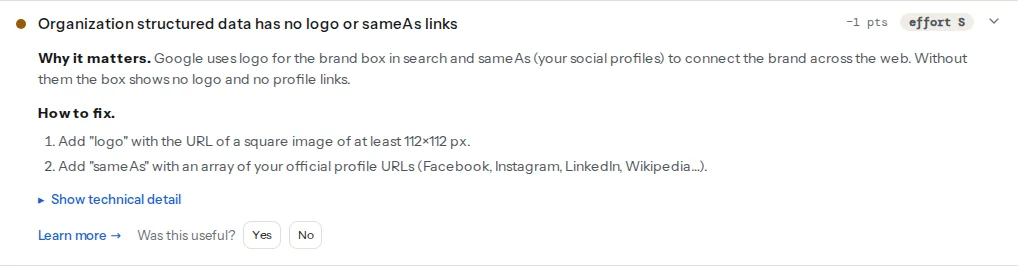
The check applies to Organization, LocalBusiness and their common subtypes (Corporation, Store, Restaurant and similar). It confirms that both fields are present; it does not download the logo, so check its size yourself.
For Organization and WebSite, the properties checked are name and url, the schema.org minimum. For LocalBusiness and its subtypes, name, address and telephone. Google's own documentation marks no Organization property as strictly required, so a pass here means the identity is complete enough to be useful.
More than one root Organization or more than one root WebSite on the same page is flagged. This is the most common problem on WordPress sites, where the theme and the SEO plugin each print their own. The structured data learn page has the short version.
Step by step
1. Collect the facts
Before writing any code, gather:
- The name exactly as customers know it, and the legal name if different.
- The home page URL in its final form: https, with or without www, the same as your canonical tags.
- A logo file: at least 112 × 112 px (512 × 512 px is a comfortable size), PNG, JPG, WebP or SVG, on a solid background or one that looks right on white. Google asks that the logo look right on a plain white background, so a white logo on a transparent background disappears.
- The profiles you control: the full URL of each (
https://www.instagram.com/exampleshop), nothttps://instagram.com. - Contact details you are happy to publish: a customer service phone or email.
- If customers visit you: the address, phone and opening hours.
2. Write the Organization and WebSite blocks
One <script type="application/ld+json"> with a @graph holds both. The @id values are just stable identifiers (the home page URL plus a fragment is the convention); other entities refer to them instead of repeating the details. Put this in the <head> of the home page, or in the site-wide template:
<script type="application/ld+json">
{
  "@context": "https://schema.org",
  "@graph": [
    {
      "@type": "Organization",
      "@id": "https://www.example.com/#organization",
      "name": "Example Shop",
      "legalName": "Example Shop Ltd",
      "url": "https://www.example.com/",
      "logo": {
        "@type": "ImageObject",
        "url": "https://www.example.com/images/logo-512.png",
        "width": 512,
        "height": 512
      },
      "sameAs": [
        "https://www.instagram.com/exampleshop",
        "https://www.facebook.com/exampleshop",
        "https://www.linkedin.com/company/exampleshop"
      ],
      "contactPoint": {
        "@type": "ContactPoint",
        "contactType": "customer service",
        "telephone": "+44-20-7946-0000",
        "email": "[email protected]",
        "availableLanguage": ["en"]
      }
    },
    {
      "@type": "WebSite",
      "@id": "https://www.example.com/#website",
      "name": "Example Shop",
      "alternateName": "ExampleShop",
      "url": "https://www.example.com/",
      "publisher": { "@id": "https://www.example.com/#organization" }
    }
  ]
}
</script>
logo can also be a plain URL string; the ImageObject form lets you state the size. All URLs must be absolute. alternateName on WebSite is an optional second name Google may use for the site name, such as an abbreviation.
3. Use a LocalBusiness subtype if you have premises
A shop, restaurant, practice or salon that customers visit should use the most specific subtype of LocalBusiness instead of Organization, as the same single entity. It takes everything above plus the address and phone:
{
  "@context": "https://schema.org",
  "@type": "Store",
  "@id": "https://www.example.com/#organization",
  "name": "Example Shop",
  "url": "https://www.example.com/",
  "logo": "https://www.example.com/images/logo-512.png",
  "image": "https://www.example.com/images/shopfront.jpg",
  "telephone": "+44-20-7946-0000",
  "address": {
    "@type": "PostalAddress",
    "streetAddress": "1 High Street",
    "addressLocality": "London",
    "postalCode": "N1 9GU",
    "addressCountry": "GB"
  },
  "openingHoursSpecification": [{
    "@type": "OpeningHoursSpecification",
    "dayOfWeek": ["Monday", "Tuesday", "Wednesday", "Thursday", "Friday", "Saturday"],
    "opens": "09:00",
    "closes": "18:00"
  }],
  "sameAs": ["https://www.instagram.com/exampleshop"]
}
The address must match what your Google Business Profile and your contact page say, character for character where possible.
4. Add a SearchAction only if the site has search
potentialAction with a SearchAction used to power the sitelinks search box under a brand's result. Google retired that search box in November 2024, so the markup no longer changes anything in Google. Leaving it in place is harmless, and other consumers may still read it, but only if the URL is real. If your site has a search page (WordPress does, at /?s=), the block goes inside the WebSite entity:
"potentialAction": {
  "@type": "SearchAction",
  "target": {
    "@type": "EntryPoint",
    "urlTemplate": "https://www.example.com/?s={search_term_string}"
  },
  "query-input": "required name=search_term_string"
}
Open the URL with a real search term in place of {search_term_string} before publishing it. If it does not show search results, leave the block out.
5. Decide where it goes
Google asks for Organization markup on the home page or on one page that describes the organisation (an About page); it does not need to be on every page. WebSite markup for the site name belongs on the home page. Many sites print both on every page anyway, because the SEO plugin puts them in a site-wide @graph and each page's Article or Product points to the #organization @id as its publisher. Both approaches are fine. What matters is that every page has at most one of each, with the same values.
6. Connect the rest of your structured data
Once #organization exists, other entities refer to it instead of repeating it: "publisher": { "@id": "https://www.example.com/#organization" } on an Article, "seller" on a Product's offer. That keeps the name and logo in one place. JSON-LD basics explains @id and @graph in more depth, and product schema shows the Product side.
Platform notes
WordPress
Yoast SEO and Rank Math both output Organization and WebSite in a @graph on every page. Fill in their settings instead of adding your own block:
- Yoast SEO: Yoast SEO → Settings → Site representation. Choose "Organization", enter the name, upload the logo, and add your profile URLs under "Other profiles". Those become
logoandsameAs. - Rank Math: Rank Math SEO → Titles & Meta → Local SEO. Choose "Company", set the name and logo, and fill in the social profile fields, which become
sameAs. Rank Math's Local SEO module adds fields for the address and opening hours.
Then run the validator. If it reports duplicate entities, something else is printing a second Organization or WebSite: usually the theme, or a dedicated schema plugin alongside the SEO plugin. Turn off the schema output in one of them rather than adding a third block. The report's WordPress findings name the generators it saw.
Shopify
Many Shopify themes print Organization and WebSite themselves, taking the logo from the theme's header settings and sameAs from the social media links in Theme settings. Fill those in first. To see what your theme outputs, search the theme code (Online Store → Themes → Edit code) for "Organization"; it is usually in layout/theme.liquid or the header section. Edit that block rather than adding a second one, and remember that theme updates can overwrite code edits.
Static sites and custom builds
Put the @graph block in the shared layout template, generated from one config object (name, logo, profiles) so it cannot drift between pages.
Verify
- Run the schema validator on the home page. "Organization structured data has a logo and sameAs links", "Structured data entities are unique" and "Organization, WebSite structured data has every required property" should all pass.
- Open every
sameAsURL and the logo URL in a private window. Each should load without a redirect or login. - Run the validator on one inner page too, especially on WordPress, where the theme may print markup only on some templates.
- Changes to the site name and logo in Google are not instant; they follow the next crawls of the home page.
Common mistakes
- Logo too small or invisible on white. Symptom: no logo next to your results, or a blank square. Use a file of at least 112 × 112 px with a solid background.
sameAspointing at networks, not profiles.https://facebook.comsays nothing about you. Use the full profile URL, and only profiles you control.- Different names across pages or blocks. "Example Shop" in the plugin, "Example Shop Ltd." in the theme, "EXAMPLE" in the page title. Pick one
name, uselegalNameandalternateNamefor the rest. - Two Organization blocks. Theme plus SEO plugin, or a plugin plus a hand-written block. Keep one generator.
- A SearchAction with a made-up URL. A template value copied from an example, on a site without search, or a URL that returns a 404. Remove it; it earns nothing anyway.