Article structured data is the most common JSON-LD on the web and the most misunderstood. It does not earn star ratings, it does not make a post rank, and Google reads only a handful of its forty-odd properties. What it does do is tell Google the headline, the author, the dates and the image to use when it shows the post, on its own or in Top Stories, and that is worth the ten minutes it takes to get right. This guide covers the three types, the properties that matter, a complete sample and the plugin settings that produce it in WordPress.
Quick answer
- Use the most specific type:
BlogPostingfor blog posts,NewsArticlefor news,Articlefor anything else. Google treats all three the same. - Provide
headline,image,datePublished,dateModifiedandauthor(aPersonorOrganizationwithnameandurl). - Images at least 1200 px wide, in 16:9, 4:3 and 1:1 if you can; dates in ISO 8601 with a timezone.
- Connect the article to your site's Organization with
@idinstead of repeating it. - The schema validator lists the properties the report requires and which entity is missing them.
Why Article schema matters
Google uses Article markup to understand the page's main entity and to fill two features. The first is the article rich result: the listing may show the headline, a larger image and the publish date. The second is Top Stories and the news and article carousels on mobile, which draw from the same markup (and, for Top Stories, also require the site to meet Google's news content policies). Neither is guaranteed, but pages without the markup rarely appear in the carousels at all.
What it does not do: there is no rating rich result for articles, so review stars in Article markup are ignored; the markup is not a ranking signal; and the date it declares is a hint that Google checks against the visible date on the page. Where the markup pays back is consistency. A site whose posts all carry the same author entity, the same publisher @id and correct dates gives Google a clean picture of who publishes what and when, which is the basis for showing the right date in results and attributing the content to the right author.
The three types
Article is the parent; NewsArticle and BlogPosting are subtypes, and there are more below them (TechArticle, ScholarlyArticle, Report). Google's documentation lists the three main ones and asks for the most specific one that fits. The choice changes nothing in the rich result today; it is about being accurate, and about future features that may use it. Pick one rule per content type and apply it site-wide: posts are BlogPosting, press releases and news are NewsArticle, documentation and guides are TechArticle or Article.
How getReport checks it
The validator reads every JSON-LD block on the page, lists the root entities and checks each known type against a table of required properties. For Article, NewsArticle, BlogPosting (and TechArticle, ScholarlyArticle and Report, which use the same table) the four properties are headline, author, datePublished and image:
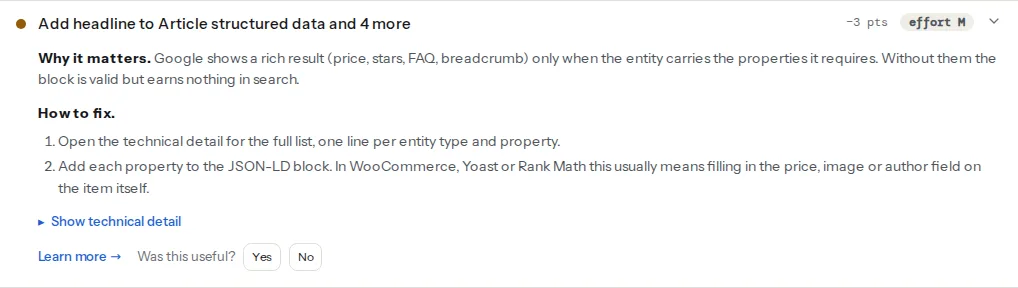
The table is stricter than Google's documentation, which calls these properties recommended rather than required, because without them the rich result has nothing to show. The report checks presence, not quality: author as a bare string passes here, an image of 300 px passes, and dateModified is not checked at all. Those are the rules in the steps below.
Eligibility follows from the first finding: an Article with all four properties is listed as eligible, one without any of them is not. It means "complete against the documented properties", not "Google will show it"; that part depends on the page, the site and the query.
The starting point for a page with no markup at all. An SEO plugin usually adds Article for posts on its own; a hand-built theme or a static site generator often ships nothing, in which case the sample below is the whole job.
Step by step
1. Write the headline as the post title, not the site name
headline is the article's title. The most common mistake is a template that puts the site name, or "Title | Site name", into it, so every post has the same headline or a decorated one. Keep it under about 110 characters; Google's documentation says long headlines may be truncated, and 110 has been the working limit since the Rich Results Test used to warn at it.
2. Use an image Google can show
The image rules are the ones that bite most often:
- At least 1200 px wide. A 600 px featured image is valid markup and useless for the rich result.
- Crawlable: not blocked in robots.txt, not behind a login, served with a normal
Content-Type. - Belonging to the article, not the site logo or a generic banner.
- Ideally three crops in 16:9, 4:3 and 1:1, as an array of URLs, so Google can pick the one that fits the layout.
"image": [
  "https://example.com/img/sourdough-16x9.jpg",
  "https://example.com/img/sourdough-4x3.jpg",
  "https://example.com/img/sourdough-1x1.jpg"
]
One image is fine to start with; make it wide.
3. Dates in ISO 8601 with a timezone
"datePublished": "2026-03-12T09:00:00+01:00",
"dateModified": "2026-09-01T14:30:00+02:00"
dateModified must never be earlier than datePublished, must match the visible "Updated" date if you show one, and should change only when the content changes, not on every cache rebuild. Google uses the dates as one signal among several for the date shown in results; a markup date that disagrees with the visible date is the fastest way to have both ignored.
4. Author as a Person or Organization
"author": {
  "@type": "Person",
  "name": "Ana Kovač",
  "url": "https://example.com/author/ana-kovac/"
}
name is the display name a reader would recognise; url points to a page about the author, on your site or a profile elsewhere. For content without a named writer, use the Organization. Two things to avoid: "author": "admin" (a login name rather than a person, common in WordPress where the display name was never set), and a plain string where an object with @type belongs. Google accepts a string but cannot connect it to anything.
5. Connect to the Organization with @id
The publisher is the same entity on every page, so define it once and refer to it. Google's Article documentation no longer lists publisher among the recommended properties (it was an AMP-era requirement), but a reference costs nothing and ties the article to your Organization's logo and profiles. The Organization and WebSite schema guide sets up the target.
6. The complete block
Everything above in one @graph, in a <script type="application/ld+json"> in the <head> of the post:
{
  "@context": "https://schema.org",
  "@graph": [
    {
      "@type": "Organization",
      "@id": "https://example.com/#organization",
      "name": "Example Bakery",
      "url": "https://example.com/",
      "logo": "https://example.com/img/logo-600x600.png"
    },
    {
      "@type": "WebSite",
      "@id": "https://example.com/#website",
      "name": "Example Bakery",
      "url": "https://example.com/",
      "publisher": { "@id": "https://example.com/#organization" }
    },
    {
      "@type": "Person",
      "@id": "https://example.com/author/ana-kovac/#person",
      "name": "Ana Kovač",
      "url": "https://example.com/author/ana-kovac/"
    },
    {
      "@type": "BlogPosting",
      "@id": "https://example.com/blog/why-your-sourdough-is-dense/#article",
      "headline": "Why your sourdough is dense, and five ways to fix it",
      "url": "https://example.com/blog/why-your-sourdough-is-dense/",
      "mainEntityOfPage": "https://example.com/blog/why-your-sourdough-is-dense/",
      "image": [
        "https://example.com/img/sourdough-16x9.jpg",
        "https://example.com/img/sourdough-4x3.jpg",
        "https://example.com/img/sourdough-1x1.jpg"
      ],
      "datePublished": "2026-03-12T09:00:00+01:00",
      "dateModified": "2026-09-01T14:30:00+02:00",
      "author": { "@id": "https://example.com/author/ana-kovac/#person" },
      "publisher": { "@id": "https://example.com/#organization" },
      "isPartOf": { "@id": "https://example.com/#website" },
      "inLanguage": "en-GB"
    }
  ]
}
A note on author by reference: the report resolves author as present when the property exists, so { "@id": … } passes. Google's Rich Results Test reads the referenced Person from the same graph. If your markup lives in separate blocks that do not share a graph, put the name and url inline instead.
7. Validate and test
Run the schema validator on the post. The required-properties finding should pass for the article type and the eligibility finding should list it. Then paste the URL into Google's Rich Results Test, which additionally checks the image size and date format; the schema markup validation guide walks through reading both.
Platform notes
WordPress
Yoast SEO writes an Article entity for posts automatically, in one @graph with the WebPage, WebSite, Organization (or Person, for personal sites) and the author Person. The headline is the post title, the image is the featured image, dates come from the post with the site's timezone, and the author is the post author's profile. Per post, the Schema tab in the Yoast sidebar lets you switch the article type to BlogPosting, NewsArticle, TechArticle and others; the site-wide default per post type is under Yoast SEO → Settings → Content types. The Organization's name and logo come from the Site representation settings, and a missing logo there is what the logo-and-sameAs finding reports.
Rank Math does the same with a default Schema Type per post type under Rank Math → Titles & Meta → Posts (Article by default, with an Article Type sub-setting for BlogPosting or NewsArticle), and a Schema tab in the post editor to override it. Both plugins fill author from the user's display name, so a post by "admin" produces "name": "admin"; set the display name under Users → Profile.
Three things the plugins cannot fix for you: a featured image that is too small (upload one at least 1200 px wide), a missing author page (the author archive is the url, and if your theme disables author archives the URL 404s), and custom post types with no schema (enable it in the plugin's content type settings, or pick Article there).
Block themes and classic themes add no structured data themselves; without an SEO plugin the block in step 6 goes in the theme's header.php or through wp_head with the post's fields. Never keep both a plugin's Article and a hand-written one: the duplicate entities finding will flag it, and Google may read either.
Static sites and custom builds
Generate the block from the post's front matter in the layout template: title → headline, date and lastmod → the two dates, the author key → the Person, the cover image → image. Hugo, Astro, Eleventy and Next.js all expose these in the template; the only recurring bug is a missing timezone on dates that come out as 2026-03-12 alone, which Google accepts but which loses the time and offset.
Verify
- The schema validator passes the required-properties finding for the article type and lists it under "Eligible for rich results".
- Google's Rich Results Test shows the Article with no errors and no warnings about image size or dates.
- The headline in the markup is the post title;
dateModifiedis on or afterdatePublishedand matches the visible date. - View the page source and confirm there is exactly one article entity; a second one from a theme or another plugin shows up in the duplicate entities finding.
Common mistakes
- Headline is the site name. A template variable pointed at the wrong field; every post claims the same headline. Use the post title.
- No image or a tiny one. The featured image was never set, or it is 400 px wide. Set it and upload one at 1200 px or more.
dateModifiedearlier thandatePublished. The modified date is copied from an import or a migration. Regenerate it from the post's real update time.- Author is a login name. "admin" or "editor" in
author.name. Set the user's display name; in a plugin it flows through automatically. - Two Article entities. The theme adds one and the SEO plugin adds another, with different dates. Keep one source.
- Expecting stars. Review markup on an article page earns nothing; Google shows review snippets only for the types it lists, and Article is not one of them.