JSON-LD is a small block of JSON in your page that tells search engines, in their terms, what the page is about: this is an article, written by this person, published by this company, on this date. Visitors never see it. When it is right, it can earn rich results and helps Google connect your pages to your business. When it has one stray comma, the whole block is ignored, and nothing on the page tells you. This guide explains how JSON-LD is put together, what most sites need, and how to add it without breaking the page or the markup your SEO plugin already writes.
Quick answer
- Put JSON-LD in a
<script type="application/ld+json">element, in the<head>or the<body>. - Every block needs
"@context": "https://schema.org"and each entity an"@type". - Give site-wide entities a stable
@id(https://example.com/#organization) and refer to them by it instead of repeating them. - Most sites need Organization and WebSite on the home page, BreadcrumbList on inner pages, plus Article, Product or LocalBusiness where they fit.
- JSON is strict: no trailing commas, no comments, straight double quotes only.
- Run the schema validator after every change.
Why JSON-LD matters
Structured data is how a page states facts in a form machines do not have to guess: a price is a price, a date is a date, the author is a person with a profile page. Google uses it for rich results (prices, stars, breadcrumbs under your listing) and to understand entities: that your Organization has this logo and these social profiles, that this article belongs to that website. The structured data learn page has the short overview.
Google supports three formats, JSON-LD, Microdata and RDFa, and recommends JSON-LD. The reason is practical. Microdata is spread across the HTML as attributes on visible elements (itemprop="price" on the price <span>), so a redesign or a new page builder can break it without anyone noticing. JSON-LD sits in one block, separate from the layout. It can be generated from the same data as the page, checked on its own and changed without touching the design.
Where JSON-LD goes
A JSON-LD block is a script element with a special type. Browsers do not run it; they ignore it like any unknown script type.
<script type="application/ld+json">
{
  "@context": "https://schema.org",
  "@type": "Organization",
  "name": "Example Shop",
  "url": "https://example.com/"
}
</script>
It can go in the <head> or anywhere in the <body>; Google reads both. A page can have several blocks (one from the theme, one from a plugin, one for the product), or a single block with an @graph array holding all entities. Both work. One graph is easier to keep consistent, and it is what Yoast SEO and Rank Math produce.
Google can also read JSON-LD that JavaScript adds after the page loads, for example through a tag manager. Many other tools, getReport included, read the HTML as your server sends it, so markup added by scripts is invisible to them. Printing the block in the HTML is the safer choice.
The anatomy of a block
@context: always"https://schema.org". It says which vocabulary the property names come from.@type: what the entity is, from the schema.org vocabulary:Organization,Product,Article,BreadcrumbList. Capitalisation matters (productis not a type).- Properties:
name,url,image,datePublishedand so on, each defined on schema.org for that type. Values are text, numbers, URLs, dates in ISO 8601 (2026-09-25or2026-09-25T09:00:00+02:00), or other entities. - Nested entities: a property whose value is itself an object with its own
@type, such as an Article'sauthorbeing aPerson. @id: a unique identifier for an entity, written as a URL. It does not have to be a real page; the convention is the page URL plus a fragment (https://example.com/#organization). Anywhere else,{ "@id": "https://example.com/#organization" }means "that same organization", so you describe it once and point at it from every page.- Arrays: square brackets for several values, such as several images or social profiles in
sameAs.
How getReport checks it
The validator reads every <script type="application/ld+json"> block in the HTML, parses it as strict JSON, flattens @graph arrays, and checks each top-level entity against the properties it needs for Google's rich results. Microdata is detected and counted; RDFa is not read. The full validation workflow across all types, including the logo and sameAs checks, is in schema markup validation.
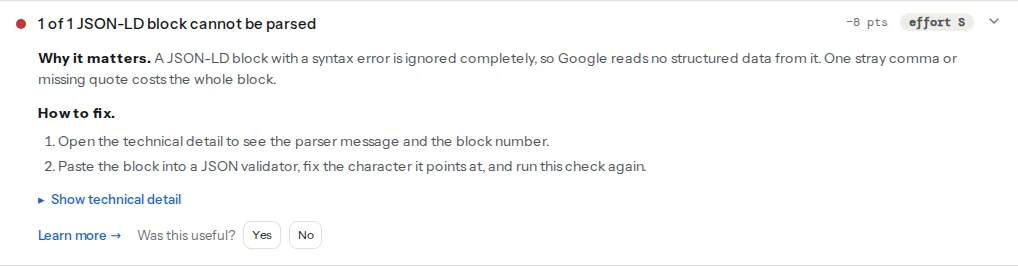
The parse finding is the one to fix first. A block that does not parse contributes nothing: no types, no properties, no rich results. Block numbers count from 1 in the order the scripts appear in the HTML, including blocks written by plugins, so block 3 may not be the one you added. View the page source and count.
The types finding lists only top-level entities, including every member of an @graph. Entities nested inside another (an Article's author) are part of their parent. A type followed by "×2" means the page declares that entity twice, which the duplicate check below looks at.
For the types it knows, getReport asks for: name and url on Organization and WebSite; headline, author, datePublished and image on Article and BlogPosting; itemListElement with a position and name for every breadcrumb; name, address and telephone on LocalBusiness; and name, image, offers with a price and currency on Product. The finding names the first gap in its title and lists the rest in the detail.
Step by step
1. See what the page already has
Run the schema validator before writing anything. On most CMS sites there is already structured data from the theme or an SEO plugin, and the types finding shows what. Adding a block without looking is how sites end up with two Organizations.
2. Pick the types that match the page
| Page | Types |
|---|---|
| Home page | Organization (or LocalBusiness), WebSite, WebPage |
| Any inner page | WebPage, BreadcrumbList |
| Blog post, news, guide | Article, BlogPosting or NewsArticle |
| Product page | Product with Offer (see product schema that qualifies for rich results) |
| Shop, clinic, restaurant with an address | LocalBusiness or a subtype such as Store, Dentist, Restaurant |
| FAQ page | FAQPage, only for questions visible on the page |
Google shows FAQ rich results only for well-known government and health sites since 2023, so FAQPage markup rarely changes how an ordinary listing looks. Organization and WebSite earn no rich result on their own, but they are what the other entities point at; Organization and WebSite schema covers them in depth.
3. Write one graph and link it with @id
A complete, minimal graph for a blog post, with every entity linked to the others. It goes in the page template, in the <head>:
<script type="application/ld+json">
{
  "@context": "https://schema.org",
  "@graph": [
    {
      "@type": "Organization",
      "@id": "https://example.com/#organization",
      "name": "Example Shop",
      "url": "https://example.com/",
      "logo": "https://example.com/img/logo-512.png",
      "sameAs": [
        "https://www.instagram.com/exampleshop",
        "https://www.linkedin.com/company/exampleshop"
      ]
    },
    {
      "@type": "WebSite",
      "@id": "https://example.com/#website",
      "name": "Example Shop",
      "url": "https://example.com/",
      "publisher": { "@id": "https://example.com/#organization" }
    },
    {
      "@type": "WebPage",
      "@id": "https://example.com/blog/waterproof-boots/#webpage",
      "url": "https://example.com/blog/waterproof-boots/",
      "name": "How to waterproof walking boots",
      "isPartOf": { "@id": "https://example.com/#website" },
      "breadcrumb": { "@id": "https://example.com/blog/waterproof-boots/#breadcrumb" }
    },
    {
      "@type": "BreadcrumbList",
      "@id": "https://example.com/blog/waterproof-boots/#breadcrumb",
      "itemListElement": [
        { "@type": "ListItem", "position": 1, "name": "Home", "item": "https://example.com/" },
        { "@type": "ListItem", "position": 2, "name": "Blog", "item": "https://example.com/blog/" },
        { "@type": "ListItem", "position": 3, "name": "How to waterproof walking boots" }
      ]
    },
    {
      "@type": "Article",
      "@id": "https://example.com/blog/waterproof-boots/#article",
      "headline": "How to waterproof walking boots",
      "image": "https://example.com/img/waterproof-boots-1200.jpg",
      "datePublished": "2026-09-01T09:00:00+02:00",
      "dateModified": "2026-09-20T14:30:00+02:00",
      "author": {
        "@type": "Person",
        "name": "Ana Horvat",
        "url": "https://example.com/about/ana-horvat/"
      },
      "publisher": { "@id": "https://example.com/#organization" },
      "mainEntityOfPage": { "@id": "https://example.com/blog/waterproof-boots/#webpage" }
    }
  ]
}
</script>
Every value must match what the page shows: the headline, the author's name, the dates. Structured data that describes something not on the page is against Google's guidelines, and it is the most common reason valid markup earns nothing.
4. Generate it, do not type it
Hand-written JSON breaks the first time someone edits a product name with a quote in it. Build the data as an array or object in your template language and let a JSON encoder do the escaping.
In WordPress without an SEO plugin, a small snippet in a child theme's functions.php or a must-use plugin (wp-content/mu-plugins/schema.php):
<?php
add_action('wp_head', function () {
    if (!is_front_page()) {
        return;
    }
    $data = [
        '@context' => 'https://schema.org',
        '@type'    => 'Organization',
        '@id'      => home_url('/#organization'),
        'name'     => get_bloginfo('name'),
        'url'      => home_url('/'),
        'logo'     => home_url('/img/logo-512.png'),
    ];
    // JSON_HEX_TAG turns < and > into < and >, so no value can close the script early.
    echo '<script type="application/ld+json">'
        . wp_json_encode($data, JSON_UNESCAPED_UNICODE | JSON_HEX_TAG)
        . "</script>\n";
});
In a static site or JavaScript framework, the same idea in the layout:
// layout helper: returns the script element as a string for the page head
export function jsonLd(data) {
  const json = JSON.stringify(data).replace(/</g, '\\u003c');
  return `<script type="application/ld+json">${json}</script>`;
}
5. Avoid the syntax errors that void a block
These are the errors behind almost every parse failure:
- Trailing comma after the last property or array item:
"name": "Example Shop",followed by}. - Curly quotes (
“name”) instead of straight ones ("name"), usually from pasting through a word processor, a chat app or a rich-text CMS field. - An unescaped double quote inside a value:
"name": "The "Pro" model". It must be\"Pro\". - A raw line break inside a value, typical when a product description from the CMS is dropped in as is. JSON strings cannot contain line breaks; an encoder writes them as
\n. </script>inside a value (for example HTML copied into a description). The browser ends the script element there, and the rest of the block spills onto the page as text.- Comments (
// …or/* … */) and single quotes. Neither is valid JSON. - An empty template variable:
"price": ,when the product has no price field filled in. - Two objects back to back (
{…}{…}) without being wrapped in an array or split into two script elements.
6. Test with three tools, for three questions
- getReport's schema validator: does every block parse, which types are there, what is missing, and is anything duplicated? It reads the HTML as sent and keeps the result at a permanent link.
- Google's Rich Results Test: which rich results Google itself considers the page eligible for. It renders JavaScript, so it also sees markup added by scripts.
- Schema Markup Validator (validator.schema.org): whether the markup is valid schema.org at all, including types Google does not use for rich results.
Platform notes
WordPress
Yoast SEO and Rank Math each print one graph containing WebSite, WebPage, BreadcrumbList, Organization or Person, and Article on posts, all linked by @id. Complete it in the plugin rather than adding your own: in Yoast, Yoast SEO → Settings → Site representation (organisation name, logo, social profiles); in Rank Math, Rank Math SEO → Titles & Meta → Local SEO. Page and article types are set per post in the plugin's Schema tab.
Do not add a second Organization with a snippet or another plugin. The duplicate check below flags two top-level Organizations, and two SEO or schema plugins writing a graph each are flagged separately by the WordPress checks. If you need a type the plugin does not produce, use the plugin's schema features or its developer filters (Rank Math has rank_math/json_ld, Yoast has wpseo_schema_* filters) so it joins the same graph.
Shopify
Themes print Product and often Organization JSON-LD from Liquid templates; review and SEO apps may add their own. Check with the validator after installing any app that mentions "rich snippets" or "schema", and turn off one of the two outputs when the types list shows an entity twice.
Static sites and custom builds
Generate the graph from the same front matter or database fields that render the page, with a single helper for the site-wide Organization and WebSite so the @id values are identical everywhere.
Verify
- The validator shows "All N JSON-LD blocks parse", the types you expect, no missing required properties and unique entities.
- Google's Rich Results Test agrees on the rich result types. The rich results learn page explains what each looks like.
- After Google recrawls the page, Search Console's rich result reports (under Enhancements or Shopping) list the items without errors. That can take days to weeks.
Common mistakes
- Adding markup without checking what is there. The plugin already prints an Organization; a second one makes Google choose. Run the validator first.
- Placeholder values left in. "Your Company Name",
https://example.com/logo.pngand"datePublished": "YYYY-MM-DD"are all valid JSON and all wrong. Search the page source for them after pasting any example. - Relative URLs. Not every consumer resolves
"url": "/about/"against the page. Use absolute URLs withhttps://. - Changing
@idvalues between pages.https://example.com/#organizationon one page andhttps://www.example.com/#orgon another describe two organisations. Keep one form, matching your canonical host. - Describing what is not on the page. Ratings with no visible reviews, FAQs that are not shown, an author who is not named. It is against Google's guidelines and a common reason for manual actions.