Headings are the table of contents of a page. People skim them, screen readers list them, search engines read them to understand what each part is about. Two problems show up on almost every site we check: more than one H1 (usually the logo plus the page title), and outlines that jump from H2 straight to H4 because someone wanted smaller text. Both take minutes to fix once you know where they come from. This guide shows how to find them, what to change in the theme or editor, and how to keep the size of a heading separate from its level.
Quick answer
- One
<h1>per page, naming what this page is about: the product name, the article headline, the service. <h2>for each main section,<h3>for parts inside a section. Never skip a level on the way down (H2 → H4). Going back up (H4 → H2) is fine.- Pick the level by structure, the size by CSS. A small heading can be an H2; a big slogan can be a
<p>with a class. - The
<title>is for the search result, the H1 is for the visitor on the page. Related, not identical. - Check the theme first: site names and logos wrapped in an H1 on every page are the most common cause of two H1s.
- Run the SEO audit on a few page types (home, product or post, category) and read the heading sequence in the technical detail.
Why heading structure matters
For readers. Most visitors scan before they read. Clear headings in a predictable hierarchy let them find the section they came for (delivery times, pricing, the size guide) in a couple of seconds. When the visual hierarchy and the real one disagree, the page feels messy even if nobody can say why.
For screen reader users. Headings are the main way blind visitors move through a page. In NVDA and JAWS, pressing H jumps to the next heading and 1 to 6 jump to the next heading of that level; VoiceOver's rotor (VO+U on a Mac) and NVDA's elements list show all headings as a list to pick from. WebAIM's long-running screen reader survey has found that navigating by headings is the most common way users look for information on a long page. A page with no H1 gives them no quick way to the start of the content; a page where the logo is the H1 announces the shop name as the topic of every page; a jump from H2 to H4 sounds like a section went missing. Testing with a screen reader shows how to hear it yourself in ten minutes.
For search engines. Google reads headings as a strong hint about what a page and each of its sections cover. It has said several times that more than one H1 does not hurt ranking, and it will not penalise a skipped level. The gain from a clean outline is clarity, not a bonus: one H1 that says "Merino wool running socks" is a better signal than two H1s that say "Example Shop" and "Merino wool running socks".
"HTML5 allows several H1s" is a myth that never worked
HTML5 once described an "outline algorithm" where every <section> and <article> restarted the heading levels, so each could have its own H1. No browser and no screen reader ever implemented it, and it was removed from the HTML standard in 2022. Assistive technology reads the levels as written: five H1s in five <section> elements are five top-level headings. Write the levels you mean; the rules in short are on the heading structure page.
How getReport checks it
The SEO audit reads the HTML your server sends and collects every <h1> to <h6> in document order. Because it reads the source rather than what is visible, it counts headings hidden with CSS too, which is exactly how a mobile header and a desktop header can each contribute an H1 you never see side by side.
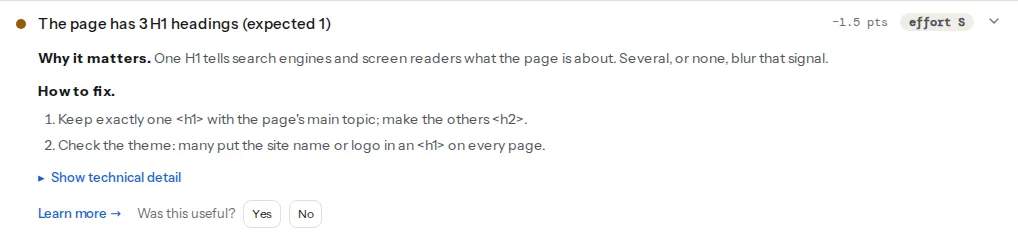
The technical detail lists the text of each H1. An H1 that wraps only a logo image shows as "(empty)", because an image has no text content of its own.
Here the technical detail shows the full heading sequence (for example h1 h2 h3 h2 h4) followed by each skip (h2 → h4). That sequence is a quick headings map of the page: read it top to bottom and you can see the outline without opening the source.
This compares the <title> with the first H1, ignoring case and extra spaces. It is a small warning (1 point), but it is usually a sign that nobody wrote a title for search.
Landmarks (<header>, <nav>, <main>, <footer>) are the other half of page structure for screen reader users. The accessibility checker looks for them on the rendered page:
Step by step
1. Look at the outline on three page types
Headings come from two places: the theme or template (header, footer, sidebars, product layout) and the content editors write. Run the audit on the home page, one content page (a product or a post) and one listing page (a category or blog index). If the same extra H1 shows up on all three, the theme is the source; if it appears on one, the content is.
For a quick visual outline in your own browser, open the page, open DevTools (F12) → Console and paste:
// Prints every heading, indented by level, from the rendered page
document.querySelectorAll('h1,h2,h3,h4,h5,h6').forEach((h) =>
  console.log('  '.repeat(Number(h.tagName[1]) - 1) + h.tagName + '  ' + h.textContent.trim().slice(0, 80))
);
This reads the page after JavaScript has run, so it also shows headings added by scripts, which the audit (reading the server's HTML) does not see.
2. Decide what the one H1 is
The H1 names the page, not the site:
| Page | Good H1 |
|---|---|
| Home page | What the business does: "Handmade merino socks from Zagreb" |
| Product | The product name |
| Article | The headline |
| Category | The category name, optionally with a qualifier ("Running socks") |
| Contact | "Contact us" or "Visit our shop" |
The shop name belongs in the logo link and in the <title>, not in an H1 on every page.
3. Demote the extra H1s
Change the tag, keep the look. If the logo is the H1, make it a plain link or a <p>:
<!-- Before: in header.php or the header template -->
<h1 class="site-title"><a href="/">Example Shop</a></h1>

<!-- After: same class, same styling, no heading -->
<p class="site-title"><a href="/">Example Shop</a></p>
Widget titles, footer column titles and "Newsletter" boxes that use H1 or H2 usually should not be headings of the main content at all. In a footer, an H2 per column is fine; an H1 is not.
4. Fix skipped levels
Go through the sequence and close each gap. Usually one of two things happened: a section title was made an H3 or H4 because it looked better smaller, or a content block (a card, a testimonial) was given a heading level that does not fit where it sits. Promote the heading to the missing level and restyle it:
<h2>Delivery</h2>
<!-- Was <h4> because it "looked right" -->
<h3 class="heading-small">Delivery to islands</h3>
5. Separate size from level with CSS
Give your design a few heading styles as classes, and apply them to whatever level the structure needs:
/* In the theme stylesheet */
.heading-display { font-size: 2.5rem; line-height: 1.1; font-weight: 700; }
.heading-large   { font-size: 1.75rem; line-height: 1.2; font-weight: 600; }
.heading-small   { font-size: 1.125rem; line-height: 1.3; font-weight: 600; }
A promotional slogan in huge type does not need to be a heading at all: <p class="heading-display">Summer sale</p> looks the same and keeps the outline clean.
6. Make the title and the H1 work together
The <title> competes on the search results page, where it sits next to nine other results; the H1 greets someone who has already clicked. A good pair covers two phrasings of the same topic:
<title>Merino running socks – breathable, blister-free | Example Shop</title>
…
<h1>Merino wool running socks</h1>
How to write the title and description is covered in titles and descriptions for the result page.
Platform notes
WordPress
- Theme site title. Many classic themes wrap the site title in an H1 on the home page and in a
<p>elsewhere, which is fine. Older and some commercial themes use an H1 on every page; fix it in a child theme'sheader.php, or ask the theme's support for the setting. In block themes, open Appearance → Editor → the Header template part, select the Site Title block and set its level in the toolbar (paragraph is an option). - The post title is already the H1. The theme prints the title as the H1, so content should start at H2. In the block editor, the Heading block's toolbar shows the level (H2 by default); in the classic editor, avoid "Heading 1" in the format menu. The Post Title block in block themes also has a level setting.
- Page builders. Elementor's Heading widget, and similar widgets in other builders, have an "HTML Tag" setting separate from the size. Builder templates often ship every big text as H1 or H2; change the tag, not the style. For decorative text, pick
divorp.
Shopify
In Dawn and many themes built on it, the section setting "Heading size" changes a CSS class, not the tag, so a banner heading stays an H2 whatever size you choose. The usual sources of extra H1s are product descriptions and pages where someone used "Heading 1" in the rich text editor (the product title is already the H1), and custom sections copied from elsewhere. On the home page, check whether the theme puts the logo in an H1 and whether any section provides a real one.
Static sites and frameworks
Component libraries often hard-code a level (<Card> always renders an H3). Pass the level as a prop so the same component can sit under an H2 or an H3 where the page needs it.
Verify
- The SEO audit shows "The page has exactly one H1 heading" and "Heading levels follow a logical order" on each page type you fixed.
- The technical detail's heading sequence starts with
h1and never jumps more than one level down. - "Title and H1 are different" passes, and both read naturally.
- In a screen reader, the headings list reads like a table of contents for the page, and pressing 1 lands on the start of the content.
Common mistakes
- Removing the H1 instead of demoting the other one. Zero H1s is also a finding and leaves screen reader users without a start point. Keep the one that names the page.
- Hiding the second H1 with CSS. It disappears from the screen, but it stays in the HTML, where search engines and the check still count it, and a "visually hidden" H1 is still read aloud. Change the tag instead.
- Choosing levels by font size. An H4 used because it is small breaks the outline. Use the right level and a class.
- Making every card title an H2. Twenty product cards on a category page, each an H2, flatten the outline. Cards inside a section are H3 (or not headings, if the name is just a link).
- Copy-pasting the title into the H1. It passes the H1 check but trips "Title and H1 are identical" and wastes the chance to use a second phrasing.