The alt attribute is the text a screen reader speaks in place of an image, the text a browser shows when the image fails to load, and the text Google Images reads to understand what a picture is. One attribute, three readers, and the same short sentence serves all of them. Writing it well takes a few seconds per image once you know which of three kinds the image is. This guide covers the three kinds, the special cases (logos, product photos, charts), where the field is in WordPress and Shopify, and how the report finds the images that have none.
Quick answer
- Decorative image (a divider, a background swirl, an icon next to text that says the same):
alt="", empty, so screen readers skip it. - Informative image (a product photo, a screenshot, a portrait): describe what matters in it, in one sentence, without "image of".
- Functional image (a logo that links home, a magnifier icon in a button): say what happens when it is used, not what it looks like.
- Never leave
altout entirely: a missing attribute makes the screen reader read the file name and fails both the SEO and the accessibility check. - Charts and diagrams: a short alt plus the data or conclusion in the text next to them.
Why alt text matters
For a blind or low-vision visitor, the alt text is the image. A product page with six photos and no alt text is a page with six announcements of "IMG_4412.jpg". A "buy now" button made of an image with no alt is a button with no name. Around one in six people has a disability that affects how they use the web, and screen readers are only part of that; alt text also shows when a mobile connection drops the image, and it is what a voice assistant reads aloud. WCAG 2.2 criterion 1.1.1 (non-text content) is the rule, and it is the first thing any accessibility audit checks because it is the most common failure and the easiest to fix.
For search, Google Images uses the alt text, the file name and the surrounding text to work out what a picture shows and which searches it belongs in. Image search is a real source of visitors for shops, recipes, travel and anything visual, and a photo with alt="Tan leather weekender bag, side view" can appear for "tan leather weekender" while the same photo with no alt cannot. Google's image SEO guidance says the same thing the accessibility guidance does: describe the image, do not stuff keywords.
The two readers want the same text, which is what makes this a five-minute job per page rather than a policy. An honest description of what is in the picture is good alt text for both.
How getReport checks it
The SEO audit reads every <img> in the page's HTML and sorts them three ways: images with no alt attribute at all (a failure), images with alt="" (listed for review, because empty is right for decoration and wrong for a product photo), and images with text. The finding names each file by its src, so you can find the image in the editor.
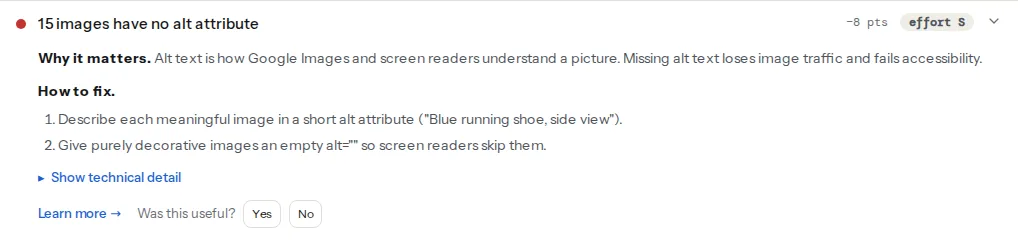
The accessibility checker approaches the same question from the rendered page: it loads the page in Chromium and runs axe-core, whose image-alt rule also covers images added by JavaScript, <input type="image"> buttons and elements with role="img". Its finding gives the CSS selector of each failing element rather than the file name.
The two disagree on purpose in one case: an <img> with alt="" passes both, because empty alt is a valid answer. What neither can tell is whether the empty alt was right; that is the review in step 2.
Step by step
1. Decide which of the three kinds each image is
Look at the image and ask what a visitor loses if it disappears.
Nothing, because the text next to it already says everything: the image is decorative. Dividers, background textures, a stock photo of a handshake above "Contact us", an icon of an envelope next to the word "Email". Give it an empty alt:
<img src="/img/divider.svg" alt="">Empty is not the same as missing. alt="" tells the screen reader "skip this"; no attribute tells it "I do not know", and it falls back to reading the file name.
Information: the image is informative. A product photo, a screenshot in a tutorial, a photo of the team, a map of the venue. Describe what matters:
<img src="/img/weekender-tan-side.jpg" alt="Tan leather weekender bag, side view, brass zip">A function: the image is inside a link or a button and is the only thing in it, so it is functional. The alt is the name of the action, not a description of the picture:
<a href="/"><img src="/img/logo.svg" alt="Example Shop home"></a>
<button type="submit"><img src="/img/search.svg" alt="Search"></button>
If the link or button also contains text ("Example Shop" next to the logo), the image is decorative and gets alt="", so the name is not read twice.
2. Write informative alt text like a caption for a phone call
Imagine reading the page aloud to someone on the phone. When you reach the image, what do you say? Not "image of a bag"; the screen reader already announces that it is an image. Not the file name, not a list of keywords. One sentence, usually under 125 characters, that says what is in the picture and why it is there:
- A product photo: what distinguishes this one (colour, angle, material, what is shown open or closed).
alt="Tan leather weekender bag, open, showing the laptop sleeve". - A screenshot in a guide: what the reader should notice.
alt="WordPress media library with the Alternative Text field highlighted". - A portrait: who and, if it matters, doing what.
alt="Maja Horvat, founder, at the workbench". - A photo that sets a mood on a landing page and carries no information:
alt="".
Keyword stuffing (alt="leather bag leather bags buy leather bag online cheap") is read aloud, word for word, to a person. It is also exactly what Google's image guidance says not to do. Describe the picture and the keywords take care of themselves.
3. Handle the special cases
Logos. The company name, plus what the link does if it links: alt="Example Shop" on a static logo, alt="Example Shop home" when it links to the home page. Not "logo".
Charts, graphs, diagrams. The alt says what the chart is and its conclusion: alt="Line chart: page load time fell from 4.2 s to 1.8 s between January and June". The full data or a longer description belongs in the text next to it, a table, or a <details> block, where sighted readers benefit too. Alt text is not the place for two paragraphs.
Images that contain text (a banner saying "Free shipping over 50 €"). The alt is the text in the image, verbatim. Better still, put the text in HTML and the image behind it.
Image galleries and thumbnails. Each thumbnail needs its own alt; "Thumbnail 3" is not one. A product with six photos gets six short descriptions that differ by what each shows.
CSS background images. Invisible to screen readers and to Google Images alike, because there is no element to attach an alt to. Fine for decoration; wrong for anything informative. If a background image carries meaning, move it to an <img> or add the meaning in text.
SVG inline in the page. Give it role="img" and an aria-label, or a <title> element inside it; a bare inline <svg> has no name. Decorative inline SVG gets aria-hidden="true".
4. Fix them where they live
The finding lists file names. Each one is set in one of three places:
- The media library (WordPress, Shopify, most CMSs): the alt is stored with the file and used wherever the image is inserted. Fixing it there fixes every page that uses the image.
- The page or block where the image is placed: some editors and page builders keep their own alt field that overrides the library's.
- The template: logos, icons and hero images hard-coded in the theme. A developer edits the
<img>tag once.
Work through the list from the finding top to bottom, decide the kind for each, and write the text. A page with twenty product photos takes ten minutes.
5. Test with a screen reader once
Automated checks find images without alt; only a person hears whether the alt makes sense. On a Mac, VoiceOver is built in (Cmd+F5); on Windows, NVDA is free. Open the page, move through the images, and listen. "Image, tan leather weekender bag, side view" is right. "Image, DSC underscore four four one two dot JPG" is a missing alt. "Image, image of a bag" is a redundant one. Silence where a product photo should be means an empty alt on an informative image, the trap that no tool catches. Testing with a screen reader is a twenty-minute introduction.
Platform notes
WordPress
The alt lives in the media library: Media → Library → click the image → Alternative Text. Filling it there applies to every future insertion; images already placed in posts keep the alt they were inserted with, so old posts need the block edited too. In the block editor, select the image block and the Alternative text field is in the sidebar under Settings. Images uploaded without alt stay without alt forever, so the habit is to fill the field at upload time.
Page builders vary. Elementor's Image widget uses the media library alt (there is no separate field), so fix it in the library and the widget follows; an image added by URL instead of from the library has no alt. Other builders keep their own field; check the widget's settings.
For a large backlog, plugins that bulk-edit media fields let you fill hundreds of alts from a spreadsheet, and WooCommerce product galleries read the alt from the library, so editing the product's images in Media covers the shop. Do not use a plugin that "auto-generates alt from the file name": alt="IMG_4412" is no better than nothing, and alt="tan-leather-weekender-bag-side-view-final-v2" reads badly aloud.
Shopify
Products → the product → click an image → Add alt text. Theme images (logo, banners, slideshow) have an alt field in the theme customizer for each image block. Collection images are set on the collection. Shopify uses alt="" for images with no alt set in some themes and omits the attribute in others, so run the audit rather than assuming.
Static sites / custom
In Markdown, ; the text in brackets is the alt, and  produces an empty one. In templates, the <img> tag is yours. A build-time check that fails on <img> without alt catches regressions before they ship; the accessibility checker's axe run does the same after.
Verify
- The SEO audit's finding reads "Every image has an alt attribute", and the decorative list contains only images you decided are decorative.
- The accessibility checker reports "every image has alternative text" and no
image-alt,input-image-altorrole-img-altviolations. - With images turned off in the browser (or on a throttled connection), the page still reads: product names, the logo's name, the button labels.
- A screen reader pass over one product page and one article: no file names, no "image of", no silent product photos.
Common mistakes
- No attribute at all. Symptom: the audit fails with a list of files; the screen reader reads file names. Add
alt, empty or not, to every<img>. - Empty alt on a product photo. Symptom: the audit passes, the decorative list contains your best images, and they never appear in Google Images. Describe them.
- "Image of", "picture of", "photo of". The screen reader already says "image". Start with what is in it.
- Keyword lists.
alt="bag bags leather bag sale"is read aloud to a person and flagged by Google as stuffing. One sentence that describes the picture. - Alt on the logo says "logo". It should say the company name (and "home" if it links there).
- The same alt on every gallery image. Six photos with
alt="Weekender bag"are six identical announcements. Say what each view shows. - Meaningful images as CSS backgrounds. A hero with the product in it as
background-imageis invisible to both readers. Use an<img>for anything that means something.