Largest Contentful Paint is the moment the biggest thing on screen finishes drawing: the hero photo, the product image, the headline. Visitors decide whether a page is slow at about that moment, and Google uses it as one of the three Core Web Vitals. This guide shows how to find your LCP element, work out which part of its loading is slow, and fix it in order. Most pages get under 2.5 s with the first three steps.
Quick answer
| LCP | Rating |
|---|---|
| ≤ 2.5 s | Good |
| 2.5–4.0 s | Needs improvement |
| > 4.0 s | Poor |
- Find the LCP element in the speed test: it is named in the finding.
- If it is an image: make sure it is not lazy-loaded, give it
fetchpriority="high", and preload it if it is not in the HTML (CSS background, slider, script). - Serve it at the size it is displayed and as WebP or AVIF; aim for under 200 KB for a full-width hero.
- Cut render-blocking CSS and JavaScript in the
<head>. - Get the server response under 600 ms with page caching and a CDN.
- Judge success by the field data (75th percentile of real Chrome users over 28 days), not one lab run.
Why LCP matters
Everything before LCP is the visitor looking at an unfinished page. On a shop, the product photo is usually the LCP element, so a slow LCP means people scroll past a grey box where the product should be, or leave before it appears. On an article, the headline or the lead image is the LCP element, and a slow one means reading starts late.
For Google, LCP is one of the three Core Web Vitals in the page experience signal, measured on real Chrome visits. A page passes when 75 % of visits are at 2.5 s or faster. The guide Core Web Vitals for site owners, listed at the end of this page, explains all three metrics in plain language.
LCP is also the metric with the most leverage. On most slow pages it comes down to one file (a hero image straight from a camera), one setting (lazy loading on that image), and one slow first byte. Fix those three and the number drops by seconds, not milliseconds.
How getReport checks it
The speed test asks Google PageSpeed Insights for a Lighthouse run of the page on a throttled phone, plus the Chrome UX Report (CrUX) field data for the URL and the origin. The LCP finding names the element Lighthouse picked, as an HTML snippet, so you know exactly what to fix:
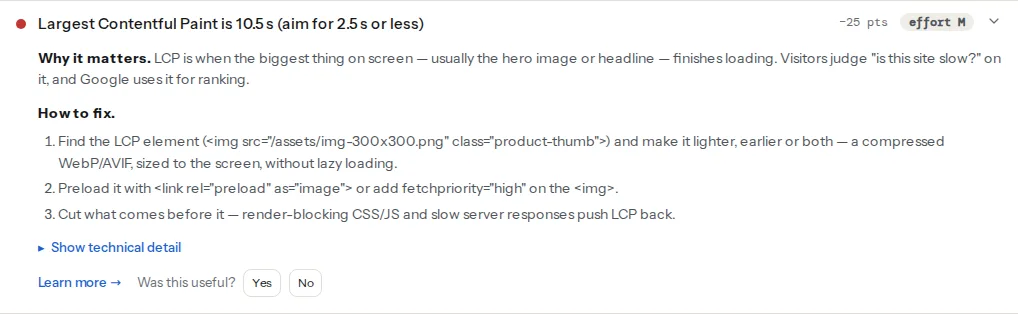
The field finding only appears when Google has enough real visits for the page or the origin. When it is there, trust it over the lab number: it is what Google uses. The lab number is the diagnosis; it tells you why.
Three other findings in the same module are usually the causes behind a slow LCP:
The Core Web Vitals checker shows the same LCP values next to INP and CLS if you only want the three vitals.
What is usually the LCP element
The browser watches the largest image, video poster or text block inside the first screen while the page loads, and records when it was painted. Which element wins depends on the viewport, so mobile and desktop can have different LCP elements:
- Home and landing pages: the hero image or banner slider.
- Product pages: the main product photo.
- Articles: the lead image, or the headline when there is no image above the fold.
- Text-only pages: the first large paragraph or the H1.
When the LCP element is text, the usual culprits are a web font the text waits for (see the font-display learn page) and render-blocking CSS. When it is an image, the image itself is usually the problem.
The four parts of LCP
web.dev splits every image LCP into four consecutive parts. Knowing which one is large tells you which fix to use:
| Part | What happens | Typical fix |
|---|---|---|
| Time to first byte | The server produces the HTML | Page cache, CDN, better hosting |
| Resource load delay | Time between the HTML arriving and the image starting to download | Put the image in the HTML, preload it, remove lazy loading |
| Resource load duration | The image downloads | Smaller file, right size, WebP/AVIF |
| Element render delay | The image is downloaded but not yet on screen | Fewer render-blocking CSS/JS files, no hiding by scripts |
On a well-built page, the two "delay" parts are close to zero and most of the time is the first byte and the download. A large resource load delay is the most common and cheapest problem to fix: the browser found the image late. Chrome DevTools shows this breakdown for your own page: open the Performance panel, record a reload, and look at the LCP breakdown in the insights.
For a text LCP there is no resource to load, so it is only the first byte and the render delay.
Step by step
Work in this order. Each step is cheap and the first three fix most sites.
1. Make sure the LCP image is not lazy-loaded
loading="lazy" tells the browser to wait until layout is done and the image is known to be near the viewport. For the hero that wait is pure delay. Remove it from the LCP image and from anything else in the first screen:
<!-- Before: the hero waits for layout -->
<img src="/img/hero.webp" loading="lazy" alt="Summer collection">

<!-- After: loads as soon as the HTML is parsed -->
<img src="/img/hero.webp" alt="Summer collection" width="1200" height="600">
JavaScript lazy-load libraries are worse: the real address sits in data-src and the image cannot start until the script has run. Exclude the hero from them. The details are in Lazy loading images and iframes done right.
2. Raise the priority with fetchpriority="high"
Browsers start images at low priority until they know the image is in the viewport. fetchpriority="high" tells them up front:
<img src="/img/hero.webp" fetchpriority="high"
     alt="Summer collection" width="1200" height="600">
Use it on one image per page: the LCP image. Putting it on five images makes it mean nothing.
3. Preload the image when the HTML does not contain it
The browser's preload scanner finds <img src> in the HTML almost immediately. It cannot find an image that is a CSS background-image, one inserted by a slider script, or one whose address is in data-src. Tell it about the image with a preload in the <head>:
<!-- In <head>, before stylesheets and scripts -->
<link rel="preload" as="image" href="/img/hero-1200.webp" fetchpriority="high">
For a responsive image, preload the same srcset the <img> uses so the browser picks the same file:
<link rel="preload" as="image" fetchpriority="high"
      imagesrcset="/img/hero-600.webp 600w, /img/hero-1200.webp 1200w, /img/hero-2000.webp 2000w"
      imagesizes="100vw">
A better fix for a CSS background hero is to turn it into a real <img> with object-fit: cover; then no preload is needed.
4. Make the file small
A 2 MB PNG takes seconds on a phone connection whatever you do with priorities. Export the hero at the widest size it is displayed (times two for high-density screens), as WebP or AVIF at around 80 % quality. A full-width hero should land under 200 KB, a product photo under 100 KB. Offer smaller versions to phones with srcset:
<img src="/img/hero-1200.webp"
     srcset="/img/hero-600.webp 600w, /img/hero-1200.webp 1200w, /img/hero-2000.webp 2000w"
     sizes="100vw" fetchpriority="high"
     alt="Summer collection" width="1200" height="600">
Serve the image from your own domain or the same CDN as the page. A hero on a different host costs an extra connection (DNS, TCP, TLS) before the first byte. Image sizes that do not hurt covers export sizes and formats per CMS.
5. Cut render-blocking CSS and JavaScript
Every stylesheet and synchronous script in the <head> must download before the browser paints anything, including an image that has already arrived. That is the element render delay. Defer scripts that are not needed for the first screen:
<!-- Blocks rendering -->
<script src="/js/slider.js"></script>

<!-- Downloads in parallel, runs after parsing -->
<script src="/js/slider.js" defer></script>
For CSS, remove stylesheets for things not on the page (a plugin's CSS for a form that is only on the contact page), and consider inlining the small amount of CSS the first screen needs. The render-blocking resources learn page lists the options.
One trap: sliders and "fade in on load" animations that start with opacity: 0 and wait for a script. The image is downloaded, but invisible until the script runs, so LCP waits for JavaScript. Show the first slide without a script.
6. Speed up the first byte
Everything above starts only when the HTML arrives. If the server-response finding says 1.5 s, no image work gets LCP under 2.5 s on a phone. Full-page caching fixes most CMS sites; a CDN helps visitors far from the server. TTFB: what a slow server looks like walks through it.
Lab and field: why the numbers differ
The speed test reports two LCP values, and they rarely match.
- Lab (Lighthouse): one load of the page in a data centre, on a simulated mid-range phone with a throttled connection, with an empty cache. It is repeatable, it names the element and shows the causes. It is usually slower than real visitors.
- Field (CrUX): the 75th percentile of real Chrome visits over the last 28 days. Real visitors have warm caches, faster phones or slower networks, and may land on a different LCP element. This is what Google uses.
Fix with the lab, judge with the field. After a deploy the lab number moves immediately; the field number moves gradually over four weeks as old visits drop out of the window. A page with too few visits has no URL-level field data, and the origin figure is shown instead.
Platform notes
WordPress
- Theme hero images are often CSS backgrounds set in the Customizer. Switch to a block or template that outputs an
<img>, or preload the file fromfunctions.php:
// functions.php (child theme): preload the front-page hero
add_action('wp_head', function () {
    if (!is_front_page()) {
        return;
    }
    $src = get_theme_file_uri('assets/img/hero-1200.webp');
    echo '<link rel="preload" as="image" href="' . esc_url($src) . '" fetchpriority="high">' . "\n";
}, 1);- Core lazy loading: WordPress adds
loading="lazy"automatically, skips the first content images, and since 6.3 addsfetchpriority="high"to the image it expects to be the LCP. Themes that print the hero outside the content can still get it wrong. In a template, ask for an eager, high-priority image explicitly:
// In the theme template that prints the hero
echo wp_get_attachment_image($hero_id, 'full', false, [
    'loading'       => false,   // no loading attribute at all
    'fetchpriority' => 'high',
]);- Plugins that lazy-load everything (many optimisation plugins, some page builders) replace
srcwithdata-srcand undo all of the above. In WP Rocket, add the hero's file name to the excluded images list in the Media tab; recent versions also try to detect above-the-fold images automatically, so check the result. In Perfmatters, use "Exclude Leading Images" under Lazy Loading and "Preload Critical Images" under Preloading. In LiteSpeed Cache, add the file to the lazy-load image excludes. Whichever you use, turn off the theme's or builder's own lazy loading so only one system is in charge. - Sliders (Revolution Slider, builder carousels) load a script, then the slides. A static first image is almost always faster.
Shopify
Shopify's image CDN serves WebP automatically and resizes by URL parameter, so the file-size step is mostly done. The usual problem is a theme that lazy-loads the first section's image: check the hero section's settings, or edit the section's Liquid so the first image is not lazy.
Verify
- Re-run the speed test. The LCP finding should be under 2.5 s in the lab, and the element should be the one you expect.
- View the page source and search for the hero's file name: it should appear in an
<img src>or a<link rel="preload">in the HTML, not only in a script or CSS file. - In Chrome DevTools, Network panel, reload and find the hero: its priority column should read "High" and it should start within the first few requests.
- Check the field value in the speed test or Search Console after four weeks.
Common mistakes
- Lazy-loading the hero. Symptom: a large resource load delay, and the hero starts after the layout. Fix: remove
loading="lazy"or exclude it in the plugin. - Preloading the wrong file. Symptom: the hero downloads twice, or DevTools warns that a preloaded resource was not used. Fix: preload the exact URL (or the same
imagesrcset) the<img>uses. fetchpriority="high"on every image. Symptom: no improvement. Fix: one image, the LCP one.- Optimising the desktop hero only. Symptom: desktop is fine, mobile fails. Fix: run the test on mobile (the default) and check which element is LCP there; it may be a different image.
- Chasing the lab number after the field passes. Symptom: hours spent on a 3.1 s lab value while real visitors are at 1.9 s. Fix: when the field value is good, move on to the next finding.