You uploaded a new share image, the page source shows the new og:image, and the link still appears with last month's picture. Almost always, two things are happening at once: a platform is showing what it read the first time, and something between your site and the platform (a page cache, a CDN, a firewall) is still serving or blocking the old version. This guide separates the two, gives the refresh steps for each platform, and ends with a checklist you can run in ten minutes.
Quick answer
| Where the link is shared | How long it caches | How to refresh |
|---|---|---|
| Facebook, Messenger | Until re-scraped (roughly every 30 days) | Sharing Debugger → Scrape Again, or the Graph API for many URLs |
| About 7 days | Post Inspector: inspecting the URL fetches it again | |
| X (Twitter) | About a week | No purge tool since 2022; wait, or share a different URL |
| Slack | Its own unfurl cache | No purge tool; wait, or share a different URL |
| WhatsApp, iMessage, Signal | Built on the sender's phone, stored in the message | Sent messages never change; new messages fetch again |
| Telegram | Its own cache | Send the URL to @WebpageBot |
| Discord | Its own cache | Wait, or share a different URL |
Before refreshing any of them: purge your own page cache and CDN, then confirm with the link preview checker that the page now serves the new tags and that the image can be fetched.
Why a cached preview matters
A preview is the whole pitch in a chat or a feed. When the image is out of date, the link advertises last season's sale, an old product photo, or the logo you replaced. When the image is missing, the card collapses to a line of text and gets far fewer taps.
The caches exist for good reasons: a popular link is shared thousands of times, and no platform wants to fetch your page for every share. The cost is that the first fetch wins. If the platform read your page while it had a broken image, a staging title or no tags at all, that is what everyone sees until the cache expires or someone forces a refresh.
The difficult part is that each platform caches differently, and some offer no refresh button at all. Knowing which is which saves hours of re-uploading the same image.
How getReport checks it
The link preview checker fetches your page fresh and reads its Open Graph tags and Twitter card tags. It then downloads the og:image itself, follows any redirects, and reads the file's real type and pixel size instead of trusting the tag. That makes it the reference point: if the checker shows the new image and a platform shows the old one, the platform is caching. If the checker shows the old one too, the problem is on your side.
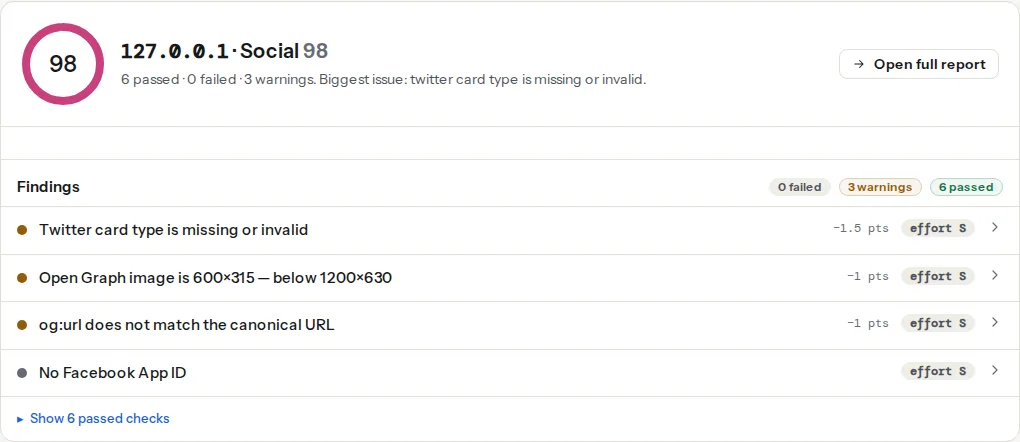
Two limits are worth knowing. getReport keeps a report for 12 hours per address, so after a change use Re-run on the report rather than opening the old link. And the checker identifies itself as GetReportBot, not as facebookexternalhit: a firewall rule that blocks only the social crawlers will not show up here, which is why the checklist below also tests with their user agents.
Step by step
1. Purge your own caches first
A platform can only fetch what your site serves. If a page cache (a WordPress caching plugin, the host's cache, Varnish) still holds the old HTML, every refresh in the steps below re-reads the old og:image. Purge in this order: the page cache for that URL, then the CDN. Then check from outside:
curl -s https://example.com/winter-boots/ | grep -i -E 'og:image|og:url|og:title'The output must show the new image address. If it does not, stop here: no platform refresh can help yet.
2. Give the new image a new filename
This is the step most people skip. If you replaced share.jpg with a new file at the same address, the old bytes may still sit in the CDN, in the browser cache and in the platform's image cache, all keyed by that address. Upload the new image as share-2026-10.jpg (or let your build add a content hash) and point og:image at the new name. A new address has no cache anywhere.
3. Make sure the crawler can fetch the image
Most "cache" problems that survive a refresh are really fetch problems. The platform tried to download the new image, failed, and kept the old card or showed none. The usual causes:
- The image is too large or the wrong type. Facebook accepts images up to 8 MB; keep share images at 1200×630 px and under 1 MB anyway. JPEG and PNG are the safe formats; if a platform shows no image for a WebP, try a JPEG.
- A firewall or bot challenge. A WAF rule, a "bot fight" mode or a JavaScript challenge that does not exempt
facebookexternalhit,LinkedInBot,TwitterbotandSlackbotblocks the crawler, which cannot solve a challenge page. - robots.txt. A
Disallow: /wp-content/uploads/orDisallow: /images/line stops crawlers that respect robots.txt from fetching the file. - Hotlink protection. Rules that refuse images requested without your site as the referrer also refuse crawlers, which send no referrer.
- Redirects. An
og:imagethat answers with a redirect (http to https, a CDN rewrite) adds a step that can fail. Point the tag at the final address.
Test the image with each crawler's user agent. Anything other than 200 and an image/ content type needs fixing before you refresh:
for ua in facebookexternalhit/1.1 LinkedInBot/1.0 Twitterbot/1.0 Slackbot-LinkExpanding; do
  printf '%-28s ' "$ua"
  curl -s -o /dev/null -A "$ua" -w '%{http_code} %{content_type} %{size_download} bytes\n' \
    https://example.com/share/winter-boots-2026-10.jpg
done
4. Add the image dimensions
When Facebook meets an image it has not seen before, it processes it in the background, and the first share can render without it. Declaring the size lets it build the card immediately:
<meta property="og:image" content="https://example.com/share/winter-boots-2026-10.jpg">
<meta property="og:image:width" content="1200">
<meta property="og:image:height" content="630">
<meta property="og:image:alt" content="Three pairs of winter boots on packed snow">
The sizes, crops and safe area for each platform are in Open Graph images: size and safe area.
5. Refresh each platform
Facebook and Messenger. Open the Sharing Debugger, paste the URL and click Scrape Again. The preview at the bottom shows what new shares will use. Posts already published keep their card on some surfaces; new shares get the new one. For many URLs (after a site-wide image change) the Graph API does the same in a loop. It needs an access token from a Facebook app you own; an app token is APP_ID|APP_SECRET:
# urls.txt: one URL per line. Run from a trusted machine; the token is a secret.
while read -r url; do
  curl -s -X POST "https://graph.facebook.com/" \
    --data-urlencode "id=$url" \
    --data "scrape=true" \
    --data-urlencode "access_token=$FB_APP_ID|$FB_APP_SECRET"
  echo
  sleep 1
done < urls.txt
LinkedIn. Paste the URL into the Post Inspector. Inspecting fetches the page again and updates the cache for future posts.
X. There is no refresh. The card validator lost its preview in 2022 and nothing replaced it. Wait about a week, or share a different URL (step 6).
Slack. No purge tool either. Removing the unfurl from a message only hides it. Wait for the cache to expire or share a different URL.
WhatsApp, iMessage and Signal. The preview is built on the sender's phone when the message is written and travels inside the message. It never changes afterwards. The next message with the link fetches again, although the app may reuse a copy it fetched recently. How each messenger builds its card is in link previews in WhatsApp, Slack, LinkedIn and iMessage.
Telegram. Send the link to @WebpageBot; it fetches the page again and updates the preview Telegram shows.
Discord. No refresh command. Share a different URL or wait.
6. The URL-change trick, and where it fails
Adding a harmless parameter (?v=2) makes a URL the platform has never seen, so it fetches fresh. It works on X, Slack, Discord and the messaging apps. Keep two rules:
- The page's
og:urland canonical should still name the clean address. The parameter is for the share, not for your site. - On Facebook it does not work, by design. Facebook reads
og:url, treats that address as the real object, and shows the card it has cached for the clean URL. Use Scrape Again on the clean URL instead. This is also why the og:url finding matters: whenog:urland the canonical disagree, Facebook's card, like counts and cache all attach to whichever addressog:urlnames.
Platform notes
WordPress
Yoast SEO and Rank Math both set a per-post image on the post's Social tab, which overrides the featured image and the site-wide default. If the old image persists, check that tab first: a forgotten per-post image beats every new default. Then purge the caching plugin (WP Rocket, LiteSpeed Cache or the host's cache) before any platform refresh; they store the whole page, <head> included. Uploading a replacement with a media-replace plugin keeps the old filename, which is exactly what step 2 avoids.
Shopify
The share image comes from the product's or page's image, or the store-wide social sharing image in the admin's preferences. Shopify's CDN puts a version parameter on image URLs when a file changes, so the image address usually changes on its own; the platform caches are then the only thing to refresh.
Static sites / custom
Generate share images with a content hash in the filename and set long cache headers on them; each new image gets a new address and the old one can stay cached forever. Generating OG images automatically covers the build step.
Verify
curlfrom outside shows the newog:imageaddress, and the image answers200with animage/type for all four crawler user agents.- The link preview checker, after Re-run, shows the image findings as passed with the new size, and og:url matching the canonical.
- The Sharing Debugger preview and the LinkedIn Post Inspector show the new image; a new message in WhatsApp shows it too.
Common mistakes
- Refreshing the platform before the site. Symptom: Scrape Again keeps fetching the old image. The page cache still serves the old
<head>; purge it, then scrape. - Replacing the image at the same URL. Symptom: the tag is right, some platforms still show the old picture. Upload under a new filename.
- Blocking the social crawlers in a WAF rule. Symptom: the preview is blank everywhere and the debugger reports a 403 or a challenge page. Allow
facebookexternalhit,LinkedInBot,TwitterbotandSlackbot. - Using
?v=2for Facebook. Symptom: the parameter changes nothing there. Facebook followsog:urlto the cached clean URL; scrape that instead. - A per-post social image nobody remembers. Symptom: the site-wide default changed and one page kept the old image. Clear the post's Social tab image.