Paste your page into Facebook's Sharing Debugger and one of the first things it tells you is that fb:app_id is missing. Many SEO plugins repeat the warning, and it looks like a fault. For almost every website it is not. This guide explains what the tag does, the few cases where you need it, how to add it in five minutes when you do, and which tags actually decide how your link looks when it is shared.
Quick answer
fb:app_idconnects a page to a Facebook app you own. It does not change the preview: the title, description and image come from the Open Graph tags.- A blog, shop or company site that just wants good previews does not need it. Leave the Sharing Debugger warning alone.
- You need it only if something on your site belongs to a Facebook app: a social plugin you moderate through that app, or tooling that reads the app's data about your pages.
- The Meta Pixel and Facebook Login do not use the meta tag. The pixel has its own ID; Login passes the App ID to the JavaScript SDK.
- If you add one, use an app you created:
<meta property="fb:app_id" content="YOUR_APP_ID">in the<head>. - Spend the time on
og:title,og:descriptionandog:imageinstead. Those are the tags that change clicks.
Why the App ID question matters
It matters mostly because it wastes time. A site owner sees "Missing properties: fb:app_id" in the Sharing Debugger, assumes the preview is broken, and goes looking for a fix. Meanwhile the real problem (no og:image, so the card is a grey box with a URL) goes unnoticed because it was listed further down.
The tag had a clearer job years ago. Facebook used it to attribute shares of a page to an app, so the app's owner could see sharing statistics and moderate comments posted through Facebook's social plugins. Much of that tooling has since been retired: Facebook Analytics, the dashboard that showed app-level activity, was shut down in 2021, and Meta has been retiring several of its website plugins. What remains is a tag that a few integrations still read and that most sites can ignore.
What the tag never did is change the preview. Facebook builds the card from the Open Graph tags: og:title for the headline, og:description for the line under it, og:image for the picture and og:url for the address the card links to. A page with a perfect App ID and no og:image still shares as a plain text link. See Open Graph link previews for how the full set fits together.
When you do need it
- A Facebook social plugin you moderate. If the page embeds a Facebook plugin such as the Comments plugin and you moderate it through your app, the plugin reads
fb:app_idto know which app's moderation settings apply. If you still run one, check Meta for Developers for its current status first; several plugins have been deprecated. - An integration that asks for it. Some publishing or social tools ask you to add the tag so they can match share data to your app. Follow their instructions and use your own app.
- A requirement from a partner or client. Occasionally a marketing team insists on the tag for their reporting. It does no harm, so adding it is cheaper than the argument.
When you do not
- Previews. They render without it on Facebook, Messenger, LinkedIn, X, Slack and WhatsApp.
- The Meta Pixel and Conversions API. They use a pixel (dataset) ID in their own script or server call, not
fb:app_id. - Facebook Login and the share dialog. These use the JavaScript SDK, which takes the App ID in
FB.init({ appId: '…' }). The meta tag is for Facebook's crawler, not for the SDK. - Instant Articles. The format was shut down in 2023, so older guides that list it as a reason are out of date.
- Ranking. Neither Google nor Facebook ranks pages by it.
How getReport checks it
The link preview checker reads the page's <head> the way Facebook's crawler does: meta tags are matched by property or name, and the first occurrence of each wins. It fetches the og:image and measures it rather than trusting the tag, then lists one finding per Open Graph or Twitter card problem.
The App ID finding is deliberately different from the others. It is marked info, carries no weight in the social score, and passes when a fb:app_id tag with a value is present. A page without one loses no points for it:
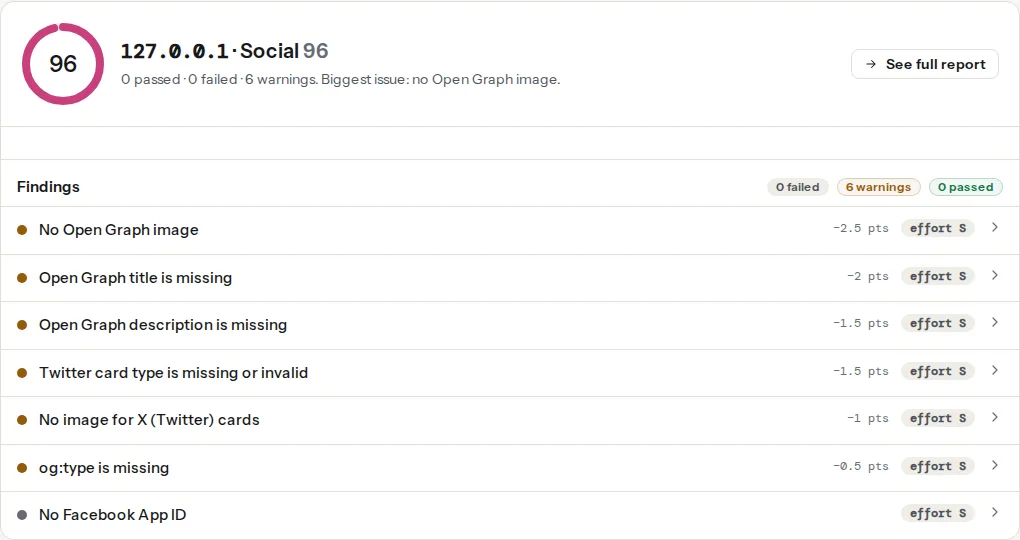
The two findings that decide whether the link is worth sharing at all:
The order in the panel follows the points each finding costs, which is also a fair order of work: the image first, the title and description next, the Twitter card tags after, and the App ID last or never.
Step by step
1. Decide whether you need it
Answer one question: does anything on your site, or any tool you use, belong to a Facebook app and ask for this tag? If the answer is no, you are done. Skip to step 5 and fix the preview tags instead.
2. Create an app you own
If you do need one, create it under the Facebook account (or the Business portfolio) that manages the site:
- Sign in at developers.facebook.com and open My Apps → Create App.
- Follow the wizard. Pick the use case that matches what the app is for (for example, the one for Facebook Login if you use Login); for a tag that only identifies your site, the simplest option the wizard offers is enough.
- Open the app's dashboard. The App ID is shown at the top and under App settings → Basic. It is a long number and it is public; the App secret on the same screen is not, and never goes into a page.
One app per site, or per group of sites run by the same organisation, keeps the ownership clear when people change jobs.
3. Add the tag to the head
The tag uses property, like the Open Graph tags, and goes in the <head> of every page:
<head>
  <meta property="og:title" content="Winter boots, waterproof to −20 °C">
  <meta property="og:description" content="Twelve boots tested in slush and snow, with prices and sizes.">
  <meta property="og:image" content="https://example.com/share/winter-boots.jpg">
  <meta property="og:url" content="https://example.com/winter-boots/">
  <meta property="og:type" content="article">
  <meta property="fb:app_id" content="123456789012345">
</head>
On a custom theme, put it in the shared head template. In WordPress without a plugin field, a small snippet in the child theme's functions.php does it (replace the number with your own):
add_action('wp_head', function () {
    echo '<meta property="fb:app_id" content="123456789012345">' . "\n";
}, 5);
4. Or use your SEO plugin's field
- Rank Math: Rank Math SEO → Titles & Meta → Social Meta. The Facebook App field takes the ID; save and Rank Math prints the tag on every page.
- Yoast SEO: current versions have no App ID field. That is intentional, not a missing feature; if you need the tag, use the snippet above.
- Other Open Graph plugins: most have an App ID field on their settings page. Use only one plugin for Open Graph output, or you get two sets of tags and the first one wins.
Purge the page cache after saving, so visitors and crawlers get the new head.
5. Fix the tags that matter
This is the step that changes how your link looks. For each important template (home, article, product), make sure the page has an og:title under 60 characters, an og:description of one or two sentences, and an og:image at 1200×630 px on an absolute https:// URL. The size, crop and safe area are in Open Graph images: size and safe area, and keeping og:url equal to the canonical is covered in og:url and canonical.
6. Re-scrape in the Sharing Debugger
Facebook caches what it read. Paste the URL into the Sharing Debugger and click Scrape Again. The debugger separates warnings (things it would like to see, such as fb:app_id) from errors that stop it reading the page (a 404, a blocked crawler, a malformed image URL). The preview at the bottom of the page is what counts: if it shows your title, description and image, the page is fine whatever the warning list says. When a stubborn old preview keeps coming back, debugging a cached link preview goes through each platform's cache.
Platform notes
WordPress
The App ID is the least important social setting in any SEO plugin. Before touching it, check that exactly one plugin prints Open Graph tags (view the source and search for og:title; it should appear once), and that the site has a default share image, so pages without their own picture still get one. The short reference for the whole tag set is the learn page on Open Graph tags.
Shopify
Shopify themes print the Open Graph tags from the theme's head snippet, using the page's title, description and image, and there is no App ID setting in the admin. If an integration really needs the tag, add the meta line to the theme's head in the code editor, and expect to re-add it after switching themes.
Static sites / custom
Add it once in the base layout (_layouts/default.html, src/layouts/Base.astro, app/layout.tsx metadata or equivalent). In Next.js App Router, the metadata object has a facebook field (facebook: { appId: '123456789012345' }) that prints the same tag.
Verify
curl -s https://example.com/ | grep -i 'fb:app_id'prints one tag with your ID, or nothing if you decided not to add one. Both are fine.- The link preview checker shows the App ID finding as passed (if you added it) and, more importantly, the Open Graph title, description and image findings as passed.
- The Sharing Debugger's preview shows the right title, description and image after Scrape Again.
Common mistakes
- Copying an App ID from a tutorial. Symptom: the tag carries an ID nobody at your company can log in to, often the example number from a blog post or a theme demo. Remove it, or replace it with an app you created.
- Treating the missing-App-ID warning as the problem. Symptom: the tag was added, the warning disappeared, and shared links still have no picture. Check
og:imageand its reachability instead. - One App ID on many unrelated sites. Symptom: an agency's single app appears on every client site, so every client's share data sits in an app the client does not own. Give each organisation its own app.
- Two plugins printing Open Graph tags. Symptom: two
og:titlelines in the source, and edits in one plugin seem to do nothing because the other's tag comes first. Keep one source. - Putting the App secret in the page. Symptom: a second meta tag or a script with a long hexadecimal string next to the ID. The secret never goes into HTML; reset it in the app's Basic settings if it was published.