Divi used to ship one stylesheet for every module it has and one script bundle for every feature, on every page. Since version 4.10 the Performance tab in Theme Options builds both per page, but only when its options are on, and only after its cache has been rebuilt. This guide goes through each option, says what it does and what it can break, shows how the static CSS cache interacts with a caching plugin, and how to see Divi's share of a page in the report before and after. Plan an hour, including the time to click through the site afterwards.
Quick answer
- Divi → Theme Options → General → Performance: switch on Dynamic Module Framework, Dynamic CSS, Dynamic Icons, Dynamic JavaScript Libraries, Critical CSS, Improve Google Fonts Loading, Defer jQuery And jQuery Migrate, Disable WordPress Emojis.
- Divi → Theme Options → Builder → Advanced: Static CSS File Generation on. If your version still shows Minify And Combine options there, leave them off when a caching plugin minifies.
- After any change: Builder → Advanced → Static CSS File Generation → Clear, then purge the caching plugin.
- Use Google Fonts only if you need them; otherwise switch Use Google Fonts off and upload the font in the module's font picker.
- Measure with the WordPress plugin detector: the Page builder card shows Divi's share of the CSS and JavaScript and of the DOM.
Why Divi's weight matters
A Divi page with the defaults of an older install loads the full theme stylesheet (several hundred kilobytes uncompressed), the full front-end script, the icon font whether or not an icon is on the page, jQuery in the head, and a Google Fonts stylesheet for every family picked anywhere in Theme Options or a module. Each stylesheet in <head> blocks the first paint until it has arrived; each script in <head> blocks parsing; and the icon font and web fonts are extra round trips before text and icons show. On a phone on a slow connection that is the difference between a page that paints in one second and one that paints in three, which is what the Largest Contentful Paint threshold is about.
The DOM adds to it. Every Divi module sits in a section, a row and a column, and most modules add an inner wrapper or two of their own (et_pb_text_inner, et_pb_button_wrapper), so a page of twenty modules easily carries a hundred wrapper elements before any content. Style calculation and layout scale with element count, which is what the DOM size finding measures.
Divi 5 rewrites the builder and Elegant Themes describes lighter front-end output. Whether your site runs 4 or 5, the method is the same: measure the builder's share, change the settings, measure again. Do not assume a number.
How getReport checks it
The detector recognises Divi from the et_pb_section, et_pb_row, et_pb_column and et_pb_module classes in the page and from the theme path /wp-content/themes/Divi/. The page is then loaded in Chromium and every request recorded. For the Page builder card, the report adds up the compressed bytes of every script and stylesheet under /themes/Divi/, /plugins/divi-builder/ or /et-cache/ (Divi's generated static CSS lives in that last folder) and divides by all the CSS and JavaScript the page loaded. For the DOM share it counts elements in <body> whose class contains et_pb_ against all elements. The finding warns when Divi is at least half of the code and at least 100 KB, or at least half of the elements and at least 600 of them.
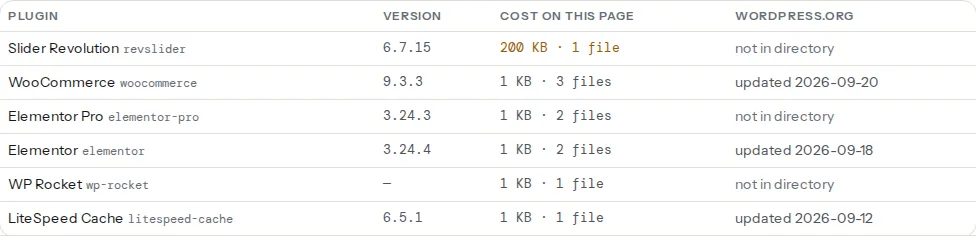
The builder finding's fix names the Performance settings in Divi's own words. Three findings from the Lighthouse run show the same weight from the visitor's side, and they are the ones that should move when the settings take effect:
Because Divi is a theme, not a plugin, the plugins table shows the plugins around it (a caching plugin, a form plugin, WooCommerce), and the theme's name and version sit in the detection line. The Divi Builder plugin, used with another theme, does appear in the table under divi-builder. Thresholds and the reasoning behind them are on the page builder weight learn page.
Step by step
1. Take the baseline
Run the detector on the home page and on one inner page. Note the kilobytes, the code share and the DOM share in the Page builder card, and the estimated saving in the render-blocking and unused-CSS findings. Keep the report link.
2. Theme Options → General → Performance
Divi → Theme Options → General, then the Performance tab. What each option does:
- Dynamic Module Framework: loads only the PHP for the modules and features a page uses. Server-side, so it helps the time to first byte more than the page weight. On.
- Dynamic CSS: generates a stylesheet per page containing only the rules for the modules on it, instead of the whole theme stylesheet. This is the option behind most of the unused-CSS saving. On.
- Load Dynamic Stylesheet In-line: prints that per-page CSS into the HTML instead of a separate file. One request fewer, but the CSS is re-sent with every HTML response and cannot be cached on its own. Off on cached sites; on only if the host cannot write files.
- Critical CSS: splits the page's CSS into what the first screen needs (inlined) and the rest (deferred). Critical Threshold Height decides how much counts as the first screen; start with Medium, move to High if the page flashes unstyled below the fold. On.
- Dynamic Icons: loads the icon font only on pages that use an icon. On.
- Dynamic JavaScript Libraries: loads scripts for sliders, video, maps and the like only where a module needs them. On.
- Improve Google Fonts Loading: inlines the Google Fonts CSS and caches it locally, so one round trip disappears. On if you use Google Fonts. Limit Google Fonts Support For Legacy Browsers drops the old font formats and shrinks that CSS further; on.
- Defer jQuery And jQuery Migrate: moves jQuery out of the head. On; test anything that runs jQuery inline in the page, such as a hand-pasted tracking or widget snippet, because inline code that calls
jQuerybefore it loads will fail. Enqueue jQuery Compatibility Script exists for that case; switch it on only if something broke. - Defer Additional Third Party Scripts: defers scripts other plugins add. Same test as above.
- Defer Gutenberg Block CSS: on if the site uses no core blocks on Divi pages.
- Disable WordPress Emojis: on.
Save Changes.
3. Theme Options → Builder → Advanced
Static CSS File Generation: on. Divi writes the page's generated CSS into /wp-content/et-cache/{post-id}/ as files the browser can cache, instead of inline style blocks. The Clear button next to it empties that folder; Divi rebuilds each page's files on the next visit.
Minify And Combine JavaScript Files and Minify And Combine CSS Files, if your version still shows them: off when a caching plugin (WP Rocket, LiteSpeed Cache, Autoptimize) minifies, because minifying twice is how scripts break. Combining is also a poor trade on HTTP/2 hosts; one changed rule invalidates one big file.
4. Clear the cache, in this order
Divi's cache first, the caching plugin second, the host or CDN third:
- Builder → Advanced → Static CSS File Generation → Clear.
- Purge the caching plugin.
- Purge the host cache and the CDN.
If the Clear button is greyed out or the folder is not writable, delete it by hand over SFTP or on the server; Divi recreates it:
# On the server, from the WordPress root; Divi rebuilds the folder on the next request
rm -rf wp-content/et-cache/*
This is the step people skip, and it is why "the settings did nothing" is the most common Divi support thread.
5. Fonts: fewer families, or self-hosted
Every family and weight picked anywhere in Theme Options → General or in a module's typography settings is one more entry in the Google Fonts request. Two families and three or four weights are enough. To take Google out of the critical path, switch Use Google Fonts off under Theme Options → General, then upload the WOFF2 files through the Upload button in any module's font picker; Divi stores them and lists them alongside the built-in fonts. Fonts a plugin or the child theme loads on its own need font-display: swap in their own rule, which is what the report's font-display finding lists:
/* wp-content/themes/Divi-child/style.css */
@font-face {
  font-family: "Inter";
  src: url("/wp-content/uploads/fonts/inter-latin.woff2") format("woff2");
  font-weight: 400 700;
  font-display: swap;
}
6. Cut the DOM: templates, sizing and hidden duplicates
Divi → Theme Builder holds the header, footer and archive templates once; a header pasted into every page as a section is the alternative, and it is the wrong one. Inside pages, three habits keep the count down:
- One row with several columns instead of several rows with one column each.
- Blog and Shop modules showing 6 or 9 items with pagination, not 30; a grid of 30 posts is usually the widest parent in the DOM finding's technical detail.
- One header and one menu, not a desktop section and a mobile section hidden with the module's visibility settings. Hidden elements are still elements.
Images: switch Enable Responsive Images on under Theme Options → General so Divi's modules print srcset and the phone downloads the small version. Set the image module's width to what the column allows rather than uploading a 3000-pixel file and letting the browser shrink it.
DOM size: why 3,000 nodes is a problem covers counting elements beyond the builder and trimming what is left.
7. What a caching plugin adds
Divi's settings decide what it puts in the page; a caching plugin decides how the page is delivered. Page caching, Brotli or gzip, browser cache headers and image conversion all belong to the plugin, not to Divi. Keep the overlap to one side: if the caching plugin minifies, Divi does not; if the caching plugin defers JavaScript, exclude Divi's scripts.min.js and jQuery from any "delay until interaction" option or the mobile menu and sliders stop until the visitor scrolls. The render-blocking resources guide explains which files can be deferred safely and which cannot.
Platform notes
Divi Builder plugin with another theme
The plugin version of Divi carries the same Performance options under Divi → Plugin Options. The builder's files load next to the theme's own stylesheet and scripts, so the code share in the Page builder card is lower than on the Divi theme, and the theme's weight is a separate line to look at in the plugins table.
WooCommerce
Divi's Woo modules load WooCommerce's scripts on top of Divi's. Measure a product page and the cart separately; the plugin table shows WooCommerce's kilobytes beside Divi's, and neither should be unloaded on cart or checkout. What your WordPress plugins cost explains how to read the rest of that table.
Managed WordPress hosts
Some hosts run their own page cache that the caching plugin's purge does not reach. After clearing Divi's cache, purge from the host's panel too, or the report keeps measuring the old CSS.
Verify
- Re-run the detector. Divi's kilobytes in the Page builder card fall, the render-blocking and unused-CSS findings show smaller savings, and the builder finding reads "Divi stays under half of the CSS and JavaScript on this page" once it does.
- View the page source: a per-page stylesheet under
/wp-content/et-cache/instead of the full theme stylesheet, no icon font request on pages without icons, jQuery loaded withdeferor near the end of the body. - Click through the menu, a slider, a contact form and any page with an embedded map or video on a phone; deferred scripts show up as things that stopped working.
- Keep the two report links as before and after.
Common mistakes
- Switching options on without clearing the static CSS. The old files stay in use. Builder → Advanced → Clear, then purge the caching plugin.
- Minifying in Divi and in the caching plugin. Double minification breaks scripts in ways that appear only on some pages. Minify in one place.
- Deferring jQuery with inline snippets that use it. A pasted widget that calls
jQuery(...)in the page body fails. Move the snippet to a file loaded after jQuery, or switch on Enqueue jQuery Compatibility Script. - Critical CSS with a low threshold on tall heroes. The bottom of the first screen flashes unstyled. Raise the Critical Threshold Height.
- Five font families for one site. Each is a request and a font-display risk. Two families, a few weights.
- A header section pasted into every page instead of the Theme Builder. Every page carries the header's elements and CSS in its own content, and every header change is a hundred edits. Build it once as a template.