A DNS lookup asks a nameserver one question ("what records does this name hold?") and the answer tells you where a site really points, who receives its mail, and whether the change you made an hour ago has landed. This page is the practical half of the topic: how to run lookups with dig and nslookup, and how to read every field that comes back. If you want the system behind the commands (how a lookup travels from your browser to the authoritative servers, and what resolvers and TTLs are) read the plain-language guide to how DNS works first; this one assumes it and gets straight to the terminal.
Quick answer
- Use
dig. It is built into macOS and Linux and shows the full answer. Windows hasnslookupbuilt in, orResolve-DnsNamein PowerShell; fordigitself, use WSL or install ISC's BIND tools. dig example.comasks for A records; put any type after the name:dig example.com MX,TXT,NS,CAA.- A record line always has five fields: name, TTL, class, type, value, and the TTL counts down on cached answers.
dig @1.1.1.1asks a specific resolver;dig @ns1.your-dns-host.comasks your authoritative server directly, bypassing every cache.dig +shortprints just the values;dig +tracewalks the delegation from the root when you suspect the problem sits between registry and nameservers.dig -x 203.0.113.10does a reverse lookup: address to name.
How to run a DNS lookup
Three ways, in order of how much they tell you.
dig is the standard tool, part of ISC's BIND utilities. macOS has it preinstalled; on Linux it is a package away (apt install dnsutils on Debian and Ubuntu, dnf install bind-utils on Fedora and RHEL). Windows does not ship it: run it inside WSL, or install the BIND 9 tools from ISC. With no type given, dig asks for A records:
dig example.com              # A records, full answer
dig example.com MX           # any type: MX, TXT, NS, AAAA, CAA, SOA, SRV
nslookup and Resolve-DnsName cover Windows without installing anything. nslookup has shipped with Windows for decades; Resolve-DnsName is the PowerShell equivalent with cleaner output:
nslookup -type=MX example.com
Resolve-DnsName example.com -Type TXT
nslookup example.com 1.1.1.1     # ask a specific resolver
Online lookup pages (most DNS hosts and registrars run one) are fine for a quick glance and necessary for one job: checking answers from another country, which the recipes below cover. For everything else the terminal is faster and shows fields the web forms hide.
Reading a dig answer, field by field
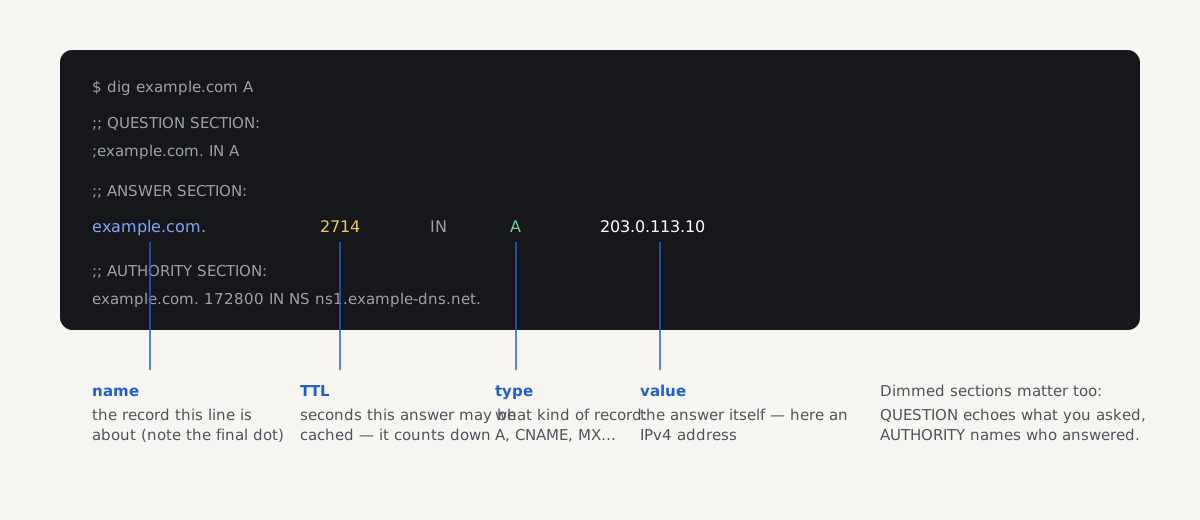
Run dig example.com and you get something like this:
; <<>> DiG 9.18.30 <<>> example.com
;; ->>HEADER<<- opcode: QUERY, status: NOERROR, id: 31245
;; flags: qr rd ra; QUERY: 1, ANSWER: 1, AUTHORITY: 0, ADDITIONAL: 1

;; QUESTION SECTION:
;example.com.                   IN      A

;; ANSWER SECTION:
example.com.            2714    IN      A       203.0.113.10

;; Query time: 18 msec
;; SERVER: 1.1.1.1#53(1.1.1.1) (UDP)
;; WHEN: Sun Oct 18 09:14:02 2026
;; MSG SIZE  rcvd: 56
Top to bottom:
- The header's
statusis the verdict.NOERRORmeans the name exists.NXDOMAINmeans it does not exist at all: the DNS_PROBE_FINISHED_NXDOMAIN guide turns that one answer into a diagnosis.SERVFAILmeans the resolver could not get a trustworthy answer, often broken nameservers or failing DNSSEC.NOERRORwithANSWER: 0is the subtle one: the name exists, but holds no record of the type you asked for. - The
flagsare small but useful:qrmarks a response,rd ramean recursion was requested and available. The one worth watching for isaa(authoritative answer) which only appears when you query a domain's own nameserver directly. Noaameans a cache answered. - QUESTION SECTION repeats what you asked: name, class, type. Check it when an answer surprises you; a typo'd query produces an honest NXDOMAIN.
- ANSWER SECTION holds the records, one per line, in the five-field format below.
- AUTHORITY and ADDITIONAL name the servers responsible for the zone and any helper records (such as the IP addresses of those servers). On everyday cached lookups both are often empty or minimal.
- The footer says which server answered (
SERVER:) and how long it took. IfSERVER:surprises you, you now know which resolver your machine actually uses.
Every record line in every section has the same five fields (RFC 1035 defines the format):
example.com. 2714 IN A 203.0.113.10- Name: the name this record belongs to, written fully qualified with a trailing dot.
- TTL: seconds this answer may still be cached. From a resolver this counts down: run the query twice and watch it shrink. Only the authoritative server shows the TTL as you configured it.
- Class: effectively always
IN, internet. Other classes exist in the spec and nowhere else you will meet. - Type: A, MX, TXT and the rest of the table below.
- Value: what the record holds. Its shape depends on the type: one IP address for A, priority plus hostname for MX, quoted text for TXT.
DNS record types: what each stores and how to query it
The reference the rest of this page leans on. Each example is one real answer line; each command returns that type for your own domain.
| Type | What it stores | Example answer line | Query it |
|---|---|---|---|
| A | IPv4 address | example.com. 3600 IN A 203.0.113.10 | dig example.com A |
| AAAA | IPv6 address | example.com. 3600 IN AAAA 2001:db8::10 | dig example.com AAAA |
| CNAME | Alias to another name | www.example.com. 3600 IN CNAME example.com. | dig www.example.com CNAME |
| MX | Mail servers, lowest priority first | example.com. 3600 IN MX 10 smtp.google.com. | dig example.com MX |
| TXT | Quoted text, mostly machine-read proofs | example.com. 3600 IN TXT "v=spf1 include:_spf.google.com ~all" | dig example.com TXT |
| NS | The zone's authoritative nameservers | example.com. 86400 IN NS ns1.example-dns.net. | dig example.com NS |
| SOA | Zone metadata: primary server, contact, serial, timers | example.com. 3600 IN SOA ns1.example-dns.net. hostmaster.example.com. 2026101801 7200 3600 1209600 300 | dig example.com SOA |
| CAA | Which certificate authorities may issue | example.com. 3600 IN CAA 0 issue "letsencrypt.org" | dig example.com CAA |
| SRV | Service location: priority, weight, port, target (RFC 2782) | _sip._tcp.example.com. 3600 IN SRV 10 60 5061 sip.example.com. | dig _sip._tcp.example.com SRV |
| PTR | Address back to name (reverse DNS) | 10.113.0.203.in-addr.arpa. 3600 IN PTR mail.example.com. | dig -x 203.0.113.10 |
Two reading notes. SRV names start with the service and protocol (_sip._tcp), so you must query the full underscored name, not the bare domain. And PTR records live under the special in-addr.arpa zone with the IPv4 octets reversed: which is why nobody types those names by hand and dig -x exists. What each type is for (and the eight that run almost every domain) is the pillar's territory; this table is for recognising what came back and asking for more of it.
Lookup recipes you'll actually use
Ask a specific resolver. @ before an address directs the question anywhere:
dig @1.1.1.1 example.com A       # Cloudflare's public resolver
dig @8.8.8.8 example.com A       # Google's
Comparing two public resolvers against your default is the honest propagation check after a record change: when both big caches return the new value and your ISP's resolver still serves the old one, the change is live and the stragglers will expire on their own.
Ask the authoritative server directly. First find the nameservers, then query one of them:
dig example.com NS +short
dig @ns1.example-dns.net example.com A
This bypasses every cache in the chain: the answer is what the zone holds right now, flagged aa, with the TTL exactly as configured. It is the first command to run after saving a change ("did my edit actually take?") and the fastest way to separate "the record is wrong" from "a cache is stale".
+short for just the values. dig +short example.com MX prints one value per line and nothing else: ideal in scripts and for pasting into a chat with your host.
+trace when the delegation itself is suspect. dig +trace example.com ignores your resolver and performs the whole walk itself, from the root servers through the TLD to your authoritative servers, printing each referral. Use it when answers differ between resolvers for longer than a TTL should allow, or right after moving DNS hosts: it shows which nameservers the registry is really handing out. It needs direct outbound DNS, so it can fail on locked-down office networks where plain dig works.
Reverse lookup. dig -x 203.0.113.10 asks which name an address maps back to. Mail servers care: receivers check that your sending IP's PTR record exists and matches its HELO name (Google's sender guidelines require valid forward and reverse DNS) and generic hosting PTRs like static-203-0-113-10.example-isp.net cost deliverability. Only whoever owns the IP address, usually your host or ISP, can set a PTR record; it is not in your domain's zone.
Check from another country. Sites behind geo-DNS or a CDN answer differently depending on where the resolver asks from, and dig cannot fake that from your desk: public resolvers are anycast, so @1.1.1.1 reaches a node near you. Two honest options: use an online multi-location DNS checker, or ask a resolver that honours EDNS Client Subnet to answer as if you were elsewhere; dig @8.8.8.8 example.com +subnet=203.0.113.0/24 works because Google's resolver supports ECS; Cloudflare's deliberately does not, for privacy.
Four things that confuse everyone
A CNAME answer when you asked for something else. Ask for A records on www and the answer often contains two lines: the CNAME, then the A record of its target; the resolver chased the alias for you. Remember a CNAME stands in for all types at that name, and the bare domain can never be one; the pillar's section on the apex problem and ALIAS records explains what providers do instead.
TXT values split into several quoted strings. DNS limits each string to 255 characters, so long values (DKIM keys above all) come back as "part one" "part two" (RFC 1035; RFC 7208 §3.3 for SPF). That is not corruption: receivers concatenate the parts. Paste long TXT values into your DNS host whole and let it split them.
The trailing dot. example.com. in an answer is the fully qualified spelling; dig always prints it. It matters in the other direction: in many zone editors, a value without the trailing dot is treated as relative, quietly becoming mail.example.com.example.com.; a classic broken-MX cause. When a value looks doubled in a lookup, that is what happened.
The TTL you see is not the TTL you set. A cached answer's TTL counts down from the configured value, so dig through your resolver showing 217 while your DNS host says 3600 means a cache answered 3,383 seconds ago: both are right. Query the authoritative server directly (recipe above) to see the configured value. And when visitors say the site is unreachable while every lookup you run looks clean, start with the browser-side guide to "This site can't be reached"; their cache, not your zone, is usually holding the stale answer.
Check the email records in one run
Email leans on more record types at once than anything else a domain does: MX, plus TXT-based SPF, DKIM and DMARC, each with its own syntax to get wrong. Rather than running six lookups and eyeballing quoted strings, check them together:
The check reads your MX, SPF, DMARC, MTA-STS, TLS-RPT and BIMI records from public DNS (the same answers dig shows you) follows every SPF include to the end, tries 27 common DKIM selectors, and checks DNSSEC. Every problem comes with the exact record to paste into your DNS host.
Questions people ask
How do I do a DNS lookup?
Open a terminal and run dig example.com (macOS, Linux) or nslookup example.com (Windows) with your own domain. Add a type for other records: dig example.com MX or nslookup -type=TXT example.com. The answer lists each record as name, TTL, class, type and value, and the header's status says whether the name exists at all. For records as the world sees them right now, query your authoritative nameserver directly: dig @ns1.your-dns-host.com example.com A.
What is the difference between dig and nslookup?
They ask the same questions; dig shows more of the answer. You get the status code, flags such as aa (authoritative answer), exact TTLs, and the authority and additional sections, plus options like +short, +trace and -x: which is why documentation defaults to it. nslookup ships with Windows and covers everyday lookups fine; dig needs installing there (WSL or ISC's BIND tools). Use whichever is in front of you; reach for dig when debugging.
What does a CNAME record do?
A CNAME makes one name an alias of another: www.example.com CNAME example.com means "whatever you wanted from www, fetch it from the target instead". The lookup restarts at the target and inherits all of its records, which is why a CNAME cannot coexist with other records at the same name and can never sit at the bare domain. In dig output you often see the CNAME and its target's A record together; the resolver chased the chain for you.
Why do dig and my DNS host show different TTLs?
Because you are looking at two different things. Your DNS host shows the TTL you configured: the starting value. A resolver shows how long its cached copy may still live, counting down second by second from that starting value, so dig returning 217 against a configured 3,600 just means the cache is 3,383 seconds old. Query the authoritative nameserver directly (dig @ns1.your-host.com example.com A) and the TTL reads exactly as configured.
What is a reverse DNS lookup?
A normal lookup turns a name into an IP address; a reverse lookup turns an IP address back into a name, by querying the PTR record stored under the special in-addr.arpa zone. dig -x 203.0.113.10 builds that query for you. It matters mostly for email: receivers check that a sending server's IP resolves to a real hostname, and Google's sender guidelines require valid reverse DNS. PTR records are set by whoever owns the IP (your host or ISP) not in your domain's zone.
How do I find the authoritative name servers for a domain?
Run dig example.com NS +short for the nameservers the DNS tree currently delegates to: the servers whose answers count. After a DNS-host move, add +trace to see the delegation the TLD registry is really handing out, since plain NS answers can come from a stale cache. Once you have a nameserver name, query it directly with @ to read the zone's records with no cache in between.