Somebody finds a way into your customer database. They are a student, a researcher or a scanner operator, and they want to tell you. They look for an address, find "info@" on the contact page, write to it, and the message sits in a shared inbox behind fourteen newsletter replies. security.txt is a plain text file at a fixed address that says where such a report should go and how you will handle it. This guide covers what goes in it, the one field that silently invalidates it, and how to publish it on the common platforms in about fifteen minutes.
Quick answer
- Create a text file at
https://yoursite.com/.well-known/security.txt, served over HTTPS astext/plain. - Two lines are required:
Contact:(amailto:,https:ortel:address) andExpires:(a date in the future, at most a year away). - Optional lines add a PGP key, a disclosure policy, a thanks page, languages you read, and a
Canonical:address. - Put a reminder in your calendar for the
Expiresdate; an expired file counts as no file. - Run the security headers checker; the security.txt row turns green when the address answers 200.
Why security.txt matters
A vulnerability report is the cheapest security fix you will ever get: someone else did the finding, for free, and told you first. The report only helps if it reaches a person who can act within days. Without a published contact, the finder guesses: the contact form, a LinkedIn message to whoever lists your company, a tweet. Each guess lowers the chance of a quiet fix and raises the chance of a public one.
The address is standardised in RFC 9116 so that tools and people do not have to guess. Scanners that find an exposed .env file or an old plugin can read the file automatically and send the notice to the right place. Bug bounty platforms and national CERTs look for it before they try anything else. Google's own domains publish one; so do most banks.
It also documents your intent. A Policy: line that says "we will not take legal action against good-faith research" is the difference between a researcher reporting a problem and a researcher deciding it is safer to say nothing.
How getReport checks it
The security module of every report requests /.well-known/security.txt on the site's final host with a HEAD request and records the status. A 200 passes; anything else (404, 403, a redirect that ends elsewhere, no response) produces an informational finding. The report does not download or parse the file, so a file with an expired date or a missing Contact: line still passes here; the "Verify" section below covers what the report cannot see.
The finding is info severity with a weight of zero, so it never moves the security score. Two reasons: the file is a convention, not a defence, and a site can be perfectly secure without it. It is in the report because it takes fifteen minutes, costs nothing, and is the first thing a researcher looks for.
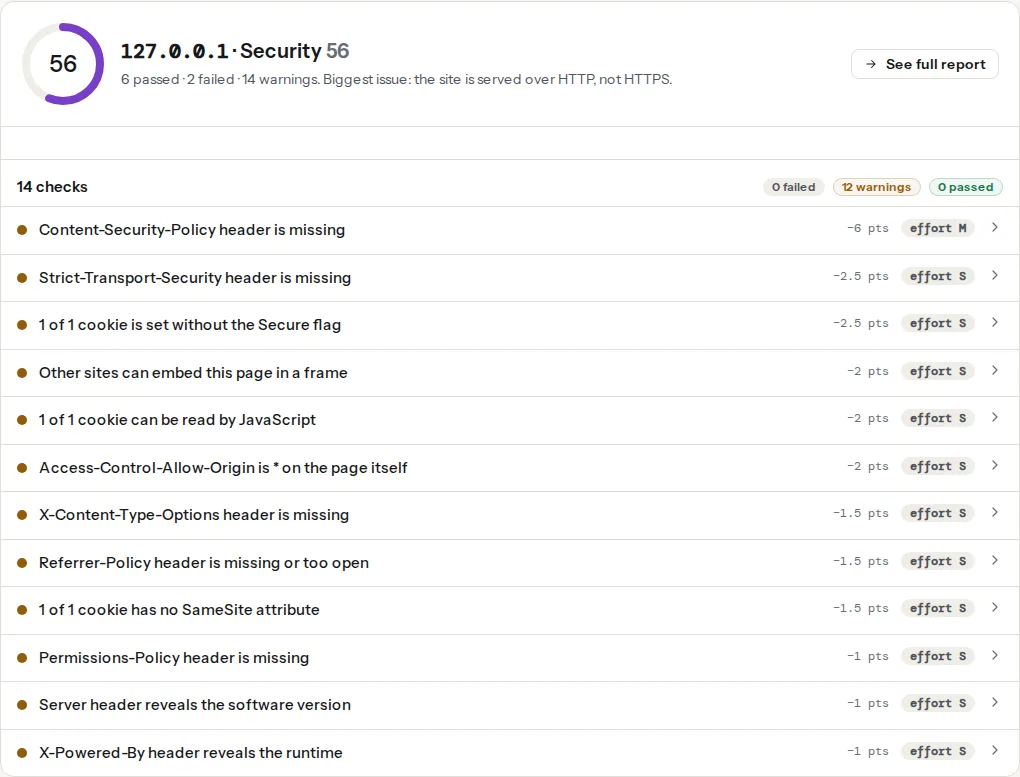
Two findings in the best-practices module are relatives of this one and worth fixing in the same session. A researcher who finds no security.txt falls back to your contact page, and a visitor deciding whether to trust you with a form looks for the privacy policy:
Step by step
1. Decide where reports should go
Pick an address that a named person reads every working day, not a catch-all. security@yourdomain forwarded to two people is the usual choice; a web form on your own site works if it does not require an account. If you use a bug bounty or disclosure platform, its intake page is a valid https: contact.
Do not use a personal address that leaves with the employee. If you have only one person, forward security@ to them and change the forward when they change roles; the published file stays the same.
2. Write the file
The format is one field per line, Name: value, with # for comments. Field names are case-insensitive but the convention is capitalised. This file is complete and valid:
# Security contact for example-shop.hr
# Please read the policy before testing.

Contact: mailto:[email protected]
Contact: https://example-shop.hr/security/report/
Expires: 2027-09-01T00:00:00.000Z

Preferred-Languages: hr, en
Canonical: https://example-shop.hr/.well-known/security.txt
Policy: https://example-shop.hr/security/policy/
Acknowledgments: https://example-shop.hr/security/thanks/
Encryption: https://example-shop.hr/pgp-key.txt
What each line does:
| Field | Required | What to put |
|---|---|---|
Contact | Yes, at least one | mailto:, https: or tel: URI. List the preferred one first; the RFC says they are in order of preference |
Expires | Yes, exactly once | ISO 8601 date and time with a timezone. After this moment the whole file is stale |
Canonical | No | The address of this file. Needed when you sign it, useful always |
Encryption | No | Where to find your PGP key, so reports can be encrypted |
Policy | No | Your disclosure policy: what may be tested, what happens next |
Acknowledgments | No | A page thanking past reporters. Spelled without the "e" |
Preferred-Languages | No, at most once | Comma-separated language codes you can read |
Hiring | No | Your security job openings |
Every value except Preferred-Languages and Expires is a URI, so Contact: [email protected] without mailto: is invalid. A Contact with an email address should be a mailto: line; a form gets an https: line.
3. Get Expires right
Expires is where most published files go wrong. The RFC requires the field and recommends a value less than a year in the future. Files with a date in the past are treated as absent by tools and by careful researchers, because the contact may no longer be valid.
The date format is the one in the sample: YYYY-MM-DDThh:mm:ss.000Z, or with an offset such as +02:00. 2027-09-01 on its own is not valid. Set the date about eleven months out, put a calendar reminder two weeks before it, and treat the reminder as the moment to reread the file and confirm the address still reaches someone.
4. Sign it, or skip signing
The file can be signed with an OpenPGP cleartext signature so a reader can confirm it was not tampered with. Signing is optional. If you sign, add the Canonical: line first, then run:
gpg --clearsign --armor security.txt
mv security.txt.asc security.txt
The output starts with -----BEGIN PGP SIGNED MESSAGE----- and still parses as security.txt. Most small sites skip this step; a signature only matters if you also publish the key somewhere a reporter would trust more than your website.
5. Publish it at /.well-known/security.txt
The address is fixed: /.well-known/security.txt at the root of the host, over HTTPS, with the Content-Type: text/plain; charset=utf-8 header. The RFC also names /security.txt at the root as a legacy location; a redirect from there to the .well-known address is fine. The next section shows where the file goes on each platform.
6. Write the policy page
Policy: can point at a single page that answers four questions: what a researcher may test (your production site, but not customer accounts they do not own), what they must not do (no data exfiltration, no denial of service, no social engineering of staff), what you promise (acknowledge in 3 working days, fix or explain within 90 days, no legal action against good-faith research), and whether you pay (most small sites do not; say so plainly, and offer the thanks page instead).
7. Prepare for what arrives
The first messages after publishing are usually low-value: copies of a public scanner's output, "your site lacks a DMARC record" from someone hoping for a bounty, and requests for payment before details. A simple triage keeps this manageable:
- Reply to everything within three working days, even with one line. Silence is what makes people go public.
- Ask for reproduction steps. A real finding comes with a URL, a request, and what the researcher saw. A demand for money before details is not a report.
- Reproduce it on staging. If it reproduces, fix it, tell the reporter when it ships, and add them to the thanks page if they want.
- Keep a short log: date, summary, severity, fix date. A year of that log is your evidence of due care if a regulator ever asks.
Real reports are rare on a small site, perhaps one or two a year, and each one is worth the whole exercise.
Platform notes
WordPress
The simplest way is a physical file. Create a folder named .well-known in the folder that holds wp-config.php (the web root on most hosts) and save security.txt inside it. WordPress's rewrite rules only run for addresses that are not real files, so the file is served as-is; the leading dot is allowed on every host we know of. Over SFTP, hidden folders may need "show hidden files" switched on in the client.
If you cannot reach the file system, a small plugin can serve the file from a setting. Search the wordpress.org plugin directory for "security.txt" and pick one updated in the past year. Either way, check that a security plugin or a server rule that blocks dot-paths is not also blocking .well-known (see the nginx note below).
Next.js
Save the file at public/.well-known/security.txt. Everything under public/ is served from the site root, so it appears at /.well-known/security.txt after the next deploy, with the correct content type. The same applies to most static-site generators: Astro and Vite projects use public/, Hugo uses static/, Jekyll needs include: [".well-known"] in _config.yml because it hides dot-folders by default.
nginx
If the site's web root contains a .well-known/security.txt file, nginx serves it without extra configuration, unless a rule that hides dotfiles catches it first. A typical hardening rule looks like location ~ /\. { return 404; }, and it blocks .well-known too. Exclude it:
# /etc/nginx/sites-available/example.conf, inside the server block
location ~ /\.(?!well-known/) {
    return 404;
}

# Serve the file from a fixed path, regardless of the web root
location = /.well-known/security.txt {
    alias /etc/security-txt/security.txt;
    default_type text/plain;
    add_header Cache-Control "public, max-age=3600";
}
The alias form is useful when several sites share one contact: one file on disk, one location block per site. On Apache the equivalent is a <Directory> block with Require all granted for .well-known placed after any rule that denies dot-paths; on Caddy the file under the site root is served by file_server as long as the dotfile matcher, if you have one, excludes /.well-known/*.
Verify
- Open
https://yoursite.com/.well-known/security.txtin a browser. You should see plain text, not a 404 page, not HTML, and not a download prompt. curl -sI https://yoursite.com/.well-known/security.txtshowsHTTP/2 200and acontent-type: text/plainline. A301to the home page or a403means a rule caught the path.- Read the
Expires:line and confirm the date is in the future and in the full date-time format. - Send a test message to every
Contact:address from an outside account and confirm it lands in the right inbox. - Re-run the security headers checker: the finding reads "security.txt is present".
Common mistakes
Expiresin the past, or missing. Symptom: the file loads, but tools and researchers treat it as invalid. Fix: set a date under a year out and put a reminder in the calendar.Contact: [email protected]withoutmailto:. Symptom: the file parses but the contact is not a valid URI. Fix: prefix email addresses withmailto:.- A dotfile rule hides the folder. Symptom:
curlgets 403 or 404 although the file is on disk. Fix: exclude.well-knownfrom the rule, as in the nginx block above. - The file is at
/security.txtonly. Symptom: the report and most tools do not find it. Fix: move it to/.well-known/security.txtand redirect the old address. - Nobody reads the inbox. Symptom: a report arrives, six weeks pass, the finder posts the details publicly. Fix: forward
security@to two people and agree a three-day reply rule.