A redirect is a forwarding address. It is exactly right for people arriving from old bookmarks, other sites and Google's index. It is the wrong tool for your own menus and articles, which you can simply point at the right address. This guide shows how to find the internal links that go through a redirect, where they usually come from, and how to fix them at the source in an afternoon without breaking anything.
Quick answer
- Run the broken link checker on your key pages. The "Redirects to" column shows every link that does not land directly, with its final URL and the number of hops.
- Fix each link at its source: the menu, the widget, the post, the theme template, or the site's home URL setting. Replace old with final, exact pairs, after a dry run and a backup.
- Keep the redirects themselves. Other sites, bookmarks and Google still use the old addresses.
- Pick one form for every URL (https, one host, one trailing-slash style) and link only to that form.
- Re-run the check: the redirect finding should list only external links, or read "No link on the page goes through a redirect".
Why internal links that redirect matter
A redirect costs a full round trip before the browser can even start loading the real page: often 100 to 300 ms on a phone. When a menu link redirects, every visitor who uses that menu item pays it, on every click, for as long as the link exists. A 3xx for a link you control is a delay you are choosing to keep.
Search engines pay too. Google follows redirects and passes ranking signals through a permanent one, but each hop is another fetch from the site's crawl budget, and Googlebot follows at most 10 hops in a chain. Internal links are also how Google discovers which URL you consider canonical; when your own links point at /old-name/ while the page says its canonical is /new-name/, the signals disagree.
Redirects also grow. A link to /services redirects to /services/; a year later /services/ moves to /what-we-do/, and now the old link takes two hops. Chains are rarely built on purpose; they are built one reasonable redirect at a time.
The http:// links on an https:// site are the worst case. The first request travels unencrypted, so the path is visible on the network, and any cookie without the Secure flag goes with it. With HSTS the browser upgrades the link itself before sending anything, which is one more reason to set it, but the link should still say https://.
How getReport checks it
The checker collects every <a href> on the page (up to 100 links on the same host and 50 to other sites, without duplicates, anchors or mailto: links) and requests each one with HEAD. When a server refuses HEAD (405, 403 or 501) or drops the connection, it retries with a GET of the first kilobyte. Redirects are followed, up to 10 hops, and each link keeps its final status, final URL and hop count.
This one is info: it costs no points and has no threshold. Any checked link that went through at least one redirect is listed as "old → final (N hops)", internal and external together. Only links that got an answer are counted, so a link that timed out appears under broken links instead.
This check reads your internal links, not their responses: it collects the directory-style paths (no file extension) and warns when some end with a slash and others do not. Mixed styles are the most common source of internal redirects, because one of the two styles always redirects.
That finding is about the URL you tested, not the links on it: one redirect passes, two or more is a warning. Run it on an old link target to see its whole chain.
The table under the findings is where you work from:
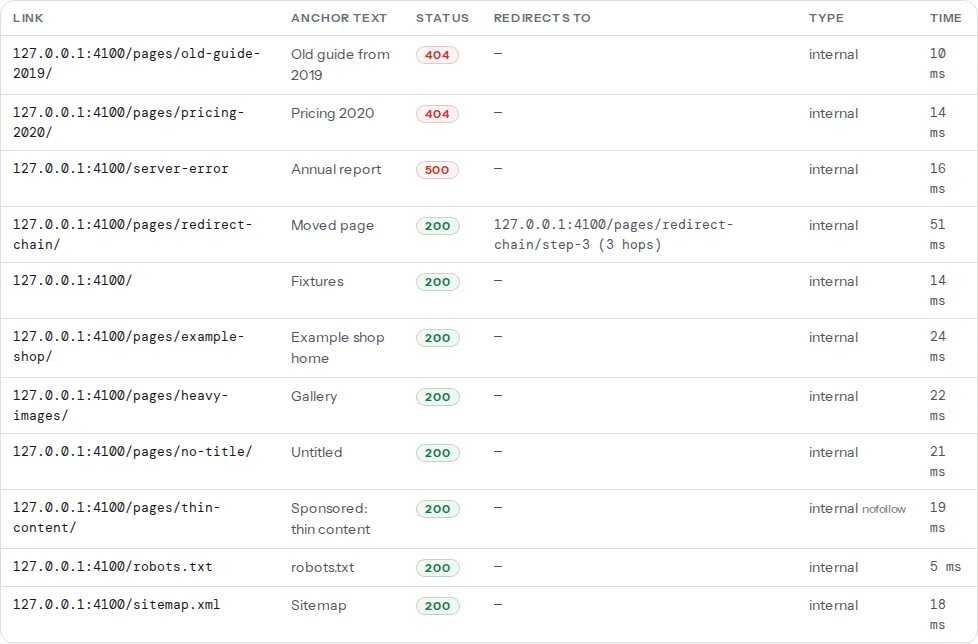
The Status column shows the final status, so a redirecting link looks healthy at a glance. Read the Redirects to column instead.
Note
The Type column compares host names exactly. On example.com, a link to www.example.com counts as external. If your own site shows up as external links that redirect, that is a www inconsistency, not a partner site.
Step by step
1. Collect the redirecting links
Run the broken link checker on the home page first: its menu, header and footer links appear on every page, so fixing them fixes the site. Then run one page per template (a post, a product, a category) and the three or four oldest pages with the most links.
For a wider sweep, the bulk URL checker takes up to 1,000 URLs and reports the status, final URL and hop count of each. Feed it the link targets you found in your content (step 3 shows how to list them in WordPress) or the URLs of your sitemap:
# List every URL in a sitemap, one per line, ready to paste into the bulk URL checker
curl -s https://example.com/sitemap.xml | grep -oE '<loc>[^<]+' | sed 's/<loc>//'
If you have server logs, the log analyser shows how much of Googlebot's crawl went to redirects; a high share usually traces back to internal links.
2. Sort them by where they come from
Each redirecting link has one of a handful of causes, and each cause has a different fix:
| Pattern in the table | Usual cause | Where to fix |
|---|---|---|
http:// → https:// | Links typed before the move to HTTPS, or the site URL setting still on http | Content, then the home URL setting |
example.com → www.example.com | Links written with the other host | Content, menus, theme |
/about → /about/ | Mixed trailing-slash style | Menus, content, templates |
/old-slug/ → /new-slug/ | A renamed page, post or category | Menus, content |
/?p=123 → /pretty-slug/ | Links copied from the editor's preview or plain permalinks | Content |
/Products/ → /products/ | Uppercase letters in typed links | Content |
/ → /en/ | Language redirect by browser language or location | Menus and the logo link |
The trailing-slash and host rows usually account for most of the list. Trailing slashes, www and https: pick one covers choosing the form; this guide is about making every link use it.
3. Fix the site's own URL setting first
If the CMS thinks the site lives at http:// or on the other host, it generates redirecting links everywhere: menus, canonical tags, image URLs. In WordPress, Settings → General → WordPress Address (URL) and Site Address (URL) must both be the final form. When those fields are locked, they are set in wp-config.php:
// wp-config.php, above "That's all, stop editing!"
define( 'WP_HOME', 'https://example.com' );
define( 'WP_SITEURL', 'https://example.com' );
Re-run the checker on the home page. Menu links built from these settings are now correct; what remains was typed by hand.
4. Menus and widgets
Custom links in menus are typed URLs and never update themselves. In WordPress, open Appearance → Menus (or the Navigation block in the Site Editor on block themes), open each custom link and paste the final URL from the Redirects to column. Menu items that point at a page or post by selection follow it through renames; typed ones do not. Widgets and footer text are under Appearance → Widgets or the theme's customiser.
5. Content: search and replace with exact pairs
Links inside posts and pages are where most of the volume is. Replace them with exact old → new pairs, never with a partial pattern.
With WP-CLI, from the WordPress root:
# 1. Back up the database first
wp db export before-link-fix.sql

# 2. See where the old form appears
wp db search 'http://example.com/' --all-tables

# 3. Dry run: shows how many replacements each table would get, changes nothing
wp search-replace 'http://example.com/' 'https://example.com/' --skip-columns=guid --dry-run --report-changed-only

# 4. Run it for real
wp search-replace 'http://example.com/' 'https://example.com/' --skip-columns=guid --report-changed-only

# One renamed page: exact old and new paths
wp search-replace 'https://example.com/services/' 'https://example.com/what-we-do/' --skip-columns=guid --dry-run --report-changed-only
wp search-replace handles PHP-serialised data, which a raw SQL REPLACE would corrupt. --skip-columns=guid leaves post GUIDs alone, as the WordPress documentation advises. Include the trailing slash in both strings so http://example.com/ cannot also match http://example.com.au. Without command-line access, the Better Search Replace plugin does the same from Tools, with a dry-run checkbox.
For a static site, search the source and replace in the files:
# Find links to the old form in Markdown content
grep -rn --include='*.md' 'http://example.com/' content/

# Replace (GNU sed; on macOS use sed -i '' instead of sed -i)
grep -rl --include='*.md' 'http://example.com/' content/ | xargs sed -i 's#http://example\.com/#https://example.com/#g'
6. Theme templates
Links hardcoded in a theme's header, footer or templates survive every content fix. Search the theme folder for the old host and path, and build links from the site URL instead of typing it:
<!-- In a theme template, e.g. footer.php -->
<a href="<?php echo esc_url( home_url( '/contact/' ) ); ?>">Contact</a>
Put the change in a child theme, or it disappears with the next theme update.
7. Keep the redirects
Once your own links point at the final URLs, the redirects are still doing a job: other sites link to the old addresses, people have bookmarks, and Google's index holds the old URLs for months. Keep them for at least a year, and for pages with backlinks, keep them for good. What you remove is the dependency, not the redirect. Point every old URL straight at the final one, so an external link lands in one hop; redirects without chains has the server rules.
Platform notes
WordPress and Elementor
WordPress redirects an old post slug to the new one automatically after a rename, which is why renamed posts rarely show as broken and often show as redirecting. Elementor keeps its layouts in its own data, which a plain database replace can miss: after a domain or https change, also run Elementor → Tools → Replace URL, then Regenerate CSS & Data on the same screen.
Shopify
When you change a product or collection handle, the editor offers a checkbox to create a URL redirect from the old address; leave it ticked. Menu items that link to a product, collection or page follow the rename; menu items entered as a typed URL, and links inside descriptions and blog posts, keep the old address and need editing by hand.
Webflow
Links set to a page or CMS item follow slug changes; links typed as a URL do not. Webflow's 301 redirects live in the site settings, and the same rule applies: keep them for external traffic, fix your own links.
Verify
- The broken link checker on each fixed page: "No link on the page goes through a redirect", or only external links left in the list.
- The trailing-slash finding reads "Internal links use trailing slashes consistently".
- The redirect checker on a few old URLs: one 301 to the final address, not a chain.
- The sitemap lists only final URLs; the sitemap validator's status sample should show no redirects.
Common mistakes
- Search-replace without a backup. One wrong pair rewrites thousands of rows. Export the database, dry-run, then run.
- Replacing partial URLs.
example.comalso matchesexample.com.au,cdn.example.comand email addresses. Use full strings with the scheme and a trailing slash. - Fixing the links but leaving the http canonical. If the site URL setting still says
http://, the canonical tags, sitemap and new menu links keep generating the old form. Fix the setting first. - Removing the redirect once the links are fixed. Your links no longer need it; everyone else's still do. Removing it turns every backlink and bookmark into a 404.
- Checking only the home page. The oldest posts carry the oldest links. Run one page per template and the pages with the most links.