Most alt text questions come down to one: what does a visitor who cannot see this image lose, and how do you give it back? The answer depends on the image's job on this page, not on what the image is. The same photo can be decorative on the home page, informative on a product page and functional inside a link. This guide works through the decisions the basics leave open: charts, groups of images, icons in buttons, inline SVG, backgrounds, and ten worked examples you can copy the reasoning from. For the basics and the SEO side, start with image alt text for SEO and accessibility.
Quick answer
| The image… | Category | What to write |
|---|---|---|
| adds nothing the text does not already say | Decorative | alt="" |
| carries information the text does not | Informative | One sentence on what it shows and why it is there |
| is the only content of a link or button | Functional | The destination or action: "Search", "Example Shop home" |
| is a chart, diagram or map | Complex | A short alt with the conclusion, plus the full data in text nearby |
| contains words | Image of text | The words, verbatim |
| is one of several that form one message | Group | One alt on the first, alt="" on the rest |
No tool can tell you which row an image belongs in. The checks tell you where the attribute is missing or empty; the decision is yours.
Why the decision matters
A screen reader user hears every non-empty alt in reading order. Get the category wrong in one direction and they hear noise: "image, decorative blue swoosh" between every section. Get it wrong in the other and they miss the point: a size chart marked alt="" is a size guide they cannot use. The worst case is a functional image described instead of named: a link announced as "link, image, company logo" leaves the visitor guessing where it goes. WCAG success criterion 1.1.1 asks for a text alternative that serves the equivalent purpose, and purpose is the word that matters; the image alt text learn page has the short version.
How getReport checks it
Three findings look at images, from two angles.
This comes from the rendered page: axe-core's image-alt, input-image-alt and role-img-alt rules, so it covers images inserted by JavaScript, image buttons and elements with role="img". axe accepts any accessible name: an alt, an aria-label, aria-labelledby, a title, or role="presentation" for decoration. Its items are CSS selectors of the failing elements.
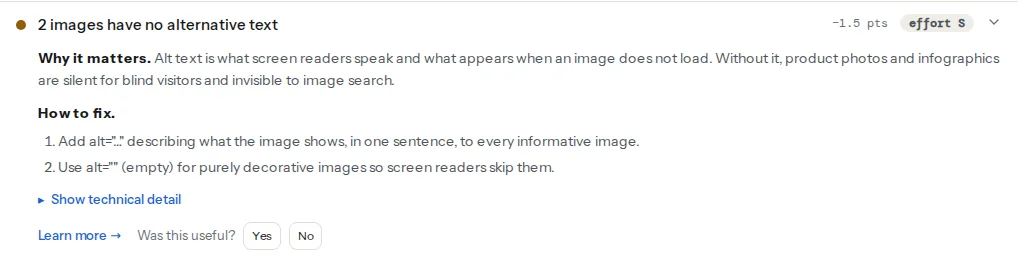
These two come from the SEO audit and read the HTML as served, before scripts run. The first counts <img> elements with no alt attribute at all. The second lists every <img> whose alt is empty (or only spaces), by file name, as information only: it does not guess whether an image looks meaningful, it hands you the list so you can decide. A product photo on that list is a wrong decision; a divider is a right one.
The two angles disagree on purpose in a few cases. An <img> with a title but no alt passes axe and fails the SEO count. An image added by a slider script after load appears only in the axe result. Fix both lists and both findings pass. Images are rarely the only problem on a page; the accessibility checker's top findings puts them in order with the rest.
Step by step
1. Walk the W3C decision tree
The W3C's alt decision tree asks its questions in a fixed order. Ask them about each image in its context, and stop at the first yes:
- Does it contain text? If the same text is in the HTML nearby,
alt=""; if not, the alt is the text. - Is it used in a link or a button, and would the purpose be unclear without it? Then it is functional: the alt names the destination or action.
- Does it contribute meaning to the page? A simple photo or graphic gets a short description; a graph or complex diagram gets a short alt plus a longer description; an image that repeats what the text next to it already says gets
alt="". - Is it purely decorative or not intended for the user? Then
alt="". - None of the above, or unclear? The tree points to the W3C's pages on groups of images and image maps, covered in step 7.
2. Decorative: be strict
Decorative means removing the image loses nothing: spacers, borders, background flourishes, a stock photo of people in a meeting above a heading that says "Our team", an envelope icon next to the word "Email". Empty alt, not missing alt:
<img src="/img/wave-divider.svg" alt="">3. Functional: name the action, not the picture
When an image is the only content of a link or button, its alt becomes the name of that link or button. Describe where it goes or what it does:
<a href="/"><img src="/img/logo.svg" alt="Example Shop home"></a>
<a href="https://www.instagram.com/exampleshop"><img src="/img/ig.svg" alt="Example Shop on Instagram"></a>
<button type="submit"><img src="/img/magnifier.svg" alt="Search"></button>
When the link also contains visible text, the image is decorative within it and gets alt="", or the name is read twice. A functional image with no name is also a link or button with no name, which is why these often appear in the link names finding as well; link and button names covers that side.
4. Icons: hide the icon, name the control
Icon fonts and inline SVG icons inside buttons are the most common functional images that are not <img> at all. Hide the icon from assistive technology and give the button the name:
<button type="button" aria-label="Close">
  <svg aria-hidden="true" focusable="false" width="16" height="16"><use href="#icon-x"></use></svg>
</button>

<a href="/cart">
  <span class="icon icon-cart" aria-hidden="true"></span>
  <span class="visually-hidden">Cart, 2 items</span>
</a>
The visually hidden text is better than aria-label when the name should be translated with the page, because translation tools translate text content more reliably than attributes.
5. Inline SVG that carries meaning
A meaningful inline SVG needs a role and a name, or screen readers treat it as a group of shapes or skip it:
<svg role="img" aria-labelledby="map-title" viewBox="0 0 400 300">
  <title id="map-title">Map: the shop is on Ilica 12, two minutes from the main square</title>
  <!-- paths -->
</svg>
Decorative inline SVG gets aria-hidden="true". An SVG with role="img" and no name is reported by axe's svg-img-alt rule, which shows up in the serious violations finding rather than the image finding.
6. Complex images: short alt, long description in text
A chart's alt says what it is and what it shows; the data goes in the page, where everyone benefits:
<figure>
  <img src="/img/lcp-2026.png"
       alt="Line chart: LCP fell from 4.2 s in January to 1.8 s in June"
       aria-describedby="lcp-data">
  <figcaption>Largest Contentful Paint, 75th percentile, 2026.</figcaption>
</figure>
<table id="lcp-data">
  <caption>Monthly LCP, 75th percentile</caption>
  <tr><th scope="col">Month</th><th scope="col">LCP</th></tr>
  <tr><td>January</td><td>4.2 s</td></tr>
  <tr><td>June</td><td>1.8 s</td></tr>
</table>
aria-describedby points the screen reader at the longer content without making the alt long. For a diagram, the long description is a paragraph or a list; for a floor plan, the directions in words.
7. Groups, maps and backgrounds
- Groups. Five star images that mean "4 out of 5 stars" get that alt on the first image and
alt=""on the other four. A gallery where each photo shows a different view gets one alt each. - Image maps. The
<img>gets an alt for the whole ("Map of Croatia with shop locations"), and each<area>gets an alt naming its destination ("Zagreb shop"). - CSS background images cannot have an alt. If the background carries meaning (a product in the hero), move it into an
<img>, or put the meaning in visible or visually hidden text next to it.
8. Write it well
Context first: the same photo of a jacket is "Navy rain jacket, hood up" on the product page and alt="" on a banner that says "New rain jackets". Keep it to a sentence, usually under 125 characters; the screen reader already says "image", so skip "picture of". End with a full stop so the reader pauses. Describe emotion or action when that is the point of the photo ("Volunteers laughing as they unload the first delivery"). Never stuff keywords.
Ten worked examples
| Image and context | Alt |
|---|---|
| Logo in the header, links home | Example Shop home |
| Same logo in the footer, not a link, next to the text "Example Shop" | alt="" |
| Main product photo on a product page | Navy rain jacket with the hood up, front view |
| Third gallery photo, showing the lining | Inside of the jacket: mesh lining and zipped chest pocket |
| Product thumbnail in a category grid, product name linked below it | alt="" |
| Magnifier icon, only content of the search button | Search |
| Hero photo of a beach behind the heading "Summer sale" | alt="" |
| Banner image that says "Free shipping over 50 €" with no HTML text | Free shipping over 50 € |
| Bar chart of monthly orders in a blog post | Bar chart: orders doubled between March and May plus a data table |
| Team photo on the About page | The six-person team outside the Zagreb workshop |
Platform notes
WordPress
The media library's Alternative Text field (Media → Library → the image) is copied into an Image block when the image is inserted; editing the library later does not change blocks already placed. Featured images and theme-rendered images read the library value each time. In the Image block's sidebar, the Alternative text field's help says to leave it empty if the image is decorative, and an empty field produces alt="". So the same image can be informative in one post and decorative in another, which is correct.
Shopify
Each product image has its own alt text in the product's media (click the image, then add alt text). Alt text for theme section images is set per block in the theme editor. Use a different alt for each gallery image.
Squarespace
The field that becomes the alt differs by block type, and some blocks fall back to a caption or the file name when no alt is set. A caption is visible text for everyone; an alt is for people who cannot see the image. When both exist and say the same thing, one of them is redundant. Run the checker on a published page to see what was actually rendered.
Webflow
Images carry an alt in the Assets panel, and each placed image's settings can use that asset's alt, a custom one, or be marked decorative, which outputs alt="". Set the asset alt for the common case and override per placement.
Verify
- The accessibility checker reports "Every image has alternative text" and the SEO audit "Every image has an alt attribute".
- The decorative list in the SEO audit contains only images you decided are decorative.
- Keyboard through the page with a screen reader on: every link and button announces a destination or action, never "image" or a file name.
Common mistakes
- Alt on decorative images. "Blue wave divider" read between every section. Fix:
alt="". - File names as alt.
DSC_0412.jpgorhero-final-v2, usually from an upload plugin or a CMS default. Fix: write the alt, or empty it if decorative. - The same alt on every product image. Six photos announced as "Rain jacket". Fix: say what each view shows.
- Missing alt on the logo link. The home link has no name at all. Fix:
alt="Example Shop home". - Alt text used as a caption. Information that sighted visitors also need hidden in the alt. Fix: put it in a visible caption and keep the alt short or empty.