A JavaScript error is invisible to the person who built the page: the site looks fine on their laptop, the menu opens, the order goes through. For some visitors it does not. This guide explains the three findings getReport raises from the browser console, where the errors usually come from, and how to reproduce and fix them. Most fixes take minutes once you can see the error.
Quick answer
- The report loads your page in Chromium and records every console error and uncaught exception. One is enough for a warning; the technical detail lists up to ten.
- Fix from the top: the first error often causes the ones after it.
- "Failed to load resource: 404" means a file the page asks for is missing. Fix the path or remove the reference.
- "
$is not defined" or "jQueryis not defined" is a load-order problem: the script ran before jQuery, or used$where WordPress only providesjQuery. - "Refused to load … Content Security Policy" and "Mixed Content" are the browser blocking something on purpose. Fix the source, not the rule.
- Deprecation warnings and
document.writeare warnings about the future: the feature still works today and stops working when Chrome removes it.
Why console errors matter
When a script throws an error, the rest of that script does not run. If the error is on line 40 of a theme's main.js and the mobile menu is set up on line 200, the menu never opens. If it is in the checkout script, the "Pay" button does nothing. The page still looks complete, which is why these bugs survive for months: nobody sees a broken layout, only a button that does not respond.
Errors are rarely universal. A script that fails only when an ad blocker removes a tracker, only on Safari, or only when a slow network delays one file will work perfectly for the developer and fail for a share of real visitors. Some errors also slow the page: an exception in a script on the path to the largest image, or a retry loop that keeps the main thread busy.
Some console errors are the browser protecting the visitor. A Content Security Policy violation means the browser refused to load a script or style the page asked for, so something is missing. A mixed-content error means an http:// script was blocked on an HTTPS page. Neither is a bug in the error itself; both mean the page is not getting everything it expects.
How getReport checks it
Every report renders the page in Chromium, like a first-time visitor on the report's device, and listens to the console until the load event plus a short settle time (1.5 s by default). The three findings come from that render, not from the Lighthouse run behind the speed test, so they can differ from the "Best practices" section of PageSpeed Insights. They sit in the Best practices module of the full report: run the speed test or any other tool, then open the full report.
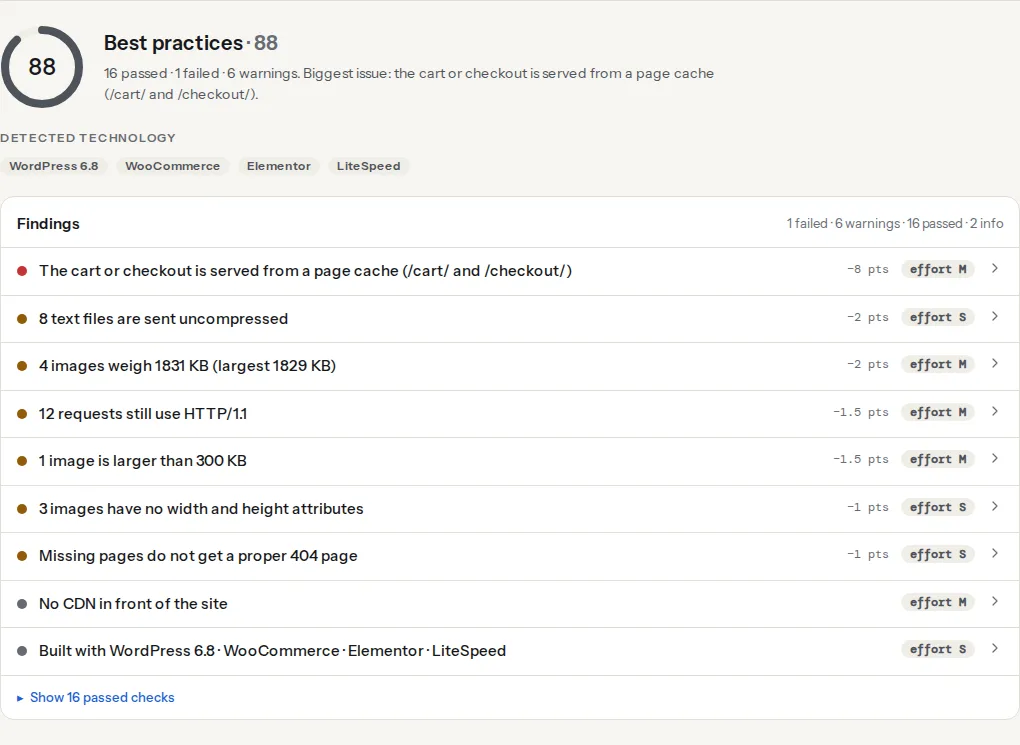
What counts: every console message at the error level, which includes the browser's own "Failed to load resource" lines for missing files and CSP and mixed-content blocks, plus every uncaught exception (listed with "Uncaught:" in front). Warnings and plain log messages do not count. There is no threshold: one error is a warning, because one error can be the broken checkout. The technical detail shows the first ten messages, each cut to 200 characters. Errors that happen only after a click, a scroll or a late timer are outside the window and will not appear. The short definition is on the console errors learn page.
This one records the deprecation and intervention messages Chromium logs during the load. An intervention is Chrome deliberately not doing what the code asked, usually to protect performance.
The report counts every call to document.write() and document.writeln() during the load. One call is enough for the warning; why document.write is a problem explains the parser blocking in more depth.
Step by step
1. Reproduce the error
Open the page in a fresh private window (no extensions, no logged-in session), open DevTools (F12 or Cmd+Option+I), go to the Network tab, tick "Disable cache", then reload with the Console tab visible. Switch on device emulation for a phone too: some themes load different scripts on small screens.
If you cannot reproduce an error, that is information as well. It may depend on the network (a CDN that timed out), on a consent choice or on the user agent. getReport's render identifies itself as GetReportBot, and a bot filter that serves a challenge page instead of a script produces errors only for bots.
To capture the same messages from a script, for example after every deploy, Playwright prints them in a few lines:
// console-check.mjs: node console-check.mjs https://www.example.com/
// Needs: npm i playwright && npx playwright install chromium
import { chromium } from 'playwright';

const browser = await chromium.launch();
const page = await browser.newPage();
page.on('console', (m) => {
  if (m.type() === 'error') console.log('console:', m.text());
});
page.on('pageerror', (e) => console.log('uncaught:', e.message));
await page.goto(process.argv[2], { waitUntil: 'load' });
await page.waitForTimeout(1500);
await browser.close();
2. Fix the errors from the top
Read the first error, fix it, reload. Errors cascade: if jQuery fails to load, every plugin that uses it throws next, and ten messages have one cause. The file name and line number on the right of each message tell you whose code it is (theme, plugin, tag manager, vendor).
A missing file. "Failed to load resource: the server responded with a status of 404" names a script, stylesheet, font or image that is not there. Usually a plugin was removed but its reference was left in a template, a file was renamed in a build, or a hard-coded path points at the old domain. Fix the path or delete the reference.
"Unexpected token '<'". A script URL returned an HTML page (usually the site's 404 page), and the browser tried to run HTML as JavaScript. It is the same missing-file problem in disguise; open the script URL in a tab to see what comes back.
"$ is not defined" or "jQuery is not defined". Either the script ran before jQuery loaded, or it uses $, which WordPress does not provide: its bundled jQuery runs in no-conflict mode, so only jQuery exists. Wrap the code so $ is local:
// In your theme or plugin script: $ is only defined inside the wrapper.
jQuery(function ($) {
  $('.menu-toggle').on('click', function () {
    $('.site-nav').toggleClass('is-open');
  });
});
If the script loads before jQuery, declare the dependency so WordPress orders them (see the WordPress notes below).
A script that runs before the element exists. "Cannot read properties of null (reading 'addEventListener')" means document.querySelector found nothing, often because the script is in <head> without defer. Add defer, which runs the script after the HTML is parsed and in order:
<!-- In <head>: runs after the document is parsed, in source order -->
<script src="/js/main.js" defer></script>
A plugin expecting another plugin. "wc_add_to_cart_params is not defined" or a similar missing global means a script depends on data another plugin prints. It shows up when an optimisation plugin combines or delays scripts and changes their order, or when the other plugin is deactivated. Exclude the pair from combining or delaying, or reactivate the dependency.
Third-party scripts behind ad blockers. When a blocker removes the Meta pixel, any of your own code that calls fbq() throws. Never let your code depend on a tracker being there:
// Call a tracker only if it loaded.
if (typeof window.fbq === 'function') {
  window.fbq('track', 'Lead');
}
Fonts blocked by CORS. "Access to font at 'https://cdn.example.com/…' has been blocked by CORS policy" means fonts served from another hostname lack the Access-Control-Allow-Origin header, which browsers require for cross-origin fonts. Add it on the server that serves the fonts (nginx, in that host's server block):
location ~* \.(woff2?|ttf|otf)$ {
    add_header Access-Control-Allow-Origin "https://www.example.com" always;
}
Content Security Policy violations. "Refused to load the script … because it violates the following Content Security Policy directive" means your own policy blocked it. If the script is legitimate, add its exact origin to script-src. If it is an inline script, move it into a file or allow it by nonce or hash; adding 'unsafe-inline' makes the error go away and turns the security module's CSP finding into a warning. Content-Security-Policy from report-only to enforced covers the procedure.
Mixed content. "Mixed Content: The page at 'https://…' was loaded over HTTPS, but requested an insecure script 'http://…'" means an old absolute URL. The browser blocks scripts and styles outright. Mixed content after the move to HTTPS has the search-and-replace.
3. Replace deprecated features
Deprecation messages name the feature and usually the replacement. The ones that turn up most on real sites:
- Synchronous XMLHttpRequest on the main thread (
xhr.open('GET', url, false)): freezes the page until the answer arrives. Usefetch()withawait. - The
unloadevent: Chrome is phasing it out, and it already stops the back/forward cache from working. Usepagehideorvisibilitychange(see MDN on the pagehide event). - Setting
document.domain: used by old cross-subdomain iframe code. UsepostMessage()between the frames. - Mutation events (
DOMNodeInserted,DOMSubtreeModified): common in old jQuery plugins, already removed from Chrome. UseMutationObserver. - Web SQL (
openDatabase): removed. Use IndexedDB. - Prefixed features (
webkit…properties with a standard equivalent): use the unprefixed name.
// Before: runs on unload, which Chrome is removing.
window.addEventListener('unload', sendStats);

// After: pagehide fires when the page is left or put in the back/forward cache.
window.addEventListener('pagehide', sendStats);
When the message points at a plugin or a vendor script, the fix is an update, not an edit. If the vendor has not updated in years, that is a reason to replace the plugin.
4. Remove document.write
document.write inserts markup while the page is being parsed. When it inserts a script, the browser has to stop parsing and wait. On slow connections Chrome refuses to run cross-origin scripts inserted this way at all, so the ad or widget simply does not appear for the visitors on the worst networks. The calls almost always come from an old ad, analytics or widget snippet:
<!-- Before -->
<script>
  document.write('<script src="https://widgets.example.net/w.js"><\/script>');
</script>

<!-- After: the same file, loaded without blocking -->
<script async src="https://widgets.example.net/w.js"></script>
If the snippet needs to run later or conditionally, create the element from JavaScript (document.createElement('script'), set src and async, append it to document.head). Most vendors publish an async version of their snippet; ask for it before rewriting theirs.
Platform notes
WordPress
- Query Monitor lists the scripts each page enqueues with their dependencies and flags broken ones, and shows PHP errors next to them.
- Health Check & Troubleshooting has a troubleshooting mode that disables plugins and switches the theme for your session only, while visitors see the normal site. Turn plugins back on one by one until the error returns.
- Enable jQuery Migrate Helper shows which code uses jQuery features that were removed, the most common source of errors after a WordPress core update.
Declare dependencies instead of relying on the order of <script> tags. In the theme's functions.php (WordPress 6.3+ for the strategy argument):
add_action('wp_enqueue_scripts', function () {
    wp_enqueue_script(
        'theme-main',
        get_theme_file_uri('js/main.js'),
        ['jquery'],                       // loads after jQuery
        '1.4.0',
        ['strategy' => 'defer', 'in_footer' => true]
    );
});
When the report shows errors right after an update, the first suspects are a script optimisation plugin (combining or delaying files) and a theme that has not been updated for the new version.
Shopify
Errors usually come from apps that inject scripts into the theme, or from app snippets left in theme.liquid after the app was uninstalled. Search the theme code for the app's name and remove leftover {% render %} tags and script includes.
Static sites and custom code
Add the Playwright script from step 1 to CI against the preview deployment, and fail the build on any uncaught line. It catches most regressions before they reach visitors.
Verify
- Re-run the report. The findings read "No JavaScript errors while loading the page", "No deprecated browser features in use" and "document.write() is not used", and move into the passed list.
- The console in a fresh private window is clean on a phone-sized viewport and on desktop.
- Click the things that broke: the menu, the form, add to cart. The report only sees the load; interactions are yours to test.
Common mistakes
- Ignoring errors "because the site works". It works for you. Symptom: a form that converts on desktop and not on mobile. Fix the error; it costs less than finding the lost orders.
- Suppressing errors globally. A
window.onerror = () => trueor atryaround the whole file hides the message and leaves the feature broken. Fix the cause, or catch only around the one call that may fail. - Two copies of a library. A plugin bundles its own jQuery next to WordPress's. Symptom: plugins that worked stop, because they attached to the first copy. Keep one copy and dequeue the other.
- Patching a parent theme's script in a child theme copy. The parent updates, the copy does not, and the two drift apart. Dequeue the parent script and enqueue your version deliberately, or ask the theme author for the fix.
- Blaming the last plugin you installed. The first error in the console, with its file name, says whose code failed. Start there.