A service worker is a script the browser installs after your page has loaded and then runs between the page and the network on every later visit. Read that sentence again before adding one: it does nothing for the first visit, so it never improves the Largest Contentful Paint a new visitor sees or the lab number a speed test reports. What it can do is make repeat visits close to instant and give people a proper page when the network is gone. What it also can do, when written carelessly, is serve last month's home page to everyone for weeks. This guide gives the smallest worker that gets the first two benefits without the third, and a kill switch for the day you need one.
Quick answer
- Most sites do not need a service worker. Correct
Cache-Controlon hashed static files gives returning visitors the same win with no code; the report's cache findings tell you whether you have that. - If you add one: network-first for HTML, cache-first for versioned CSS, JS, fonts and images with a cap on entries, an offline fallback page, and nothing else.
- Version the cache name, delete old caches in
activate, and never cache API responses that carry personal data. - Ship the kill switch worker (unregisters itself, clears caches) as a file you can deploy in a minute.
- Verify in DevTools → Application → Service Workers; Lighthouse no longer has a PWA category to check it for you.
- Workbox does the same in a few lines if you already have a build step; handwritten is 60 lines and no dependency.
Why the first visit is the one that counts
The metrics that matter to search ranking, Core Web Vitals, are collected from real Chrome users across all page loads, and for most sites most loads are from people who have not been there recently. A worker only controls a page after it has been installed on an earlier visit and has taken over (by default, on the next navigation, not the one that registered it). So the load that decides your LCP is unaffected. Lighthouse makes this explicit: it clears storage before the run by default, so the lab number in every speed test is a first-visit number, worker or not.
For the repeat visitor the picture changes. With the HTML served from the worker's cache, the page can render before the network has answered at all; with static assets served from the cache, there are no requests to wait on. That is the "instant" feel of a well-built web app, and it is real. But the HTTP cache already gives you the second half of it: a stylesheet with Cache-Control: max-age=31536000, immutable is also served from disk in 0 ms on every repeat visit, and a bad Cache-Control value expires on its own, while a bad worker keeps running until you replace it.
That asymmetry is why service workers have a bad name. The failure modes are all the same shape: the worker keeps serving something after it should have stopped.
- Stale HTML. A cache-first strategy on documents means visitors see the cached page and the network is never consulted. Deploy a fix, and nobody sees it until the cache is cleared, which only the worker can do.
- A worker you cannot remove. If the worker script itself was served with a long cache lifetime, the browser keeps checking the cached copy and never fetches your replacement. Browsers cap this at 24 hours now, but a day of a broken site is long.
- Personal data in the cache. Caching
/api/accountor/cartputs one person's data on a shared computer's disk and shows it to the next person who opens the site there. - Storage bloat. Cache every image ever viewed on a 5,000-product shop, and the browser eventually evicts the whole origin's storage at once.
- Double caching. The worker stores a file the HTTP cache also stores. Two copies, two expiry rules, and confusion when they disagree.
Each one has a two-line fix, and the minimal worker below includes all of them.
How getReport checks it
The report cannot see a service worker; it measures a first visit, as your new visitors do. What it shows is the layer underneath, the HTTP caching that a worker would sit on top of, and the LCP that a worker does not change.
The Chromium run records every response and its Cache-Control header. Static files (scripts, stylesheets, images, fonts) without a positive max-age or Expires are counted, and when more than 20 % of them lack one, the finding warns and lists them with the header each one sent:
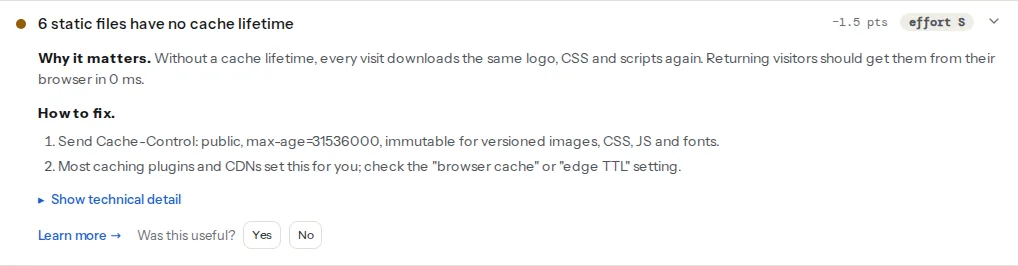
Lighthouse adds its own version with the bytes that could have come from cache:
If either of those is red, stop here and read Cache-Control for humans: the fix is a server rule, it works for every visitor from the second page view on, and it needs no JavaScript. Come back to service workers when the headers are right and you still have a reason.
The third finding is the honest one:
A worker does not move it. If the LCP is poor, the work is in fixing Largest Contentful Paint: the hero image, render-blocking files, the server's first byte. Adding a worker to a slow page gives repeat visitors a fast slow page.
Step by step
1. Decide whether you are in the group that benefits
A service worker pays when the same people read the same site repeatedly and when the network is unreliable: documentation and reference sites, web apps people keep open all day, anything installed to a phone's home screen as a PWA, sites used in the field on flaky connections. It pays little on a marketing site, a blog with mostly new visitors, or a shop where the interesting pages (cart, checkout, account) must never be cached anyway.
If your site is in the second group, the honest minimum is no worker at all. Set the headers, and stop.
2. Put versioned names on static files
The worker below caches static files "forever" and relies on the file name changing when the content changes (app.3f9c2a.css, not app.css). Every bundler does this; WordPress does it with the ?ver= query string, which is good enough as long as the version changes on every update. Without versioned names, a cache-first strategy serves the old stylesheet with the new HTML, and the page looks broken.
3. Write the offline page
A static HTML file at /offline.html with inline CSS, no external requests, and one sentence: "You are offline. This page will load when you are back." It must not depend on anything the worker has not cached. Keep it under 5 KB.
4. The minimal worker
Save as /sw.js at the site root (the scope of a worker is the folder it lives in, so a worker at /assets/sw.js could only control pages under /assets/). Every line is commented because every line is a decision.
// /sw.js — minimal service worker: offline page + cached static assets.
// Bump VERSION on every deploy; old caches are deleted in `activate`.
const VERSION = 'v2026-09-25-1';
const STATIC_CACHE = `static-${VERSION}`;
const OFFLINE_URL = '/offline.html';
const MAX_STATIC_ENTRIES = 60;

// Install: precache only the offline page. Everything else is cached on use.
self.addEventListener('install', (event) => {
  event.waitUntil(
    caches.open(STATIC_CACHE).then((cache) => cache.add(OFFLINE_URL))
  );
  self.skipWaiting(); // take over as soon as the install finishes
});

// Activate: delete every cache that is not this version, then control open pages.
self.addEventListener('activate', (event) => {
  event.waitUntil(
    caches.keys()
      .then((keys) => Promise.all(keys.filter((k) => k !== STATIC_CACHE).map((k) => caches.delete(k))))
      .then(() => self.clients.claim())
  );
});

// Only cache files whose name carries a hash or version, and only from this origin.
function isVersionedStatic(url) {
  if (url.origin !== self.location.origin) return false;
  const versioned = /\.[0-9a-f]{6,}\.(css|js|woff2|png|jpe?g|webp|avif|svg)$/i.test(url.pathname)
    || (url.searchParams.has('ver') && /\.(css|js)$/i.test(url.pathname));
  return versioned;
}

self.addEventListener('fetch', (event) => {
  const req = event.request;
  if (req.method !== 'GET') return; // never touch POST, PUT, DELETE
  const url = new URL(req.url);

  // 1. HTML: network first, fall back to the offline page. Never cache documents.
  if (req.mode === 'navigate') {
    event.respondWith(
      fetch(req).catch(() => caches.match(OFFLINE_URL))
    );
    return;
  }

  // 2. Versioned static files: cache first, then network, and store the answer.
  if (isVersionedStatic(url)) {
    event.respondWith(
      caches.match(req).then((hit) => hit || fetch(req).then((res) => {
        if (res.ok) {
          const copy = res.clone();
          caches.open(STATIC_CACHE).then(async (cache) => {
            await cache.put(req, copy);
            // Cap the cache: drop the oldest entries beyond the limit.
            const keys = await cache.keys();
            if (keys.length > MAX_STATIC_ENTRIES) {
              await Promise.all(keys.slice(0, keys.length - MAX_STATIC_ENTRIES).map((k) => cache.delete(k)));
            }
          });
        }
        return res;
      }))
    );
    return;
  }

  // 3. Everything else (API calls, third parties, unversioned files): straight to the network.
});
What it deliberately does not do: cache HTML (so a deploy is visible on the next load), cache anything cross-origin (no third-party scripts frozen in time), cache anything without a version in its name (no stale style.css), or cache API responses (no personal data on disk).
5. Register it, with a scope
In the page, at the end of <body> or in your main script, after the load event so the registration does not compete with the page's own requests:
<script>
  if ('serviceWorker' in navigator) {
    window.addEventListener('load', () => {
      navigator.serviceWorker.register('/sw.js', { scope: '/' })
        .catch((err) => console.warn('Service worker not registered', err));
    });
  }
</script>
And make sure the worker file itself is not long-cached. The browser re-checks /sw.js on navigation, and it must see the new version:
# nginx: never cache the worker script for long
location = /sw.js {
    add_header Cache-Control "no-cache, max-age=0" always;
}# .htaccess
<Files "sw.js">
Header set Cache-Control "no-cache, max-age=0"
</Files>6. The update dance
When you deploy, the browser downloads the new /sw.js, sees it differs byte for byte from the old one (the VERSION string changed), installs it, and, thanks to skipWaiting() and clients.claim(), replaces the old worker immediately, including for tabs already open. The activate handler then deletes the previous version's cache. Without skipWaiting, the new worker waits until every tab from the old one is closed, which on a site people keep open can be days.
Without a cache-name version and the deletion loop, the old cache stays on disk under the old name, unused and counting against the origin's storage quota. Both lines are in the minimal worker; they are the ones people cut when "simplifying".
7. The kill switch
Keep this file in the repository, named so nobody confuses it: sw-kill.js. On the day a worker misbehaves, deploy it as /sw.js. Every browser that checks for updates installs it, and it removes itself and every cache:
// sw-kill.js — deploy in place of /sw.js to remove the worker from every visitor's browser.
self.addEventListener('install', () => self.skipWaiting());
self.addEventListener('activate', (event) => {
  event.waitUntil(
    caches.keys()
      .then((keys) => Promise.all(keys.map((k) => caches.delete(k))))
      .then(() => self.registration.unregister())
      .then(() => self.clients.matchAll({ type: 'window' }))
      .then((clients) => clients.forEach((c) => c.navigate(c.url)))
  );
});
Leave the kill switch in place for at least as long as the longest cache lifetime you ever set on /sw.js, so that every returning browser has seen it. This is also why step 5 sets no-cache on the worker file: with that header, a day is enough.
8. Workbox, if you have a build step
Workbox is Google's library for exactly these strategies. The same worker with Workbox from its CDN:
// /sw.js with Workbox: the same three rules
importScripts('https://storage.googleapis.com/workbox-cdn/releases/7.0.0/workbox-sw.js');
const { registerRoute, NavigationRoute } = workbox.routing;
const { NetworkOnly, CacheFirst } = workbox.strategies;
const { ExpirationPlugin } = workbox.expiration;

workbox.core.skipWaiting();
workbox.core.clientsClaim();

registerRoute(new NavigationRoute(new NetworkOnly()));  // HTML from the network
registerRoute(
  ({ url, request }) => url.origin === self.location.origin && ['style', 'script', 'font', 'image'].includes(request.destination),
  new CacheFirst({ cacheName: 'static', plugins: [new ExpirationPlugin({ maxEntries: 60 })] })
);
The offline fallback needs workbox.recipes.offlineFallback() or a precache manifest from workbox-build, which is where the build step comes in. Workbox is worth it when you already generate a precache manifest at build; for the minimal case, the handwritten version has no dependency and nothing to update.
Platform notes
WordPress
Plugins such as Super Progressive Web Apps and PWA for WP add a worker and a manifest from the admin. Read their caching settings before enabling: their defaults tend to cache pages, which means a published post or a price change does not show for visitors with the old copy, and on WooCommerce the cart and checkout must be excluded explicitly. If the plugin has an "offline page only" or "network first" mode, use that. Then confirm the worker file is served with no-cache; caching plugins that add long lifetimes to every .js file will otherwise freeze it.
Static sites and frameworks
Next.js, Astro and Nuxt all have PWA plugins built on Workbox; most default to precaching every built asset and to network-first for pages, which is the safe shape. Review the generated sw.js once, and check that pages with personalised content are excluded from any runtime caching route.
Shopify, Wix, Squarespace
You cannot add a service worker to a hosted platform's root; the platform controls /sw.js and the response headers. The platforms already set long cache lifetimes on their asset CDN, which is the part that matters.
Verify
- DevTools → Application → Service Workers shows the worker as activated and running with the source
/sw.jsand today's version string in the file. - DevTools → Application → Cache Storage lists one cache named
static-<version>and no older ones after a deploy. - Turn on Offline in the Network panel and navigate: the offline page appears. Turn it off and reload: the live page appears, not a cached copy.
- The speed test shows the same LCP as before (it is a first visit) and the cache findings green, because those come from the headers, not the worker.
curl -sI https://example.com/sw.js | grep -i cache-controlprintsno-cache.
Common mistakes
- Cache-first on HTML. Symptom: "I deployed the fix and the client still sees the old page." Documents must be network-first or not cached; the minimal worker never caches them.
- The worker file is long-cached. Symptom: a new
sw.jsis deployed and nothing changes for a day. SetCache-Control: no-cacheon/sw.js. - No version in the cache name, no cleanup in
activate. Symptom: storage grows with every release, and eventually the browser evicts everything. Keep theVERSIONconstant and the deletion loop. - Caching API responses. Symptom: a visitor on a shared computer sees someone else's account page. Never route
/api/,/cart,/accountor anything with aSet-Cookiethrough the cache. - Adding a worker to fix a slow first visit. Symptom: the LCP finding does not move. The worker starts on the second visit; the first one is fixed with images, headers and server time.