# Yoast SEO settings we recommend (and the ones to switch off)
> A screen-by-screen walk through the free Yoast SEO settings that change what Google sees, with a recommendation for each and the report findings that show whether it worked.
Updated 2026-09-25 · WordPress & WooCommerce · HTML version: https://getreport.app/guides/yoast-seo-settings-we-recommend
Yoast SEO does most of its work in the `` of every page: the title, description, canonical, robots tag, Open Graph tags, a schema graph and the sitemap. Its defaults are sensible, but a dozen settings decide whether a site ships hundreds of empty attachment pages, an author archive for one author, feeds nobody reads and a schema graph with no logo. This guide walks through the free plugin (version 23) screen by screen, with our recommendation for each setting and why, and ends with the report findings that show whether the settings took. Plan 30 minutes; every change here is reversible.
## Quick answer
| Screen | Setting | Recommendation |
| --- | --- | --- |
| Site basics | Title separator, Site image | A short separator (dash or middle dot); a 1200×630 px site image |
| Site representation | Organization, logo, profiles | Organization with a square logo of at least 112 px and every official profile |
| Site features | Open Graph, X data, XML sitemaps, REST API head endpoint | On |
| Site features | Usage tracking, Admin bar menu | Off if you prefer; they change nothing for visitors |
| Crawl optimization | Shortlinks, RSD/WLW, oEmbed, emoji scripts, feeds you do not use | Remove; keep the global feed |
| Advanced → Media pages | Enable media pages | Off (attachment URLs redirect to the file) |
| Advanced → Author archives | Enable author archives | Off on a single-author site |
| Advanced → Date archives | Enable date archives | Off |
| Categories & tags → Tags | Show Tags in search results | Off unless tag pages have real content |
Then run the [WordPress checker](https://getreport.app/tools/wordpress-checker) and read the WordPress Doctor panel.
## Why the settings matter
An SEO plugin's job is to say the same thing to Google in every tag: this page is the canonical one, this is what it is called, this is who publishes it. When the settings disagree with the site (an Organization with no logo, a sitemap the robots.txt does not mention, media pages nobody wants indexed), Google resolves the disagreement itself, usually by ignoring the tag. The settings below are the ones where the default and the right answer differ often enough to be worth a look on every site.
Two of them cost real crawl budget and rankings. Media pages give every uploaded image a page of its own, so a shop with 400 product photos has 400 thin pages in its sitemap. Author and date archives on a single-author blog are duplicates of the post list with a different URL. Neither breaks the site; both dilute it.
## How getReport checks it
> **Free tool:** [WordPress health check](https://getreport.app/tools/wordpress-checker): Is your WordPress site indexed, up to date and free of the classic launch mistakes? Checks "Discourage search engines", default content and tagline, plain permalinks, attachment pages, the exposed admin user, a public staging copy and the core version, plus security basics.
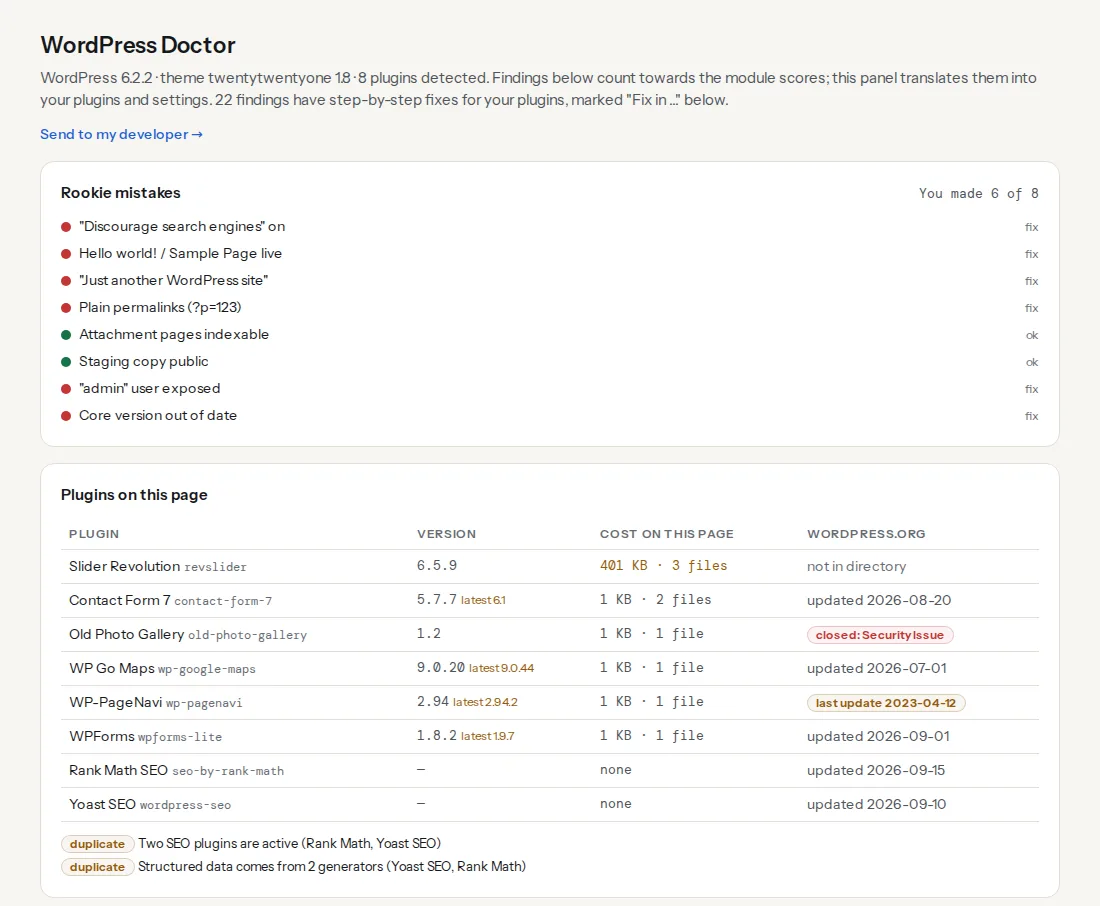
The check is passive. Yoast reveals itself through its own HTML comment ("This site is optimized with the Yoast SEO plugin") and through asset paths under `/wp-content/plugins/wordpress-seo/`. Once WordPress and Yoast are recognised, the report requests a handful of well-known addresses (the attachment sitemap among them), reads `robots.txt` and the tags in ``, and adds the WordPress Doctor panel after the top fixes. Under each finding that Yoast can fix, a "Fix in Yoast SEO" card shows the exact screen and control, with the plugin version the steps were tested on.
The four findings below map directly onto settings in this guide:
> **Check: Attachment pages are not exposed to search engines.** WordPress creates a bare page for every uploaded image. Hundreds of them in the index dilute the site with pages that hold nothing but a picture.
>
> 1. In Yoast SEO, under Settings, Advanced, Media pages, enable the redirect of attachment URLs to the file itself; in Rank Math set Media to noindex or redirect.
> 2. Without an SEO plugin, add a redirect from attachment pages to the parent post in your theme or a redirect plugin.
> **Check: robots.txt declares a sitemap.** A "Sitemap:" line in robots.txt is how crawlers find your XML sitemap without you registering it anywhere. Without it, new pages are discovered later.
>
> 1. Add a line to robots.txt: Sitemap: https://your-site.com/sitemap.xml (use the full URL).
> **Check: Canonical tag is present.** Without a canonical URL, search engines may index duplicate versions of this page (with and without trailing slash, with UTM parameters) and split its ranking signals.
>
> 1. Add in .
> 2. In WordPress, Yoast or Rank Math add this automatically — check it is not disabled for this page.
> **Check: Open Graph image is present.** Without og:image, links shared on Facebook, LinkedIn, Slack and WhatsApp appear as plain text and get far fewer clicks.
>
> 1. Add with a 1200×630 px image.
> 2. Use an absolute https URL that is publicly reachable.
The Yoast fix cards exist for these and for the title length, missing description, noindex, breadcrumb, Twitter card, Organization logo and duplicate-SEO-plugin findings. Each one names the screen in the same words the plugin uses.
## Step by step
All screens are under Yoast SEO → Settings unless stated otherwise.
### 1. Site basics
**Website name** and **Tagline** feed the title template and the WebSite schema. Keep the name short: it sits at the end of every title, and a 25-character name is the most common reason titles run past 60 characters. **Title separator**: pick a dash or a middle dot; wide separators waste pixels. **Site image**: upload a 1200×630 px JPG or PNG. It is the Open Graph fallback for every page without its own image, which is why the `og:image` finding above often passes or fails site-wide from this one field.
### 2. Site representation
Choose **Organization** for a business, **Person** for a personal site. Fill in the organization name, upload a square **Organization logo** of at least 112×112 px (500×500 is safe), and add every official profile under **Other profiles**: Facebook, X, Instagram, LinkedIn, YouTube, Wikipedia. Yoast turns these into the `logo` and `sameAs` of the Organization entity in its schema graph, which is what Google's brand panel reads. [Organization and WebSite schema](https://getreport.app/guides/organization-and-website-schema) explains what the graph should contain and how to check it.
### 3. Site features
Keep on: **SEO analysis** and **Readability analysis** if editors use them (they are editor-only and cost visitors nothing), **Open Graph data** and **X data** (without them no page has a share preview), **XML sitemaps**, and **REST API: Head endpoint** if a headless front end or an app reads Yoast's tags through the REST API. **Slack sharing** adds author and reading time to Slack previews; harmless either way. **IndexNow** exists in Yoast Premium only; switch it on there. **Admin bar menu** and **Usage tracking** change nothing on the front end; switch them off if you like a quieter admin.
**Cornerstone content** is a label, not a setting that changes tags. Use it for the five pages you would rebuild first after a crash, not for every category. **Insights** and **Inclusive language analysis** are editor tools; leave them to the people writing.
### 4. Crawl optimization (Advanced → Crawl optimization)
WordPress prints a dozen links and headers on every page that a public site rarely needs. Under **Basic crawl settings**, remove shortlinks, RSD/WLW links, oEmbed links, the generator tag, the pingback header and the powered-by header. Under **Feed crawl settings**, remove the comment feeds, author feeds, post type feeds, category and tag feeds, search feeds and Atom/RDF feeds, but **keep the global feed**: feed readers, some email tools and Google's own systems use it. Under **Remove unused resources**, remove emoji scripts (one script and one inline style fewer on every page). Under **Permalink cleanup**, **Remove unregistered URL parameters** redirects `?utm_source=…` and `?fbclid=…` copies of a page to the clean URL, which is the cheapest duplicate-content fix in the plugin; add any parameter your own site needs (a search filter, a language switch) to the allow list first, and test a filtered page after saving.
### 5. Content types
For **Posts** and **Pages**, keep **Show in search results** on. The **SEO title** template is Title, Separator, Site title by default; drop Site title if the name is long. The **Meta description** template is empty by default, so posts without a hand-written description get no tag; insert the Excerpt variable so every post at least has its own first sentences. Under **Schema**, Page type "Web Page" and Article type "Article" are right for a blog; a news site picks "News Article".
Custom post types the theme registers (portfolio, testimonials, team members) appear here too. Ask whether a searcher should ever land on a single testimonial; if not, switch that type's **Show in search results** off.
### 6. Categories & tags
**Categories** stay in search results: they are your section pages. Give each a description in Posts → Categories, because the template uses it. **Tags** are the usual problem: 300 tags with two posts each are 300 thin pages. Switch **Show Tags in search results** off unless you curate tags as real landing pages. **Formats** (aside, gallery, quote archives) are almost never wanted; switch **Enable format-based archives** off.
### 7. Advanced → Archives, Media pages, Special pages
**Author archives**: on a single-author site, switch **Enable author archives** off; Yoast then redirects `/author/name/` to the home page and the archive stops competing with the blog index. On a multi-author site keep them on and switch **Show archives for authors without posts** off. **Date archives**: switch off; nobody searches for "May 2021" on your site.
**Media pages**: switch **Enable media pages** off. Every attachment URL then redirects to the image file and `attachment-sitemap.xml` disappears from the sitemap index. This is the setting the attachment finding points at, and the full story, including sites that need attachment pages for a gallery plugin, is in [WordPress attachment pages](https://getreport.app/guides/wordpress-attachment-pages).
**Special pages**: the search page and 404 page titles. Leave them; both are noindexed by Yoast already.
### 8. Breadcrumbs, RSS, robots.txt
**Breadcrumbs** (Advanced → Breadcrumbs): switch on if the theme or a block shows them. Yoast adds the matching BreadcrumbList to its schema graph; the visible trail needs the Yoast Breadcrumbs block or the theme's support. **RSS**: the "content before/after each post" fields add a link back to the source in the feed, which helps when scrapers republish it. **robots.txt**: Yoast SEO → Tools → File editor edits the physical file. The only line most sites need to add is the sitemap:
```text
Sitemap: https://example.com/sitemap_index.xml
```
Yoast adds that line to the virtual robots.txt on its own; the finding fires when a physical file on the server hides it. What else a sitemap needs is on the [XML sitemaps](https://getreport.app/learn/xml-sitemaps) learn page.
### 9. What not to do
Do not chase the keyphrase density light. Yoast's analysis is a checklist for one page, not a ranking model; a page can be all green and rank for nothing, or all red and rank first. Do not write a focus keyphrase into every H2. Do not mark half the site as cornerstone. Do not add a second SEO plugin "just for redirects" or "just for schema": every one writes a full set of tags, and [two SEO plugins together](https://getreport.app/guides/duplicate-seo-plugins-yoast-and-rank-math-together) is a guide we wrote because it happens so often.
And do not hand-edit the schema graph with filters unless you can read the output. A `wpseo_schema_graph` filter that drops the Organization to add your own is how sites end up with two.
## Platform notes
### Managed WordPress hosts
The host's page cache serves old HTML after every settings change. Purge it from the host's panel (or its admin-bar button) as well as from any caching plugin, or the report keeps showing the old tags. Some hosts also ship their own `robots.txt`; if Yoast's File editor says the file is not writable, the sitemap line goes in through the host's panel.
### WooCommerce
Yoast extends WooCommerce's Product schema rather than replacing it, so the settings above do not touch price and availability in the Product block. Product categories are taxonomies: give them descriptions and keep them in search results; product tags follow the same advice as post tags.
### Multisite
Settings are per site. A network-activated Yoast still needs Site representation, Site basics and the archive settings filled in on every site.
## Verify
- Re-run the WordPress checker. "Attachment pages are not exposed to search engines", "robots.txt declares a sitemap", "Canonical tag is present" and "Open Graph image is present" all pass, and the rookie list shows attachment pages as ok.
- Open `https://example.com/sitemap_index.xml`: one sitemap per content type you kept, no `attachment-sitemap.xml`, no `author-sitemap.xml` on a single-author site.
- View the source of the home page: one ``, one description, one canonical, `og:image` with an absolute URL, one `application/ld+json` block whose Organization has `logo` and `sameAs`.
- Open `/author/yourname/` in a private window: it redirects to the home page if you switched author archives off.
## Common mistakes
- **Switching off Open Graph because the theme "already has it".** Now the theme's tags are the only ones, and they usually lack an image. Keep Yoast's and switch the theme's off.
- **Noindexing categories along with tags.** Categories are the section pages Google should rank. Tags off, categories on.
- **Removing the global feed in Crawl optimization.** Subscribers and feed-based tools lose the site. Remove the per-type feeds, keep `/feed/`.
- **Removing unregistered URL parameters without an allow list.** A filter or search parameter the site relies on now redirects to the unfiltered page. Add it to the allow list first.
- **Leaving the site image empty.** Every page without its own image shares with no picture. One upload fixes the whole site.
- **Two schema sources.** Yoast's graph plus a schema plugin's Organization gives Google two brands. Keep Site representation as the one source, or turn the Organization off in the other plugin.