# "Discourage search engines": the WordPress box that hides your site
> One checkbox in Settings → Reading adds noindex to every WordPress page. See what it does, why it survives launches and migrations, how to switch it off and how to get back into Google fast.
Updated 2026-09-25 · WordPress & WooCommerce · HTML version: https://getreport.app/guides/wordpress-discourage-search-engines
Settings → Reading has one checkbox that can take a whole site out of Google: "Discourage search engines from indexing this site". It is meant for the weeks a site is being built, and it is the most common reason a WordPress site that looks finished gets no visits from search. This guide explains exactly what the box does, how it survives a launch, how to switch it off and how to get back into the index quickly. The fix takes two minutes; recovery takes days to weeks, and the steps below shorten it.
## Quick answer
- **Check:** view the page source and search for `robots`. `` on every page means the box is ticked.
- **Fix:** Settings → Reading → untick "Discourage search engines from indexing this site" → Save Changes. From a terminal: `wp option update blog_public 1`.
- **Purge** the page cache and the CDN, or cached pages keep the tag for hours.
- **Tell Google:** resubmit the sitemap and request indexing for the home page and your top pages in Search Console.
- **Expect** important pages back within days and the rest over the following weeks.
- **Staging** needs a password (HTTP authentication or your host's staging feature), not this checkbox.
## Why the checkbox matters
### What it does, exactly
The box stores a single option, `blog_public`: `1` when the site is public, `0` when search engines are discouraged. Since WordPress 5.3, `0` makes WordPress print this tag in the `` of every front-end page:
```html
```
`noindex` asks search engines to drop the page from results; `nofollow` asks them not to follow its links. Google obeys both. Two side effects make it worse: WordPress's own sitemap at `/wp-sitemap.xml` switches off while the option is `0`, so Google also loses the list of your URLs; and before version 5.3 the box worked differently, printing `noindex,follow` and adding `Disallow: /` to the virtual robots.txt WordPress serves when there is no robots.txt file on disk. Sites that were set up on an old version, or whose robots.txt was saved to a file back then, can still carry that line.
### What it does not do
It hides nothing from people. There is no password and no login; anyone with the address can read every page. The settings screen itself says it is up to search engines to honour the request. Well-behaved crawlers do, scrapers and bad bots do not, and nothing stops a visitor from sharing a link. If the goal is privacy, this is the wrong tool; the [staging sites](https://getreport.app/learn/staging-sites) learn page covers the right ones.
### Why it stays on after launch
Three routes, all common:
- **The installer offers it.** The install screen has the same "Search engine visibility" checkbox. Ticked during the build, it is easy to forget on launch day because nothing on the site looks different.
- **Migrations copy it.** `blog_public` is an ordinary row in the `wp_options` table. It travels with every database export, every migration plugin and every "push to live", so a staging copy that was correctly hidden hands the setting to the live site.
- **Host staging tools set it.** Several managed hosts tick the box on the staging copy they create. Pushing the staging database back to production later brings the tick along.
The symptom is silence. Pages load, forms work, and search traffic either never starts or drifts down to zero over a few weeks as Google recrawls and drops page after page. The only hint inside wp-admin is a small "Search engines discouraged" line in the Dashboard's At a Glance box.
## How getReport checks it
> **Free tool:** [WordPress health check](https://getreport.app/tools/wordpress-checker): Is your WordPress site indexed, up to date and free of the classic launch mistakes? Checks "Discourage search engines", default content and tagline, plain permalinks, attachment pages, the exposed admin user, a public staging copy and the core version, plus security basics.
The [WordPress health check](https://getreport.app/tools/wordpress-checker) runs a normal report. When the page reveals WordPress (`/wp-content/` or `/wp-includes/` paths, the generator tag, the `wp-json` link or the emoji script), the WordPress Doctor findings switch on. For this setting, nothing extra is requested: the check reads the robots meta tags of the page it already fetched. A tag containing both `noindex` and `nofollow` on a WordPress page raises the finding, and the evidence line quotes the tag exactly as the page sent it.
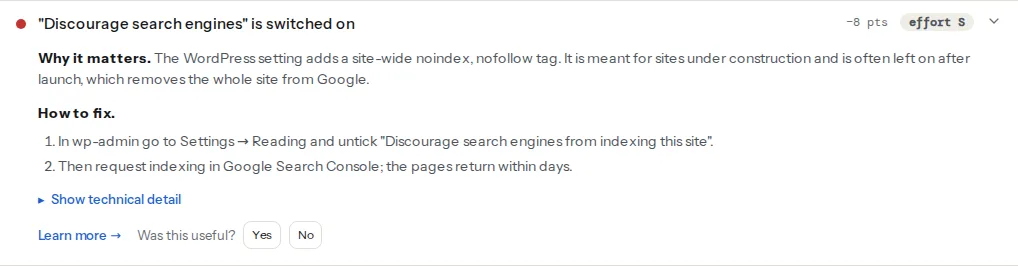
> **Check: Search engines are not discouraged in Settings → Reading.** The WordPress setting adds a site-wide noindex, nofollow tag. It is meant for sites under construction and is often left on after launch, which removes the whole site from Google.
>
> 1. In wp-admin go to Settings → Reading and untick "Discourage search engines from indexing this site".
> 2. Then request indexing in Google Search Console; pages usually return within days to weeks.
The report looks at indexability from three more sides that do not depend on WordPress at all:
> **Check: The page is not set to noindex.** A noindex directive tells Google to drop this page from search results. Unless that is intended, every visit from search is lost.
>
> 1. Remove noindex from the robots meta tag and from the X-Robots-Tag header, unless the page should stay out of search.
> 2. In WordPress, untick Settings → Reading → "Discourage search engines" and check the page's SEO plugin settings.
> **Check: The page can be indexed.** To appear in search, a page must return HTTP 200, carry no noindex directive and be allowed in robots.txt. If any of the three fails, the page is invisible to searchers.
>
> 1. Open the technical detail to see which condition fails, then fix that one; the individual findings above have the steps.
> 2. After the fix, request indexing in Google Search Console to speed things up.
> **Check: robots.txt allows this page.** A Disallow rule stops search engines from crawling this page, so they cannot read its content or see any updates. The page can still appear in results as a bare URL with no description.
>
> 1. Remove or narrow the Disallow rule in robots.txt so this URL is allowed for all crawlers.
> 2. If the page should stay out of search, allow crawling and use a noindex tag instead; a blocked page cannot be de-indexed.
Read together, they tell you where the block comes from:
| What the report shows | What it usually means |
| --- | --- |
| Discourage finding and noindex finding both fail | The Reading box, or an SEO plugin set `noindex, nofollow` on this page |
| Noindex fails, Discourage passes | `noindex` without `nofollow`: an SEO plugin setting, a header, or WordPress older than 5.3 |
| robots.txt blocks the page | A `Disallow` rule in a robots.txt file or plugin, not the Reading box on current WordPress |
| Only "cannot be indexed" fails | The page answers something other than HTTP 200 |
The check sees one page. An SEO plugin can set `noindex, nofollow` on a single page, and that page raises the same finding. Run the report on the home page and on one ordinary post: if both are flagged, the cause is almost certainly site-wide.
## Step by step
### 1. Confirm what is adding the tag
Three quick tests, from least to most technical:
1. Dashboard → At a Glance. "Search engines discouraged" means the box is ticked.
2. Settings → Reading → Search engine visibility. The checkbox shows the same thing.
3. From a terminal on the server:
```bash
wp option get blog_public
# 0 = discouraged, 1 = public
```
If the option is `1` and the tag is still in the page source, the Reading box is not the cause. Go to step 4.
### 2. Untick the box
Settings → Reading → untick "Discourage search engines from indexing this site" → Save Changes. Or:
```bash
wp option update blog_public 1
```
On a multisite network, each site has its own option. List them all and fix the ones that print `0`:
```bash
for url in $(wp site list --field=url); do
echo "$url $(wp option get blog_public --url="$url")"
done
wp option update blog_public 1 --url=https://shop.example.com/
```
### 3. Purge every cache
A page cache stores the HTML with the old tag in it. Purge the cache plugin (WP Rocket, LiteSpeed Cache, W3 Total Cache and the rest all have a "clear all" button), the host's server cache if it has one, and the CDN (on Cloudflare: Caching → Configuration → Purge Everything). Then open a post in a private window, view the source and search for `robots`. With the box unticked, the tag either disappears or reads `max-image-preview:large` (current WordPress) or `index, follow` (most SEO plugins), all of which allow indexing.
### 4. Check the SEO plugin layer
SEO plugins set robots tags per page and per content type, on top of the Reading setting. A leftover shows as noindex on some pages rather than all.
- **Yoast SEO:** in the editor, the Yoast panel → Advanced → "Allow search engines to show this Page in search results?" should be Yes (or the default). Site-wide, Yoast SEO → Settings → Content types: "Show pages in search results" and the same switch for posts and products should be on.
- **Rank Math:** in the editor, the Rank Math panel → Advanced → Robots Meta should have Index, not No Index. Site-wide, Rank Math → Titles & Meta → Global Meta → Robots Meta, then the tab for each post type.
Yoast also shows a warning in its dashboard while the Reading box is ticked, which makes a useful second check.
### 5. Look at robots.txt
Open `https://yoursite.com/robots.txt`. A current WordPress install with no robots.txt file on disk serves something like:
```text
User-agent: *
Disallow: /wp-admin/
Allow: /wp-admin/admin-ajax.php
Sitemap: https://yoursite.com/wp-sitemap.xml
```
If you see `Disallow: /` under `User-agent: *`, a robots.txt file in the site root or a plugin's robots.txt editor is blocking everything. Remove that line. Blocked pages cannot be de-indexed properly either, because Google never reads their noindex; [robots.txt: test it before it hides your site](https://getreport.app/guides/robots-txt-before-it-hides-your-site) explains the difference.
### 6. Ask Google to come back
In Google Search Console:
1. **Sitemaps:** submit `/wp-sitemap.xml`, or the index your SEO plugin makes (`/sitemap_index.xml` for Yoast and Rank Math). Core's sitemap only exists again now that the box is unticked.
2. **URL Inspection:** enter the home page, click "Test live URL" and confirm it reports indexing as allowed, then click "Request indexing". Repeat for your five to ten most important pages. There is a daily limit, so start with the pages that earn money.
3. **Pages report:** the "Excluded by 'noindex' tag" count should start falling within a week.
How long it takes depends on how long the tag was on and how often Google visits. A home page that was noindexed for a week is usually back within days, with rankings close to where they were. A site that was hidden for months has to be discovered almost from scratch; expect weeks for the long tail. Bing reads the same tag, and Bing Webmaster Tools has an equivalent URL submission.
### 7. Protect staging without the checkbox
A password is the real protection for a staging copy, and your host's staging feature or HTTP authentication gives you one; the [WordPress rookie mistakes guide](https://getreport.app/guides/wordpress-rookie-mistakes) has the Apache and nginx snippets. If you also want the staging copy noindexed, set it from a file rather than the database, so no database push can ever carry it to production. On the staging copy only, in `wp-config.php`:
```php
define('WP_ENVIRONMENT_TYPE', 'staging');
```
Then, in a must-use plugin on every copy, `wp-content/mu-plugins/staging-noindex.php`:
```php