# Squarespace: the checklist for speed, SEO and structured data

> Squarespace 7.1 does images, SSL, sitemaps and canonicals for you. This checklist covers the settings that are still yours, the JSON-LD you add through code injection, and the report findings to ignore on the platform.

Updated 2026-09-25 · Other platforms · HTML version: https://getreport.app/guides/squarespace-the-checklist

Squarespace 7.1 makes most technical decisions for you and gives you a short list of settings in return. That is the right trade for most small sites, provided you know which settings are on the list and which findings in a report are simply the platform. This checklist goes through the settings in the order they pay off, shows what you can add with code injection (structured data, yes; HTTP headers, no), and names the findings you can leave alone.

## Quick answer

- **Automatic:** responsive images with `srcset` from Squarespace's CDN, SSL with an HSTS option, `/sitemap.xml`, self-referencing canonicals, Open Graph tags from the page's social image, Product markup on store pages and article markup on blog posts.
- **Yours:** the SEO title and description formats and each page's SEO tab, "hide from search" for utility pages, blog post slugs, image sizes on upload, two fonts, animations, 301s in URL mappings, a custom 404, and JSON-LD through code injection.
- **Not available:** HTTP headers of any kind (no Content-Security-Policy, no Permissions-Policy), editing robots.txt, server-side caching choices.
- The LCP fix on Squarespace is layout: an image block instead of a section background, uploads at 2500 px or less, animations off on the first section.
- Run the [SEO audit](https://getreport.app/tools/seo-audit) on the home page and one blog post; then the speed test on the same two.

## Why the checklist matters

On a self-hosted site the SEO and speed work is open-ended. On Squarespace it is finite: there are perhaps fifteen settings and one code-injection box, and once they are right, the remaining findings belong to the platform. The value of a checklist is knowing when you are done.

The findings that belong to the platform are not small. Squarespace sets every response header, so the security module lists a missing Content-Security-Policy and Permissions-Policy on every Squarespace site, and it always will. Squarespace loads images with its own script, so the LCP finding will often name an image you cannot preload. Reading those as "things to fix" wastes the afternoon; reading them as "the platform's numbers" lets you spend it on the page titles, which do move rankings.

## How getReport checks it

> **Free tool:** [Free SEO audit](https://getreport.app/tools/seo-audit): Every on-page and technical SEO check in one run: title and description, headings, canonical, robots and sitemaps, indexability, links, images and mobile readiness — each with a fix.

The audit runs the SEO module on one page: title and description, headings, canonical, robots directives, sitemap, indexability, links, images and mobile readiness. On a Squarespace page the platform's automatic parts pass and the human parts are where the findings are:
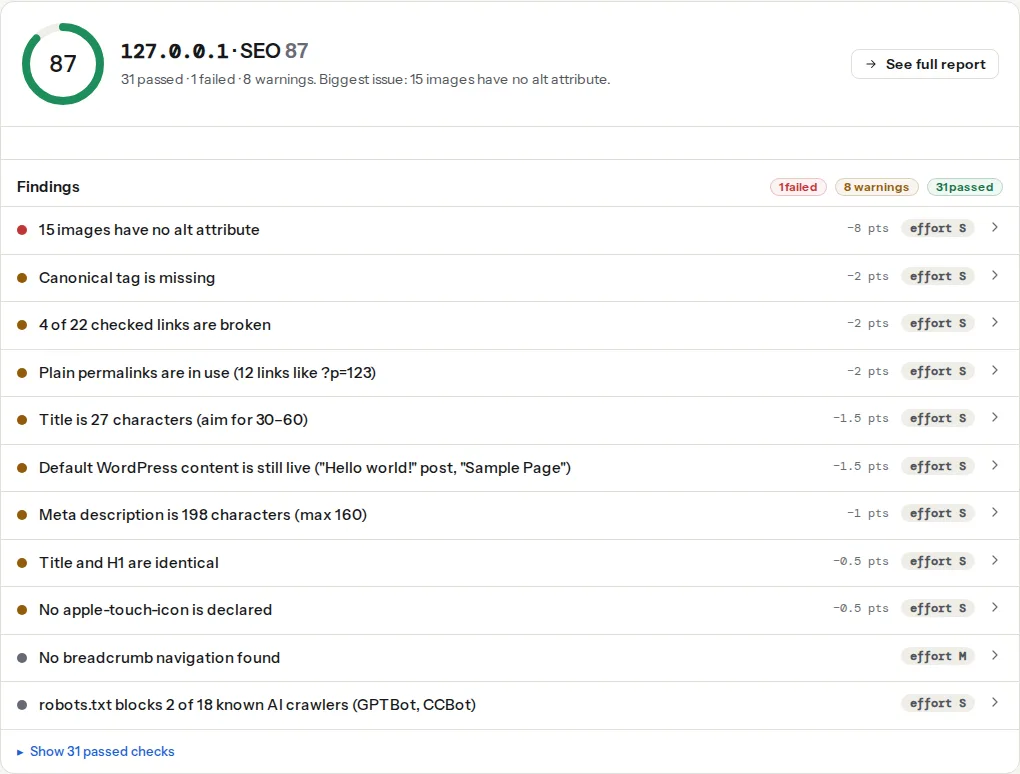
![The SEO audit panel on a Squarespace page: the canonical, viewport, sitemap and language findings passing, the meta description and title length findings flagged with the text the page currently has, and the breadcrumb line as informational](https://getreport.app/guides/img/squarespace-the-checklist/seo-panel.webp "The platform's automatic parts pass; the description and title findings are the ones that need a person.")

> **Check: Canonical tag is present.** Without a canonical URL, search engines may index duplicate versions of this page (with and without trailing slash, with UTM parameters) and split its ranking signals.
>
> 1. Add <link rel="canonical" href="https://your-site.com/page/"> in <head>.
> 2. In WordPress, Yoast or Rank Math add this automatically — check it is not disabled for this page.

Squarespace prints a self-referencing canonical on every page, so this finding passes unless the page was made a duplicate deliberately.

> **Check: Open Graph image is present.** Without og:image, links shared on Facebook, LinkedIn, Slack and WhatsApp appear as plain text and get far fewer clicks.
>
> 1. Add <meta property="og:image" content="https://…/share.jpg"> with a 1200×630 px image.
> 2. Use an absolute https URL that is publicly reachable.

The social module reads the Open Graph tags Squarespace builds from the page's social image, or from the site-wide fallback when there is none. A missing `og:image` on Squarespace means neither is set.

> **Check: Largest Contentful Paint.** LCP is when the biggest thing on screen — usually the hero image or headline — finishes loading. Visitors judge "is this site slow?" on it, and Google uses it for ranking.
>
> 1. Find the LCP element (named in your report) and make it lighter, earlier or both — a compressed WebP/AVIF, sized to the screen, without lazy loading.
> 2. Preload it with <link rel="preload" as="image"> or add fetchpriority="high" on the <img>.
> 3. Cut what comes before it — render-blocking CSS/JS and slow server responses push LCP back.

The speed test's LCP finding names the element. On Squarespace it is the first section's background or the first image block, and which of the two it is decides the fix.

> **Check: Breadcrumb navigation found.** Breadcrumbs show visitors where they are and let Google show a readable path instead of the URL in desktop results. Most useful on shops and sites more than two levels deep.
>
> 1. Add a breadcrumb trail in a <nav aria-label="Breadcrumb"> and describe it with BreadcrumbList structured data.

Squarespace pages have no breadcrumb trail by default. The finding is informational; leave it unless the site is deep enough to need one.

## The checklist

### 1. Title and description formats

Settings → Marketing → **SEO appearance**. Three formats: Home, Pages and Items (blog posts, products, events). The default puts the site title after the page title with a separator; keep that and make sure the site title is the brand, not "Home". The site description here is the fallback meta description for pages without their own, so write it as a sentence about the business, not a slogan.

### 2. Each page's SEO tab

Pages → gear icon on the page → **SEO** tab: SEO title, SEO description, and **Hide this page from search results**. Fill the title and description on every page that should rank; the audit's title length and description findings show what the page currently has. For blog posts and products, the same tab is in the item's settings. The wording rules are in [Title and meta description: writing for the result page](https://getreport.app/guides/titles-and-descriptions-for-the-result-page).

Hide from search: on for thank-you pages, the 404 page, cover pages used for campaigns, and any page in the "Not linked" section that exists for a link in an email. Hidden pages get a `noindex` tag and leave the sitemap.

### 3. Blog post and product slugs

Post settings → **Options** → URL slug. Squarespace generates the slug from the title, including stop words and the year for blog posts (`/blog/2026/9/25/why-we-moved`); the format is set per blog page under the blog's settings → Advanced. Choose a short, readable slug before publishing, because changing it later needs a redirect (step 8).

### 4. Image sizes on upload

Squarespace generates variants up to 2500 px wide and serves the right one with `srcset`, which is why the responsive image findings usually pass. What it cannot fix is the source: a 6000 px, 9 MB upload produces a slow 2500 px variant and a slow page in the editor. Export photos at 2500 px on the long side and under 500 KB (Squarespace's own recommendation) before uploading. The report's image table shows the served size per image on the test device.

### 5. Image block, not background, for the LCP element

Section backgrounds are loaded by Squarespace's script after the layout is known; image blocks are in the HTML with `srcset` and dimensions. When the LCP finding names a background image on the first section, rebuild that section with an image block (or an image block beside the text in a two-column layout). It is the single most effective LCP change on 7.1, and it needs no code.

### 6. Fonts and animations

Design → Site styles → **Fonts**: pick one heading font and one paragraph font, from either the Google or the Adobe library. Each additional family and weight is a download; the report's font finding lists them.

Design → Site styles → **Animations**: turn the site-wide animation off, or at least off for the first section. Animated elements are painted late, and when the animated element is the hero, LCP moves with it.

Sites still on version 7.0 have an **Ajax loading** setting in site styles; turn it off if the report shows odd navigation behaviour or missing analytics on page changes. 7.1 does not have it.

### 7. Social sharing image

Page settings → **Social image** sets `og:image` for that page; Settings → Marketing → **Social sharing** sets the site-wide fallback. Use 1200×630 px so the card renders sharply on every network; the [link preview guide](https://getreport.app/guides/link-previews-open-graph) shows what each one displays. Blog posts use the post's thumbnail if no social image is set.

### 8. Redirects

Settings → Developer tools → **URL mappings**. One line per redirect:

```text
# URL mappings: old path -> new path, permanent
/blog/2024/3/1/old-title -> /blog/why-we-moved 301
/services-old -> /services 301
/shop/p/blue-mug -> /shop/mugs/blue-mug 301
```

Paths only, no domain. Use `301` for moves and `302` only for temporary campaigns. After a slug change or a page deletion, add the line before anyone notices; the [broken link checker](https://getreport.app/tools/broken-link-checker) on the pages that linked to the old address tells you whether it worked.

### 9. A custom 404 page

Build a page in the Not linked section with navigation, a search block and links to the main sections, hide it from search, and select it as the 404 page in the site's settings. Squarespace serves it with a real 404 status, so it does not become a soft 404.

### 10. Structured data through code injection

Squarespace prints Product markup on store item pages and article markup on blog posts, and adds LocalBusiness markup from Settings → **Business information** when the address is filled in. For anything else (an Organization with logo and `sameAs`, a FAQ, a BreadcrumbList), paste a JSON-LD block into Settings → Developer tools → **Code injection** → Header. Code injection needs a Business plan or above. A site-wide Organization block:

```html
<!-- Settings → Developer tools → Code injection → Header -->
<script type="application/ld+json">
{
  "@context": "https://schema.org",
  "@type": "Organization",
  "name": "Example Studio",
  "url": "https://www.example.com/",
  "logo": "https://www.example.com/s/logo-square.png",
  "sameAs": [
    "https://www.instagram.com/examplestudio",
    "https://www.linkedin.com/company/examplestudio"
  ]
}
</script>
```

The header box applies to every page, so put only site-wide entities there. Page-specific blocks (a FAQ on the FAQ page) go in that page's settings → **Advanced** → Page header code injection. Check the result with the schema validator; the duplicate-entities finding catches an Organization pasted in both places.

### 11. Robots.txt: leave it

Squarespace's robots.txt is fixed and cannot be edited. It already disallows the paths Squarespace needs hidden (search, format parameters, account pages). If you need a page out of the index, use "hide from search" on the page, which is a `noindex` and is the right tool anyway.

## What the report will always show on Squarespace

- **Content-Security-Policy and Permissions-Policy missing, and the other header findings** as Squarespace sets them. There is no way to add or change an HTTP header on Squarespace, and `<meta http-equiv>` in code injection does not substitute for the headers the checks look for. Note it once and stop.
- **Cookie flags** on Squarespace's own cookies. Not yours to change.
- **Render-blocking resources and unused JavaScript** naming Squarespace's files. Same.
- **Server response time** as the platform's number, served from its CDN. A slow value on one page means that page is heavy, not that the server is.
- **Breadcrumbs not found.** By default; add them only if the site needs them.

> **Note:**
> SSL is automatic, but HSTS is a checkbox: Settings → Developer tools → **SSL** → "HSTS Secure". Turn it on once every page and the custom domain work over HTTPS; the HSTS finding then passes.

## Verify

- The title, description, canonical and indexability findings pass on the home page and on the three pages that matter most, and the SEO appearance settings have your formats.
- The LCP finding names an image block, and the metric on mobile is under 2.5 s in the lab or green in the field data.
- The link preview shows the right image on the home page and on a blog post.
- The schema validator lists Organization once, plus Product or article markup on the pages that should have it, with no missing required properties.
- Old addresses answer 301 to their new page in the [redirect checker](https://getreport.app/tools/redirect-checker).

## Common mistakes

- **Working on the security score.** Hours spent looking for a header setting that does not exist. The findings are the platform's.
- **Site title set to "Home".** Every page title ends in "| Home". Set the site title to the brand in SEO appearance.
- **Slugs with the date and the whole title.** Long, ugly and permanent without a redirect. Set the slug before publishing.
- **The hero as a section background with animation on.** The slowest possible first paint on 7.1. Image block, animation off.
- **Organization JSON-LD pasted on every page and on the home page's header.** Two Organizations on the home page; the duplicate-entities finding names them. Site-wide code in the site header only.
- **Camera-size uploads because "Squarespace resizes".** It does, to 2500 px, and the 2500 px variant of a 9 MB file is still heavy. Export before uploading.
