# Shopify: what you can fix, what you cannot, and what to ignore

> A Shopify report has findings you control, findings Shopify controls and findings that do not matter on Shopify. This guide sorts them, shows where each fix lives in the admin, and tells you which apps to remove first.

Updated 2026-09-25 · Other platforms · HTML version: https://getreport.app/guides/shopify-what-you-can-and-cannot-fix

Run a report on a Shopify store and the findings split into three piles: things you can change in the admin or the theme, things Shopify decided for every store and will not let you touch, and things the report flags on every Shopify store that are not worth a minute of your time. Most guides pretend the first pile is the only one. This guide sorts all three so you spend your time on the fixes that move the numbers, which on Shopify are almost always apps and images.

## Quick answer

- **You control:** the theme and its code, which apps are installed and which app embeds are on, image sizes and alt text, fonts, the title and description of every product, collection and page, redirects, the social sharing image, the robots.txt template and the JSON-LD the theme prints.
- **Shopify controls:** hosting, CDN and TTFB, the protocol and TLS, compression, cache headers on assets, response headers (HSTS, framing, no CSP of yours), the `/products/` and `/collections/` URL structure, the sitemap and canonicals.
- **Ignore on Shopify:** missing Content-Security-Policy and Permissions-Policy, cookie flag findings on Shopify's own cookies, the server response time on a page you cannot cache differently.
- The biggest lever is apps: each one adds scripts to every page. Remove what nobody uses, then look at the theme's hero image.
- Run the [speed test](https://getreport.app/tools/speed-test) on a collection page and a product page, not just the home page; that is where the weight is.

## Why the three piles matter

A report is a to-do list, and a to-do list with items you cannot do is demoralising and slow. On a self-hosted site every finding has an owner; on Shopify a third of them have no owner on your side. Knowing which third saves the afternoon you would otherwise spend searching for "shopify add security header" (you cannot) and lets you spend it on the app that adds 400 KB of JavaScript to every page (you can remove it in two clicks).

The second reason is that Shopify's defaults are good. The platform terminates TLS properly, serves everything through a CDN, compresses text, converts images to WebP on its CDN and prints canonicals and a sitemap without help. A new store on a Theme Store theme with no apps scores well. Stores get slow one install at a time: a reviews app, a pop-up app, a currency converter, a chat widget, a tracking pixel pasted into `theme.liquid`, a hero image uploaded at 5000 px. Every one of those is in your pile.

## How getReport checks it

> **Free tool:** [Website speed test](https://getreport.app/tools/speed-test): Lighthouse lab results and real-user Core Web Vitals for any page, mobile and desktop, with a filmstrip, a request waterfall and a fix for every slow part. Free, no signup.

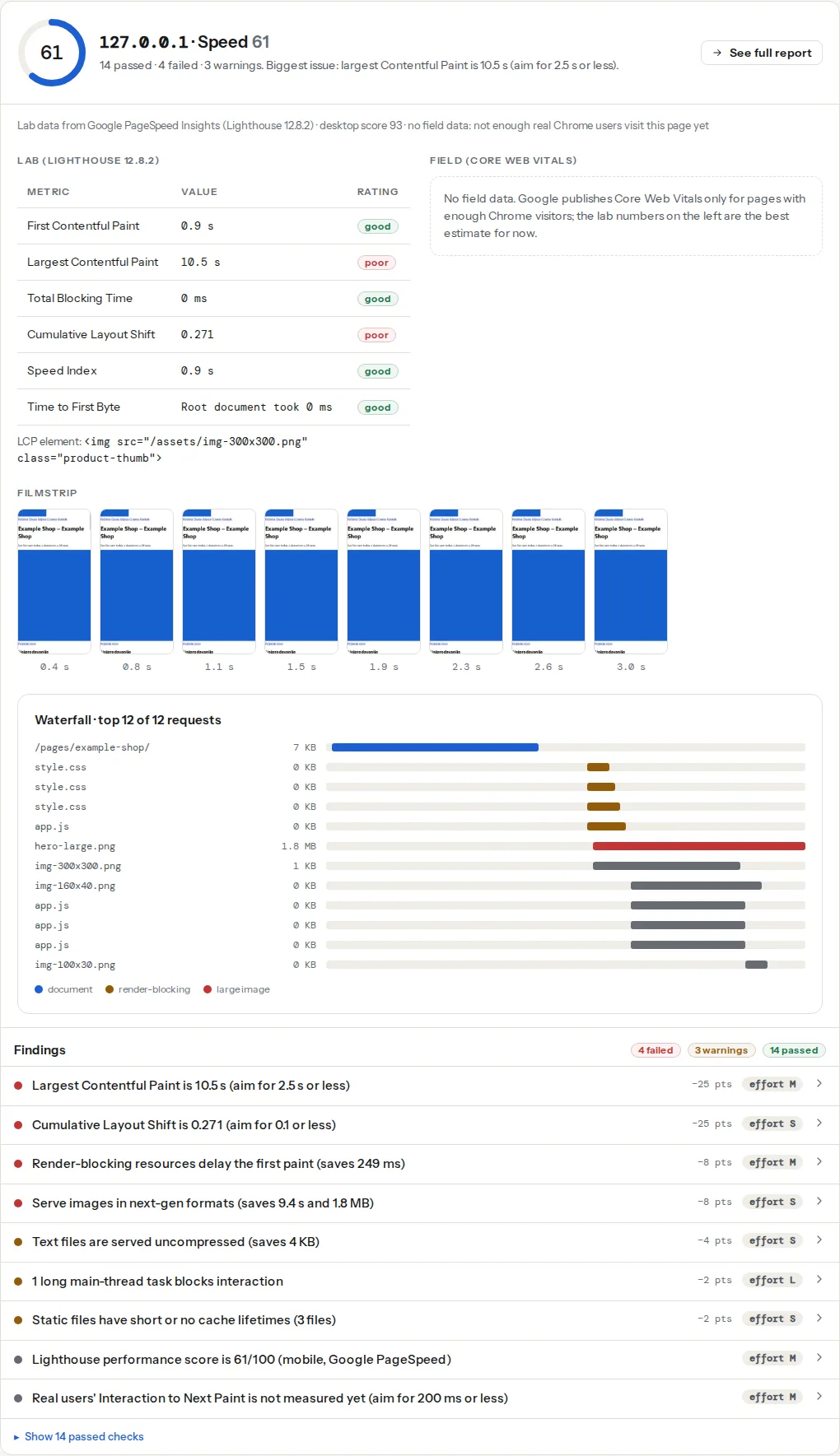
The tool runs Lighthouse through Google's PageSpeed API on a throttled phone and on desktop, and shows real-user Core Web Vitals from the Chrome UX Report beside the lab values. On a Shopify store, the findings to read first are the LCP element and the third-party weight:
![The speed test panel on a Shopify store: metric bars for LCP, INP, CLS, TBT and Speed Index, then the findings list with the LCP finding naming the hero image and the third-party finding listing app scripts by weight](https://getreport.app/guides/img/shopify-what-you-can-and-cannot-fix/speed-panel.webp "The third-party finding is where the apps show up, one line per domain with its bytes and blocking time.")

> **Check: Largest Contentful Paint.** LCP is when the biggest thing on screen — usually the hero image or headline — finishes loading. Visitors judge "is this site slow?" on it, and Google uses it for ranking.
>
> 1. Find the LCP element (named in your report) and make it lighter, earlier or both — a compressed WebP/AVIF, sized to the screen, without lazy loading.
> 2. Preload it with <link rel="preload" as="image"> or add fetchpriority="high" on the <img>.
> 3. Cut what comes before it — render-blocking CSS/JS and slow server responses push LCP back.

> **Check: Third-party code weight.** Tags, widgets and embeds from other companies run on your visitors' phones at your page's expense. Over 250 KB or 250 ms of blocking is a sign they dominate the load.
>
> 1. List what each third party gives you; remove the ones nobody looks at.
> 2. Load the rest after interaction or with a facade (a static thumbnail for YouTube, a click-to-load chat button).
> 3. Move tags into a tag manager that fires them late, not in <head>.

The SEO module runs on the same page. Two of its findings behave in a Shopify-specific way: the canonical is printed by every Theme Store theme, so a missing one means the theme's `<head>` was edited, and breadcrumbs are absent from most Shopify themes by default, so the breadcrumb finding is informational rather than something to chase.

> **Check: Canonical tag is present.** Without a canonical URL, search engines may index duplicate versions of this page (with and without trailing slash, with UTM parameters) and split its ranking signals.
>
> 1. Add <link rel="canonical" href="https://your-site.com/page/"> in <head>.
> 2. In WordPress, Yoast or Rank Math add this automatically — check it is not disabled for this page.

> **Check: Breadcrumb navigation found.** Breadcrumbs show visitors where they are and let Google show a readable path instead of the URL in desktop results. Most useful on shops and sites more than two levels deep.
>
> 1. Add a breadcrumb trail in a <nav aria-label="Breadcrumb"> and describe it with BreadcrumbList structured data.

The security module will list headers Shopify does not send. Those findings are correct and not yours to fix; see "What to ignore" below.

## What Shopify controls

You cannot change any of these, and the report's findings on them describe the platform, not your work:

| Area | What Shopify does | What the report shows |
| --- | --- | --- |
| Hosting, CDN, TTFB | Every store is on Shopify's infrastructure behind its CDN | TTFB and server response time are the platform's; a slow value on a product page is usually the theme's Liquid, not the server |
| Protocol and TLS | HTTP/2 and newer, TLS managed, certificates renewed | Pass |
| Compression and asset caching | Brotli/gzip on text, long cache lifetimes on theme assets with version parameters | Pass; any cache finding lists third-party app scripts |
| Response headers | HSTS, framing protection and the rest are Shopify's; there is no place to add a header | CSP and Permissions-Policy findings fail on every store |
| URL structure | `/products/handle`, `/collections/handle`, `/pages/handle`, `/blogs/name/handle` | URL length and structure findings reflect the handles you chose, not the folders |
| Canonicals | Printed by the theme from `canonical_url`; variant URLs and collection-scoped product URLs canonicalise to `/products/handle` | Pass unless the theme's head was edited |
| Sitemap | `/sitemap.xml` with product, collection, page and blog sub-sitemaps, updated automatically | Pass |
| Checkout | Hosted by Shopify; no theme code or app scripts of yours beyond approved extensions | Not part of the report; test the storefront pages |

The one item that moved from this pile to yours: since 2021 you can edit robots.txt by adding a `robots.txt.liquid` template (Online Store → Themes → Edit code → Add a new template → robots). Keep Shopify's default rules and add yours after them; the [AI crawlers guide](https://getreport.app/guides/ai-crawlers-and-robots-txt) has the template.

## What you can fix

### Apps, in order of weight

Every app that touches the storefront adds at least one script to every page, and most add a stylesheet and a few requests to their own domain. The third-party finding lists them by domain with bytes and main-thread blocking time. Work down that list:

1. Online Store → Themes → Customize, then the **App embeds** panel in the editor's sidebar: each toggle is an app injecting code into every page. Turn off the ones whose feature you do not use. Some apps stay installed for their admin side but need no storefront code.
2. Settings → Apps and sales channels: uninstall apps nobody has opened in months. A reviews app with no reviews and an upsell app with no upsells still load.
3. After uninstalling, view the source of a product page and search for the app's name. Apps that predate app embeds pasted their snippet into `theme.liquid` or a section, and uninstalling does not remove it. Delete the snippet in Edit code.
4. Tracking pixels (Meta, TikTok, Pinterest, Google Ads) belong in Settings → **Customer events** as custom pixels, where they respect the consent setting under Settings → Customer privacy and load after the page, not in `theme.liquid`.

The general method for anything that survives is in [Third-party scripts: tag managers, chat and ads](https://getreport.app/guides/third-party-scripts-tag-managers-chat-and-ads).

### The theme and the hero image

Themes from the Theme Store have to meet Shopify's performance requirements, and the current generation (Dawn and the themes built on it) sizes images with `srcset` and lazy-loads below the fold. Two things still go wrong:

**The hero image is lazy-loaded.** Some themes and most slideshow sections lazy-load every slide, including the first. The LCP finding names the element; if it is the first banner and it carries `loading="lazy"`, change the section's Liquid so the first image is eager. In a theme built on Dawn, the image banner section has this pattern:

```liquid
{%- comment -%} sections/image-banner.liquid: first image eager, the rest lazy {%- endcomment -%}
{{ section.settings.image
  | image_url: width: 3840
  | image_tag: loading: 'eager', fetchpriority: 'high', widths: '375, 750, 1100, 1500, 1780, 2000, 3000, 3840', sizes: '100vw' }}
```

`image_url` asks Shopify's CDN for a resized copy; `image_tag` writes the `<img>` with `srcset`, `width` and `height`. Shopify's CDN serves WebP to browsers that accept it, so the format finding usually passes without work.

**The upload is enormous.** The CDN resizes, but a 5000 px, 8 MB upload still produces a large 2000 px variant. Export heroes at 2000–2500 px wide before uploading. The report's image table shows the served size per image.

### Fonts

Theme settings → Typography. Each font family is a download per weight; two families in two weights is a reasonable budget. The picker's system fonts (Helvetica, Arial, Georgia and the like) download nothing. If the report flags web fonts hiding text, the theme's `font_face` filter already includes `font-display: swap` in current themes; older themes need the setting or the CSS edited.

### Titles, descriptions and social images

Every product, collection, page and blog post has a **Search engine listing** section at the bottom of its edit screen: page title, meta description and URL handle. Left empty, Shopify uses the product title and the first lines of the description, which is fine for products and poor for collections. Write the collection ones by hand; they are the pages that rank for category terms. The rules are in [Title and meta description: writing for the result page](https://getreport.app/guides/titles-and-descriptions-for-the-result-page).

The home page title and description live under Online Store → Preferences, and so does the **Social sharing image**, the fallback card image for pages without a featured image. Set it to a 1200×630 px image so shared links to the home page and collections get a card; the [link preview guide](https://getreport.app/guides/link-previews-open-graph) covers what each network shows.

### Redirects

Online Store → Navigation → **URL redirects**. Shopify offers to create one when you change a product or collection handle; take it. Deleted products get none, so add them by hand or import a CSV with `Redirect from` and `Redirect to` columns. Shopify serves them as 301.

### Structured data

The theme prints Product and Article JSON-LD; current themes build it with the `structured_data` Liquid filter from the product object, so the price and availability follow the variant data. Apps for reviews and for "SEO schema" often add a second Product block. The schema module lists the types on the page; if it shows `Product ×2`, turn the app's schema option off and keep the theme's. [Product schema: price, availability and reviews](https://getreport.app/guides/product-schema-price-availability-reviews) has the Shopify section.

### Alt text and image sizes

Alt text is set per image in the product's Media section (click the image → Add alt text). The report's image alt finding lists the images without it. Collection images and section images get alt text in the theme editor's image picker.

## What to ignore

- **Content-Security-Policy and Permissions-Policy missing.** Shopify sets the response headers and provides no way to add these. The findings are accurate, the score is capped, and there is nothing to do.
- **Cookie flags on Shopify's cookies.** `_shopify_y`, `_secure_session_id`, cart and checkout cookies are Shopify's. Cookies set by your theme's JavaScript or by apps are the only ones you can change, and usually only by removing the app.
- **Server response time on an uncached page.** You cannot add a page cache. If TTFB is high on one page and normal on others, look at that page's Liquid (a loop over all products in a mega-menu is the classic cause), not at the platform.
- **Text compression, HTTP/2, cache lifetimes on Shopify's CDN.** Already handled; any listed files are app scripts on other domains.
- **Breadcrumb navigation not found.** Most Shopify themes ship without breadcrumbs. Add them if the store is more than two levels deep; otherwise leave the info finding.

## Shopify's dashboard versus the report

Online Store → Themes shows Shopify's **Web performance** dashboard with LCP, CLS and INP from real visitors to your store. It is the same kind of data as the field numbers in the report (real Chrome users, 75th percentile), and it is the number to watch over time. The report adds what the dashboard does not: the lab diagnosis of *which* element and *which* scripts, the SEO, schema and social checks of the same page, and a permanent link for the before-and-after. Use the dashboard to see whether the store passes, and the report to see what to change.

## Verify

- The third-party finding lists only apps you decided to keep, and the total blocking time it reports has dropped.
- The LCP finding names the hero image with no `loading="lazy"` on it, and the LCP metric on the collection page is under 2.5 s in the lab.
- Search engine listing fields are filled on every collection, and the meta description finding passes on a sample of them.
- Shopify's Web performance dashboard shows the store passing all three vitals after 28 days of the changes.

## Common mistakes

- **Chasing the security score.** Hours spent on headers you cannot set. Note them once and move on.
- **Uninstalling an app without removing its snippet.** The script still loads from `theme.liquid`. Search the theme code for the app's domain after every uninstall.
- **Switching themes to fix speed.** A new theme with the same 14 apps is the same speed. Fix the apps first; then a lighter theme shows a difference.
- **Pixels pasted into theme.liquid.** They load before the page and ignore consent. Move them to Customer events.
- **Testing only the home page.** Collection pages carry 24 product images and most of the app widgets. Test one of those and one product page.
- **Uploading camera-size images because "the CDN resizes".** It does, but the largest variant is still large, and the CDN cannot invent sharpness you did not need. Export at 2500 px.
