# Rate limiting and bots on a small site, without blocking Google
> Most traffic on a small site is bots: crawlers, scrapers, login guessers. Layer robots.txt, a CDN, server rate limits and WordPress switches so they stop costing CPU and Google never notices.
Updated 2026-09-25 · Security · HTML version: https://getreport.app/guides/rate-limiting-and-bot-protection-on-a-small-site
Open the access log of any site that has been online for a year and count the lines that came from a person. On a small site it is often under half. The rest is Googlebot doing its job, a dozen AI crawlers reading everything, SEO tools measuring your backlinks, scripts guessing passwords at `wp-login.php`, and scanners asking for `/.env` and `/wp-config.php.bak` on the off chance. This guide sorts that traffic into what to allow, what to slow and what to block, and adds the protections in order of cost, starting with the ones that are free and cannot hurt Google. Budget an hour for the CDN and server steps, plus a log check a week later.
## Quick answer
- Read your access log with the [log analyser](https://getreport.app/tools/log-analyser) first. It tells you which bots hit you, how much, and whether the "Googlebot" in your log is real.
- `robots.txt` is a request, not a lock. It works on Google, Bing and most AI crawlers. It does nothing against scanners and password guessers.
- Put the site behind a CDN with bot rules (Cloudflare's free plan is enough): challenge bad traffic, rate-limit `wp-login.php` and `xmlrpc.php`, and let verified search bots through untouched.
- At the web server, add a request limit on the login path and block dotfiles. On WordPress, disable XML-RPC if nothing uses it.
- Never block by the string "Googlebot", never challenge all bots, never geo-block the country your visitors or your CDN edge are in.
- A week later, re-read the log: fewer fake Googlebots, fewer 404s from scanners, a lower average response time.
## Why bot traffic matters on a small site
Every request costs the server the same whether a person or a script made it. On shared hosting with one CPU share and a PHP application behind it, a scanner walking through 3,000 plugin paths in a minute uses the same capacity as 3,000 real page views, and while it runs, everyone else's Time to First Byte goes up. That is how bot traffic turns into a speed problem: the report's [TTFB](https://getreport.app/learn/time-to-first-byte) finding says "slow server", and the cause is a script in Vietnam guessing your admin password.
The damage has four shapes:
- **CPU and response time.** Login attempts and XML-RPC calls run PHP and hit the database on every request; page caches do not help because the requests are POSTs to uncached paths.
- **Bandwidth.** Scrapers that copy the whole site pull every image. On a metered plan that is money; on a fair-use plan it is a warning email from the host.
- **Log noise.** Thousands of 404s from scanners hide the 404s that matter: the ones Googlebot hits because a real page moved.
- **Credential stuffing.** Password guesses are cheap for the attacker and only have to work once. A brute-force run against a site with a weak password succeeds in hours.
Bot traffic is also not one thing: some you want (Googlebot, Bingbot, link preview fetchers), some you may want (AI crawlers), some is useless but harmless (SEO tools), and some is hostile. Treating it as one thing fails in both directions: blocking everything that says "bot" loses Google; allowing everything costs TTFB.
## How getReport checks it
> **Free tool:** [Server log analyser: what Googlebot, Bingbot and AI crawlers really do on your site](https://getreport.app/tools/log-analyser): Drop an access log (Apache, Nginx, IIS, JSON, up to about 500 MB, .gz too) and see which bots crawl you, how often, what they hit, the 404s and redirects they waste time on, which AI crawlers read your content, and whether the Googlebot in your log is the real one. Processed in your browser; the file is never uploaded.
getReport does not measure bot load directly; no external tool can see your server's CPU. What it shows are the symptoms and the record. The record is your access log, which the log analyser reads in your browser (nothing is uploaded) and turns into one row per bot:
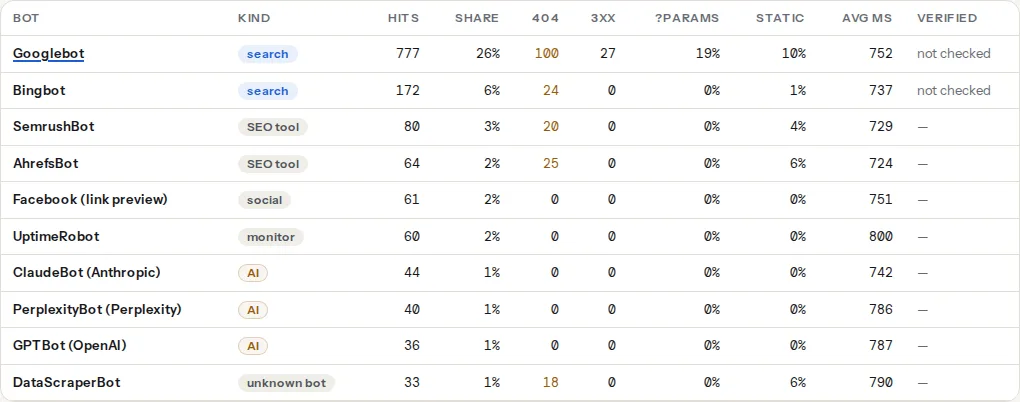
The columns that matter for this job are **Hits** and **Share** (who costs you the most), **404** (scanners generate hundreds; a real crawler generates a few), **Avg ms** (how slow the server was for that bot, when the log records response time) and **Verified**. Verification is a separate click: the addresses that claimed to be Googlebot or Bingbot are sent to our API, which does the reverse-DNS check Google documents, and the row then shows how many hits came from real, fake and unknown addresses.
One limit to know: bots are attributed by user agent. A scanner or a password-guessing script that sends a Chrome user agent is counted under "Human visits", not in the table. You find those with the 404 and 5xx tiles at the top and with a `grep` on the log (step 1 below).
The symptoms show up in an ordinary report:
> **Check: Time to First Byte.** TTFB is how long the server takes to start answering. Everything else waits for it, so a slow first byte makes every other metric worse. Google's 800 ms target is for real visitors, network included; Lighthouse flags the server's own share above 600 ms (see server response time).
>
> 1. Add page caching (WordPress: WP Rocket, LiteSpeed Cache, or your host's cache; Shopify does this for you).
> 2. Put a CDN in front (Cloudflare, Bunny) so the first byte comes from a nearby edge.
> 3. Check database-heavy plugins and slow hosting; a plan with more CPU often fixes this outright.
> **Check: Server header does not reveal a version.** A version string such as Apache/2.4.29 tells automated scanners exactly which known vulnerabilities to try. Hiding it costs nothing and breaks nothing.
>
> 1. Apache: ServerTokens Prod; nginx: server_tokens off; IIS: remove the header in web.config.
> 2. Behind Cloudflare or a load balancer, strip the header there.
A slow first byte on a site with a page cache and a small database is the classic sign of a server busy with something other than visitors. And a version in the `Server` header is an invitation: scanners pick their exploits from it. The report's robots.txt reading shows the third piece, which of the known AI crawlers you currently allow:
> **Check: AI crawler access.** AI assistants (ChatGPT, Claude, Perplexity) fetch pages with their own user agents. Google's AI Overviews use normal Googlebot, so only blocking Googlebot removes you from them, and that removes you from Search too. Blocking them keeps your content out of AI answers; allowing them can bring citations and visitors. Either is a valid choice, as long as it is the one you meant.
>
> 1. Decide per crawler: training bots (GPTBot, ClaudeBot, Google-Extended, CCBot) feed models; search bots (OAI-SearchBot, PerplexityBot) feed answers that link back; user bots (ChatGPT-User, Claude-User) fetch a page because someone asked. Google-Extended is a robots.txt token, not a crawler: it controls use in Gemini training, not AI Overviews.
> 2. Edit robots.txt: a "User-agent: GPTBot" group with "Disallow: /" blocks it; leave it out of robots.txt (or "Allow: /") to permit it. Rules for "*" apply to any crawler without its own group.
## Step by step
### 1. Find out what is actually hitting you
Export a week of access logs from the hosting panel (cPanel: Metrics → Raw Access; Plesk: Logs; a VPS: `/var/log/nginx/access.log` or `/var/log/apache2/access.log`, `.gz` is fine) and drop the file on the log analyser. Write down four numbers: the share of bot hits, the Googlebot 404 percentage, the number of fake Googlebot addresses after verification, and the average response time for Googlebot. You will compare against them later.
Then look for the traffic the table cannot attribute. Over SSH, the two commands that find login guessing and scanners:
```bash
# Addresses with the most POSTs to the login page or XML-RPC this week
grep -E 'POST /(wp-login\.php|xmlrpc\.php)' access.log | awk '{print $1}' | sort | uniq -c | sort -rn | head -20
# Addresses with the most 404s (scanners walk through hundreds of paths)
awk '$9 == 404 {print $1}' access.log | sort | uniq -c | sort -rn | head -20
```
The field numbers assume the common log format (address first, status ninth); adjust for JSON logs. A single address with 500 login POSTs in a day is a brute-force run. A single address with 2,000 404s, most of them under `/wp-content/plugins/…/readme.txt`, `/.env`, `/.git/config` or `/backup.zip`, is a vulnerability scanner. Note both patterns; the rules below target them.
### 2. robots.txt for the polite bots
`robots.txt` is obeyed by search engines, by the AI crawlers that identify themselves, and by most SEO tools. It is ignored by everything hostile, so it is a policy file, not a protection. Two things belong in it for this job.
First, the AI crawlers you do not want. The [ai-crawlers-robots](https://getreport.app/learn/ai-crawlers) finding lists which of the known ones your file currently blocks; the decision (training bots vs search bots vs user-triggered fetches) is in [AI crawlers and robots.txt](https://getreport.app/guides/ai-crawlers-and-robots-txt). A group per crawler is all it takes:
```text
# robots.txt at the site root
User-agent: GPTBot
Disallow: /
User-agent: CCBot
Disallow: /
User-agent: *
Disallow: /wp-admin/
Allow: /wp-admin/admin-ajax.php
```
Second, what *not* to put in it: `Crawl-delay`. Google ignores the directive (its crawl rate is adaptive and set from how fast your server answers); Bing and Yandex honour it. Adding `Crawl-delay: 10` therefore slows Bing and changes nothing for the crawler that fetches you most. If Googlebot really is too fast for the server, the fix is server speed, and in the worst case a temporary 503 or 429 on overload, which Google treats as a signal to slow down.
### 3. The CDN layer: cheapest per request
A CDN answers the request before it reaches your server, so a bot stopped there costs you nothing. Cloudflare's free plan covers everything a small site needs:
- **Bot Fight Mode** (Security → Bots) challenges traffic that matches known bad-bot patterns. It leaves Cloudflare's list of verified bots alone, which includes Googlebot and Bingbot, so turning it on does not affect crawling.
- **A WAF custom rule** with the Managed Challenge action for the paths that only humans should reach. A managed challenge is invisible to most browsers and stops scripts cold:
```text
(http.request.uri.path eq "/wp-login.php" and not cf.client.bot) or
(http.request.uri.path eq "/xmlrpc.php")
```
- **A rate limiting rule** (Security → WAF → Rate limiting rules) for login attempts. The free plan includes rate limiting with a fixed short counting window, which is enough for this: more than a handful of POSTs to the login page from one address in ten seconds is never a person.
```text
Expression: (http.request.uri.path eq "/wp-login.php" and http.request.method eq "POST")
Rate: 5 requests per 10 seconds, per IP
Action: Block for 10 minutes
```
The field `cf.client.bot` is true for the verified bots on Cloudflare's list, which is the safety net in every rule above: as long as a rule says `not cf.client.bot`, Googlebot is never challenged by it. Bunny and Fastly have equivalents (Bunny Shield, Fastly's Next-Gen WAF); the principle is the same, exclude verified search bots explicitly and rate-limit the login path, not the whole site.
One trap: when the site is behind a CDN, the web server sees the CDN's addresses, not the visitor's. Any server-side rule in step 4 needs the real address restored first (`real_ip_header CF-Connecting-IP` on nginx, `mod_remoteip` on Apache), and the origin should accept connections only from the CDN's ranges, or bots that know the origin address walk around the CDN entirely.
### 4. Web server rate limits
For sites without a CDN, or as a second layer behind one, the web server can count requests itself. On nginx, `limit_req` does exactly this and costs nothing measurable:
```nginx
# /etc/nginx/nginx.conf, inside the http { } block
limit_req_zone $binary_remote_addr zone=login:10m rate=10r/m;
# /etc/nginx/sites-available/example.com, inside the server { } block
location = /wp-login.php {
limit_req zone=login burst=5 nodelay;
limit_req_status 429;
include fastcgi_params;
fastcgi_pass unix:/run/php/php8.3-fpm.sock;
fastcgi_param SCRIPT_FILENAME $document_root$fastcgi_script_name;
}
location = /xmlrpc.php {
return 403;
}
# Never serve dotfiles (.env, .git, .htaccess)
location ~ /\. {
deny all;
}
```
`rate=10r/m` allows ten login requests per minute per address; `burst=5` lets a real person who mistypes twice through without a 429. Copy the `fastcgi_pass` line from the existing `location ~ \.php$` block so the login page still runs PHP.
Apache has no request-rate module in its default set. `mod_ratelimit`, despite the name, limits *bandwidth* per connection, which does nothing against 500 small POSTs. The Apache answer to request rates is `mod_evasive` (where the host has installed it) or fail2ban below. What `.htaccess` can do is close the door on XML-RPC and dotfiles:
```apache
# .htaccess at the site root
Require all denied
RedirectMatch 404 /\..*$
```
**fail2ban** watches the log and bans addresses at the firewall after repeated matches, which works on any web server. The filter and jail for WordPress logins:
```text
# /etc/fail2ban/filter.d/wordpress-login.conf
[Definition]
failregex = ^ .* "POST /(wp-login\.php|xmlrpc\.php)
ignoreregex =
```
```text
# /etc/fail2ban/jail.d/wordpress-login.conf
[wordpress-login]
enabled = true
filter = wordpress-login
logpath = /var/log/nginx/access.log
port = http,https
maxretry = 10
findtime = 10m
bantime = 1h
```
Ten login POSTs in ten minutes from one address earns an hour's ban. Run `sudo fail2ban-client status wordpress-login` a day later to see the count; if it is zero, check that `logpath` matches the file your server writes.
### 5. The application layer
Whatever reaches PHP is the most expensive kind of request, so the goal is to leave as little as possible for this layer. Three things still belong here:
- **XML-RPC off** if nothing uses it (Jetpack and some older publishing apps do). The server block above is cheaper, but where you cannot edit server config, the filter in a small plugin or the theme's `functions.php` makes WordPress refuse the calls:
```php
add_filter('xmlrpc_enabled', '__return_false');
```
- **A login limiter** at the PHP level (Limit Login Attempts Reloaded or similar) when neither a CDN rule nor a server rule is available. It works, but every blocked attempt still boots WordPress; on a shared host that is the cost you were trying to avoid.
- **A WAF plugin** (Wordfence, Solid Security, and the like) inspects every request in PHP. That is a real defence against exploit attempts, and it has a price: 20–100 ms of extra TTFB on every uncached request, and more while its scanner runs. If the CDN layer is in place, run the plugin's firewall in its lightest mode or leave it to the scanner-only role. The rest of the WordPress side (updates, passwords, two-factor, `DISALLOW_FILE_EDIT`) is in [WordPress security basics without a plugin](https://getreport.app/guides/wordpress-security-basics-without-a-plugin).
### 6. Hide what invites scanners
Scanners choose exploits by what the server tells them. `Server: Apache/2.4.29` and `X-Powered-By: PHP/7.4.3` narrow the search to a handful of known holes. `server_tokens off;` on nginx, `ServerTokens Prod` on Apache and `expose_php = Off` in `php.ini` remove the version numbers; the [server and X-Powered-By headers guide](https://getreport.app/guides/server-and-x-powered-by-headers-version-numbers) has the config for each platform. Combine it with the dotfile rule from step 4 so `/.env` and `/.git/HEAD` answer 404, and the two things every scanner tries first come back empty. The [security headers checker](https://getreport.app/tools/security-headers) confirms both in one run.
## What never to do
- **Block the user agent "Googlebot" without verifying the address.** Most fake Googlebots are scrapers hoping you allow the name. Blocking by name stops the real one too. Verify by IP (the log analyser's Verified column, or Google's published IP ranges) and block the fakes by address.
- **Challenge all bots.** A JavaScript challenge or a CAPTCHA on every request locks out Googlebot, Bingbot, link preview fetchers and uptime monitors. Every rule with a challenge needs the verified-bot exclusion.
- **Geo-block a whole country.** Your CDN's edge servers, your uptime monitor, your own developer on holiday, and Google's crawlers (which fetch from the US) all have countries. Block addresses, not maps.
- **Rate-limit so tightly that Googlebot backs off.** Google slows down when it gets 429 or 5xx answers, and Search Console → Settings → Crawl stats shows it: a drop in crawl requests and a rise in "server errors" after the day you added the rule. Limits belong on the login path and XML-RPC, not on `/`.
## Verify
- Re-run the [log analyser](https://getreport.app/tools/log-analyser) on the following week's log. The fake Googlebot count should fall to near zero, the 404 share of unknown bots should drop, and the average response time for Googlebot should be no worse than before.
- `grep -c 'POST /wp-login.php' access.log` for the new week is a fraction of the old week's number.
- Run the [TTFB test](https://getreport.app/tools/ttfb-test): the first byte should be lower or unchanged. If it got slower, a plugin-level firewall is the usual reason.
- Search Console → Settings → Crawl stats: total crawl requests steady, no new spike in 429 or 5xx responses.
- `curl -sI https://example.com/xmlrpc.php` answers 403 (or 404), and `curl -sI https://example.com/.env` answers 404.
## Common mistakes
- **The rule works in testing and does nothing in production.** Symptom: the same address keeps guessing. The server sees the CDN's address for every visitor, so per-IP limits count everyone as one client. Restore the real address with `real_ip_header` or `mod_remoteip`.
- **robots.txt blocks a scanner.** Symptom: the `Disallow` line exists, the 404s continue. Hostile bots never read the file. Move that rule to the CDN or the firewall.
- **The login page rate limit catches the team.** Symptom: colleagues behind one office address get 429 on the second login of the morning. Add `burst` on nginx, raise the per-window count on the CDN, or exclude the office address.
- **A security plugin and a CDN both challenge.** Symptom: TTFB doubled after "adding protection". Two firewalls inspect every request; keep the CDN as the firewall and let the plugin do scanning only.