# Open Graph images: the right size, safe area and weight
> One 1200×630 px image with text inside the safe area and a file under 1 MB looks sharp on Facebook, LinkedIn, X, Slack and WhatsApp. How to make it, tag it and refresh old previews.
Updated 2026-09-25 · Social previews · HTML version: https://getreport.app/guides/open-graph-images-size-safe-area
When someone shares your link, the image is most of the preview card. Facebook, LinkedIn, X, Slack, WhatsApp and iMessage all read it from the same `og:image` tag, then each crops, scales and caches it in its own way. One image designed with those differences in mind looks right everywhere; one designed for a single network gets its headline cut in half on the others. This guide gives you the size, the safe area, the file format and weight, the tags, and the way to force a network to show the new image. Making the first template takes about an hour; every page after that is automatic.
## Quick answer
- **Size:** 1200 × 630 px (1.91:1). Never below 600 × 315 px.
- **Safe area:** keep text and logos inside the central 1000 × 500 px; put the one thing that must survive a square crop in the middle 630 × 630 px.
- **Format and weight:** JPEG or PNG, under 1 MB, ideally 100–300 KB.
- **Tags:** absolute `https://` URL in `og:image`, plus `og:image:width`, `og:image:height`, `og:image:alt` and `twitter:card` set to `summary_large_image`.
- **Reachable:** the image answers 200 to anyone, with no login, hotlink block or robots.txt rule in the way.
- **Stale preview:** re-scrape in Facebook's Sharing Debugger and LinkedIn's Post Inspector, or change the image URL.
## Why the image matters
In a feed or a chat, people decide in a fraction of a second whether a link is worth opening, and the image is the largest thing on the card. A sharp, relevant image makes the link look like it goes somewhere; a blurry logo, a cropped headline or a grey placeholder makes it look broken, and fewer people tap it.
It is also the part that goes wrong most often. Titles and descriptions come from text the page already has. The image has to be made at the right shape, uploaded to a public address, tagged with an absolute URL and fetched by a scraper that is stricter than a browser. Every one of those steps fails on real sites, silently, until someone shares the link.
## How getReport checks it
> **Free tool:** [Link preview checker (Open Graph)](https://getreport.app/tools/link-preview): See how your page looks when shared on Facebook, LinkedIn, X, Slack and WhatsApp: Open Graph and Twitter card tags, image size and reachability, canonical match.
The [link preview checker](https://getreport.app/tools/link-preview) reads the Open Graph and Twitter card tags, then downloads the image named in `og:image` and measures it. The width, height and format come from the file itself, not from the `og:image:width` tag, so a tag that claims 1200 × 630 on a 400 × 210 file is caught.
> **Check: Open Graph image is present.** Without og:image, links shared on Facebook, LinkedIn, Slack and WhatsApp appear as plain text and get far fewer clicks.
>
> 1. Add with a 1200×630 px image.
> 2. Use an absolute https URL that is publicly reachable.
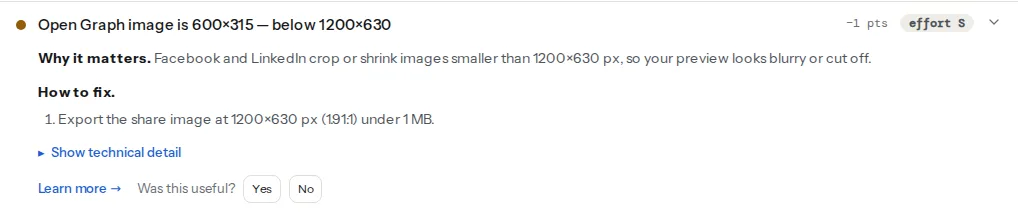
> **Check: Open Graph image size.** Facebook and LinkedIn crop or shrink images smaller than 1200×630 px, so your preview looks blurry or cut off.
>
> 1. Export the share image at 1200×630 px (1.91:1) under 1 MB.
> **Check: Open Graph image can be fetched.** Facebook, LinkedIn and Slack download og:image themselves when someone shares the link. A relative URL, an http:// URL on an https page, or an error response means the card has no picture.
>
> 1. Point og:image at an absolute https:// URL that answers 200 with a JPEG, PNG or WebP.
> 2. Check that the image is not blocked by robots.txt, a login wall or a hotlink rule.
> **Check: X (Twitter) cards have an image.** X uses twitter:image, or falls back to og:image. With neither, the card shows text only and gets far fewer clicks.
>
> 1. Add , or set og:image; X reads that as a fallback.
The reachability check also reports the image's format, size in pixels and file weight when it passes, which is the quickest way to spot a 4 MB PNG. Our learn pages on [Open Graph](https://getreport.app/learn/open-graph) and [Twitter cards](https://getreport.app/learn/twitter-cards) cover the text tags.
## How each network crops
The card shapes differ, so the design has to survive all of them:
| Where | What it shows |
| --- | --- |
| Facebook | Full width at 1.91:1; below about 600 × 315 px a small thumbnail beside the text instead |
| LinkedIn | Full width at 1.91:1 |
| X, `summary_large_image` | Full width at 2:1, so about 15 px is trimmed from the top and the bottom |
| X, `summary` | A small square thumbnail cut from the centre |
| Slack | The image under the title, scaled down to fit the message |
| WhatsApp | A square thumbnail from the centre in compact previews, the wide image in larger ones |
| iMessage | A large wide preview with rounded corners |
Put in words, the safe-area diagram is three nested rectangles on the 1200 × 630 canvas:
1. **The canvas, 1200 × 630.** Background colour, photo or pattern. Anything here may be trimmed at the edges.
2. **The safe area, 1000 × 500, centred.** That leaves 100 px free on the left and right and 65 px at the top and bottom. Headline, logo and any other text go inside it; they survive the 2:1 trim, rounded corners and the small differences between networks.
3. **The square, 630 × 630, centred.** It runs from 285 px to 915 px across. The one element that must be recognisable in a square thumbnail (the product, a face, the logo mark) sits here.
Text should be large, 60 px or more on the 1200 px canvas, because the card is usually shown at a third of that width or less on a phone.
## Step by step
### 1. Make one template per page type
A blog post, a product and a landing page need different images, but not one design each. Build a template per page type at 1200 × 630 with the safe area marked: title in the safe area, brand colour, and a slot for the product photo or author picture. Any design tool with a fixed-size frame works.
### 2. Export at the right weight
JPEG for photos, PNG for flat graphics with few colours. Both are read by every scraper. WebP and AVIF are smaller, and X and some others accept WebP, but support is not universal across chat apps, email clients and older scrapers, so JPEG or PNG is the safe choice for this one file. Aim for 100–300 KB; stay under 1 MB. Facebook accepts up to 8 MB, but big files are fetched slowly and some apps skip them.
With ImageMagick 7, this crops any source image to the right shape and compresses it:
```bash
magick source.png -resize 1200x630^ -gravity center -extent 1200x630 -strip -quality 82 share.jpg
```
`-resize 1200x630^` fills the frame, `-extent` crops the overflow from the centre, and `-strip` removes metadata that only adds weight.
### 3. Add the tags
In the page ``:
```html
```
The URL must be absolute and `https://`: scrapers do not resolve `/img/og.jpg` against the page. The width and height tags let Facebook show the image on the very first share, before it has downloaded and measured the file itself. The `alt` text is read by screen readers on the networks that support it; describe the picture, not the page. X reads `og:image` when `twitter:image` is missing, so a separate `twitter:image` is only needed for a different image on X.
### 4. Check that the image is public
Open the image URL in a private browser window. Then check what scrapers see: the image must answer 200 without a cookie, must not be blocked by `robots.txt` (some scrapers, X's among them, respect it for the image too), and must not be caught by a hotlink-protection rule that only allows your own domain as referrer. Firewalls and bot-protection services that challenge unknown user agents block scrapers as well; allow them for `/img/og/` or wherever the images live. Our guide on [robots.txt rules that hide a site](https://getreport.app/guides/robots-txt-before-it-hides-your-site) shows how to read the file.
### 5. Automate it
Hand-made images do not scale past a few dozen pages. Generate them instead: the page title and a photo go into the template at build time or on request, and the result is cached. getReport does this for its own reports: every report link gets a 1200 × 630 PNG with the site's scores, rendered on the server when the link is first shared.
In a Next.js App Router project, a file next to the page is enough. `getPost` stands for however your project loads a post:
```js
// app/blog/[slug]/opengraph-image.js
import { ImageResponse } from 'next/og';
import { getPost } from '@/lib/posts';
export const size = { width: 1200, height: 630 };
export const contentType = 'image/png';
export default async function Image({ params }) {
const { slug } = await params;
const post = await getPost(slug);
return new ImageResponse(
(
{post.title}
),
size,
);
}
```
Next.js adds the `og:image` tags with width and height for you. The padding is the safe area from above.
### 6. Refresh the previews that are cached
Networks keep the first version they scraped, often for days. After changing the image:
- **Facebook:** paste the URL into the Sharing Debugger and click "Scrape Again".
- **LinkedIn:** paste it into the Post Inspector, which fetches it fresh.
- **Everywhere else,** including X, Slack and WhatsApp, which have no public refresh tool: change the image URL, for example `share-v2.jpg` or `share.jpg?v=2`. A new URL is always fetched fresh.
## Platform notes
### WordPress
Yoast SEO and Rank Math write the Open Graph tags. Per post, set the image in the editor sidebar: Yoast SEO → Social appearance, or Rank Math → Edit Snippet → Social. Without one, both fall back to the featured image, which is often a different shape and gets cropped. Set a site-wide default for pages without an image: Yoast SEO → Settings → Site basics → Site image; Rank Math → Titles & Meta → Global Meta → OpenGraph Thumbnail. With both plugins installed you get two sets of tags; keep one.
### Shopify
Online Store → Preferences → Social sharing image sets the default. Products use their featured image, so a square product photo is shown with bars or cropped; a 1.91:1 lifestyle image as the first product image avoids that.
### Static sites and custom builds
Generate the images at build time from the page front matter (the Next.js example above, or a script that fills an HTML template and screenshots it at 1200 × 630), and write the absolute URL with the production domain, not `localhost`.
## Verify
- Re-run the link preview checker. The size finding reads "Open Graph image is 1200×630", and the reachability finding shows the format and a file weight under 1 MB.
- The preview on the checker's result shows your headline whole, inside the card.
- Facebook's Sharing Debugger and LinkedIn's Post Inspector show the new image after a re-scrape.
## Common mistakes
- **The logo on white as the share image.** It fills a tiny part of the card and looks like a placeholder. Use a designed 1200 × 630 image with the page's subject.
- **A relative URL.** `content="/img/share.jpg"` works in a browser and fails for every scraper. Write the full `https://` address.
- **An image behind a login, a hotlink rule or robots.txt.** You see it, the scraper does not, and the card shows no picture. Test the URL in a private window and check the reachability finding.
- **A 4 MB PNG screenshot.** Slow to fetch, sometimes skipped by chat apps. Export a JPEG at quality 80 to 85; it will be a tenth of the size.
- **Headlines touching the edges.** X trims the top and bottom, square crops cut the sides. Keep text inside the central 1000 × 500 px.
For the title, description and `og:url` tags around the image, continue with [link previews that look right everywhere](https://getreport.app/guides/link-previews-open-graph).