# Magento and Adobe Commerce performance: what to change first
> Magento 2 ships slow by default: a heavy PHP stack without Varnish, RequireJS bundles, the Luma theme and one script per extension. The settings and commands that fix it, in the order that pays.
Updated 2026-09-25 · Other platforms · HTML version: https://getreport.app/guides/magento-adobe-commerce-performance
A stock Magento 2 store usually fails Core Web Vitals on a phone, and most owners assume that is what an enterprise platform costs. It is not. The slow parts are a short list of defaults (no Varnish, developer mode left on, RequireJS loading hundreds of files, images uploaded at camera size) and a longer list of extensions, and each has a setting or a command. This guide goes through them in the order that moves the score most, with the exact paths for Magento Open Source and Adobe Commerce.
## Quick answer
| Symptom in the report | First fix | Where |
| --- | --- | --- |
| TTFB over 800 ms on a category page | Full page cache with Varnish, production mode | `bin/magento`, Stores → Configuration → Advanced → System |
| LCP over 2.5 s on the hero or product image | Images resized on upload, WebP via the CDN, `fetchpriority="high"` on the first image | Theme, CDN |
| Unused JavaScript over 1 MB, long tasks | Minify, then either advanced bundling or a theme that drops RequireJS (Hyvä) | Advanced → Developer, theme |
| 3,000+ DOM elements on category pages | Fewer products per page, remove the second menu, lighter theme | Catalog → Storefront, theme |
| Third-party code over 250 KB or 250 ms blocking | Disable extensions one at a time and re-test; fire tags late | Extensions, tag manager |
Run the [speed test](https://getreport.app/tools/speed-test) on one category page and one product page before you start; those two templates are where the time goes.
## Why Magento sites score badly by default
Magento was designed for flexibility, not for a phone on a slow connection. Four choices in the platform add up:
- **The PHP stack is heavy.** A category page runs hundreds of database queries, layout XML processing and block rendering. Without a full page cache in front, every visitor waits for all of it, and on an undersized server that is seconds.
- **The frontend loads JavaScript on demand with RequireJS.** The Luma theme and its Knockout templates pull in hundreds of small files per page, and most of that code never runs on that page. This is what the [unused JavaScript](https://getreport.app/learn/unused-javascript) and long-task findings measure.
- **The Luma theme's DOM is large.** Two menus (desktop and mobile), a layered navigation with every filter rendered, product grids with hidden swatches and hover states. Category pages well over the 1,500-element guideline are common.
- **Every extension adds a script.** Reviews, sliders, chat, analytics, fraud tools, payment SDKs: each extension with a frontend part adds its own files, often on every page and often in ``.
None of this is visible in the admin; the report shows it per page, in seconds and kilobytes.
## How getReport checks it
> **Free tool:** [Website speed test](https://getreport.app/tools/speed-test): Lighthouse lab results and real-user Core Web Vitals for any page, mobile and desktop, with a filmstrip, a request waterfall and a fix for every slow part. Free, no signup.
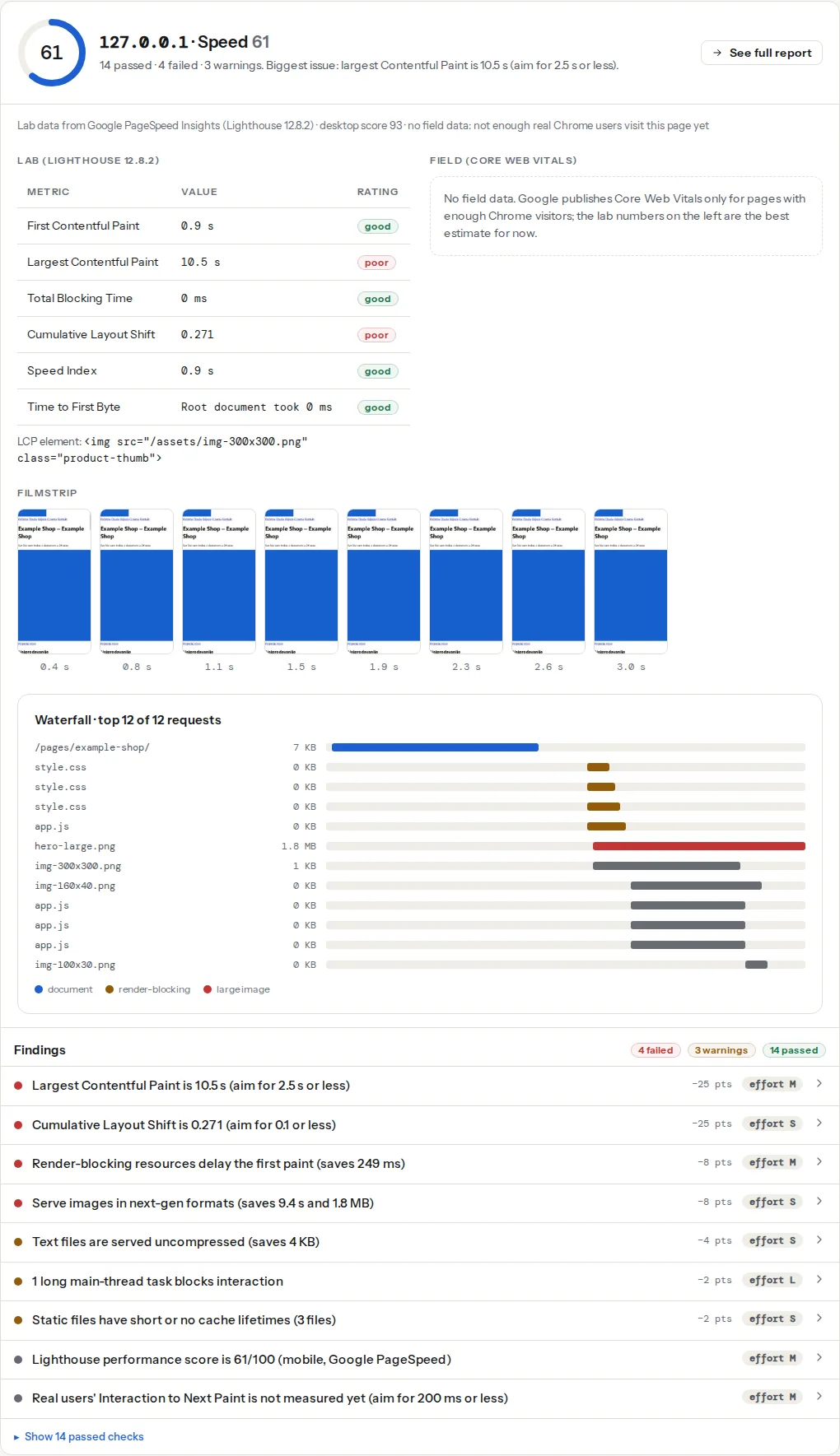
The speed module runs Lighthouse through PageSpeed Insights on a throttled phone and on desktop, and shows the real-user Core Web Vitals from the Chrome UX Report beside the lab numbers. On an image-heavy page the panel looks like this:
> **Check: Time to First Byte.** TTFB is how long the server takes to start answering. Everything else waits for it, so a slow first byte makes every other metric worse. Google's 800 ms target is for real visitors, network included; Lighthouse flags the server's own share above 600 ms (see server response time).
>
> 1. Add page caching (WordPress: WP Rocket, LiteSpeed Cache, or your host's cache; Shopify does this for you).
> 2. Put a CDN in front (Cloudflare, Bunny) so the first byte comes from a nearby edge.
> 3. Check database-heavy plugins and slow hosting; a plan with more CPU often fixes this outright.
> **Check: Largest Contentful Paint.** LCP is when the biggest thing on screen — usually the hero image or headline — finishes loading. Visitors judge "is this site slow?" on it, and Google uses it for ranking.
>
> 1. Find the LCP element (named in your report) and make it lighter, earlier or both — a compressed WebP/AVIF, sized to the screen, without lazy loading.
> 2. Preload it with or add fetchpriority="high" on the .
> 3. Cut what comes before it — render-blocking CSS/JS and slow server responses push LCP back.
> **Check: Little unused JavaScript is downloaded.** JavaScript is the most expensive thing a page loads — it must be downloaded, parsed and run. Code that never executes still costs all of that on a phone.
>
> 1. Delay third-party scripts until interaction (WP Rocket "Delay JavaScript", Shopify: audit installed apps).
> 2. Code-split large bundles so each page loads only its own code.
> 3. Remove plugins, apps and tags you no longer use.
> **Check: Page element count.** Every element costs memory, style calculation and layout time. Very large pages feel sluggish on phones and make layout shifts more likely.
>
> 1. Remove hidden or duplicated markup (mobile and desktop menus rendered twice, off-screen sliders).
> 2. Paginate or lazy-render long lists and product grids.
> 3. Simplify page-builder nesting — each wrapper div counts.
Two things matter for Magento. First, the TTFB finding measures the page you entered, and a page that was served from the full page cache a minute ago reads fast while a cold one reads slow. Test a page nobody opened today, or test twice and compare. Second, the LCP element on a product page is almost always the main product image, and on a category page the first grid image or the banner; the finding names the element so you know which template to fix.
The third-party weight finding (`third-party-weight`) lists each third party by name with its transfer size and main-thread blocking time. On a Magento store that list is the extension audit already started.
## Step by step
### 1. Switch to production mode
Developer mode compiles templates and static files on every request and disables static file caching. Stores go live in it more often than anyone admits. Check and switch from the server:
```bash
bin/magento deploy:mode:show
bin/magento deploy:mode:set production
```
The switch runs `setup:di:compile` and `setup:static-content:deploy` for you and takes a few minutes. Try it on a staging copy first: a theme with a broken LESS file that developer mode tolerated fails here.
### 2. Put Varnish in front
Magento's built-in full page cache stores pages on disk or in Redis and still boots PHP for every hit. Varnish serves cached pages without touching PHP, which is the single biggest TTFB change available. In the admin: Stores → Configuration → Advanced → System → Full Page Cache → Caching Application: **Varnish Cache**. Export the VCL from the same screen (there is a button per Varnish version), install it as `/etc/varnish/default.vcl`, let Varnish take the port visitors reach (or sit behind your TLS terminator), and have it forward to the web server on 8080. From the command line:
```bash
bin/magento config:set system/full_page_cache/caching_application 2
bin/magento config:set system/full_page_cache/ttl 86400
bin/magento varnish:vcl:generate --export-version=6 --output-file=/etc/varnish/default.vcl
bin/magento cache:flush
```
Two caveats. Pages with private content (the cart count, the customer name, recently viewed) are "hole-punched": Magento loads those blocks with a separate `customer/section/load` request after the cached page arrives. Extensions that mark a block as non-cacheable (`cacheable="false"` in layout XML) make the **whole page** uncacheable, which is why a store with Varnish configured can still show a 2 s TTFB. Find the culprit with `grep -r 'cacheable="false"' app/code vendor/*/*/view/frontend/layout` and ask the vendor for a fix or an AJAX version.
### 3. Move sessions and cache to Redis
The file backend for cache and sessions is slow under load and does not share between web nodes. Redis is supported out of the box:
```bash
bin/magento setup:config:set --cache-backend=redis --cache-backend-redis-server=127.0.0.1 --cache-backend-redis-db=0
bin/magento setup:config:set --page-cache=redis --page-cache-redis-server=127.0.0.1 --page-cache-redis-db=1
bin/magento setup:config:set --session-save=redis --session-save-redis-host=127.0.0.1 --session-save-redis-db=2
```
The page-cache line only matters while the built-in cache is the caching application; with Varnish selected it is unused, so it is safe to set either way.
### 4. PHP, OPcache and search
Use the newest PHP version your release supports (for 2.4.7 that is 8.2 or 8.3; check the system requirements of your exact version before upgrading). Then make sure OPcache is on and sized for Magento's tens of thousands of files, in `php.ini` or the OPcache ini file (`conf.d/10-opcache.ini` on Debian and Ubuntu):
```text
opcache.enable=1
opcache.memory_consumption=512
opcache.max_accelerated_files=60000
opcache.validate_timestamps=0
```
`validate_timestamps=0` means PHP never checks whether a file changed; restart PHP-FPM after each deploy. Elasticsearch or OpenSearch is required for catalogue search since 2.4 and is also what layered navigation uses; a search service on the same small server as MySQL is a common reason a category page is slow while the home page is fine. Give it its own memory (`-Xms2g -Xmx2g` for a mid-size catalogue) or its own machine.
### 5. Deploy static content once and sign it
In production mode static files are generated once per deploy:
```bash
bin/magento setup:static-content:deploy -f en_US de_DE
```
Deploy only the locales you sell in; each locale is a full copy of every theme's assets. Keep **Sign Static Files** on (it is by default; `bin/magento config:set dev/static/sign 1`): it adds a version number to every asset URL so you can send one-year cache headers without visitors seeing stale files after a deploy.
### 6. Merge, minify, and the bundling trap
The Developer section of the configuration is hidden in production mode; set its values from the command line:
```bash
bin/magento config:set dev/css/minify_files 1
bin/magento config:set dev/js/minify_files 1
bin/magento config:set dev/template/minify_html 1
bin/magento config:set dev/css/merge_css_files 1
bin/magento config:set dev/js/merge_files 0
bin/magento config:set dev/js/enable_js_bundling 0
bin/magento setup:static-content:deploy -f en_US
bin/magento cache:flush
```
Minified files are generated at deploy time, hence the redeploy. Minification is safe; merging CSS is usually fine. Do not turn on **Enable JavaScript Bundling** as it ships: the default bundler concatenates every RequireJS module of the theme into a few files that add up to several megabytes, loaded on every page, and the unused-JavaScript finding gets worse, not better. The options that actually help are, in order of effort:
1. **Advanced bundling** as documented by Adobe: a per-page-type configuration for the RequireJS optimiser (`r.js`) that produces one bundle for category pages, one for product pages, one for checkout. Adobe's `baler` tool automates part of this but never left early development; treat it as a starting point.
2. **A commercial bundling extension** that does the same with an interface and keeps working after upgrades. Test the result on the speed test before you buy.
3. **Skip the whole RequireJS layer** with a different frontend (step 10).
### 7. Fix the images
Magento resizes catalogue images to the sizes in the theme's `view.xml` but does nothing about the 4,000 px originals the admin uploaded, and the resized JPEGs are still JPEGs. Three moves, each visible in the LCP and image findings:
- Resize on upload, or resize the existing catalogue once with `bin/magento catalog:images:resize`, and keep originals under 2,000 px on the long side.
- Serve WebP or AVIF from the CDN (Fastly's image optimisation on Adobe Commerce on cloud; Cloudflare Polish or an image CDN in front of Open Source) or with an image extension; core Magento does not convert on its own.
- Give the first product image `fetchpriority="high"` and never `loading="lazy"`; lazy-load the rest of the grid. Theme override: `app/design/frontend///Magento_Catalog/templates/product/view/gallery.phtml` for the product page, `Magento_Catalog/templates/product/list.phtml` for the grid.
The full procedure with the numbers is in [How to fix Largest Contentful Paint](https://getreport.app/guides/fix-largest-contentful-paint).
### 8. Audit the extensions by measuring
Every extension is a hypothesis: disable one, flush the cache, run the speed test on the same product page, compare. Extensions that add a script to every page while only working on one (a checkout fraud tool that loads on the home page, a review widget on the category grid) are the usual finds.
```bash
bin/magento module:status | head -60
bin/magento module:disable Vendor_Module && bin/magento cache:flush
```
Read the third-party weight table before you start: the host with the most blocking time is the first candidate. What you cannot remove, load later; the [third-party scripts guide](https://getreport.app/guides/third-party-scripts-tag-managers-chat-and-ads) covers facades and late-firing tag managers.
### 9. Put a CDN in front
Adobe Commerce on cloud infrastructure ships with Fastly: set Caching Application to **Fastly CDN** in the same Full Page Cache screen and upload the VCL from there. For Open Source, Cloudflare in front of the store caches `/static/` and `/media/` at the edge and terminates TLS close to the visitor; page caching stays with Varnish.
### 10. Decide about the frontend
The Luma theme cannot get to "good" Core Web Vitals on a phone with a normal catalogue; too much of its weight is structural. Two paths exist:
- **Hyvä** replaces Luma with a theme built on Tailwind CSS and Alpine.js. RequireJS, Knockout and jQuery UI are gone, and a product page ships a fraction of Luma's JavaScript. It was sold for years as a paid theme with a per-project licence; check the current licence terms and the paid add-ons (such as its checkout) on the vendor's site before you budget. Every extension with frontend code needs a Hyvä-compatible version (most popular ones have one). For a store on Luma with heavy customisation, rebuilding on Hyvä is usually cheaper than optimising Luma.
- **A headless storefront** (Adobe's PWA Studio in React, or a custom front end over GraphQL) solves the JavaScript problem differently and costs more to build and run; it makes sense when a headless architecture was the plan anyway.
### 11. Do not forget the checkout
The checkout page loads the payment provider's SDK, the fraud tool, the address validator and the tax service on top of Magento's own Knockout checkout, and it is the page where a slow interaction costs an order. Run the speed test on `/checkout/cart/` (the checkout itself needs a session and cannot be tested from outside). Load payment SDKs only on the checkout page, not site-wide, and prefer providers that offer a lightweight embed.
### 12. Measure per template, then watch the history
One test per template: home, one category, one product, the cart. Keep the report links; each is your before/after. When you have changed something, [Core Web Vitals history](https://getreport.app/tools/cwv-history) shows the real-user numbers week by week, which is the only proof that the fix reached actual phones. A lab score that improved while the field LCP did not usually means the test page was cached and the real category pages are not.
## Platform notes
### Magento Open Source and self-hosted Adobe Commerce
Everything above applies. You (or your host) run Varnish, Redis and the search service; ask which of the three are actually running before assuming. Cloudflare's free plan is enough for the static-file CDN.
### Adobe Commerce on cloud infrastructure
Fastly, Redis, OpenSearch and the deploy pipeline are provided; production mode is enforced by the deploy. Your levers are the Fastly image optimisation toggle, the JavaScript settings in `config.php`, the extension list and the theme. TTFB problems on cloud are usually uncacheable pages (step 2) rather than server size.
## Verify
- The TTFB finding on a category page reads under 800 ms on the second run. On the server, `varnishstat -1 -f MAIN.cache_hit -f MAIN.cache_miss` shows the hit counter climbing as you reload pages.
- `bin/magento deploy:mode:show` says `production`.
- The savings in the unused-JavaScript finding shrink after minification, and sharply after a move to Hyvä.
- The LCP finding names the product image and reads under 2.5 s on mobile; the DOM size finding on a category page is under 1,500 elements or trending down.
- Field data in the Core Web Vitals checker turns green within one to two 28-day windows.
## Common mistakes
- **Developer mode in production.** Symptom: TTFB over 2 s on every page, `pub/static` files regenerated per request. `deploy:mode:set production`.
- **Varnish selected in the admin but not in the request path.** Symptom: the setting says Varnish, TTFB unchanged, `MAIN.cache_hit` stays at zero. Check that traffic actually goes through Varnish.
- **Default JavaScript bundling turned on.** Symptom: megabytes of JavaScript on every page, the unused-JavaScript finding worse than before. Turn it off; use advanced bundling or Hyvä.
- **Forty extensions, none measured.** Symptom: a third-party list longer than the page. Disable and measure, one at a time.
- **Luma with three years of customisation instead of a theme change.** Symptom: months of tuning for ten points. Budget the rebuild.
- **Originals uploaded at 4,000 px.** Symptom: the LCP image is 2 MB and the image-sizing finding lists every product photo. Resize on upload and let the CDN convert to WebP.