# Link previews for PDF and file links: why they are blank and the fix
> A link straight to a PDF, DOCX or ZIP shares as a bare URL because files carry no Open Graph tags. Give each document a landing page with a cover image, and keep the file where it is.
Updated 2026-09-25 · Social previews · HTML version: https://getreport.app/guides/link-previews-for-pdf-and-file-links
You send the new price list to a client as a link to `price-list-2026.pdf`, and the chat shows a grey line with a file name. The same happens with a brochure on LinkedIn, a menu in WhatsApp or a whitepaper in Slack. Nothing is broken: a file simply has nothing for a preview to read. This guide explains why, what each platform does instead, and the one pattern that fixes it for every document: a small landing page per file, with the file itself left untouched.
## Quick answer
- Social platforms build previews from meta tags in an HTML page. A PDF, DOCX, ZIP or image file has no ``, so there is nothing to read.
- There is no way to attach Open Graph data to a file with an HTTP header. The fix has to be an HTML page.
- Give each document a **landing page**: a title, one or two sentences, a cover image as `og:image`, and a download button. Share the page, not the file.
- Make the cover from page 1 of the PDF at 1200×630 px; one command does it (below).
- Set the PDF's own **Title** property, because Google shows PDFs in search and uses it.
- Test the landing page with the [link preview checker](https://getreport.app/tools/link-preview) before you share it.
## Why file links get no preview
When someone pastes a link, the platform's crawler fetches it and looks for [Open Graph tags](https://getreport.app/learn/open-graph) (`og:title`, `og:description`, `og:image`) or, failing that, the page's `` and meta description. Those live in the HTML `<head>`. A PDF is a binary document with its own internal metadata that social crawlers do not read. So the platform falls back to whatever it can show without tags:
- **Most platforms** (Facebook, LinkedIn, X, WhatsApp) show the bare URL or the domain and file name, with no image.
- **Some apps** show a file icon or a small thumbnail of the first page. iMessage can, depending on the file and the device. Slack renders PDFs that are uploaded into a conversation, which is a different feature from unfurling a link.
- **Document services** (Google Drive, Dropbox, Notion) never share the file itself: their share links open an HTML viewer page with the service's own tags, so you get the file name as the title and the service's thumbnail or logo as the image.
A bare file link is also a worse experience after the tap. On a phone the PDF opens in a viewer or downloads silently, the visitor has no way to reach the rest of your site, and your analytics sees nothing unless the server logs are read.
Headers do not help. `Content-Disposition` decides whether the browser shows the file (`inline`) or saves it (`attachment`); it changes what happens after the tap, not the preview. A `Link:` header can carry a canonical for search engines, but social crawlers do not read Open Graph data from headers, and there is no header version of `og:image`.
## How getReport checks it
> **Free tool:** [Link preview checker (Open Graph)](https://getreport.app/tools/link-preview): See how your page looks when shared on Facebook, LinkedIn, X, Slack and WhatsApp: Open Graph and Twitter card tags, image size and reachability, canonical match.
The link preview checker fetches the address you give it and reads the Open Graph and Twitter card tags from the response. Run it on a PDF and you see what a social platform sees: the file has no tags to read, so the title, description, image and card findings all come back missing. Run it on the landing page instead and each finding should pass.
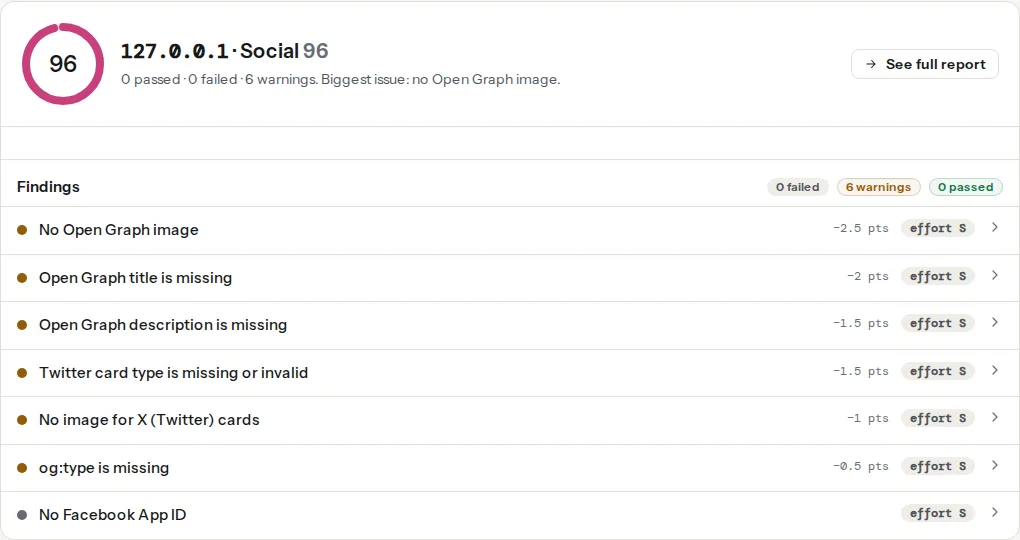
The three findings that decide whether a shared document looks like something worth opening:
> **Check: Open Graph image is present.** Without og:image, links shared on Facebook, LinkedIn, Slack and WhatsApp appear as plain text and get far fewer clicks.
>
> 1. Add <meta property="og:image" content="https://…/share.jpg"> with a 1200×630 px image.
> 2. Use an absolute https URL that is publicly reachable.
> **Check: Open Graph title is present.** og:title is the headline of the card Facebook, LinkedIn, Slack and WhatsApp show for a shared link. Without it they fall back to the page <title>, or show the bare URL.
>
> 1. Add <meta property="og:title" content="…"> with the page's headline in under 60 characters.
> 2. In WordPress, Yoast and Rank Math set it under the page's Social tab.
> **Check: Open Graph description is present.** og:description is the one or two lines under the headline of a shared link. Without it the card shows only a title, or a random sentence from the page.
>
> 1. Add <meta property="og:description" content="…"> with 1–2 sentences (under 200 characters) that say what the page offers.
> 2. Reuse the meta description if it reads well as a teaser.
For the landing page's search side (a title, a meta description, a canonical, indexability) run the [SEO audit](https://getreport.app/tools/seo-audit) on the same address.
## Step by step
### 1. Make a landing page per document
One HTML page per important document: the annual report, the price list, the menu, each whitepaper. It needs:
- A clear heading that says what the document is and how current it is ("Price list 2026, valid from 1 March").
- Two or three sentences on what is inside and who it is for.
- The cover image, shown on the page and used as `og:image`.
- A download button with the file type and size ("Download PDF, 2.4 MB"), which also meets the reader's expectation on a phone.
- Optionally the key content as HTML (the prices, the table of contents, the summary), which helps search and accessibility more than the PDF can.
The file stays at its current address, so existing links keep working. The head of the landing page:
```html
<head>
<title>Price list 2026 – Example Joinery
```
And in the body, a plain link to the file:
```html
Download the price list (PDF, 2.4 MB)
```
### 2. Make the cover image from page 1
A 1200×630 px image is the shape Facebook, LinkedIn and X show largest. A portrait A4 page does not fit that shape, so either crop the top of it or place the whole page on a background. With Poppler's `pdftoppm` and ImageMagick 7 (`convert` instead of `magick` on ImageMagick 6):
```bash
# Render page 1 at 150 dpi to cover.jpg
pdftoppm -jpeg -r 150 -f 1 -l 1 -singlefile price-list-2026.pdf cover
# Option A: the whole page, centred on a light background
magick cover.jpg -resize x560 -background '#f4f1ea' -gravity center -extent 1200x630 -quality 85 price-list-2026.jpg
# Option B: the top of the page, where the title usually is
magick cover.jpg -resize 1200x630^ -gravity north -extent 1200x630 -quality 85 price-list-2026.jpg
```
Option A reads as "this is a document" at a glance, which sets the right expectation; option B shows more detail but can cut the title in half on some layouts, so check it. Keep important text away from the edges, because platforms crop differently: [Open Graph images: size and safe area](https://getreport.app/guides/open-graph-images-size-safe-area) has the margins. Export as JPEG, not WebP, so every platform can show it. For dozens of documents, run the same commands in your build, or follow [generating OG images automatically](https://getreport.app/guides/generating-og-images-automatically).
### 3. Give the PDF itself a real title
Google indexes PDFs and shows them in results, and the title it shows often comes from the document's Title property or its first heading, not the file name. Set it before exporting (in Word: File → Info → Properties → Title) or afterwards:
```bash
exiftool -Title="Price list 2026 – Example Joinery" price-list-2026.pdf
```
Good file names help too: `price-list-2026.pdf`, not `Final_v3_NEW(2).pdf`. They show in chats, in downloads folders and in the address bar.
### 4. Decide what search should show
You now have two addresses for the same subject. Two reasonable setups:
- **Both indexed.** The landing page ranks for the topic, the PDF for people searching inside documents. The landing page's canonical points to itself. This is the default and is fine for most sites.
- **Only the landing page.** Send `X-Robots-Tag: noindex` on the PDF so it drops out of search, and make sure the landing page is indexable and canonical to itself. Google documents the header for non-HTML files on [its robots meta tag page](https://developers.google.com/search/docs/crawling-indexing/robots-meta-tag).
On nginx, in the `server` block:
```nginx
location ~* \.pdf$ {
add_header X-Robots-Tag "noindex" always;
}
```
On Apache, in `.htaccess` at the site root (with `mod_headers`):
```apache
Header set X-Robots-Tag "noindex"
```
### 5. Share the page, everywhere
Update the links in emails, ads, QR codes and social posts to the landing page. Keep the direct file link for places where people expect a download (an email to a client who asked for the file, a "Downloads" list).
## Platform notes
### WordPress
WordPress creates an attachment page for every uploaded file, and for years those were the accidental landing pages of PDFs: a thin page with the file name as the title. Since WordPress 6.4 new sites have attachment pages turned off; older sites often still have them, and SEO plugins can redirect them (Yoast: Settings → Advanced → Media pages; Rank Math: General Settings → Links → Redirect Attachments). [WordPress attachment pages](https://getreport.app/guides/wordpress-attachment-pages) explains the choice. Either way, an attachment page is not a landing page: create a normal page with the cover, the summary and the download button, and link to the file from there. The file stays in the media library at its current address.
### Shopify
Files uploaded under Content → Files are served from Shopify's CDN with no page around them. Create a page (Online Store → Pages) per document with the summary and a link to the file, and set the page's image through the theme or the SEO fields so it carries its own share image.
### Static sites / custom
Generate the landing page and the cover image in the same build step from a small data file (title, summary, file path), so adding a document is one entry. Set long cache headers on the files and give each new version a new file name.
## Verify
- The link preview checker on the landing page shows the Open Graph title, description and image as passed, with the image at 1200×630.
- The same checker on the PDF address still shows every tag missing. That is expected; the file is not what you share.
- The Facebook Sharing Debugger and LinkedIn's Post Inspector show the cover image and title for the landing page.
- `curl -sI https://example.com/files/price-list-2026.pdf | grep -i x-robots-tag` prints `noindex` if you chose the "only the landing page" setup, and nothing otherwise.
## Common mistakes
- **Sharing the file URL in ads and newsletters.** Symptom: the ad or post has no image and the click lands in a PDF viewer with no way back to the site. Share the landing page.
- **A WebP cover image.** Symptom: the card shows no picture in some apps. Use JPEG or PNG for `og:image`.
- **Noindexing the PDF and leaving the landing page unfindable.** Symptom: the document disappears from search entirely. The landing page needs to be indexable, canonical to itself and linked from the site.
- **A new file name for every small revision without a redirect.** Symptom: old links in emails and on other sites return 404. Keep a stable address for "the current price list", or redirect old versions to the landing page.
- **Using the attachment page as the landing page.** Symptom: the shared card shows the file name and a generic image. Build a real page with a written title, a summary and a cover.